“How can I add our company logo to my Outlook email signature so it displays consistently across all my messages?” This question frequently arises when organizations want to maintain professional branding standards and ensure their team members present a unified corporate image in email communications.
Insert images into your Outlook signatures
Many professionals struggle with creating visually appealing email signatures that include company logos, headshots, or branded graphics in Microsoft Outlook. The challenge extends beyond simply inserting an image, as users need to ensure proper formatting, appropriate sizing, and consistent display across different email clients and devices. Organizations often require standardized signature formats that include multiple visual elements while maintaining professional appearance and fast loading times.
This tutorial will demonstrate how to create email signature in Outlook 365 and desktop versions with integrated images and logos. You will learn to insert pictures in Outlook email signatures, manage image sizing and positioning, and troubleshoot common display issues. The process covers both manual signature creation and automated deployment methods for business environments. Prerequisites include administrative access to your Outlook application and having your signature images saved in standard formats like PNG, JPG, or GIF with recommended dimensions of 300×100 pixels or smaller for optimal performance.
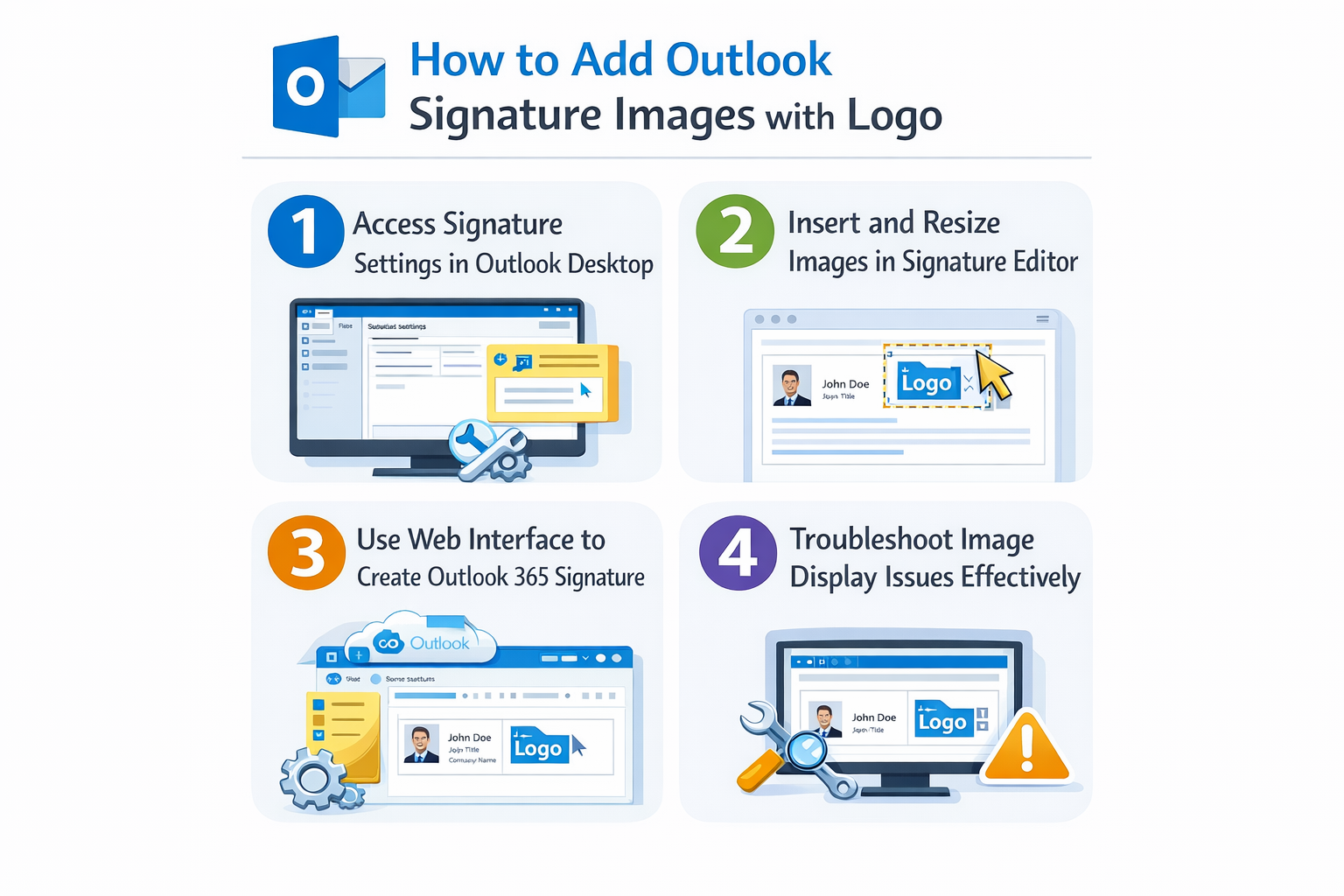
Create Outlook signature with images using desktop application
The desktop version of Outlook provides the most comprehensive options for creating sophisticated email signatures with embedded images and logos.
Access Outlook signature image generator settings
- Navigate to the File tab in your Outlook desktop application and select Options from the left sidebar menu to access the comprehensive settings panel.
- Click on Mail in the Options dialog box, then locate and select the Signatures button in the Compose messages section to open the signature management interface.
- Select New in the Signatures and Stationery dialog box to create a fresh signature template, then enter a descriptive name like “Company Logo Signature” for easy identification.
- Choose your new signature from the list and begin formatting in the Edit signature text box, where you can add text content before inserting your image elements.
Insert picture in Outlook email using signature editor
- Position your cursor where you want the image to appear within your signature text, typically at the beginning or end of your contact information block.
- Click the Insert Picture icon in the signature editor toolbar, which appears as a small landscape image symbol next to the formatting options.
- Browse to locate your saved logo or image file on your computer, select the appropriate file, then click Insert to embed the image directly into your signature.
- Right-click on the inserted image to access formatting options, select Picture Properties, then adjust the size by entering specific width and height values or using percentage scaling.
Expert Tip: Keep signature images under 50KB and 300 pixels wide to ensure fast loading and professional appearance across all email clients and mobile devices.
Add image to Outlook signature desktop with formatting controls
- Use the resize handles around your inserted image to manually adjust dimensions while maintaining aspect ratio by holding the Shift key during resizing operations.
- Select your image and use the alignment buttons in the signature editor to position it left, center, or right within your signature layout structure.
- Add a hyperlink to your company website by right-clicking the image, selecting Hyperlink, then entering your destination URL in the Address field for enhanced functionality.
- Configure your signature assignment by selecting it from the dropdown menus for New messages and Replies/forwards to ensure consistent application across all email communications.
Outlook 365 signature image implementation through web interface
Microsoft Outlook 365 offers browser-based signature creation tools that provide flexibility for users working across multiple devices and platforms.
Create email signature in Outlook 365 with web-based tools
- Access Outlook 365 through your web browser and click the Settings gear icon in the upper right corner, then select View all Outlook settings from the dropdown menu.
- Navigate to Mail in the settings panel, then select Compose and reply from the left sidebar to access signature creation and management options.
- Click the plus sign under Email signature to create a new signature template, then use the rich text editor to format your basic contact information and text content.
- Click the Insert Pictures icon in the formatting toolbar, which allows you to upload images directly from your computer or select from online sources like OneDrive.
- Upload your logo or signature image by clicking Browse, selecting your file, then clicking Insert to embed it within your signature template at the desired location.
Important Tip: Outlook 365 web interface automatically optimizes uploaded images, but starting with properly sized images ensures better control over final appearance and loading performance.
Outlook email signature with logo optimization techniques
- Select your inserted image and use the resize handles to adjust dimensions, ensuring the logo maintains professional proportions relative to your text content.
- Right-click on your image and select Image Properties to access advanced settings including alternative text, which improves accessibility and provides fallback descriptions.
- Use the alignment options in the formatting toolbar to position your logo appropriately within your signature layout, considering both aesthetic appeal and functional readability.
- Test your signature by composing a new email and verifying that the image displays correctly, loads quickly, and maintains quality across different viewing scenarios.
- Save your signature settings and configure automatic insertion for new messages and replies to ensure consistent branding across all your email communications.
Common Outlook signature image display issues
Even with proper setup, users frequently encounter challenges with signature image display, formatting consistency, and cross-platform compatibility that require systematic troubleshooting approaches.
- Image not displaying in sent emails: Verify that your image file format is supported by checking that you are using JPG, PNG, or GIF formats, and ensure file sizes remain under 100KB for optimal compatibility across email clients and networks.
- Signature images appearing oversized or distorted: Access your signature editor and manually adjust image dimensions using specific pixel values rather than percentage scaling, typically maintaining widths between 200-400 pixels for professional appearance and readability.
- Recipients cannot see embedded signature images: Check your email sending format by navigating to File > Options > Mail > Message format and selecting HTML instead of Plain Text, which is required for image display in email signatures.
- Signature formatting breaks when replying or forwarding: Configure separate signature templates for new messages and replies by accessing signature settings and ensuring both dropdown menus have appropriate signatures selected for consistent formatting across all email types.