
“I need to coordinate project deadlines with my team, but we always reference work by week numbers. How can I display week numbers in my Outlook calendar on Windows 11 to make scheduling easier?”
Enable week number display in Outlook M365 for enhanced productivity
Many organizations use week numbers for project planning, reporting cycles, and deadline management. Without visible week numbers in your calendar view, coordinating schedules and communicating timeframes becomes unnecessarily complicated.
This tutorial covers how to add week numbers to your Outlook calendar in both the classic Outlook application and the new Outlook for Windows 11. You’ll learn to enable week number display in different calendar views and customize the settings to match your business needs.
Prerequisites required: Windows 11 with Outlook installed (either classic Outlook or new Outlook), active Microsoft 365 subscription, and basic familiarity with Outlook calendar navigation.
Note: We’ll use both the classic Outlook desktop application and the new Outlook app to demonstrate the configuration process across different Outlook versions.
Configure week numbers in new and classic Outlook apps
Enable week numbers in classic Outlook calendar view
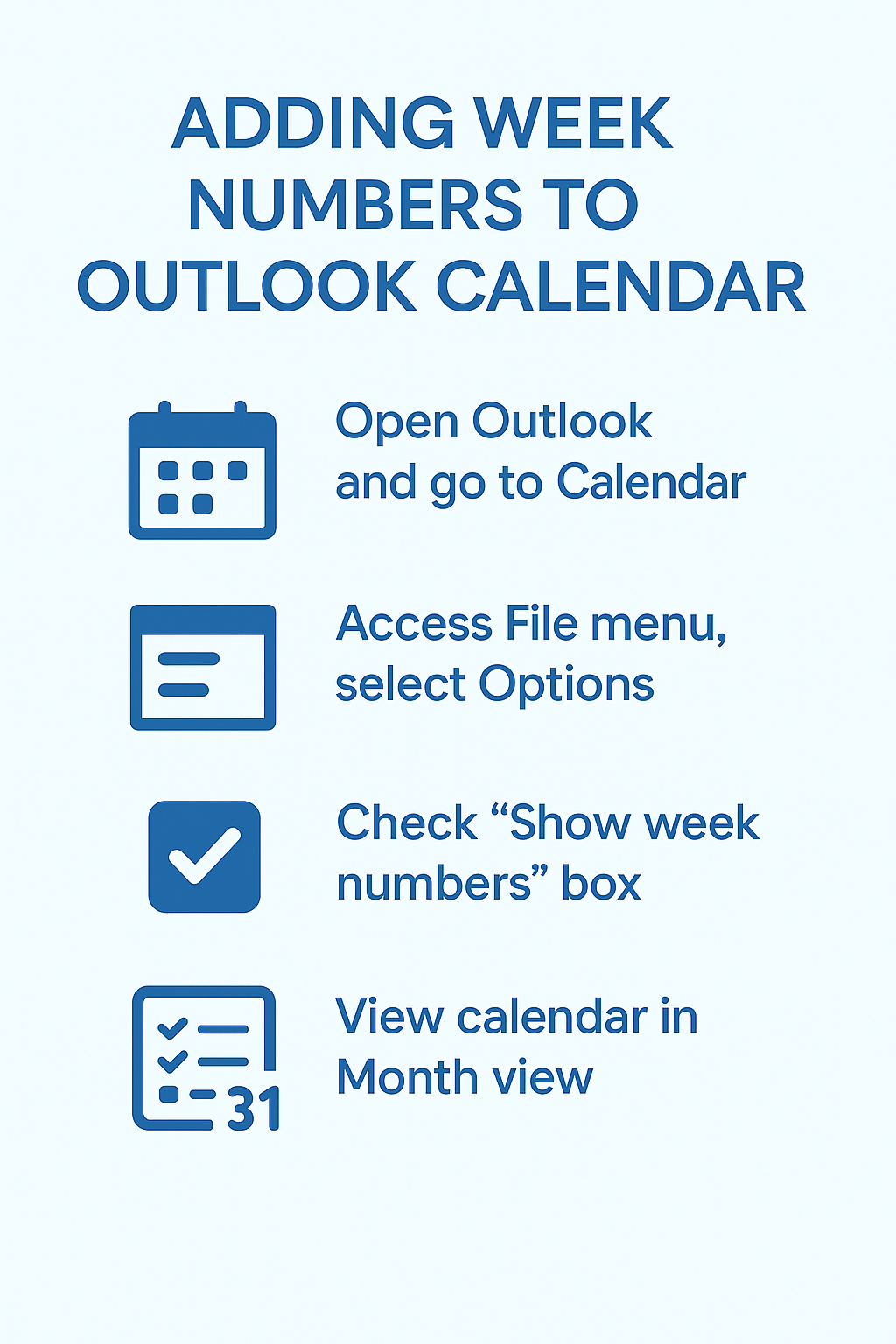
• Open the classic Outlook application from your Windows 11 Start menu or taskbar and navigate to the Calendar section by clicking the calendar icon in the bottom navigation pane.
• Access the File menu from the ribbon interface and select Options from the left-hand menu to open the comprehensive Outlook Options dialog box.
• Click on Calendar in the left navigation panel of the Options window to display all calendar-related configuration settings and preferences.
• Locate the Display options section within the Calendar options and find the checkbox labeled “Show week numbers in the month view and in the Date Navigator.”
• Check this box to enable week number display, then click OK to save your changes and return to the main Outlook calendar interface.
• Switch to Month view by clicking the Month button in the View ribbon tab to see week numbers displayed along the left side of your calendar grid.
Expert Tip: Week numbers in Outlook follow the ISO 8601 standard, where the first week of the year contains the first Thursday of January, ensuring consistent international date references.
Add week numbers to new Outlook for Windows 11
• Launch the new Outlook application from Windows 11 by searching for “Outlook (new)” in the Start menu or clicking the Outlook icon if it’s pinned to your taskbar.
• Navigate to the Calendar section by clicking the Calendar icon in the left sidebar navigation panel of the new Outlook interface.
• Click the Settings gear icon located in the top-right corner of the new Outlook window to access the application settings and configuration options.
• Select Calendar from the settings menu categories to access calendar-specific display and behavior options within the new Outlook application.
• Scroll down to find the “Week numbers” toggle switch within the Calendar settings section and enable this option to display week numbers in your calendar views.
• Return to your calendar view and switch to Month view to see the week numbers displayed prominently along the left margin of the calendar grid.
Configure week numbers in Windows 11 default calendar app
• Open the Windows 11 Calendar app by typing “Calendar” in the Start menu search or clicking the Calendar tile if it’s pinned to your Start menu.
• Click the Settings gear icon typically located in the bottom-left corner of the Calendar app interface to access application preferences and display options.
• Look for calendar display options within the Settings menu and locate the week number configuration toggle or checkbox option.
• Enable the week number display option and close the Settings panel to return to your main calendar view with week numbers now visible.
• Switch between different view modes (Month, Week, Day) to see how week numbers appear consistently across various calendar layouts and perspectives.
Customize week number settings in Outlook calendar views
Optimize week number display for different calendar perspectives
• Access the View ribbon tab in classic Outlook and experiment with different calendar layouts including Work Week, Week, and Month views to see how week numbers adapt to each display format.
• Right-click on the calendar area in Month view to access context menu options that may include additional week number formatting or display preferences.
• Use the zoom controls in your calendar view to adjust the size and readability of week numbers, especially when working with smaller screen resolutions or multiple monitor setups.
• Configure the Date Navigator (the small calendar panel) to also display week numbers by ensuring your week number settings apply to both the main calendar and navigation elements.
• Test the week number display across different calendar folders if you maintain multiple calendars for different projects, teams, or personal scheduling needs.
Important Tip: Week numbers remain visible when printing your Outlook calendar, making them useful for physical planning documents and meeting handouts.
Leverage Outlook Copilot with week number references
• When using Outlook Copilot for scheduling assistance, reference specific week numbers in your prompts such as “Schedule team meeting in week 42” for more precise planning.
• Ask Outlook Copilot to help identify available time slots within specific weeks by using prompts like “Find available meeting times in week 35 for the marketing team.”
• Use week number references when creating recurring appointments or events through Copilot, enabling more systematic scheduling patterns across your organization.
• Combine week number visibility with Copilot’s scheduling suggestions to streamline project timeline management and deadline coordination with team members.
Troubleshoot week number display issues in Outlook calendar
• Week numbers not appearing after enabling the setting may indicate you need to restart Outlook completely and clear any cached display preferences before the changes take effect properly.
• If week numbers show incorrectly or don’t align with your organization’s week numbering system, check your Windows 11 regional settings to ensure the correct locale and calendar standards are configured.
• New Outlook users experiencing missing week number options should verify they’re using the latest version of the application, as this feature may require recent updates to function correctly.
• Calendar synchronization issues between devices might cause week numbers to display inconsistently, requiring you to enable the setting on each device where you access your Outlook calendar.
• Users with multiple Microsoft 365 accounts may need to configure week number settings separately for each account profile within their Outlook application to maintain consistent display preferences.
• If week numbers appear in some calendar views but not others, manually switch between Month, Week, and Work Week views while checking that your display settings apply universally across all calendar perspectives.
• Corporate Outlook installations with group policy restrictions might prevent individual users from modifying week number display settings, requiring administrator assistance to enable this calendar enhancement feature.