Why Teams won’t open automatically on startup ?
You’re trying to start your workday, but Microsoft Teams simply refuses to launch. Whether you’re clicking the desktop icon repeatedly or waiting for Teams to start automatically during Windows startup, nothing happens. This frustrating scenario affects thousands of users daily, especially after Windows updates or when switching between different Microsoft 365 accounts. The application might appear to load briefly in the task manager before disappearing, or it might not respond at all when you try to open it.
Teams not opening on computer creates workflow disruptions
When Microsoft Teams won’t start automatically or fails to open entirely, it disrupts your entire collaboration workflow. Your team meetings become inaccessible, chat notifications go unnoticed, and file sharing grinds to a halt. This issue commonly stems from corrupted cache files, conflicting startup programs, outdated application versions, or Windows permission problems. The problem becomes particularly critical for remote workers who rely on Teams Outlook plugin functionality and Teams loading properly for daily communication and project coordination across their organization.
In today’s post we will cover cache clearing, startup configuration adjustments, permission repairs, and complete application re-installation methods to solve this issue.
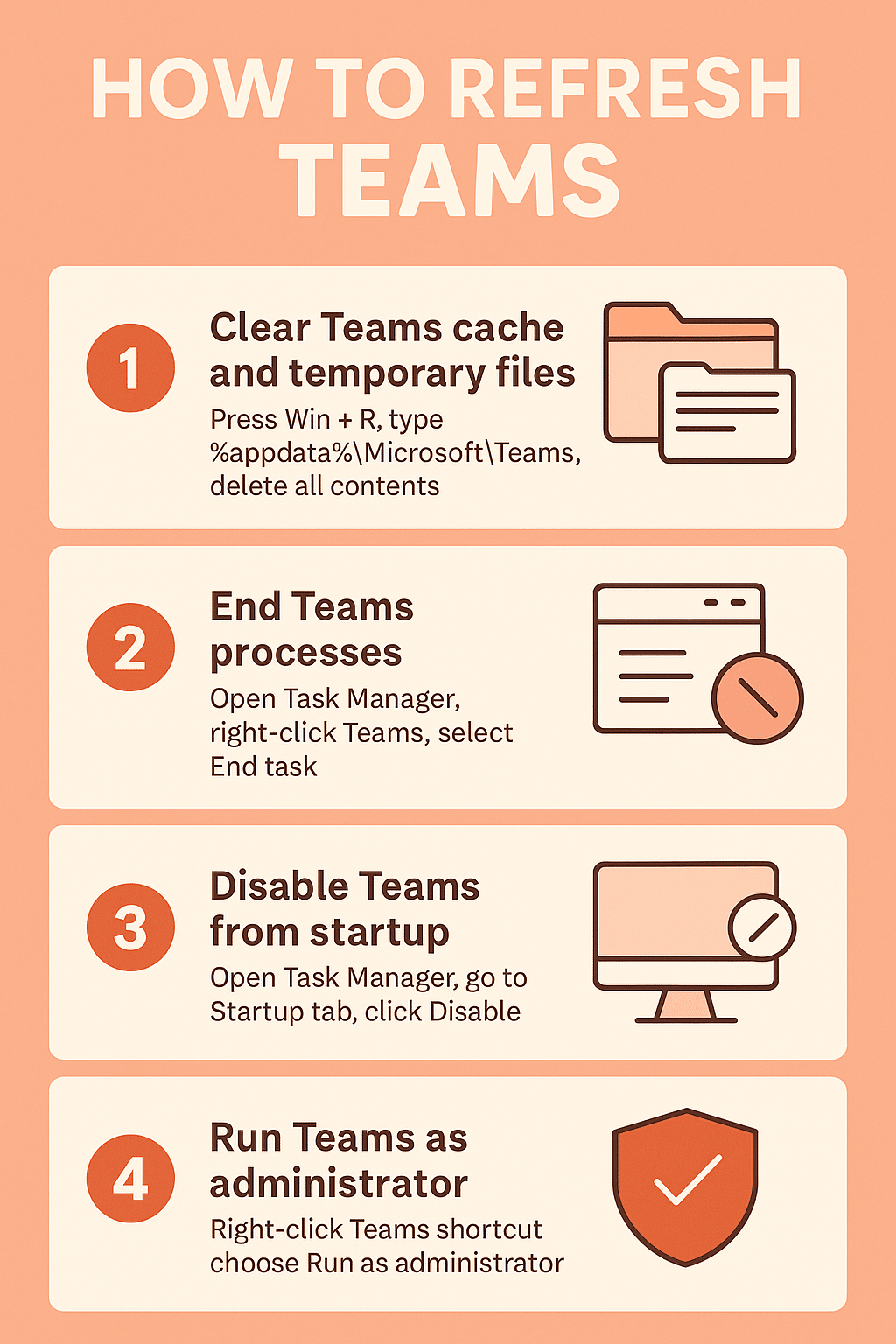
Step-by-step solutions when not able to open Teams
- Clear Teams cache and temporary files completely by pressing Windows + R, typing %appdata%\Microsoft\Teams, and deleting all contents in the folder, then navigate to %localappdata%\Microsoft\Teams and remove those files as well
- End all Teams processes in Task Manager by pressing Ctrl + Shift + Esc, finding any Microsoft Teams processes under both “Processes” and “Details” tabs, right-clicking each one, and selecting “End task” to ensure no background instances are running
- Disable Teams from Windows startup temporarily by opening Task Manager, clicking the “Startup” tab, finding Microsoft Teams, right-clicking it, and selecting “Disable” to prevent automatic startup conflicts during troubleshooting
- Run Teams as administrator to bypass permission issues by right-clicking the Teams desktop shortcut or executable file, selecting “Run as administrator,” and allowing the application elevated privileges to access necessary system resources
- Update Teams to the latest version by downloading the newest installer from the official Microsoft Teams website, uninstalling the current version through Windows Settings > Apps, and performing a clean installation with the updated files
- Check Windows compatibility and system requirements by verifying your operating system meets Teams minimum requirements, ensuring Windows is updated to the latest version, and confirming sufficient disk space and memory are available
- Reset Windows Store apps if using Teams from Microsoft Store by opening Windows Settings, navigating to Apps > Apps & features, finding Microsoft Teams, clicking “Advanced options,” and selecting “Reset” to restore default application settings
- Configure Windows Defender or antivirus exclusions by adding the Teams installation directory and user profile folders to your security software’s exclusion list to prevent interference with application startup and operation
Tip: Create a backup of your Teams settings by exporting your chat history and custom configurations before performing major troubleshooting steps, ensuring you can restore your personalized setup after resolving startup issues.
Troubleshooting Teams Classic vs New Teams not opening up
If you’re experiencing startup issues, the problem might be related to which version of Teams you’re running. Microsoft has been transitioning users from Teams Classic to the new Teams app, and this migration can cause conflicts:
- Check your Teams version by looking at the app icon – the new Teams has a purple background while Teams Classic uses blue
- Switch between versions using the toggle in the upper-left corner of Teams Classic, or download the new Teams directly from the Microsoft Store
- Uninstall conflicting versions by removing both Teams Classic and new Teams through Windows Settings > Apps, then reinstalling only the version your organization supports
- Clear cache for both versions since they store data in different locations – new Teams uses Windows app data while Classic uses the traditional AppData folder
- Teams appears in Task Manager but no window opens often indicates corrupted user profile data or graphics driver conflicts, requiring you to clear the Teams cache completely, update your graphics drivers through Device Manager, and restart your computer before attempting to launch Teams again
- Error message “We’re sorry—we’ve run into an issue” during startup typically results from authentication token problems or network connectivity issues, which you can resolve by signing out of all Microsoft accounts, clearing browser cookies, restarting your network adapter, and signing back into Teams with fresh credentials
- Teams starts but immediately crashes or closes usually stems from conflicting third-party applications or insufficient system resources, requiring you to boot Windows in Safe Mode, disable startup programs one by one through Task Manager, identify the conflicting software, and either update or uninstall the problematic application
Teams Web App Alternative
When the desktop application fails completely, Microsoft Teams web version provides immediate access to your workspace:
- Access Teams through your browser by navigating to teams.microsoft.com and signing in with your Microsoft 365 credentials
- Enable browser notifications in Chrome, Edge, or Firefox to receive meeting alerts and chat messages while using the web version
- Install the web app as a PWA (Progressive Web App) by clicking the install icon in your browser’s address bar for a more app-like experience
- Configure microphone and camera permissions in your browser settings to ensure full meeting functionality works properly