Why is Windows 11 runs extremely slow?
Have you noticed your Windows 11 computer running extremely slow after it was working perfectly fine yesterday? This frustrating scenario affects millions of users who experience sudden performance drops without making significant system changes. For a quick solution, you can try to lower CPU usage in Windows 11 or fix slow boot time issues using proven methods. Your once-responsive machine now takes forever to open applications, boot up, or even respond to basic clicks. The sudden shift from smooth operation to sluggish performance can disrupt productivity and create unnecessary stress during important work sessions.
Understanding Windows 11 very sluggish behavior patterns
Windows 11 performance degradation rarely happens without cause, though the triggers aren’t always obvious to users. Background processes, automatic updates, storage issues, or hardware conflicts typically contribute to these sudden slowdowns. Identifying the root cause becomes crucial because temporary fixes won’t resolve underlying system problems. Modern computers should maintain consistent performance levels, so persistent sluggishness indicates specific issues requiring targeted solutions rather than general maintenance approaches.
Windows 11 moving really slow troubleshooting approach
We need a systematic approach to solve sluggish performance. We’ll examine task manager data, storage optimization, startup programs, and system file integrity. The process requires no advanced technical knowledge but demands patience during diagnostic phases. You’ll learn to identify resource-heavy processes, clean temporary files, and restore optimal system configuration settings that maintain long-term performance stability.
Windows 11 lag fix implementation steps
Open Task Manager by pressing Ctrl+Shift+Esc and click the “Processes” tab to identify applications consuming excessive CPU, memory, or disk resources that might cause system slowdowns.
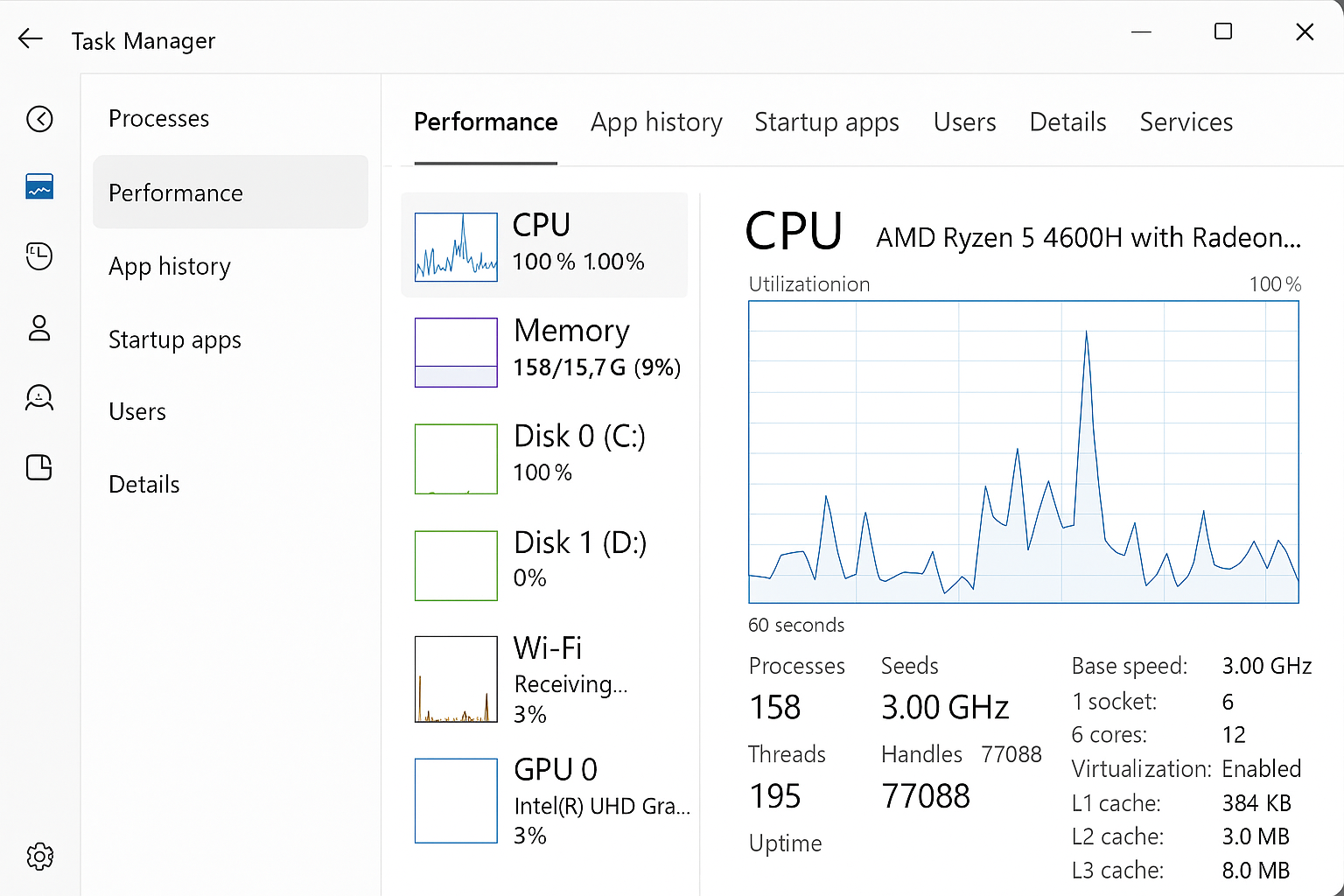
- Sort processes by CPU usage in descending order and look for applications consistently using more than 50% of your processor capacity without active user interaction or legitimate system functions.
- Right-click problematic applications and select “End task” for non-essential programs, but avoid terminating Windows system processes or antivirus software that protect your computer from security threats.
- Navigate to Settings > Apps > Startup and disable unnecessary programs that automatically launch during boot, particularly resource-intensive applications like gaming software, media players, or productivity suites you don’t immediately need.
- Open File Explorer and right-click your primary drive (usually C:), select “Properties,” then click “Disk Cleanup” to remove temporary files, system cache, and unnecessary data accumulating over time.
- Select all available cleanup categories including temporary files, recycle bin contents, system error memory dump files, and Windows Update cleanup to maximize storage space recovery and improve system responsiveness.
- Press Windows key + R, type “msconfig” and press Enter, then navigate to the “Services” tab and check “Hide all Microsoft services” before disabling non-essential third-party services.
- Run Windows Memory Diagnostic by typing “mdsched” in the Start menu, select “Restart now and check for problems” to identify potential RAM issues causing performance degradation during your next system boot.
Remember: Monitor your system for 24-48 hours after implementing these changes to ensure performance improvements persist and no critical functionality was accidentally disabled.
Windows 11 running slow troubleshooting solutions
• Windows Update conflicts often cause sudden performance issues, so navigate to Settings > Windows Update > Update history and uninstall recent updates if slowdowns began after specific installation dates.
• Driver incompatibilities frequently trigger system sluggishness, particularly graphics or network drivers, so visit Device Manager and look for devices marked with yellow warning triangles indicating problematic hardware connections.
• Malware infections can consume system resources invisibly, so run a full system scan using Windows Defender or your preferred antivirus software, ensuring real-time protection remains active during daily computer usage.
• Storage drive errors sometimes cause read/write delays that manifest as general system slowness, so open Command Prompt as administrator and run “chkdsk C: /f /r” to scan and repair disk errors.
• Background Windows services occasionally malfunction and consume excessive resources, so restart your computer in Safe Mode to determine if third-party software causes performance issues rather than core system problems.
• Registry corruption can impact system responsiveness, so run “sfc /scannow” in an elevated Command Prompt to check system file integrity and automatically repair corrupted Windows components affecting overall performance.
Important tip: Create a system restore point before making significant changes so you can easily revert modifications if they don’t resolve your performance issues or create new problems.
Important: Preventing Future Performance Issues
Windows 11 performance maintenance requires proactive measures to avoid recurring slowdowns. Schedule weekly disk cleanup operations using Task Scheduler to automatically remove temporary files and system cache. Enable Storage Sense in Settings > System > Storage to automatically free up space when storage runs low. Monitor startup programs monthly and remove applications you no longer use regularly, as software installations often add unnecessary startup entries without user awareness.
Be sure to conduct regular system updates, as those help maintain optimal performance. Configure Windows Update to install updates during off-hours when you’re not actively using the computer. Check for driver updates quarterly through Device Manager or manufacturer websites, particularly for graphics, audio, and network adapters that directly impact user experience. Keep your antivirus software updated but avoid running multiple security programs simultaneously, as they can conflict and consume excessive system resources.
Hardware-Related Performance Considerations
RAM usage patterns significantly affect Windows 11 responsiveness, especially on systems with 8GB or less memory. Monitor memory usage in Task Manager and consider upgrading to 16GB if you consistently use more than 80% of available RAM. Solid-state drives (SSDs) dramatically improve performance compared to traditional hard drives, particularly during boot times and application loading. If you’re still using a mechanical hard drive, migrating to an SSD represents the single most impactful hardware upgrade for overall system responsiveness.
Temperature monitoring becomes crucial for maintaining consistent performance, as thermal throttling can cause sudden slowdowns during intensive tasks. Use built-in Windows tools or third-party applications to monitor CPU and GPU temperatures, ensuring proper ventilation around your computer. Clean dust from vents and fans every six months to maintain optimal cooling performance, particularly for laptops where dust accumulation more readily impacts thermal management systems.