Introduction
“I’ve been having productive conversations with Microsoft 365 Copilot, and I need to save these chat sessions as PDF files for documentation and sharing with my team. The insights and solutions generated during these conversations, whether using Copilot in Teams chat or Copilot for meeting notes, are valuable for our project records, but I can’t figure out how to export or convert Copilot chat to PDF format. Is there a built-in way to save these conversations, or do I need a third-party solution?”
Problem to solve with Copilot chat conversion
Organizations increasingly rely on AI-powered conversations for problem-solving and decision-making. However, Microsoft 365 Copilot doesn’t provide a direct export feature for chat sessions (yet). This creates challenges when teams need to document AI-generated insights, share solutions with stakeholders, or maintain records for compliance purposes. Without proper archiving methods, valuable conversations with Copilot can be lost or become difficult to reference later.
Today we will cover multiple methods to convert Copilot chat to PDF using browser tools, extensions, and manual techniques. Most reliable approaches include browser print functions, specialized PDF extensions, and copy-paste methods for different Copilot interfaces. The solution works across Microsoft 365 Copilot in various applications including Teams, Word, and the web interface.
Step-by-step implementation to save GitHub Copilot chat
Method 1: Browser print function
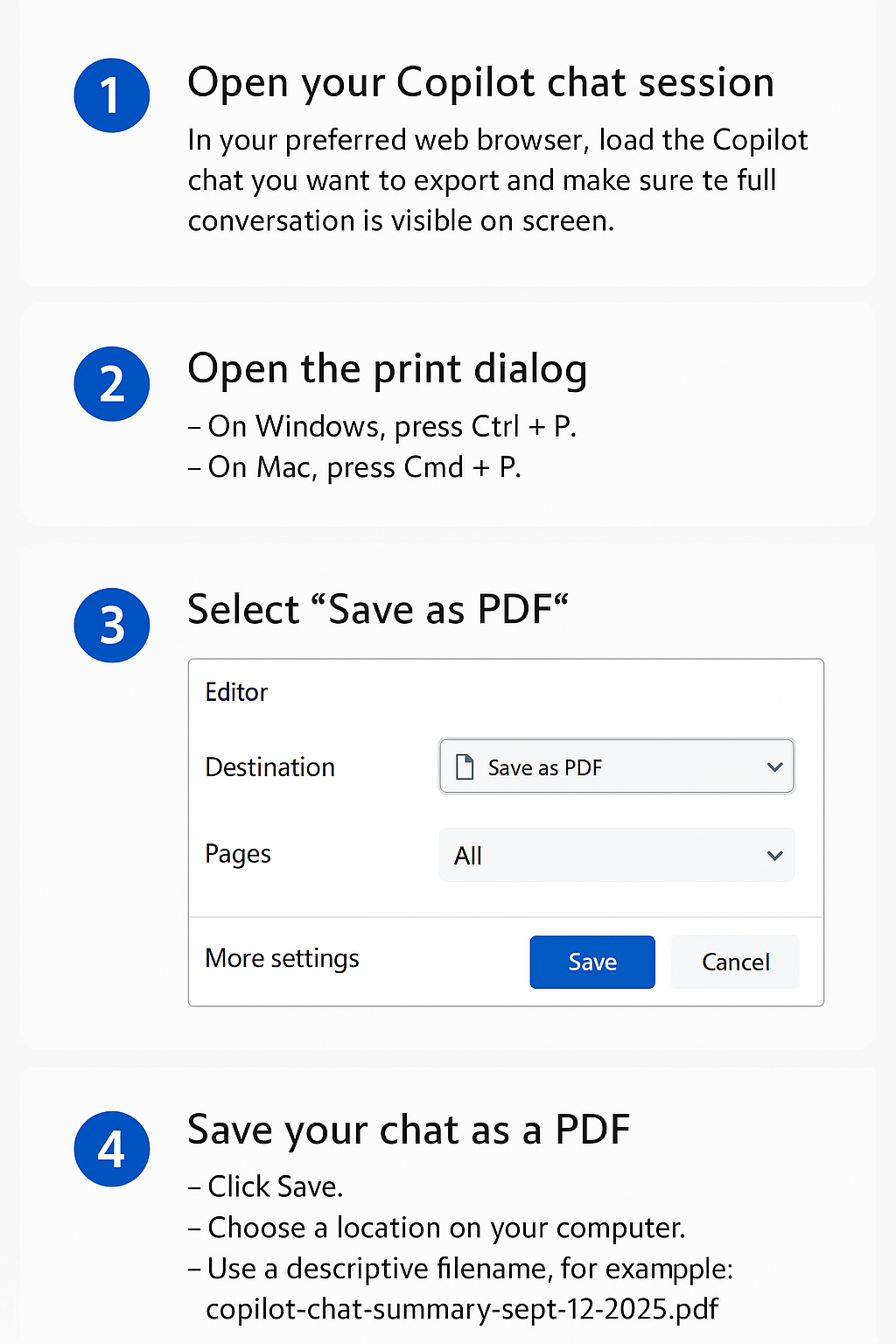
- Open your Microsoft 365 Copilot chat session in your preferred web browser and ensure the complete conversation is visible on screen.
- Press Ctrl+P (Windows) or Cmd+P (Mac) to open the print dialog, then select “Save as PDF” from the destination dropdown menu.
- Adjust the print settings by selecting “More settings” and choose “Selection only” if you want to save specific portions of the chat.
- Click the “Save” button and choose your desired location to store the PDF file with a descriptive filename that includes the date.
Method 2: Using Copilot to PDF extension
- Install a browser extension like “Print Friendly & PDF” or “Save as PDF” from your browser’s extension store for enhanced formatting options.
- Navigate to your Copilot chat session and click the extension icon in your browser toolbar to activate the PDF conversion tool.
- Use the extension’s editing tools to remove unnecessary elements like navigation bars, advertisements, or sidebar content that might clutter your PDF.
- Select the “Download PDF” or “Save PDF” option within the extension interface to generate and save your formatted document.
Method 3: Copy Copilot chat manually
- Select all the chat content by pressing Ctrl+A (Windows) or Cmd+A (Mac) to highlight the entire conversation thread.
- Copy the selected content using Ctrl+C (Windows) or Cmd+C (Mac) and open a new document in Microsoft Word or Google Docs.
- Paste the content using Ctrl+V (Windows) or Cmd+V (Mac) and format the document by adjusting fonts, spacing, and adding headers as needed.
- Save the document as PDF by going to File > Export > Create PDF/XPS or File > Download > PDF Document depending on your application.
Aside: Use Copilot on PDF for VSCode integration
- If using GitHub Copilot in VSCode, open the Command Palette with Ctrl+Shift+P and search for “Copilot: Show Chat” to access conversations.
- Right-click within the chat panel and select “Copy” or use Ctrl+A to select all content before copying to clipboard.
- Create a new file in VSCode with a .md extension and paste the chat content, then use a Markdown to PDF extension.
- Install extensions like “Markdown PDF” from the VSCode marketplace and use the command “Markdown PDF: Export (pdf)” to convert your saved chat.
Frequently Asked Questions
Can I automate the process of saving multiple Copilot chats at once?
Currently, Microsoft 365 Copilot doesn’t support batch export functionality. You’ll need to save each conversation individually using the methods outlined. Consider using browser automation tools like Power Automate Desktop to record and replay the print-to-PDF sequence if you regularly archive multiple sessions.
Will my saved PDF files include timestamps and user attribution?
Timestamps and usernames appear in the PDF only if they’re visible in the original chat interface when you capture it. Before printing, scroll to ensure all metadata loads properly. Some Copilot interfaces hide timestamps by default, so you may need to hover over messages to display them, then take a screenshot approach instead of direct printing.
How do I preserve code blocks and special formatting in the PDF?
Use the copy-paste method into Microsoft Word rather than direct browser printing. Word better preserves code block formatting from Copilot responses. After pasting, apply the “Code” style to any code sections before exporting to PDF to maintain monospace fonts and proper indentation.
Troubleshooting common issues Copilot chat export
- Chat content appears cut off or incomplete in the PDF: Scroll through the entire conversation before printing to ensure all content loads properly, as some chat interfaces use lazy loading that only displays visible portions.
- Formatting looks messy or unreadable in the exported PDF: Use browser developer tools (F12) to hide unnecessary page elements before printing, or copy the text content into a word processor for better formatting control.
- PDF extension fails to capture dynamic content or shows blank pages: Disable browser extensions temporarily that might interfere with page rendering, clear your browser cache, and try the native browser print function as an alternative method.
Recommendation: Create a dedicated folder structure for organizing your Copilot chat PDFs by date, project, or topic to maintain easy access to your AI conversation history for future reference.
Create a PDF that can be audited later
Printing a Copilot conversation to PDF captures what is visible now; it does not create a live, synchronized archive. Before printing, expand any collapsed sections, wait for responses to finish, and verify that code blocks, citations, tables, and long lines are visible. Use the browser’s print preview to inspect page breaks, margins, orientation, and whether background graphics are needed.
Give the file a name that includes the topic and date, not confidential prompt text. Save it to an approved location when the conversation belongs to a project or organization. If the chat contains sensitive data, confirm that the destination’s access and retention settings are appropriate.
Verify the exported conversation
Open the saved PDF in a different viewer and check the first page, final page, links, and any wide code or table content. Browser printing can clip horizontally scrolling content or omit interface elements. When formatting is essential, copy the relevant response into Word, apply accessible headings and page breaks, and export that reviewed document as PDF.
Use this checklist before sharing:
Do not install an browser extension only to gain an export button. Extensions can request access to page content, including the conversation you are trying to protect. Prefer the browser’s built-in print function or an organization-approved document workflow.
A PDF is a snapshot, so later edits to the Copilot chat will not appear in it. If the conversation supports a decision, keep the approved conclusion in the project’s system of record and treat the PDF as supporting evidence, not the only authoritative copy.