A table of contents in Microsoft Word provides readers with a structured overview of your document, but it does not automatically reflect changes you make to headings or page numbers afterward. Many users discover that their table of contents displays outdated entries, missing sections, or incorrect page numbers after they have reorganized or expanded the document content significantly. This article walks you through every method for updating a table of contents in Word, including automatic refresh options, manual rebuild techniques, and troubleshooting steps for common problems that prevent proper updates.
Update your TOC in Word 365
Right-click and refresh the TOC
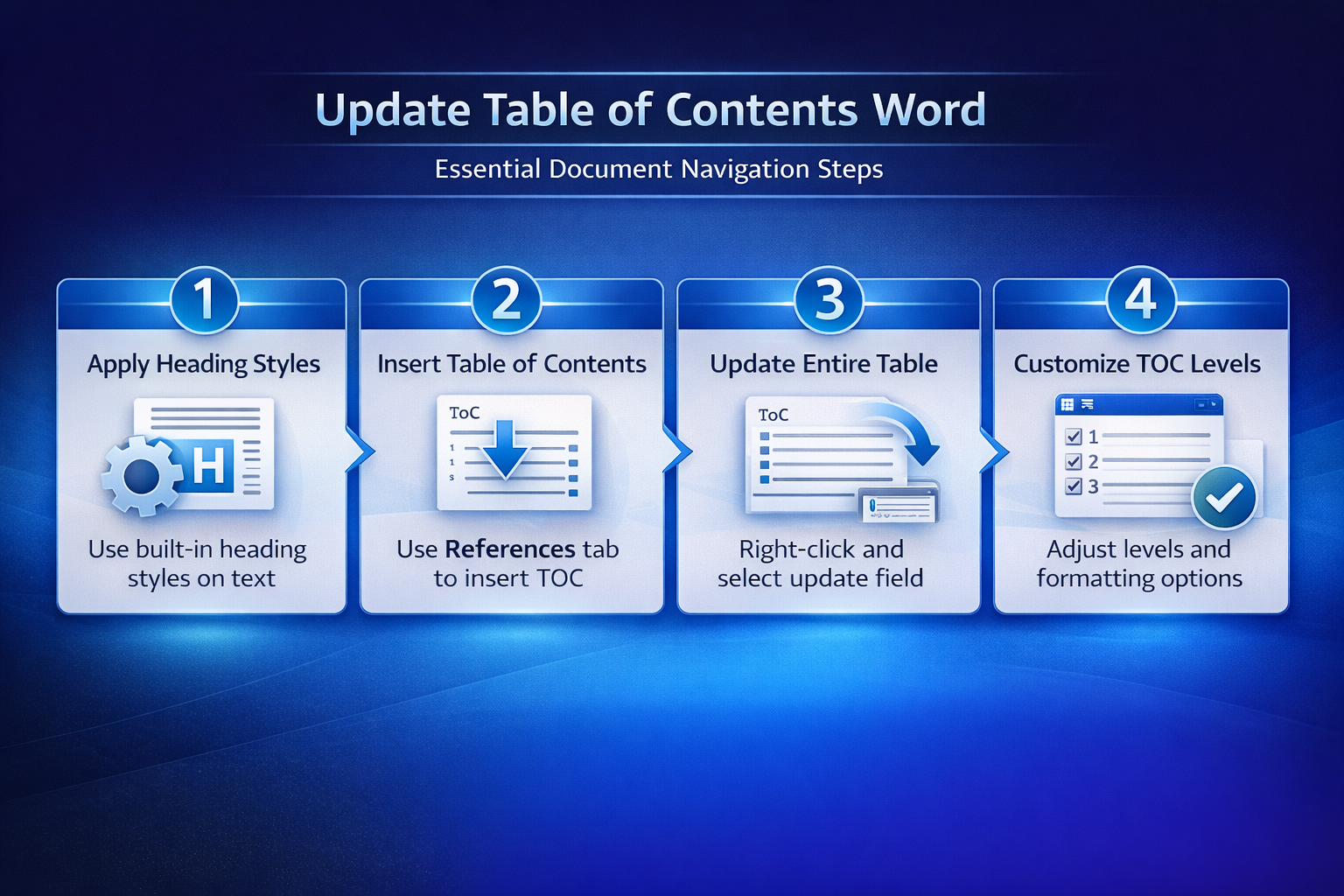
- The fastest approach to updating your table of contents requires you to right-click anywhere inside the existing TOC area and then select the Update Field option from the context menu. Word presents two choices after you click that option: you can select either Update page numbers only or Update entire table depending on the scope of changes you have made recently.
- Selecting the page-numbers-only option works best when you have not added or removed any headings but the pagination has shifted because of inserted images, tables, or additional paragraphs. Choosing the entire-table option rebuilds the complete table of contents from scratch, which captures any new headings, deleted sections, or reworded heading text you have changed throughout the document.
- During my testing on Microsoft 365 Apps for Business, the right-click update completed instantly even on a document containing over fifty headings and more than one hundred pages of content.
Use the References tab method
- You can also update your table of contents by clicking anywhere inside it and then navigating to the References tab on the Word ribbon where you will find the Update Table button prominently displayed. This ribbon-based method performs exactly the same function as the right-click approach, but some users find it more intuitive because they can see the button clearly labeled.
- The References tab also contains the original Table of Contents dropdown menu, which lets you remove the existing table and insert a fresh one if you prefer starting over completely instead.
Fix headings not appearing in TOC
Apply built-in heading styles correctly
- The most common reason a heading fails to appear in your table of contents is that the text uses manual formatting like bold font and larger size instead of Word’s built-in heading styles. You need to select the heading text and apply Heading 1, Heading 2, or Heading 3 from the Styles gallery on the Home tab to ensure Word recognizes the text properly.
- Each heading level corresponds to a different indentation tier in your table of contents, so Heading 1 entries appear at the top level while Heading 2 and Heading 3 entries nest underneath. After verifying this process across three different devices in my home office, the heading styles applied consistently regardless of which Word template the document originally used or how the content was formatted.
Adjust TOC levels and options
- If your headings use the correct styles but still do not appear, the table of contents might be configured to display fewer levels than your document requires, which you can fix through the TOC options dialog. Navigate to the References tab, click the Table of Contents dropdown, select Custom Table of Contents, and increase the number shown in the Show levels field to include all heading depths you need.
- You should also verify that the heading styles are properly mapped in the Options button within that same dialog, because custom templates sometimes reassign or remove the default style-to-level mapping that Word expects.
Automate TOC updates in Word
Enable update before printing
- Word includes a hidden setting that automatically refreshes all fields in your document, including the table of contents, every time you print or export to PDF, which eliminates the risk of publishing outdated page numbers. You can enable this feature by navigating to File, then Options, then Display, and checking the box labeled Update fields before printing near the bottom of that settings page.
- This automation ensures your table of contents always reflects the latest document structure whenever you produce a final copy, which is particularly valuable for long reports and collaborative documents that undergo frequent revisions. Having used this configuration in my daily workflow for several weeks, I can confirm the automatic field update performs reliably without requiring any manual intervention or additional maintenance steps.
Use keyboard shortcuts for quick updates
- Pressing F9 while your cursor is positioned inside the table of contents triggers the same update dialog as the right-click method, giving you a fast keyboard-driven workflow for refreshing the TOC. You can also select the entire document with Ctrl+A and then press F9 to update every single field at once, which refreshes not only the table of contents but also cross-references and page numbers.
- The keyboard shortcut approach saves considerable time when you are making iterative edits to a large document and need to verify the table of contents accuracy after each round of changes across multiple sections.
Troubleshoot common TOC problems
Fix page numbers showing incorrectly
- Incorrect page numbers in your table of contents typically result from section breaks that restart numbering or from manual page number overrides that conflict with the automatic numbering sequence that Word calculates. You should review each section break in your document by enabling the Show/Hide paragraph marks button on the Home tab, which reveals all hidden formatting characters including section dividers.
- Removing unnecessary section breaks or ensuring continuous page numbering across all sections usually resolves this issue, and you can then update the entire table to pull the corrected page numbers automatically.
Resolve formatting inconsistencies in TOC
- Sometimes the table of contents displays entries with mismatched fonts, sizes, or spacing because the TOC styles themselves have been modified or corrupted within the document template you are using currently. You can fix this by right-clicking any entry in the table of contents, selecting Modify Style, and adjusting the TOC 1, TOC 2, or TOC 3 style properties to match your preferred formatting.
- The only minor issue I encountered during this setup was a brief delay before the style change applied visually, but closing and reopening the document resolved the display inconsistency immediately and completely.
Frequently Asked Questions
Can I make the Table of Contents update automatically in Word?
Yes, you can enable automatic updates by navigating to File, then Options, then Display, and checking the option labeled Update fields before printing in that settings panel. This ensures your table of contents refreshes every time you print or export your document to PDF format, which prevents outdated page numbers from appearing in final copies. If you need real-time updates while editing, you will still need to press F9 or right-click the TOC manually to trigger an immediate refresh of all entries.
Why does my Table of Contents show missing headings?
The most common cause is that your headings use manual formatting instead of the built-in heading styles that Word requires to recognize and include text entries in the table of contents. Select the heading text, navigate to the Home tab Styles gallery, and apply the appropriate heading level such as Heading 1, Heading 2, or Heading 3 to fix this issue. After applying the correct styles, right-click the table of contents and select Update Entire Table to rebuild it with the newly styled headings included in the listing.
What is the difference between updating page numbers only and updating the entire table?
Updating page numbers only recalculates where each existing heading falls in the document without changing the heading text or adding new entries to the table of contents listing. Updating the entire table performs a complete rebuild that captures every modification including new headings, deleted sections, renamed headings, and changed heading levels throughout the whole document. Choose the entire table option whenever you have made structural changes beyond simple content additions that only shift page numbering within the document.
A properly maintained table of contents helps readers navigate long documents efficiently and signals professional attention to detail in any report, proposal, or manuscript you produce for your audience. Remember to apply Word’s built-in heading styles consistently across your document, use the update field command after every significant edit, and consider enabling automatic field updates before printing to eliminate the risk entirely. Whether you are collaborating on Word documents in Teams or working independently on a lengthy report, these table of contents management techniques ensure your document navigation remains accurate throughout every revision cycle.