Turn on Teams breakout rooms for enhanced collaboration
“Our training sessions need small group discussions, but we can’t figure out how to split participants into separate rooms during Microsoft Teams meetings. Is there a way to create these breakout sessions automatically?”
This question reflects a common need among educators, trainers, and meeting organizers who want to facilitate focused group work within larger Teams meetings. Many users discover that breakout room functionality exists but struggle with the setup process and management options available in different Teams environments.
Create breakout rooms in Teams: understanding the solution
Microsoft Teams breakout rooms enable meeting organizers to divide participants into smaller, separate discussion spaces during scheduled meetings. This functionality proves essential for educational institutions, corporate training sessions, and collaborative workshops where targeted group discussions enhance overall meeting effectiveness.
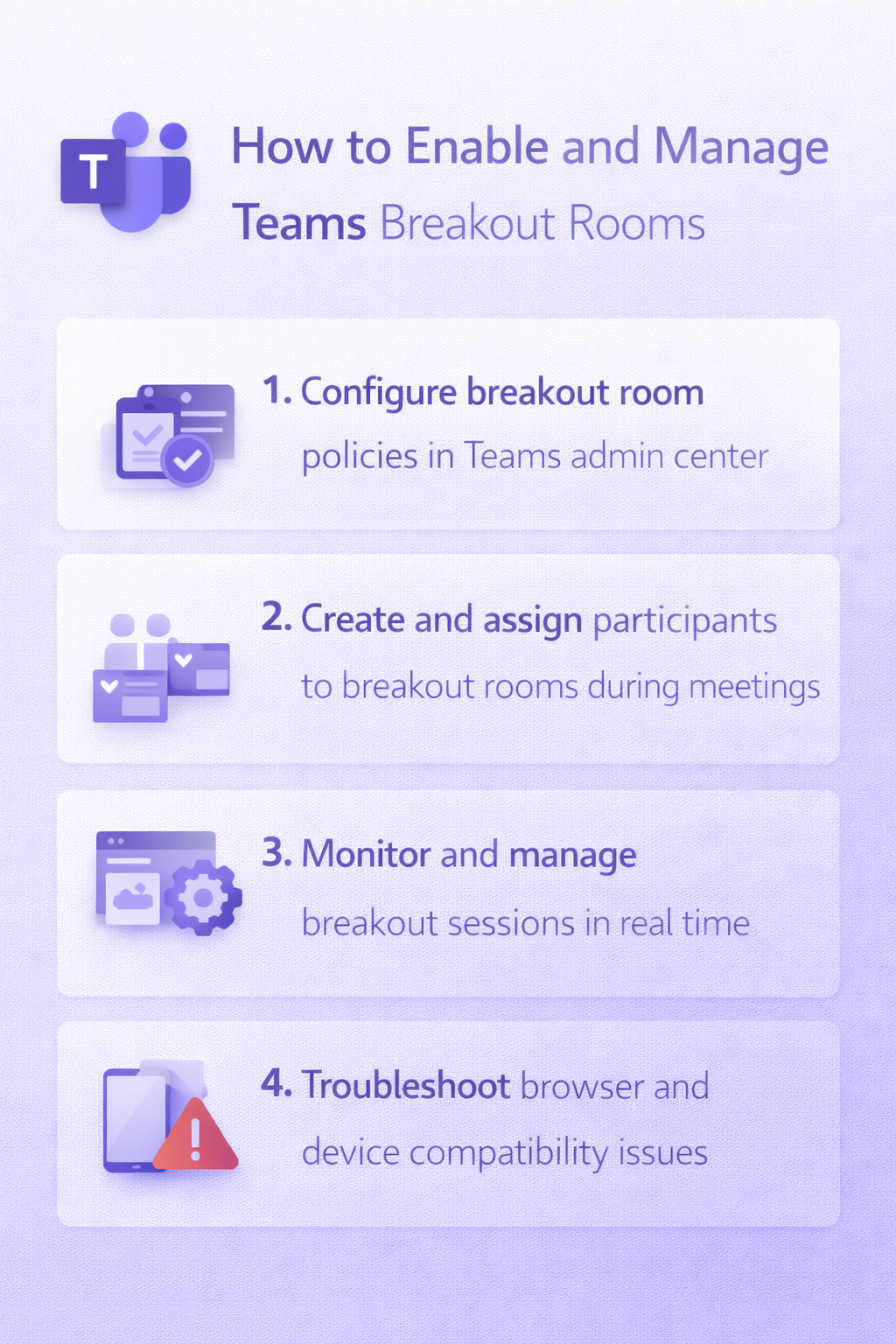
We’ll provide a step-by-step guide for enabling breakout room policies at the organizational level, creating and configuring breakout rooms during live meetings, managing participant assignments, and troubleshooting common setup challenges. You will learn to implement breakout rooms across desktop applications and browser-based Teams environments.
You will need Microsoft Teams administrator access for policy configuration, scheduled Teams meetings rather than instant meetings, and participants joining through supported Teams clients. The process involves both administrative setup and real-time meeting management techniques.
Enable Microsoft Teams breakout rooms through admin policies
- Navigate to the Microsoft Teams admin center by visiting admin.teams.microsoft.com and sign in with your administrator credentials to access the policy management interface.
- Select “Meetings” from the left navigation pane, then choose “Meeting policies” to view the available policy configurations that control breakout room functionality across your organization.
- Click on the specific policy you want to modify or create a new policy by selecting “Add” if you need custom breakout room settings for different user groups within your organization.
- Scroll down to locate the “Participant & guests” section within the policy settings, where you will find the “Allow breakout rooms” toggle that controls this feature’s availability.
- Set the “Allow breakout rooms” option to “On” to enable this functionality, ensuring that meeting organizers assigned to this policy can create and manage breakout rooms during their scheduled meetings.
- Click “Save” to apply the policy changes, noting that policy updates may take several hours to propagate across your Microsoft 365 tenant and become active for all affected users.
Manage breakout rooms in Teams during live meetings
- Start your scheduled Teams meeting and wait for participants to join, as breakout rooms can only be created during active meetings rather than being pre-configured before the session begins.
- Click the “Breakout rooms” button in the meeting toolbar, which appears as a small rooms icon, to open the breakout room management panel where you can configure your group sessions.
- Choose your room creation method by selecting either “Automatically” to let Teams distribute participants evenly across rooms, or “Manually” to assign specific participants to designated rooms based on your preferences.
- Specify the number of breakout rooms you need by using the room counter, considering that each room should ideally contain 3-8 participants for effective small group discussions and collaboration.
- Configure room settings by clicking “Room settings” to determine whether participants can return to the main meeting independently, set time limits for breakout sessions, and enable or disable chat functionality within rooms.
Expert Tip: Create one additional breakout room beyond what you think you need, as participants may join late or you might need to redistribute groups during the session.
Microsoft Teams and breakout rooms: participant assignment strategies
- Assign participants manually by clicking “Assign participants” and dragging attendee names from the main participant list into specific breakout rooms, ensuring balanced group sizes and appropriate skill mixing.
- Use automatic assignment for random distribution by selecting the automatic option, which Teams calculates based on current attendance and your specified room count, creating roughly equal group sizes.
- Move participants between rooms during the setup phase by simply dragging their names to different room assignments, allowing you to optimize group composition before launching the breakout sessions.
- Add co-organizers or presenters to multiple rooms by selecting their names and assigning them to specific rooms where they can provide guidance, answer questions, or facilitate discussions as needed.
- Click “Start rooms” once you have completed participant assignments and configured room settings, which will automatically move assigned participants into their respective breakout rooms for collaborative work.
Teams breakout room setup across different platforms
- Access breakout rooms through the Teams desktop application, which provides the most comprehensive feature set including drag-and-drop participant assignment, real-time room monitoring, and advanced configuration options for meeting organizers.
- Use breakout rooms in Teams browser environments by joining meetings through supported web browsers like Microsoft Edge or Google Chrome, though some advanced management features may be limited compared to the desktop experience.
- Enable breakout room functionality on mobile devices by using the Teams mobile app, where organizers can create and manage rooms through a simplified interface optimized for smaller screen interactions and touch-based navigation.
- Configure breakout rooms in Teams Rooms systems by ensuring that conference room devices running Teams Rooms software can participate in breakout sessions, though room creation and management typically occurs from organizer devices.
Important Tip: Test your breakout room setup in advance with a small group to familiarize yourself with the interface and ensure all participants can access the functionality through their preferred devices.
Microsoft Teams breakout room setup: monitoring and management
- Monitor breakout room activity by clicking “Breakout rooms” in the meeting toolbar to view the management panel, which displays participant counts, room status, and allows you to send announcements to all rooms simultaneously.
- Visit individual breakout rooms by clicking “Join room” next to any specific room in the management panel, allowing you to check on discussions, provide assistance, or answer questions without disrupting other groups.
- Send announcements to all breakout rooms simultaneously by typing messages in the announcement field and clicking “Send,” ensuring that important updates, time warnings, or instructions reach all participants across all rooms.
- Extend or modify breakout room sessions by adjusting time limits through the room settings, adding additional time for productive discussions or shortening sessions that may be completing early.
- Close breakout rooms and return participants to the main meeting by clicking “Close rooms,” which provides a countdown timer giving participants advance notice before automatically moving them back to the primary meeting space.
Breakout rooms Teams browser compatibility and limitations
- Teams breakout rooms may not function properly in certain browser configurations, particularly when using outdated versions of Chrome, Firefox, or Safari that lack necessary WebRTC support for multiple video streams and audio channels.
- Participants joining through the Teams web client might experience limited breakout room features compared to desktop application users, including potential issues with camera and microphone switching between main meetings and breakout sessions.
- Mobile browser access to Teams meetings often restricts breakout room participation, as mobile web interfaces may not support the complex audio and video routing required for seamless room transitions and management.
- Network connectivity issues can prevent smooth breakout room transitions, particularly for participants with limited bandwidth who may experience delays, audio dropouts, or complete disconnections when moving between rooms and the main meeting.
Remember: Always have a backup communication plan ready, such as phone numbers or alternative meeting links, in case technical issues prevent some participants from accessing breakout rooms effectively.