How can I make text and images larger on my Windows 11 computer without changing my entire display resolution? Many professionals working with detailed documents, presentations, or applications need temporary screen magnification to reduce eye strain and improve readability. Windows 11 includes a built-in Magnifier tool that provides flexible zoom capabilities without requiring third-party software installations.
Turn on the Windows magnifying glass
Reading small text on high-resolution displays can create significant challenges for users across various professional environments. Whether you are reviewing detailed spreadsheets, examining technical drawings, or presenting to clients, the ability to temporarily enlarge screen content becomes essential for productivity and comfort. The Windows 11 Magnifier offers multiple viewing modes and customizable settings that adapt to different workflows and user preferences.
We will activate, configure, and customize the Windows 11 Magnifier tool for optimal screen visibility. You will learn to navigate between different magnification modes, adjust zoom levels, and configure keyboard shortcuts for efficient operation. The process requires no additional software installations and works seamlessly with existing Windows 11 applications and system settings.
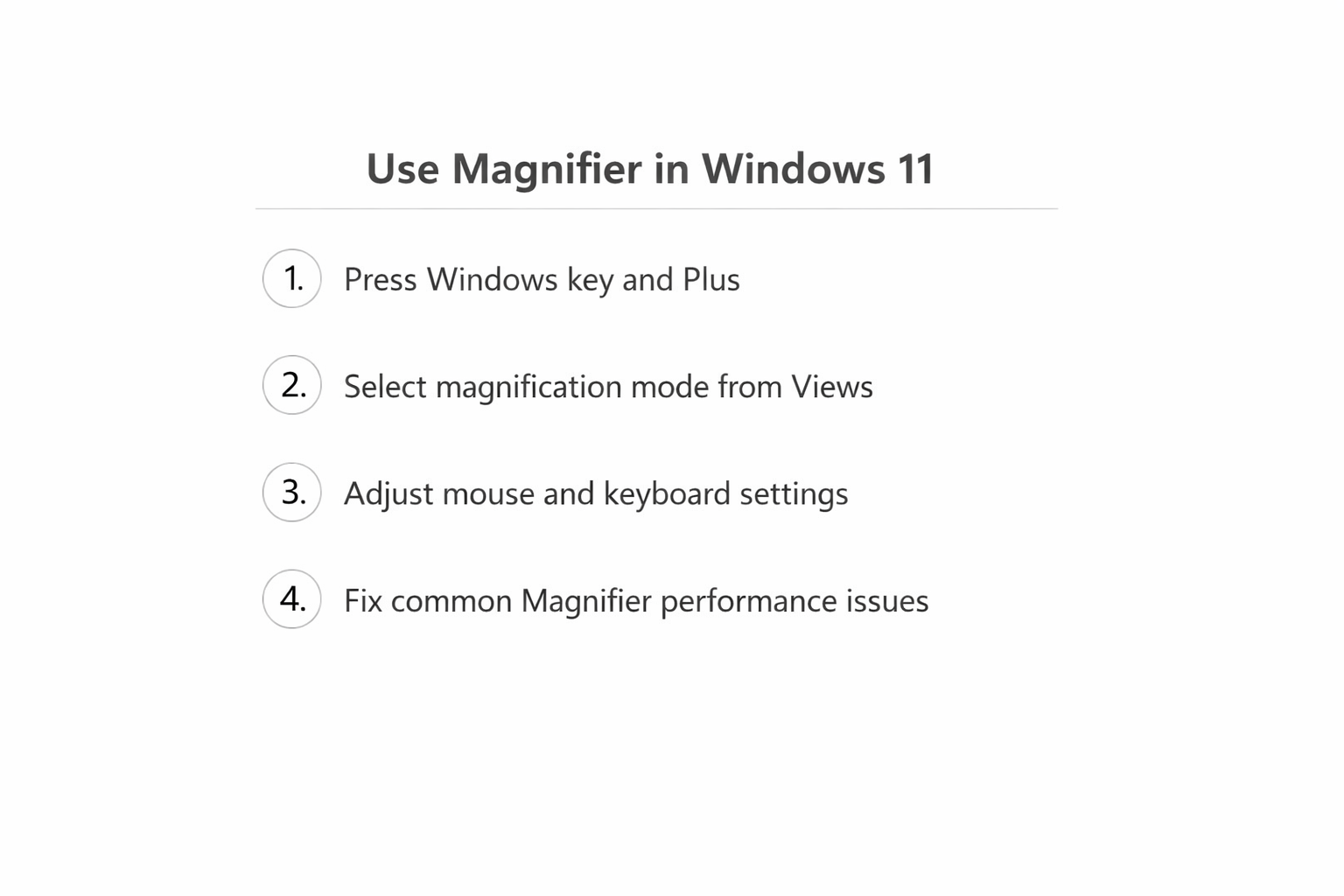
Zooming into Windows 11 text and images with Magnifier
- Navigate to the Windows 11 Start menu by clicking the Windows button or pressing the Windows key on your keyboard to access the main system menu.
- Type “Magnifier” in the search box and select “Magnifier” from the search results to launch the accessibility tool directly from the system search function.
- Alternatively, press Windows + Plus (+) keys simultaneously to instantly activate the Magnifier tool with default settings and begin screen magnification immediately.
- The Magnifier toolbar will appear on your screen, displaying zoom controls, view mode options, and settings access that allow you to customize the magnification experience.
- Click the plus (+) button in the toolbar to increase magnification levels, or press Ctrl + Alt + Plus (+) keys to zoom in using keyboard shortcuts for hands-free operation.
- Use the minus (-) button or press Ctrl + Alt + Minus (-) keys to decrease zoom levels and return to lower magnification settings when detailed viewing is no longer needed.
Selecting appropriate magnification modes
- Click the “Views” button in the Magnifier toolbar to access the three available viewing modes that determine how magnified content appears on your screen display.
- Select “Full-screen” mode to magnify the entire screen content, which moves the magnified area as you move your mouse cursor across different screen regions and applications.
- Choose “Lens” mode to create a movable magnification window that follows your mouse cursor while keeping the rest of the screen at normal size for reference purposes.
- Pick “Docked” mode to display the magnified area in a separate window section at the top of your screen while maintaining normal view in the remaining screen space.
Expert Tip: Full-screen mode works best for document editing and detailed work, while Lens mode is ideal for quick text reading without disrupting your overall screen layout.
Customizing magnifier behavior and preferences
- Click the Settings (gear) icon in the Magnifier toolbar to access advanced configuration options that control how the tool responds to mouse movement and keyboard input.
- Enable “Follow the mouse cursor” to automatically move the magnified area as you navigate across different screen sections, maintaining focus on your current cursor location.
- Activate “Follow the keyboard focus” to ensure the magnified area follows text input fields and selected interface elements as you use Tab key navigation or click different controls.
- Configure “Follow the text insertion point” to automatically center magnification on text cursors when typing in documents, email messages, or web forms for improved text editing visibility.
- Adjust the “Magnifier view” settings to control how smoothly the magnified area transitions between different screen locations during mouse movement or keyboard navigation.
Managing advanced settings and keyboard shortcuts
- Access Windows Settings by pressing Windows + I keys, then navigate to Accessibility > Magnifier to configure system-level magnification preferences and startup behavior.
- Enable “Start Magnifier automatically” to launch the tool every time you sign in to Windows 11, ensuring consistent availability for users who regularly require screen magnification.
- Customize zoom increment levels to control how much magnification increases or decreases when using keyboard shortcuts or toolbar buttons for precise zoom control that matches your viewing needs.
- Set up color inversion options to reverse screen colors for improved contrast and readability, particularly useful for users with specific visual requirements or lighting conditions.
Optimizing magnifier performance for different applications
- Experiment with different zoom levels between 100% and 1600% to find the optimal magnification setting for various applications like web browsers, office suites, and specialized software programs.
- Test magnification behavior across multiple monitors if you use a dual-screen setup, ensuring the tool properly tracks cursor movement and maintains consistent zoom levels across all connected displays.
- Configure lens size and shape options when using Lens mode to create a magnification window that provides adequate coverage without obstructing important screen information or interface elements.
- Adjust tracking sensitivity to control how quickly the magnified area follows mouse movements, preventing excessive screen jumping while maintaining responsive cursor tracking for smooth navigation.
Resolving common magnifier configuration challenges
- If the Magnifier toolbar disappears from your screen, press Windows + Plus (+) keys to reactivate it, or check if the toolbar is minimized to the system tray area near the clock.
- When magnification appears jerky or unresponsive, disable hardware acceleration in problematic applications by accessing their graphics or display settings and unchecking hardware acceleration options.
- For performance issues on older computers, reduce the zoom level to 200-400% and disable smooth transitions in the Magnifier settings to reduce system resource consumption during screen magnification.
- If keyboard shortcuts stop working correctly, check for conflicting hotkey assignments in other installed applications and consider customizing the Magnifier shortcuts through Windows Settings accessibility options.