Microsoft Teams channels can vanish from your sidebar without warning, leaving team members unable to access critical conversations, shared files, and project updates they depend on daily. Learning how to fix Teams channel disappearing issues requires understanding whether the channel was hidden, deleted, or affected by a permissions change within your Microsoft 365 group. This article walks you through every scenario so you can restore access to your missing channels and prevent this frustrating problem from happening again in the future.
Why your Teams channel is not showing in the sidebar
A Teams channel missing from your sidebar does not always mean someone deleted it, because Microsoft Teams automatically hides channels based on your personal activity level. When you have not visited a channel for an extended period, Microsoft Teams may collapse it under the hidden channels section of that particular team workspace. Organization-wide policy changes pushed through the Microsoft Teams admin center can also modify channel visibility settings, which affects every member of a specific team simultaneously. Additionally, if a team owner restructured the workspace or adjusted Teams channel owner permissions, certain members might lose direct access to channels they previously could view freely.
If your Teams channels are not showing at all, the problem may extend beyond a single channel and require broader troubleshooting of your Microsoft Teams client application settings.
Check your hidden channels to restore visibility
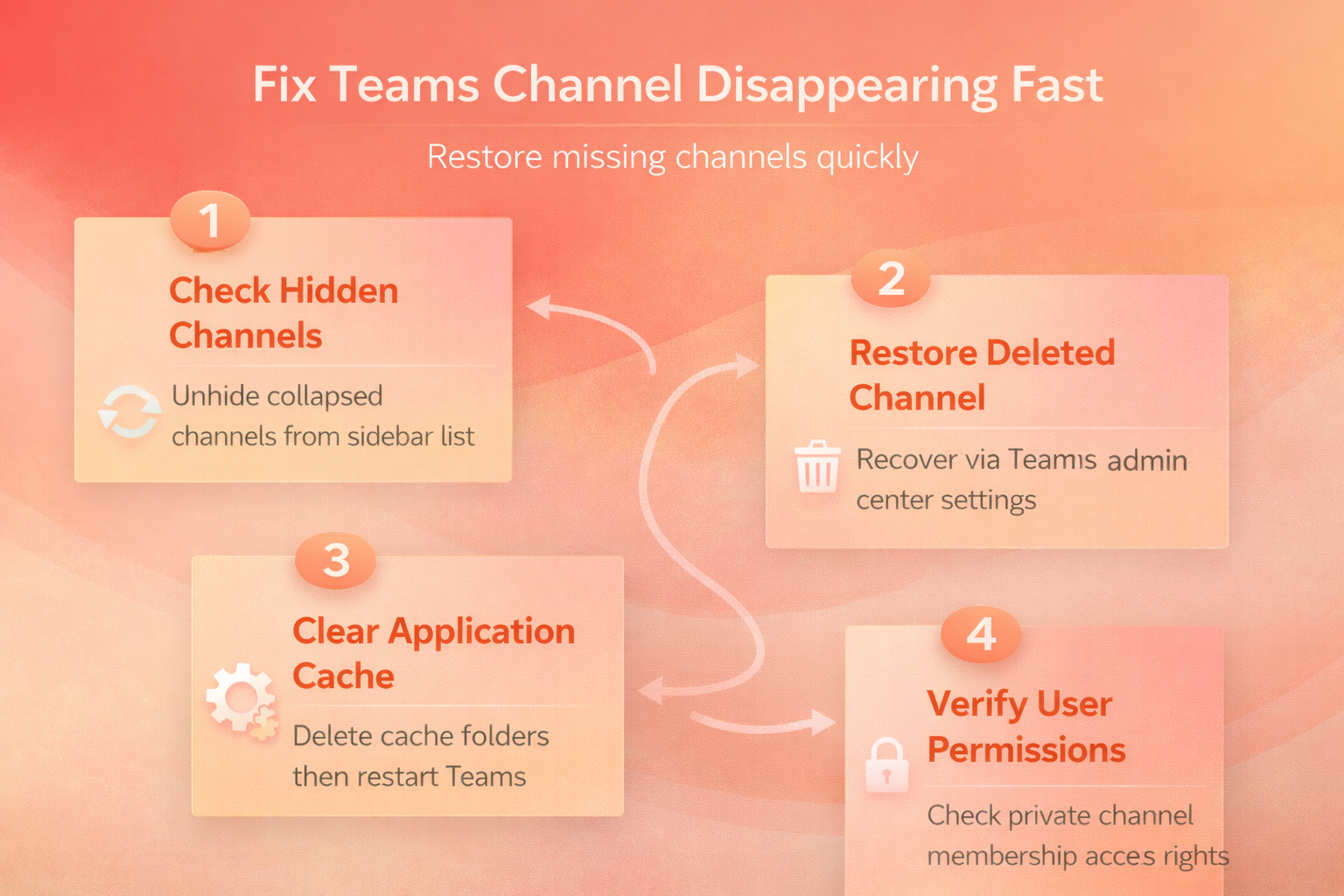
The most common reason for a Teams channel not showing is that Microsoft Teams automatically hid it, and the solution requires only a few clicks to resolve. Navigate to the team where your channel should appear, then look for the text that reads hidden channels located directly beneath your visible channel list. Click on that hidden channels link to reveal every channel that Microsoft Teams has collapsed, and then select the channel you want to unhide for quick access. Right-click the channel name and choose Show from the context menu, which will immediately return that previously invisible channel back to your active sidebar navigation.
This same technique works when you cannot find hidden Teams chats that seem to have vanished from your recent conversations list within the Microsoft Teams application.
Restore deleted Teams channel through the admin center
When a team owner or administrator accidentally removes a channel, you can still recover Teams channel data within thirty days of the original deletion event. Open the Microsoft Teams admin center by navigating to admin.teams.microsoft.com in your web browser, then sign in with your administrator credentials to access management tools. Select the team that contained your deleted channel, click on the Channels tab, and then choose the option labeled Deleted to view recoverable items. Click Restore next to the channel name you want to recover, and Microsoft Teams will bring back all conversations, files, and tabs within several minutes.
For a more detailed walkthrough of the recovery process, see our dedicated article on how to recover a deleted Microsoft Teams channel using the administration console and PowerShell commands.
Fix Teams channel disappearing after a Microsoft 365 update
Sometimes a Teams channel disappearing after update occurs because the application cache becomes corrupted during the installation process, which prevents proper channel rendering in the client. Close Microsoft Teams completely by right-clicking the system tray icon and selecting Quit, then navigate to the Teams cache folder located in your AppData directory. Delete the contents of the Cache, GPUCache, databases, and Local Storage folders, but keep the folder structure intact so Teams can rebuild everything on next launch. Restart Microsoft Teams and sign in again, which forces a fresh synchronization with the server that should restore all your missing channels to their proper locations.
Verify channel membership and permissions settings
If a Teams channel disappeared for one user only, the issue likely involves membership permissions rather than a deletion or visibility change affecting the entire organization. Private channels in Microsoft Teams restrict access exclusively to invited members, so someone removed from a private channel will see it vanish from their sidebar without notification. Ask your team owner to check the channel membership list and re-add any users who were accidentally removed from the private channel during recent management changes. Understanding Teams channel private access and security settings helps administrators prevent accidental permission changes that cause channels to disappear for individual team members unexpectedly.
Standard channels inherit permissions from the parent Microsoft 365 group, so verifying that the affected user still belongs to that group resolves most individual access issues.
Prevent Teams channels from disappearing in the future
Team owners should establish clear channel management policies that define who can create, archive, or delete channels to prevent accidental removal and unnecessary workspace confusion. Configure notification settings for important channels by right-clicking the channel name and selecting Channel notifications so Microsoft Teams alerts you about any significant activity changes. Encourage every team member to pin their most critical channels, because pinned channels always remain visible in the sidebar regardless of automated hiding behavior. Regularly audit your Teams workspace management settings through the Microsoft Teams admin center to ensure organization-wide policies align with your team collaboration requirements and expectations.
If your Teams folder disappeared and files need recovery, the channel restoration steps above should also bring back all associated SharePoint document libraries and file structures.
Frequently asked questions
Why did my Teams channel disappear?
Microsoft Teams automatically hides channels you have not visited recently to keep your sidebar organized, and administrators or team owners can also delete or restructure channels. Check your hidden channels list first, then contact your Teams administrator if the channel was deleted, because they can restore deleted channels within thirty days.
Can you recover a deleted channel in Microsoft Teams?
Yes, deleted channels remain recoverable for thirty days through the Microsoft Teams admin center, where an administrator can restore the channel along with all its conversations and files. After thirty days the channel enters a permanent deletion queue, so acting quickly gives you the best chance of complete data recovery from the server.
How do I unhide a channel in Microsoft Teams?
Click on the hidden channels link beneath your visible channels in any team, select the channel you want to restore, then right-click and choose the Show option. This action returns the channel to your active sidebar immediately, and you can also pin frequently used channels to ensure they never get automatically hidden.
Take action now to recover your missing Teams channel
Whether your channel was hidden automatically, deleted by an administrator, or affected by a permissions change, the solutions outlined above cover every scenario you might encounter. Start by checking your hidden channels list since that resolves the majority of cases, then escalate to the Microsoft Teams admin center for deleted channel recovery procedures. Bookmark this article for future reference so you can quickly resolve any Teams channel disappearing issue that affects your team collaboration and daily productivity workflows.