Switching default email when managing multiple accounts
“I have three email accounts connected to my Gmail app, but emails keep sending from my old work account instead of my personal one. How do I make another Gmail account default so my emails go out from the right address?” This common scenario affects millions of users who manage multiple email accounts across different platforms and need seamless control over their primary sending address.
Understanding default email addresses config on Windows 11
Managing multiple email accounts creates complexity when determining which address serves as your primary sending account. Whether you use Gmail’s web interface, mobile app, or Microsoft Outlook, each platform handles default account selection differently, often leading to confusion about which account will send your outgoing messages.
We’ll cover how to change default email in Gmail through both web and mobile interfaces, plus how to change Outlook email account defaults in the desktop application and web version. We’ll address scenarios where users need to set default email in Gmail after adding new accounts, switch primary accounts in Outlook, and manage sending preferences across multiple connected email services.
We assume that you have multiple email accounts already configured in your chosen email client. The process works with Gmail, Outlook.com, Yahoo Mail, and most IMAP/POP3 accounts connected through these services.
Change email account settings in Gmail web interface
The Gmail web interface provides the most comprehensive options for managing default sending addresses and requires accessing your account settings through a desktop browser for complete functionality.
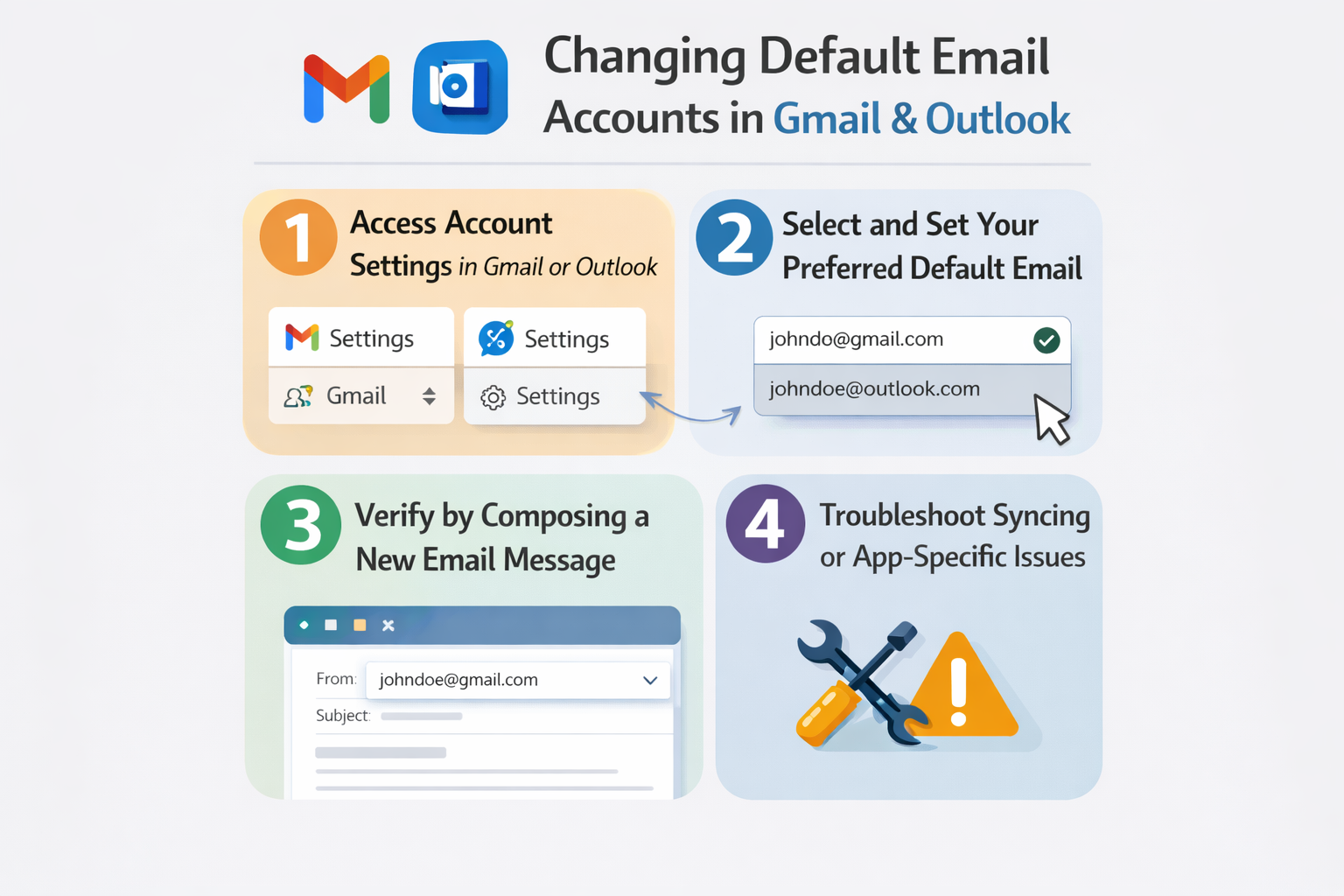
- Open Gmail in your web browser and click the gear icon in the upper right corner to access Settings, then select “See all settings” from the dropdown menu to open the full configuration panel.
- Navigate to the “Accounts and Import” tab where you’ll find all connected email addresses listed under the “Send mail as” section, showing your current default account marked with “(default)” next to the address.
- Locate the email address you want to set as your new default and click “make default” next to that address, which immediately changes your primary sending account without requiring additional confirmation steps.
- Verify the change by composing a new email and checking that the “From” field now displays your newly selected default address, ensuring all future emails will originate from this account unless manually changed.
- Configure reply settings by checking “Reply from the same address the message was sent to” if you want Gmail to automatically match your sending address to the account that received the original message.
Expert Tip: Gmail remembers your default account selection across all devices once changed through the web interface, but mobile apps may require separate configuration depending on your setup.
Make another Gmail account default on mobile devices
Mobile Gmail apps handle multiple accounts differently than the web version, requiring specific steps to ensure your preferred account becomes the primary sender for new messages and replies.
- Open the Gmail app and tap the hamburger menu (three horizontal lines) in the upper left corner, then scroll down to locate “Settings” at the bottom of the navigation menu.
- Select the account you want to set as default from the list of configured accounts, then tap “Default account for composing” or similar option depending on your app version and operating system.
- Choose your preferred default account from the presented list, which immediately updates the app’s behavior for new message composition and sets this account as the primary sender.
- Test the configuration by composing a new email and verifying that the “From” field automatically selects your newly designated default account, confirming the change took effect properly.
- Repeat this process for each device where you use Gmail if accounts don’t synchronize automatically, as mobile app preferences sometimes remain device-specific rather than syncing with your Google account settings.
How to switch default email in Microsoft Outlook
Microsoft Outlook desktop and web versions offer different approaches to changing default email accounts, with the desktop application providing more granular control over account priorities and sending preferences.
- Launch Outlook desktop application and navigate to File menu, then select “Account Settings” followed by “Account Settings” again from the dropdown to open the email account management dialog.
- Review the list of configured email accounts where your current default account appears at the top of the list, marked as the primary account for sending new messages and calendar invitations.
- Select the email account you want to make default and click “Set as Default” button, which moves this account to the top position and designates it as your primary sending address.
- Restart Outlook completely to ensure the changes take effect properly, as account priority changes sometimes require a full application restart to function correctly across all Outlook features.
- Verify the change by creating a new email message and confirming that the “From” field displays your newly selected default account, plus check that calendar invitations also originate from this address. For more troubleshooting, see Outlook synchronization problems.
Resolving common default email account issues
Users frequently encounter specific challenges when attempting to change their default email settings, particularly when managing multiple accounts across different email platforms or when synchronization issues prevent changes from taking effect properly.
- Default account reverts to original setting: This occurs when email clients cache account preferences locally and requires clearing application data or signing out and back into all accounts to refresh the configuration properly.
- Mobile app shows different default than web version: Email apps sometimes maintain separate default account settings that don’t synchronize with web preferences, requiring manual configuration on each device to match your intended primary sending address.
- Outlook won’t recognize new default account: The desktop application occasionally requires recreating email profiles when account priority changes fail to register, involving removing and re-adding accounts in the correct order to establish proper defaults. More info at adding email accounts.
- Gmail sends from wrong address despite settings: Browser cache or multiple Google account sessions can interfere with default account selection, necessitating clearing browser data and ensuring you’re signed into the correct primary Google account for your Gmail usage.