Why Does Chrome Slow Down?
Learning how to speed up Chrome on an old computer starts with understanding why the browser struggles when your hardware has limited processing power and available memory. Chrome creates a separate process for every open tab and installed extension, which means that older machines with limited RAM quickly run out of available system resources. This multi-process architecture provides excellent stability on modern hardware, but aging computers with four gigabytes of memory or less experience noticeable slowdowns during regular browsing sessions. Fortunately, several straightforward adjustments to your Chrome settings and browsing habits can dramatically improve performance without requiring any expensive hardware upgrades to your existing system.
Remove Chrome Resource-Heavy Extensions
Browser extensions are frequently the biggest performance drain on older computers because each active extension runs its own dedicated background process that consumes precious system resources continuously.
- Navigate to chrome://extensions in your address bar to review every currently installed extension, then carefully evaluate whether each one provides enough daily value to justify keeping.
- Many users discover they have ten or more extensions installed that they rarely use, and removing these forgotten addons can free up significant memory and processing power immediately.
- After disabling or removing unnecessary extensions, restart Chrome completely so that all associated background processes terminate and release their allocated memory back to your operating system.
Enable Chrome Memory Saver Mode
Chrome Memory Saver is a built-in feature specifically designed to reduce memory consumption by automatically suspending tabs that you have not actively used for a specified period.
- To activate this feature, open Chrome Settings, navigate to the Performance section, and toggle the Memory Saver option to its enabled position within the performance management panel.
- Once enabled, Chrome will automatically free memory from inactive tabs and reallocate those system resources to the tabs that you are currently viewing and actively interacting with.
- This feature is particularly beneficial for older computers because it prevents Chrome from consuming all available RAM when you have multiple tabs open during extended browsing sessions.
Clear Chrome Browsing Data Regularly
Accumulated cache files, cookies, and stored browsing data can gradually degrade Chrome performance on older hardware as these elements grow larger and require more resources to manage.
- Open Chrome Settings, select the Privacy and Security section, then choose Clear Browsing Data to remove cached images, stored files, and outdated cookies from your browser.
- Setting up automatic clearing schedules ensures that your browsing data never accumulates to problematic levels, which is especially valuable for older machines that cannot afford wasted storage overhead.
- Regular maintenance of your browsing data produces consistent performance improvements similar to managing startup programs that compete for resources when your older computer boots up each morning.
Disable Chrome Hardware Acceleration
Hardware acceleration offloads certain rendering tasks from your processor to your graphics card, but older computers with outdated graphics drivers often experience worse performance with this feature enabled.
- Navigate to Chrome Settings, scroll down to the System section, then locate and disable the option labeled Use Hardware Acceleration When Available to switch rendering back to your processor.
- After toggling this setting off, restart Chrome completely and monitor whether your overall browsing experience feels more responsive, since older graphics cards frequently struggle with modern acceleration demands.
- Many users with aging hardware report that disabling this single setting produces the most noticeable improvement in Chrome responsiveness, particularly when scrolling through pages with complex visual elements.
Reduce Open Tabs and Processes in Chrome
Keeping dozens of tabs open simultaneously is one of the most common reasons that Chrome runs slowly on older computers, since each tab maintains its own dedicated memory allocation.
- Adopt a habit of bookmarking pages that you want to revisit later instead of leaving them perpetually open, which immediately reduces the number of active processes consuming your limited resources.
- Chrome tab groups allow you to organize related tabs together and collapse entire groups when they are not needed, effectively improving your overall system performance by reducing active resource consumption.
- Using the built-in Chrome Task Manager accessed through Shift plus Escape helps you identify which specific tabs consume the most memory so you can close them first.
Frequently Asked Questions
Why is Chrome so slow on my old computer?
Chrome runs each tab and extension as a separate operating system process, which demands significantly more RAM and CPU power than browsers that share a single unified process architecture. Older computers with limited memory and slower processors simply cannot keep up with these demands when multiple tabs and extensions are running simultaneously during normal browsing sessions.
Does clearing Chrome cache speed up an old laptop?
Clearing cached files, cookies, and browsing history removes accumulated data that Chrome must load and manage during every browsing session, which directly reduces memory consumption on older hardware. Regular cache maintenance every two to four weeks typically produces noticeable speed improvements on aging laptops, especially those with traditional hard drives rather than solid state storage.
Should I disable hardware acceleration on an old PC?
Disabling hardware acceleration is recommended for older computers with outdated graphics cards or drivers because the GPU rendering process often creates more performance problems than it solves. Switching rendering tasks back to your main processor typically produces smoother scrolling and faster page loading on machines where the graphics hardware cannot handle modern browser acceleration demands.
Summary and Next Steps
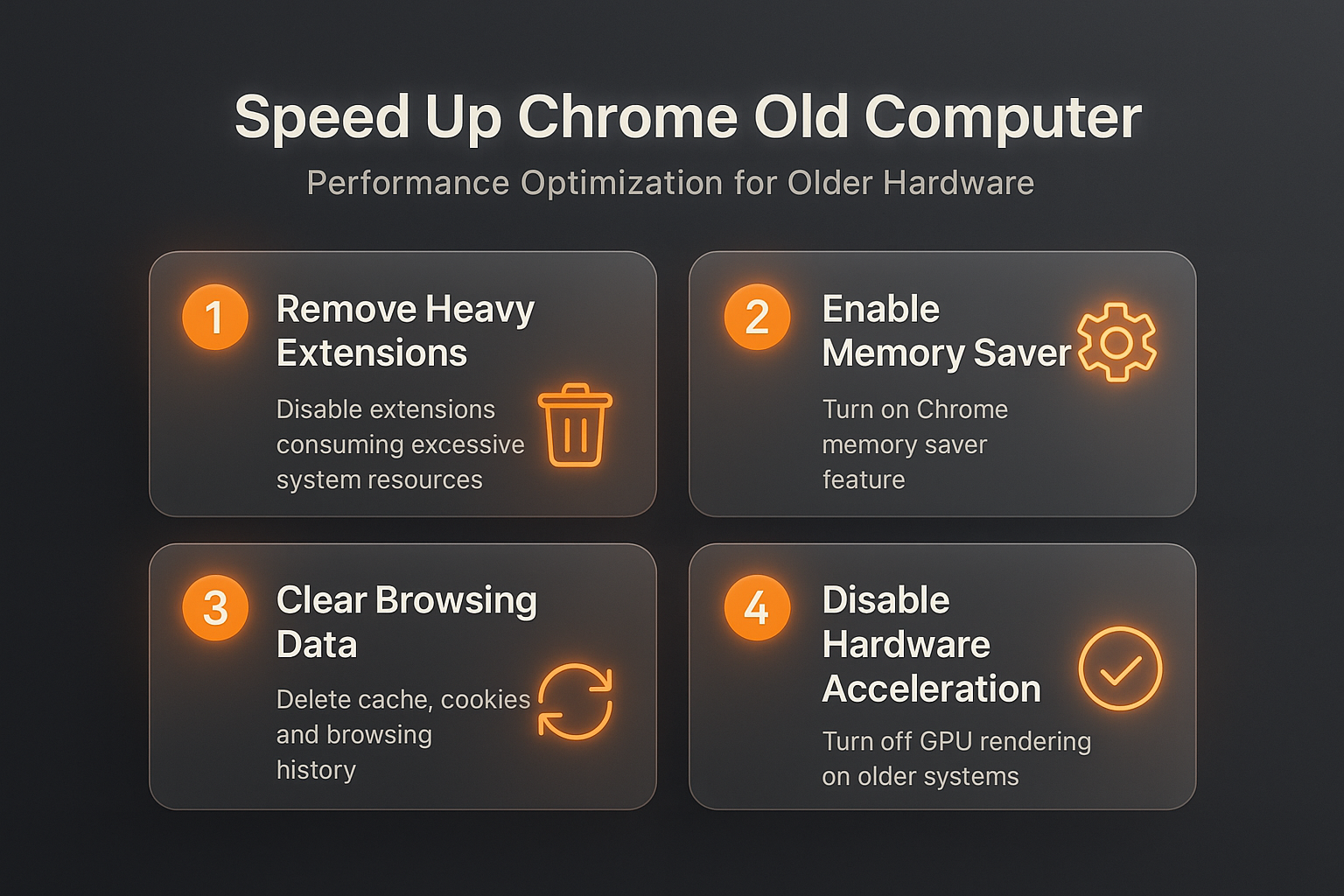
Speeding up Chrome on an old computer requires a combination of removing unnecessary extensions, enabling Memory Saver mode, clearing accumulated browsing data, and disabling hardware acceleration settings. Start by auditing your installed extensions and removing any that you do not use daily, since this single action often produces the most immediate and dramatic improvement. Implementing all of these optimizations together typically transforms Chrome from a sluggish resource drain into a responsive browser that performs well even on older hardware configurations.