System startup emergency requiring immediate attention
You power on your computer expecting Windows 11 to load normally, but instead encounter a black screen, spinning dots that never progress, or error messages preventing system access. This boot failure scenario affects both personal and business environments, creating urgency around data accessibility and workflow continuity. Understanding systematic recovery approaches becomes essential when standard startup procedures fail completely.
Windows 11 Boot failure diagnosis and recovery strategy
Windows 11 boot issues typically stem from corrupted system files, hardware conflicts, recent software installations, or interrupted system updates. These problems manifest through various symptoms including endless loading loops, blue screen errors, or complete startup failures before reaching the desktop environment.
We’ll learn about recovery methods starting with built-in Windows recovery tools, progressing through advanced troubleshooting techniques, and concluding with system restoration options. You will need administrative access to another computer for creating recovery media if your primary system remains completely inaccessible.
The recovery process utilizes Windows Recovery Environment, System File Checker, Boot Configuration Data repair tools, and Safe Mode diagnostics. Each method targets specific failure types while maintaining data integrity throughout the troubleshooting process.
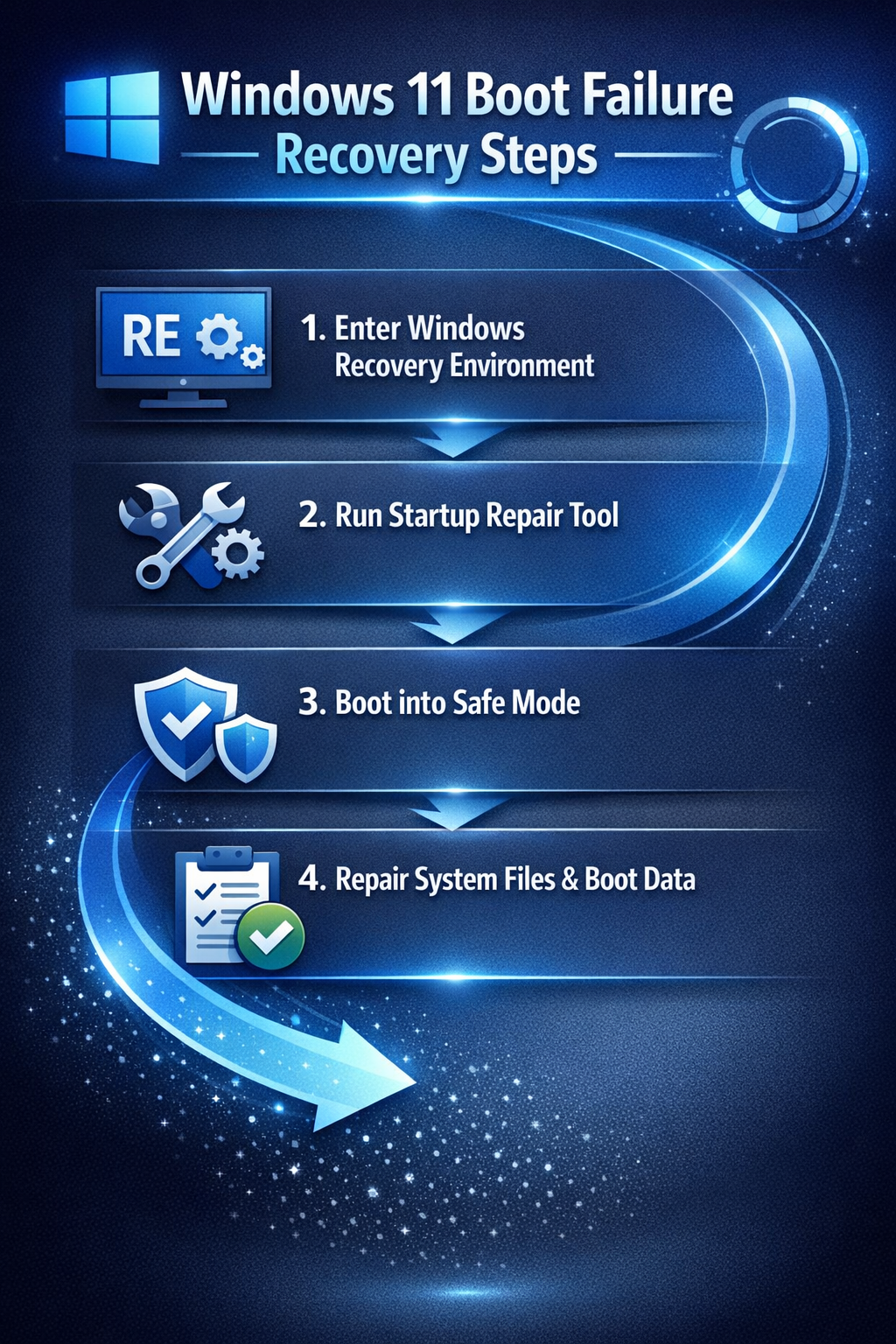
Windows recovery environment and automatic repair execution
Begin recovery by accessing Windows Recovery Environment through forced shutdown cycles or recovery media when standard startup fails completely.
- Power off your computer completely by holding the power button for ten seconds, then restart and immediately power off again during the Windows logo screen to trigger automatic repair mode.
- Repeat this power cycle process three times consecutively to force Windows 11 into Recovery Environment, which provides access to advanced troubleshooting tools and system restoration options.
- Select Troubleshoot from the recovery menu, then choose Advanced options to access comprehensive system repair utilities including Startup Repair, System Restore, and Command Prompt functionality.
- Click Startup Repair and allow Windows to automatically diagnose boot configuration issues, corrupted system files, and hardware compatibility problems that prevent normal system initialization.
- Wait for the automatic repair process to complete, which typically requires fifteen to thirty minutes depending on system complexity and the extent of detected issues.
Expert Tip: Create a Windows 11 recovery USB drive on a working computer before encountering boot issues to ensure reliable access to recovery tools when your primary system fails.
Safe mode activation and diagnostic procedures
- Access Safe Mode through Recovery Environment by selecting Troubleshoot, then Advanced options, followed by Startup Settings to modify Windows boot behavior temporarily.
- Click Restart in Startup Settings, then press the number 4 key when prompted to boot into Safe Mode, which loads Windows with minimal drivers and services for diagnostic purposes.
- Uninstall recently installed software, drivers, or Windows updates that coincided with boot failure symptoms by accessing Programs and Features through Control Panel in Safe Mode.
- Run Windows Update troubleshooter and install any pending system updates that might resolve compatibility issues causing startup failures in your current Windows 11 installation.
- Restart normally after completing Safe Mode diagnostics to determine whether boot issues have been resolved through software removal or system updates.
System file integrity verification and repair
- Open Command Prompt with administrator privileges through Recovery Environment Advanced options, or through Safe Mode if system access has been partially restored through previous troubleshooting steps.
- Execute the System File Checker command by typing “sfc /scannow” and pressing Enter to scan all protected system files and replace corrupted versions with cached copies automatically.
- Run the Deployment Image Servicing command “DISM /Online /Cleanup-Image /RestoreHealth” to repair Windows system image corruption that might prevent successful boot sequence completion.
- Restart your computer after both commands complete successfully to test whether system file repairs have resolved the Windows 11 boot failure you initially encountered.
Boot configuration repair and system restoration methods
When automatic repair and Safe Mode diagnostics fail to resolve boot issues, manual boot configuration repair and system restoration become necessary for complete recovery.
- Access Command Prompt through Recovery Environment and execute “bootrec /fixmbr” to repair the Master Boot Record, followed by “bootrec /fixboot” to write new boot sector code.
- Run “bootrec /scanos” to scan for Windows installations, then execute “bootrec /rebuildbcd” to rebuild Boot Configuration Data and restore proper startup sequence recognition for your Windows 11 system.
- Use System Restore by selecting it from Recovery Environment Advanced options, then choose a restore point created before boot issues began to revert system changes automatically.
- Consider Reset this PC option for comprehensive system recovery while preserving personal files, which reinstalls Windows 11 while maintaining user data and some applications installed through Microsoft Store.
Important Tip: Document all error messages and codes encountered during boot failures to help identify specific hardware or software conflicts requiring targeted troubleshooting approaches.
Common recovery challenges and practical solutions
Several obstacles may complicate Windows 11 boot recovery, requiring specific approaches to overcome persistent system failures and access limitations.
- Recovery Environment fails to load properly due to corrupted Windows installation files, requiring creation of external recovery media using Microsoft Media Creation Tool on another computer for system access.
- Boot Configuration Data rebuilding commands return “The requested system device cannot be found” error, indicating hard drive connectivity issues or partition table corruption requiring hardware diagnostics and disk repair utilities.
- System Restore points are unavailable or corrupted, preventing rollback to previous working configurations and necessitating fresh Windows installation while preserving user data through external backup methods.
- Hardware compatibility issues cause recurring boot failures after successful repairs, requiring driver updates, BIOS configuration changes, or component replacement to achieve stable system operation consistently.