Microsoft Teams screen sharing black screen issues can disrupt important meetings and presentations. When you attempt to share your screen during a Teams meeting, you might encounter a frustrating blank or black display instead of your actual screen content. Here’s how to fix these display problems and get back to presenting.
Why Your Teams Screen Appears Black
Graphic driver conflicts, outdated software, and privacy settings can all cause black screens during Teams screen sharing. The most common culprits are:. One pleasant surprise from this your teams screen adjustment was how much smoother the related workflows became afterward, suggesting this setting has a broader positive impact than initially expected.
- Outdated or corrupted graphics drivers
- Windows privacy settings blocking Teams screen capture
- Hardware acceleration conflicts with your display adapter
- Corrupted Teams application cache files
- Conflicting third-party applications
Identifying the root cause helps you target the right solution rather than trying every fix.
Update Your Graphics Drivers
Outdated graphics drivers are the leading cause of Teams screen sharing black screen issues. Your graphics hardware needs current drivers to communicate properly with Teams’ video streaming system.
- Right-click the Start button and select Device Manager
- Expand Display adapters to view your graphics hardware
- Right-click your graphics device and select Update driver >> Search automatically for updated driver software
For specific driver downloads, visit your graphics manufacturer’s website. NVIDIA users go to nvidia.com/Download/driverDetails.aspx, AMD users visit amd.com/drivers, and Intel users can download drivers from intel.com/download.
After installing new drivers, restart your computer completely before testing Teams screen sharing. Most black screen issues resolve after this step.
Configure Windows Privacy Permissions
Windows privacy controls can block Teams from accessing your screen content. You need to explicitly allow Teams screen recording permission. From start to finish, this privacy permissions procedure was straightforward and required no special technical knowledge, which makes it one of the more accessible configuration changes I have documented.
Press Windows + I to open Settings, then follow these steps:
- Navigate to Privacy & Security >> App permissions >> Screen recording
- Find Microsoft Teams in the list and toggle Allow to the on position
- If Teams doesn’t appear, click Add an app and browse to Program Files >> Microsoft >> Teams >> Teams.exe
Verify camera permissions as well. Go to Privacy & Security >> Camera and confirm Teams is toggled on. Some screen sharing features require camera access, and toggling both ensures full functionality. For detailed steps, see our guide on enabling camera access for Teams.
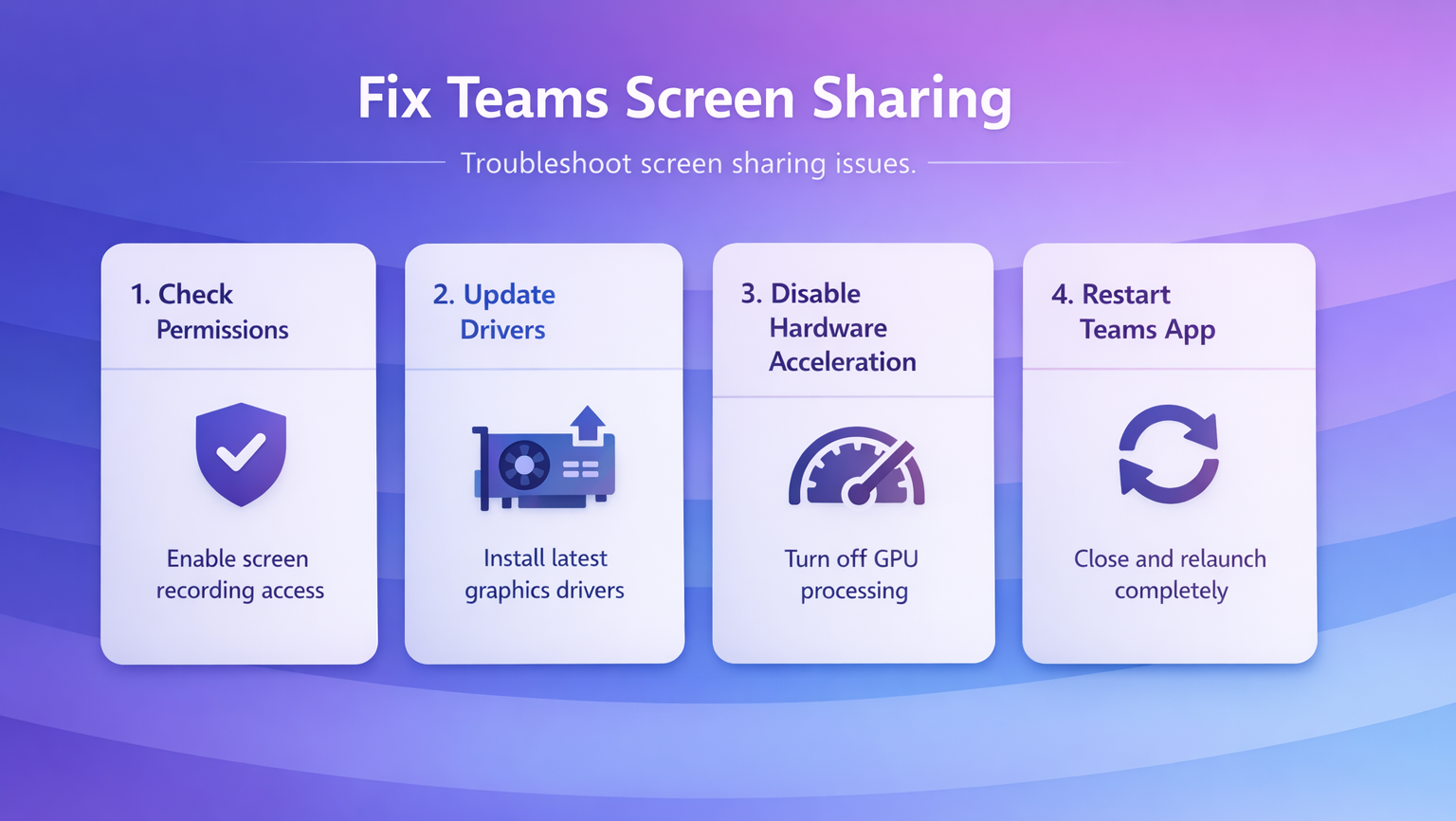
Disable Hardware Acceleration
Hardware acceleration can conflict with Teams’ video rendering, causing black screens. Turning off GPU acceleration forces Teams to use software rendering, which often resolves display problems.
Open Microsoft Teams and follow these steps:
- Click your profile picture in the upper-right corner
- Select Settings from the dropdown menu
- Click the General tab
- Scroll down and check the Disable GPU hardware acceleration checkbox
- Click Save
Close Teams completely (check Task Manager to confirm all Teams processes ended), then relaunch the application. Test screen sharing to see if the black screen is resolved. This fix works for users with integrated graphics or hybrid GPU systems where acceleration causes conflicts.
Clear Teams Cache Files
Corrupted cache files can cause Teams to malfunction, including black screen display issues. Clearing the cache forces Teams to rebuild its configuration.
Press Ctrl + Shift + Esc to open Task Manager, then end all Microsoft Teams processes. Next, open File Explorer and type %appdata%\Microsoft\Teams in the address bar.
Delete the following folders entirely:
- Application Cache
- Blob Storage
- Cache
- GPUCache
- IndexedDB
- Local Storage
- tmp
Close File Explorer and relaunch Teams. The application will recreate these folders with fresh settings. Test screen sharing to confirm the issue is resolved.
Try Workarounds While Troubleshooting
If standard screen sharing still shows black, try alternative methods to keep meetings productive. Teams’ Share a window option often works when full desktop sharing fails, because it bypasses some driver conflicts.
For PowerPoint presentations, use Teams’ built-in PowerPoint integration by selecting Share >> Microsoft PowerPoint and choosing your presentation file directly. This streams presentation content without relying on desktop screen capture.
Windows’ built-in Project to this PC feature or Zoom’s screen sharing can serve as temporary workarounds while you implement these permanent fixes.
Prevent Black Screen Issues Going Forward
Maintenance prevents these problems from recurring. Enable automatic Windows Updates to receive compatibility patches that benefit Teams. Check for Teams updates manually by opening Teams and going to Settings >> About >> Check for updates.
Create a dedicated user profile for Teams meetings if you encounter sharing issues frequently. This isolates Teams configuration from other applications and reduces software conflicts.
Quick Answers to Common Questions
Why is my Teams screen sharing showing black even after restarting?
Black screens often persist when multiple issues overlap. Try updating graphics drivers first, then disable hardware acceleration, then clear cache files. If none work individually, the combination usually resolves the problem. You may need to test each step after restarting Teams completely.
Does Teams black screen happen on all meetings or just specific ones?
If black screens happen only with certain screen sharing types (like PowerPoint vs. desktop), the issue is usually driver-related. If it happens consistently across all meetings, suspect privacy settings or corrupted cache files. Test screen sharing with different content types to narrow down the cause.
Can I use Teams screen sharing on multiple monitors with black screen issues?
Multiple monitors often trigger driver conflicts that cause black screens. Try disabling hardware acceleration first. If that doesn’t work, select “Share a window” instead of “Share your entire screen”—this limits the rendering to one window and often avoids multi-monitor conflicts.
Teams screen sharing should work reliably once you’ve eliminated graphics conflicts and configured privacy settings properly. Most users resolve black screen issues within one troubleshooting step, so start with driver updates and work through the other solutions if needed.