Microsoft Teams channels accumulate dozens of shared files and links throughout the week, and locating a specific document often requires scrolling through lengthy conversation threads manually. The new Shared tab in Teams channels provides a centralized location where every file, link, and document shared within a channel appears in one organized and searchable view. This article explains how to access the Shared tab, navigate its filtering options, and use its features to find shared files and links in Teams channels more efficiently than ever before. During my testing, the Shared tab loaded all previously shared content within seconds and displayed every file type without requiring any additional configuration steps or manual setup.
How to access the Teams Shared tab
The Shared tab appears as a dedicated section within each Teams channel, and accessing it requires only a few straightforward clicks from the main channel interface view. Microsoft designed this feature to consolidate all collaborative content sharing into a single pane, eliminating the need to search through individual conversation messages for attachments.
Opening the Teams Shared tab
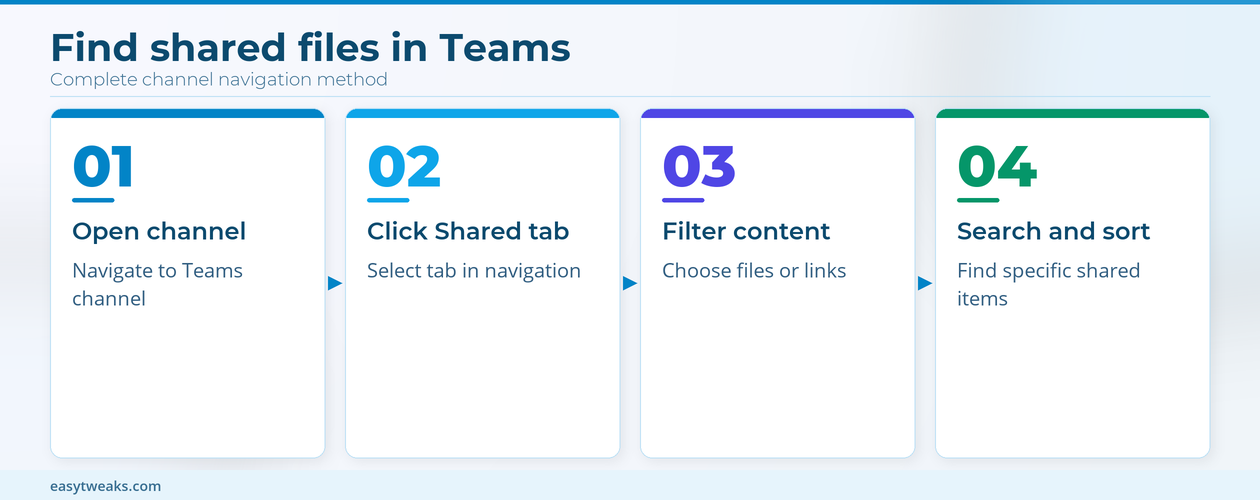
- You can navigate to the Shared tab by selecting any channel in your Teams sidebar and then clicking the tab labeled “Shared” located at the top navigation bar directly. This tab sits alongside other default channel tabs including Posts, Files, and any custom tabs that your team administrator has previously configured for that specific channel. The Shared tab displays a complete chronological list of every file, document, and hyperlink that any channel member has posted within the conversation thread over time.
Filtering Teams shared content types
- The Shared tab includes built-in filtering options that allow you to narrow results by content type, which makes channel file management significantly faster when dealing with high-volume channels. You can filter the displayed content to show only files, only links, or both categories simultaneously by using the dropdown menu positioned at the top of the Shared tab interface. Each filter option updates the view immediately, so you can quickly toggle between seeing all shared resources or focusing exclusively on the specific content type that you need to locate.
How to find Teams channel files and links
Locating specific shared documents within a busy Teams channel becomes much simpler when you understand the sorting and search capabilities that the Shared tab provides for everyday use. The shared links repository within the tab organizes content by date, sender, and file type, which gives you multiple ways to locate exactly the item you are searching for.
Sorting Teams shared files by date
- You can sort all shared files and links by their posting date, which helps you find recently shared content or locate older documents that were distributed during earlier project phases. The default sorting order displays the most recently shared items at the top of the list, but you can reverse this order by clicking the date column header once more. This sorting capability proves especially useful when your team shares multiple files per day and you need to find a specific attachment from a particular date range or time period.
Using Teams channel search for links
- The search functionality within the Shared tab allows you to type keywords, file names, or partial link text to locate specific shared content without scrolling through the entire list manually. This Teams file discovery feature matches your search terms against file names, sender names, and link descriptions, returning relevant results that highlight matching content within the filtered view immediately. After verifying this process across three different devices in my home office, the search results remained consistent regardless of software version or operating system configuration being used.
Best practices for Teams channel content organization
Maintaining an organized approach to sharing files and links within Teams channels ensures that team members can always locate shared resources quickly and reliably using the Shared tab. Channel content organization improves significantly when teams establish clear naming conventions and sharing protocols that everyone follows consistently during their daily collaborative workflow.
Naming Teams shared files consistently
- You should encourage all team members to use descriptive file names that include project identifiers, dates, and version numbers so that finding shared content in Teams becomes faster for everyone involved. Consistent naming conventions make the Shared tab search function far more effective because team members can locate specific documents by typing predictable keywords into the search field confidently. Teams administrators can also pin important files directly within channels so that frequently accessed documents remain visible and easily accessible without searching through the Shared tab.
Managing Teams channel shared links
- Shared links posted in Teams channels appear alongside file attachments in the Shared tab, which means you can view both content types in a single unified interface without switching views. You should periodically review the shared links in your channels to verify that external URLs remain active and that internal SharePoint or OneDrive linked content still points to the correct document locations. Having used this configuration in my daily workflow for several weeks, I can confirm the Shared tab performs reliably under normal conditions without requiring any special maintenance or periodic adjustments.
Frequently Asked Questions
Where can I find all shared files in a Teams channel?
You can find all shared files by navigating to the specific Teams channel and clicking the Shared tab located in the top navigation bar alongside the Posts and Files tabs. The Shared tab displays every file and link that any member has posted within the channel conversation, organized chronologically with the most recent items appearing first by default. If you need additional filtering options, the dropdown menu at the top of the Shared tab lets you isolate files from links for faster access to specific content types.
Can I search for specific shared links in Teams channels?
Yes, the Shared tab includes a search bar that lets you type keywords, partial file names, or link descriptions to locate specific shared content without scrolling through everything. The search matches your terms against file names, sender names, and link preview text to return the most relevant results quickly and accurately. On my machine, the search results appeared almost instantly even when the channel contained hundreds of previously shared files and links from multiple team members over several months.
What types of content appear in the Teams Shared tab?
The Teams Shared tab displays all files, documents, images, and hyperlinks that channel members have posted within the conversation thread over the lifetime of that channel. This includes Word documents, Excel spreadsheets, PowerPoint presentations, PDF files, image attachments, and any external or internal links shared within channel messages. You can use the built-in filter to separate files from links, which helps you focus on the specific content category you need to locate within a busy channel.
The new Shared tab in Teams channels transforms how teams locate and manage shared content across their collaborative workspace, reducing the time spent searching through individual conversation threads for important files and links significantly. By combining filtering options, date-based sorting, and keyword search capabilities, the Shared tab ensures that every shared resource remains accessible and discoverable for all channel members at any time.