
Are you struggling to manually create the same meeting over and over in Microsoft Teams? “I need to schedule a biweekly status meeting with my team, but I’m tired of creating a new meeting each time. Is there a way to set up a recurring meeting in Teams so everyone gets the same link and it automatically appears on our calendars?”
Efficient meeting scheduling matters for team productivity
Without a streamlined approach, you risk calendar conflicts, missing attendees, and wasted time recreating the same meeting details repeatedly. Microsoft Teams offers built-in functionality to create recurring meetings with the same link, saving you time and ensuring everyone stays in sync with your regular meeting schedule.
Creating a recurring Teams meeting in your schedule
This tutorial will guide you through setting up recurring meetings in Microsoft Teams with various frequency options. You’ll learn how to create biweekly meetings, customize recurrence patterns, and ensure everyone has the correct meeting link. We’ll assume you have Microsoft Teams installed and basic familiarity with the Teams interface.
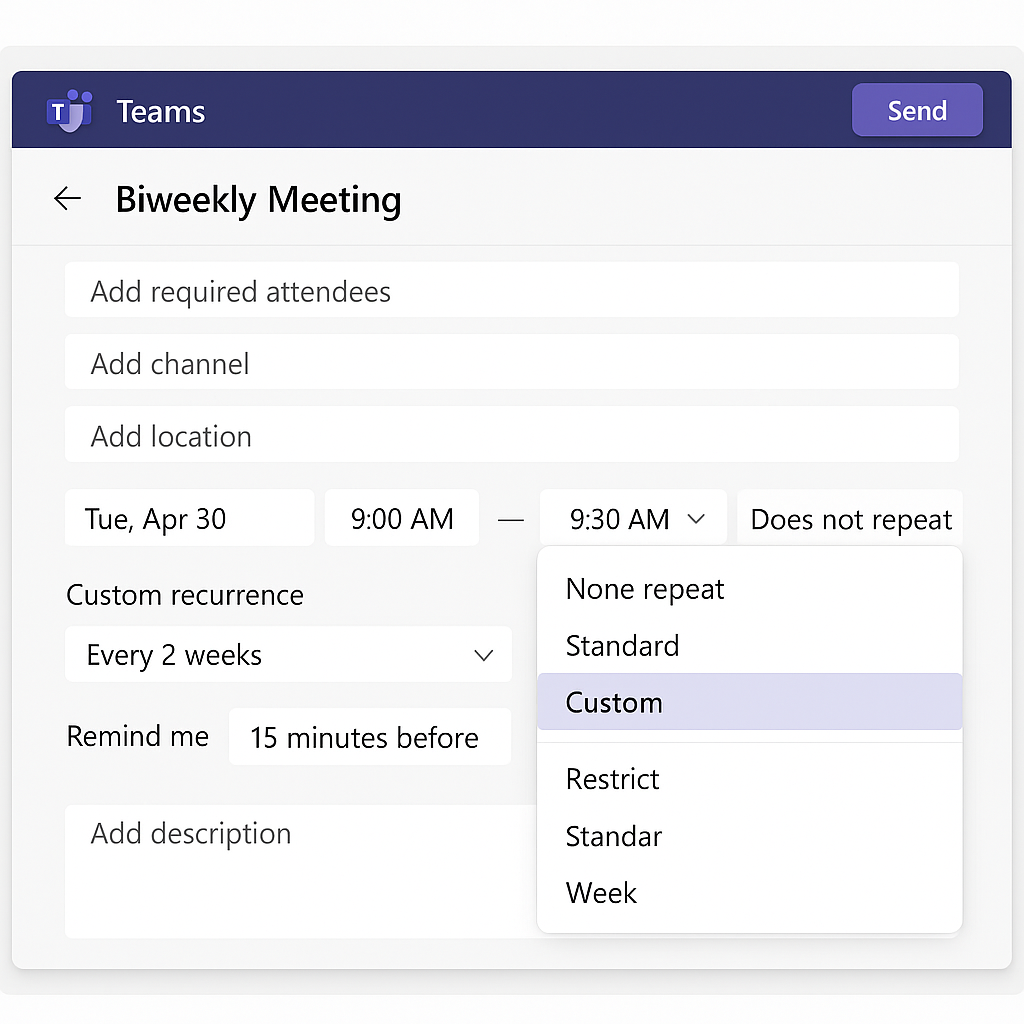
Scheduling recurring meetings in Teams calendar
- Access the Teams calendar by clicking on the Calendar icon in the left navigation pane of your Microsoft Teams application to begin creating your recurring meeting schedule.
- Select “New meeting” from the top right corner of the calendar view, which will open a form where you can enter all the details for your recurring Teams meeting.
- Fill in the essential meeting details including a descriptive title, required and optional attendees, and a clear meeting description that helps participants understand the purpose of your recurring session.
- Enable the recurring meeting option by clicking the “Don’t repeat” dropdown menu below the date selector and choosing the appropriate recurrence pattern for your meeting needs.
- Choose your preferred recurrence pattern from the available options: Daily, Weekly, Monthly, or Custom, depending on whether you need a daily check-in, weekly team meeting, or biweekly status update.
- For biweekly meetings, select “Custom” from the recurrence dropdown, then choose “Every 2 weeks” and select the day of the week when your meeting should occur.
- Set the recurrence end date by selecting either “No end date” for indefinite meetings, “End after X occurrences,” or “End by” a specific date depending on your project timeline or team needs.
- Configure different meeting times if needed by creating separate recurring meetings with unique schedules rather than trying to vary the time within a single recurrence pattern.
- Review your meeting settings carefully, ensuring the time zone is correct and that you’ve added all necessary participants before finalizing your recurring meeting.
- Click “Send” to create your recurring meeting series, which will generate a consistent Teams meeting link that participants can use for all occurrences of the meeting.
Managing Recurring Meetings Across Different Microsoft Platforms
Outlook Integration and Synchronization
Your recurring Teams meetings automatically sync with Outlook, but understanding how these platforms work together can prevent common scheduling conflicts. When you create a recurring meeting in Teams, it appears in both your Teams calendar and Outlook calendar with identical details. If you prefer scheduling from Outlook, you can create recurring meetings there and add Teams meeting details by clicking “Teams Meeting” in the ribbon. This approach is particularly useful for organizations that primarily use Outlook for calendar management while leveraging Teams for video conferencing.
Mobile App Considerations
The Teams mobile app handles recurring meetings differently than the desktop version. While you can join recurring meetings from mobile devices using the same link, scheduling recurring meetings from mobile requires accessing the calendar tab and following a slightly modified interface. Mobile users should note that complex recurrence patterns (like “every third Thursday”) may be easier to set up from the desktop application, then accessed later via mobile devices.
Solving recurring Teams meeting schedule issues
- If attendees report missing calendar invites, verify that all email addresses were entered correctly and consider resending the invitation by editing the meeting series and clicking “Send update” to ensure everyone receives the recurring meeting link.
- When you need to modify the recurring meeting pattern after creation, locate the meeting in your Teams calendar, select “Edit,” then choose “Edit series” instead of “Edit occurrence” to make changes that apply to all future meetings in the series.
- For recurring meetings showing incorrect time zones, edit the meeting series and check that the correct time zone is selected in the dropdown menu, which is particularly important for teams working across different geographical locations.
- If you need different participants for specific occurrences, consider creating separate recurring meeting series rather than trying to manage varying attendee lists within a single recurring meeting, as Teams treats each occurrence as part of the same series.
- When facing technical difficulties with your recurring meetings, you may need to test your Teams connection performance to ensure stable communication during these regular sessions. This is particularly important for teams working across different geographical locations or those experiencing consistent connectivity issues.

Frequently Asked Questions
Can I change just one occurrence without affecting the entire series?
Yes. When you open a recurring meeting from your Teams calendar, you’ll see two options: “Edit occurrence” and “Edit series.” Selecting “Edit occurrence” allows you to modify the time, attendees, or other details for that single instance only. This is useful for accommodating one-time schedule changes like holiday adjustments or when a key participant has a conflict.
What happens to the meeting link if I delete one occurrence?
The Teams meeting link remains the same for all other occurrences in the series. Deleting a single occurrence only removes that specific calendar entry and sends a cancellation notice to attendees for that date. All future meetings continue using the identical join link, which means participants can bookmark it for easy access.
How do I handle recurring meetings that skip holidays?
Teams doesn’t automatically exclude holidays from recurring series. You’ll need to manually delete individual occurrences that fall on company holidays. Open the specific occurrence on the holiday date, select “Delete,” then choose “Delete occurrence” rather than “Delete series.” Alternatively, set an end date before the holiday and create a new series to resume afterward.
Can external guests join recurring Teams meetings?
External participants can join recurring meetings using the same link for every occurrence, provided they were included in the original invitation. They don’t need a Teams license or Microsoft account if joining as guests. However, your organization’s external access settings must permit guest participation. External attendees receive calendar invites via email and can join through their browser or the Teams app.