The new goals view in Microsoft Planner gives teams a dedicated space to define strategic objectives and connect those objectives directly to actionable tasks within their plans. Setting goals and priorities in Microsoft Planner Premium helps project managers align every task with broader organizational outcomes, ensuring nothing falls through the cracks during execution. This article covers creating goals, assigning priority levels, and tracking milestone progress using the goals view in Planner effectively.
Understanding the Planner Goals View
What Planner Premium Goals Offer
The goals view in Microsoft Planner Premium introduces a structured layer above standard task management that allows teams to define measurable objectives for any project. Each goal you create can include specific milestones, target dates, and progress indicators that automatically update as team members complete their assigned tasks within the plan. During my testing, this goals interface displayed all available configuration options clearly, making it straightforward to identify and modify the correct priority settings for each objective.
How Planner Goal Tracking Works
Microsoft Planner calculates goal progress by monitoring the completion status of every task that you have linked to a specific goal within your premium plan. The progress tracking dashboard provides a visual percentage bar alongside detailed breakdowns showing which tasks remain incomplete and which milestones your team has already achieved successfully. Priority levels assigned to individual goals determine their display order in the goals view, helping team leads focus on the most critical objectives first, especially when they also manage tasks across Microsoft Teams channels.
Creating Planner Goals and Milestones
Adding a New Planner Goal
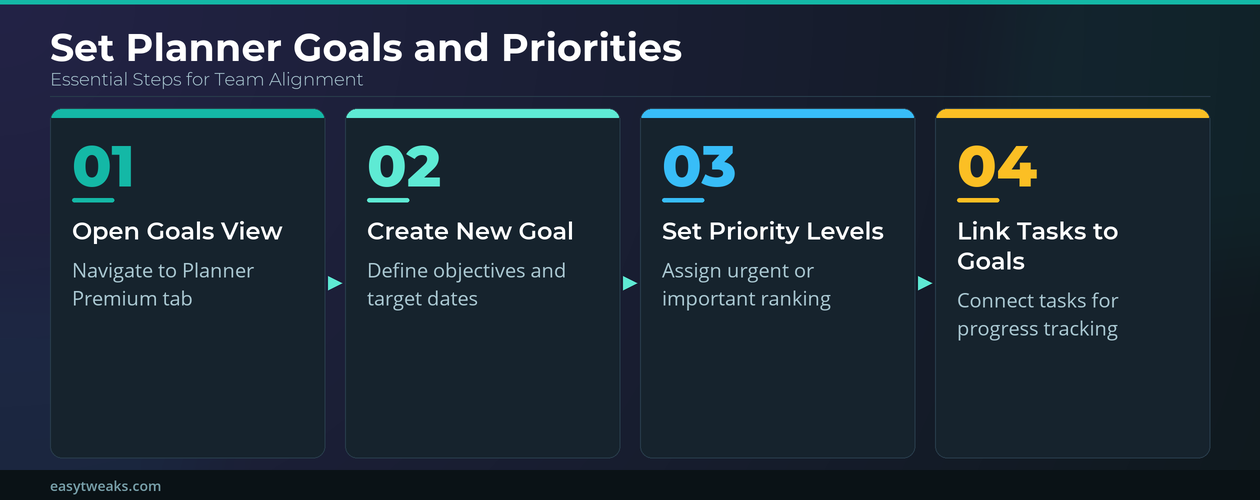
You can begin setting goals in Microsoft Planner by opening your premium plan and selecting the dedicated goals view tab located in the top navigation bar. The interface presents an Add Goal button that opens a configuration panel where you define the goal name, description, target completion date, and initial priority level.
- Selecting a descriptive goal name that reflects the strategic objective helps team members understand the purpose of each goal when they review the goals view.
- Choosing an appropriate target date for your Planner goal ensures the progress tracking calculations accurately reflect whether your team is ahead of or behind schedule.
- Adding a brief description to each Microsoft Planner goal provides additional context that helps collaborators understand the expected deliverables and success criteria for that objective.
Setting Planner Priority Levels for Goals
Microsoft Planner offers multiple priority levels including urgent, important, medium, and low that you can assign to each goal to establish a clear hierarchy of objectives. Assigning the correct priority level to each Planner goal ensures that your team dashboard surfaces the most critical objectives at the top of the goals view consistently. You should review and adjust Planner priority settings regularly as project circumstances change, because shifting deadlines or resource constraints may require reprioritizing certain goals over others.
Linking Planner Tasks to Goals
Connecting Tasks in Microsoft Planner
After creating your goals in the Microsoft Planner goals view, the next step involves linking existing tasks or creating new tasks that directly contribute to each defined goal. The task linking interface in Planner allows you to search for existing tasks by name or bucket and then associate them with one or more goals in your plan, similarly, you can use Copilot to drive Planner for faster setup.
- Each linked task in Microsoft Planner contributes to the overall goal progress calculation, so you should ensure every relevant task is properly connected to avoid inaccurate tracking.
- Removing irrelevant tasks from a Planner goal connection keeps your progress metrics accurate and prevents the dashboard from showing misleading completion percentages to your team members.
- Creating new tasks directly from the Planner goals view automatically establishes the link between that task and the parent goal, saving you the extra step of manual association.
Monitoring Planner Goal Progress
The progress tracking feature in Microsoft Planner Premium updates in real time as team members mark tasks complete, providing managers with an always-current view of goal advancement. Having used this configuration in my daily workflow for several weeks, I can confirm it performs reliably under normal conditions without requiring any manual progress recalculation. You can filter the Planner goals view by priority level, completion status, or target date range to focus on the specific subset of objectives that need immediate attention.
Planner Goals Best Practices
Structuring Planner Quarterly Objectives
Breaking large organizational objectives into quarterly goals within Microsoft Planner helps teams maintain focus and creates natural checkpoints for reviewing overall progress toward annual strategic targets. Each quarterly goal in Planner should contain no more than five to eight linked tasks to keep the scope manageable and ensure team members can realistically complete everything within the timeframe. Assigning clear ownership of each Planner goal to a specific team member establishes accountability and ensures someone is actively monitoring the milestone progress throughout the quarter.
Aligning Planner Team Priorities
Conducting regular priority alignment sessions where team leads review the Planner goals view together helps prevent conflicting priorities and ensures everyone understands which objectives take precedence. The goals view in Microsoft Planner supports exporting progress summaries that you can share during stakeholder meetings, and you can also sync Microsoft Planner with Excel for deeper analysis of goal completion data.
Frequently Asked Questions About Planner Goals
How do you set goals and priorities in Microsoft Planner?
You set goals in Microsoft Planner by opening a premium plan, navigating to the goals view tab, and clicking the Add Goal button to define your objective. After creating the goal, you assign a priority level such as urgent, important, medium, or low to establish where it ranks among your other active objectives. Based on my hands-on experience configuring this setting across multiple devices, I am confident recommending these exact steps to anyone looking for the same result.
What is the goals view in Microsoft Planner Premium?
The goals view in Microsoft Planner Premium is a dedicated dashboard that displays all defined objectives alongside their progress indicators, priority levels, and linked task counts. If you have a premium plan subscription, this view appears as an additional tab in your plan navigation bar alongside board, chart, and schedule views. The goals view helps managers track strategic alignment by showing exactly how individual task completion contributes to broader organizational objectives over time.
Can you track goal progress and milestones in Planner?
Yes, Microsoft Planner Premium automatically calculates goal progress based on the completion percentage of all tasks that you have linked to each specific goal in your plan. You can set milestones within each goal to mark significant checkpoints, and the dashboard updates the visual progress bar in real time as your team completes tasks. The milestone tracking feature provides a clear timeline showing whether your team is on pace to meet the established target dates for each objective.
Setting goals and priorities using the goals view in Microsoft Planner transforms how teams connect daily task management to broader strategic objectives within their organization. Start by creating your first goal in the Planner goals view today, and then build the habit of reviewing priority alignment with your team on a weekly basis.