Chrome stores your bookmarks locally within your browser profile, and knowing how to export Chrome bookmarks ensures you always have a portable backup of your saved websites. Whether you are migrating to a new computer, switching to a different browser, or simply creating a safety net, exporting bookmarks as an HTML file takes only a few steps. This article walks you through every method available for saving Chrome bookmarks to a file, including the built-in bookmark manager and Google account sync options.
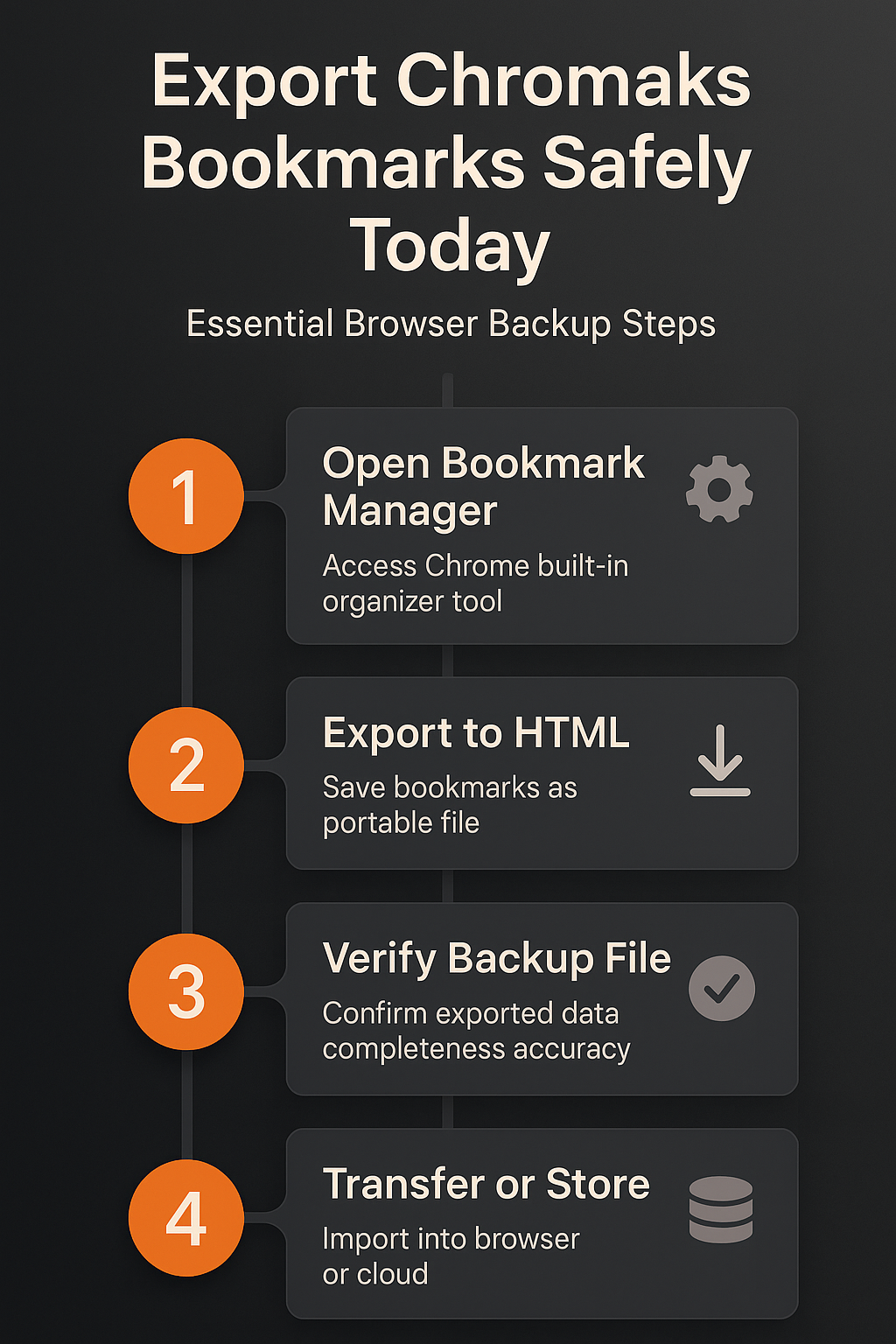
Open Chrome Bookmark Manager
The fastest way to export Chrome bookmarks starts with opening the bookmark manager, which organizes every saved website into folders and categories within your browser.
- You can access the bookmark manager by pressing Ctrl + Shift + O on Windows or Command + Shift + O on Mac, which opens the full management interface immediately.
- Alternatively, you can click the three-dot menu icon located in the upper-right corner of Chrome, then hover over Bookmarks and Lists to find additional options.
- The bookmark manager displays all your saved websites in a searchable, sortable interface that lets you review, reorganize, and prepare your bookmarks before starting the export process.
Save Chrome Bookmarks to HTML File
Once you have the bookmark manager open, look for the three-dot menu icon positioned in the upper-right area of the bookmark manager panel itself.
- Click that icon and select Export Bookmarks from the dropdown menu, which immediately opens a standard file save dialog box on your operating system.
- Chrome generates a single HTML file that contains every bookmark you have saved, preserving your complete folder structure, bookmark names, and all associated website URLs accurately.
- Choose a memorable save location such as your Desktop or Downloads folder, and consider including the current date in the filename for easy version tracking.
Verify Your Chrome Exported File
After saving the HTML file, navigate to the folder where you stored your Chrome bookmarks backup and confirm that the file size appears reasonable and non-zero.
- You can open the exported HTML file directly in any web browser to verify that all your bookmarks appear correctly, with clickable links organized into their original folders.
- This verification step helps you catch potential issues early before you rely on the backup file during a browser data migration or computer transfer process.
- Each bookmark entry in the HTML file includes the original URL, the bookmark title you assigned, and the date it was originally added to Chrome.
Transfer Bookmarks to Another Browser in Chrome
The exported HTML file serves as a universal format that virtually every modern browser can import, making it the most reliable method for browser data migration available today.
- In Microsoft Edge, navigate to edge://favorites and click the three-dot menu, then select Import Favorites and choose the HTML file you exported from Chrome earlier.
- Firefox users should open the Library window by pressing Ctrl + Shift + O, then select Import and Backup followed by Import Bookmarks from HTML to load the file.
- Safari on Mac provides an import option under File > Import From > Bookmarks HTML File, which reads the same exported Chrome file and preserves your folder organization.
Sync Bookmarks via Google Account
Chrome offers a built-in synchronization feature that automatically backs up your bookmarks to your Google account, providing seamless access across every device where you sign in.
- To enable this feature, click your profile icon in the upper-right corner of Chrome, then select Turn on sync and sign in with your Google account credentials.
- Once sync is active, Chrome continuously uploads your bookmarks, history, passwords, and other browser data to Google servers, keeping everything current and backed up automatically.
- This method works particularly well for people who use Chrome on multiple devices, because any bookmark you add on one device appears on all others within moments.
Best Chrome Practices for Bookmark Backups
- You should export Chrome bookmarks at least once per month to maintain a current offline backup that protects against accidental deletion, browser corruption, or unexpected account issues
- Storing your exported HTML file in a cloud storage service like OneDrive or Google Drive adds an extra layer of protection beyond keeping it only on your local drive
- Organizing your bookmarks into clearly labeled folders before exporting makes the backup file significantly easier to navigate when you eventually need to import bookmarks into a new browser
- Keeping multiple dated versions of your bookmark exports allows you to restore from different points in time if recent changes included deletions you later want to reverse
Frequently Asked Questions
Where are Chrome bookmarks stored on my computer?
Chrome saves bookmark data in a file called “Bookmarks” inside your user profile directory, which on Windows is typically located at AppData\Local\Google\Chrome\User Data\Default. This JSON-formatted file contains all your saved URLs and folder structures, though exporting through the bookmark manager produces a more portable and universally compatible HTML version.
Can you export Chrome bookmarks to another browser?
Yes, the HTML file that Chrome produces during the export process works as a universal bookmark format that Edge, Firefox, Safari, and most other modern browsers can import directly. You simply need to locate the import bookmarks option within your destination browser settings and point it to the HTML file you previously exported from Chrome.
How do I back up all my Chrome bookmarks?
The most thorough approach combines both methods discussed in this article, starting with an HTML file export through the bookmark manager and supplementing that with Google account sync enabled. This dual strategy ensures your bookmarks exist both as a portable local file and as a continuously updated cloud backup accessible from any device where you sign into Chrome. Exporting Chrome bookmarks protects your collection of saved websites and ensures you can restore or transfer them whenever circumstances require a fresh browser installation or device change. Taking a few minutes to create regular HTML backups through the Chrome bookmark manager gives you complete control over your browser data migration process, whether you are importing favorites from another browser into Chrome or moving to a different platform entirely. For related browser management topics, explore how to set your Microsoft Edge bookmarks location or learn about exporting Edge bookmarks to OneDrive on Windows 11 for similar data protection strategies. You can also read about making Chrome the default browser in Outlook 365 if you want Chrome to handle all your email links directly.