A Teams call queue status can look stuck when two different signals disagree: the agent is opted into the queue, but presence-based routing still sees the agent as unavailable. It can also happen when the opt-in control is disabled by configuration or when a recent roster change has not propagated.
Treat queue membership, opt-in state, Teams presence, and call notifications as separate controls. Turning on queue notifications does not opt an agent in, and setting presence to Available does not add someone to a queue.
Read the status from the surface that owns it
First identify where the incorrect state appears:
- Teams Settings > Calls > Call queues: an agent can use Turn on to start receiving calls only when administrators allow opt-out.
- Queues app: licensed agents can opt in or out of each assigned queue; leads may manage other agents when authorized.
- Channel Calls tab: the agent list can show availability for a channel-linked queue.
- Profile presence: Available, Busy, Do not disturb, Away, or Offline can affect routing when presence-based routing is enabled.
Take one screenshot of the queue name and visible state before changing anything. If several queues are assigned, verify that the stuck toggle belongs to the correct queue.
Decide whether the toggle is wrong or calls are missing
Place one controlled call to the queue. If the agent receives it despite an incorrect-looking badge, the display may be stale. If the agent is opted in but never rings, investigate presence routing and call settings. If the toggle is disabled, investigate the queue’s opt-out permission rather than refreshing the client repeatedly.
The broader incoming-call checklist for desktop and mobile helps rule out device notification and quiet-hours problems after the queue state itself is correct.
Reset the agent’s own opt-in state
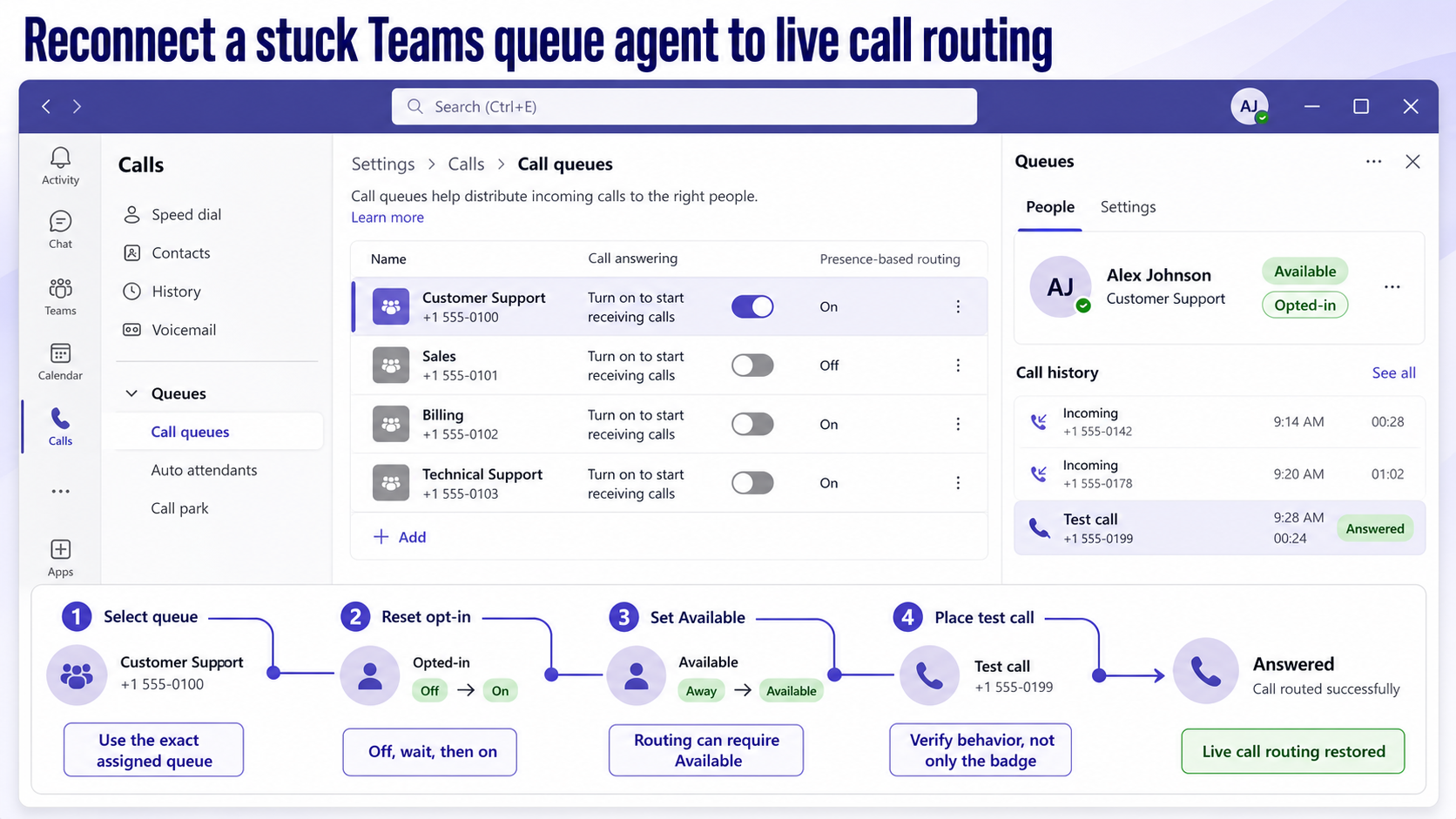
In Teams, open Settings and more > Settings > Calls and scroll to Call queues. Locate the intended queue. If the administrator permits agents to opt out, switch Turn on to start receiving calls off, wait briefly, then turn it on again.
In the Queues app, select the queue and use Opt out, then Opt in. Microsoft says opting out removes the agent from the opted-in list and stops queue calls. Opting back in should return the agent to the receiving group.
Wait up to two minutes before judging the roster display. Microsoft notes that other agents may need that long to see an availability change in a channel-linked queue.
When the opt-in toggle is disabled
A disabled toggle can be intentional. Microsoft states that agents can change queue status only when the administrator has enabled opt-out. Send the queue name and screenshot to the voice administrator and ask whether Allow people to opt out of taking calls is enabled.
Do not leave and rejoin the team as a workaround. Queue membership and the permission to change opt-in status are voice configuration, not ordinary team membership alone.
Align presence-based routing with the queue
When Presence-based routing is enabled, an agent must be opted in and have an eligible presence state to receive calls. Microsoft specifically notes that Queues app team members must be opted in and Available for this routing mode.
Set the Teams profile status to Available and remove any manually set duration that keeps another state active. End test calls, meetings, or screen sharing that legitimately mark the agent Busy. Then place another queue call.
If the profile itself shows the wrong state everywhere, use the presence-state recovery checks before changing queue routing. A queue should not be reconfigured to ignore presence merely to mask one user’s stale client presence.
Compare one working agent
Select an agent who receives calls from the same queue. Compare these items side by side:
- Opted-in state for that exact queue
- Current Teams presence
- Desktop versus mobile sign-in
- Call forwarding and Do not disturb settings
- Assigned queue membership in the People roster
One working peer gives you the queue’s expected configuration. If every opted-in available agent misses calls, the issue is probably queue-wide rather than an individual status cache.
Refresh the client without erasing the queue configuration
Sign out of Teams, close the client completely, reopen it, and sign in with the account assigned to the queue. Recheck Calls settings or the Queues app before placing a test call.
If the Queues app is missing, confirm licensing and platform support. Microsoft documents that the app requires Teams Phone and Teams Premium, may take up to 48 hours to appear after licensing, and is not supported in the Teams web client. Ordinary call queue settings can still be available without the full Queues app experience.
Avoid clearing broad application data as the first response. A sign-out and clean restart is easier to reverse and preserves evidence for the administrator.
Give the voice administrator a useful escalation packet
Escalate when the toggle is disabled unexpectedly, the roster omits the agent, or multiple available agents cannot receive calls. Include:
- Queue name and resource account, if visible
- Agent account and license state
- Timestamp and caller number for one test call
- Agent opt-in and Teams presence at that time
- Whether presence-based routing and agent opt-out are enabled
- Desktop, mobile, or channel surface used for the test
An administrator or authorized queue lead can verify the agent list and opt status. Microsoft notes that newly added channel agents can take up to 24 hours to appear in the call queue roster, so a fresh assignment needs a propagation check before deeper repair.
Questions about Teams queue availability
Why am I opted in but still not receiving queue calls?
Presence-based routing may require your Teams presence to be Available. Call forwarding, Do not disturb, device notification settings, or a queue-wide routing issue can also prevent ringing. Compare your state with a working agent and place a timestamped test call.
Why can I not change the queue toggle?
The queue may not allow agents to opt out. In that case Teams displays a disabled control, and a voice administrator or authorized lead must change the configuration or your status. This is not fixed by reinstalling the client.
How long should a queue status update take?
Microsoft notes that other channel agents may need up to two minutes to see an availability change. Newly added channel agents may take up to 24 hours to appear in the queue roster. If an established agent remains wrong beyond those windows, capture the state and escalate.
Does turning on queue notifications opt me in?
No. Notification controls decide whether Teams alerts you, while opt-in state decides whether you participate in queue routing. Check both settings, then confirm presence if presence-based routing is enabled.
Verify the route, not only the badge
Finish with two calls: one while the agent is opted in and Available, and one after the agent intentionally opts out. The first should ring according to the queue method; the second should not select that agent. A changing badge without the matching call behavior is still unresolved, while correct routing with a briefly stale roster can be monitored instead of prompting a queue-wide rebuild.