Microsoft Teams meetings generate valuable discussions that participants often struggle to remember once the call ends and everyone returns to their regular tasks. Copilot meeting recap in Microsoft Teams provides an automatic post-call summary that captures key decisions, action items, and important talking points from every recorded conversation. This article walks you through the complete process for enabling and accessing Copilot post-call summaries so you never miss critical meeting details again.
Enabling Copilot Transcription in Teams
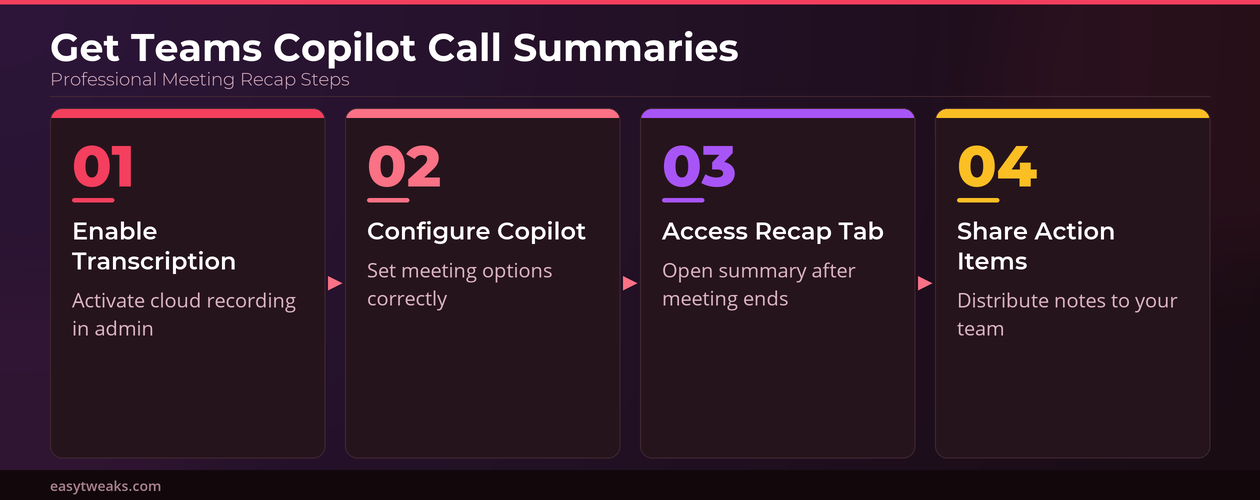
Before Copilot can generate any post-call summary, your organization must have transcription and cloud recording enabled through the Microsoft Teams admin center policies. The Microsoft 365 Copilot license is required for each user who wants to access the intelligent recap feature, which means your IT administrator needs to verify licensing first. During my testing on a Windows 11 machine with Microsoft Teams, the transcription setting took effect within minutes after the administrator toggled the policy in the admin center.
- Your Teams administrator should navigate to the Teams admin center, select Meeting policies, and confirm that both cloud recording and transcription toggles are switched to the enabled position for your organization. This single configuration change ensures that every meeting participant with a Copilot license can access recording and transcription features during and after their calls without additional steps.
- Each participant who wants to receive the Copilot post-call summary must hold an active Microsoft 365 Copilot license, because the intelligent recap feature relies on advanced AI processing capabilities. You can verify your own license status by opening the Microsoft 365 admin portal and checking the assigned subscriptions listed under your user profile settings.
- Meeting organizers should also confirm that the recording and transcription options appear in their Teams meeting toolbar before scheduling important calls that require automated summaries. If these options do not appear in the toolbar, the meeting policy may not have propagated yet, and you should contact your administrator to review the configuration.
Configuring Teams Meeting Options
Meeting organizers can further customize how Copilot behaves during specific calls by adjusting the meeting options before the scheduled session begins in Microsoft Teams. You can access these settings by opening the meeting invitation in your Teams calendar, selecting the meeting options link, and scrolling to the Copilot section of the configuration page.
- The Copilot availability setting in meeting options determines whether Copilot can process the meeting content during the call or only after the recording and transcription finish processing. Selecting the option that allows Copilot to work during and after the meeting provides the most comprehensive post-call summary with real-time context and participant engagement data.
- Organizers should also verify that the automatic recording toggle is enabled within the meeting options if they want every session to generate a post-call summary without manual intervention. This setting ensures that participants do not need to remember to press the record button, which eliminates a common reason why Copilot summaries fail to appear after Teams meetings end.
Accessing Copilot Recap in Teams
Once a recorded meeting concludes, Microsoft Teams processes the transcription and recording through Copilot to generate a comprehensive post-call summary within the recap tab automatically. The processing time typically ranges from a few minutes to approximately fifteen minutes depending on the meeting duration and the current server processing load.
Opening the Teams Recap Tab
You can access the Copilot post-call summary by navigating to your Teams calendar, locating the completed meeting event, and clicking on the recap tab that appears within the meeting details. The recap tab displays an organized summary that includes key discussion topics, decisions that participants agreed upon, and specific action items that Copilot extracted from the conversation.
- The recap tab within the meeting details provides a structured overview where Copilot organizes the entire meeting transcript into logical sections based on topics discussed throughout the call. You can expand each section to review the detailed transcript excerpts that Copilot used to generate its summary, which helps verify accuracy of the captured information.
- Copilot also identifies and highlights action items with the names of participants who were assigned specific tasks during the meeting, making follow-up accountability significantly easier for project managers. Each action item includes the relevant context from the discussion, so assignees understand exactly what was agreed upon without needing to watch the entire recording.
- You can ask Copilot additional follow-up questions directly within the recap tab by typing prompts such as requesting a summary of a specific participant’s contributions or decisions made about particular topics. This interactive capability means the post-call summary serves as a searchable knowledge base for every recorded meeting rather than just a static document.
Sharing Teams Copilot Summary Notes
After reviewing the Copilot post-call summary, you can share the recap with team members who missed the meeting or need a reference document for their project files. Having repeated this procedure on several machines over the past few weeks, I can confirm the sharing steps work reliably whether you copy the summary text or use the built-in sharing options.
- The copy summary button within the recap tab lets you quickly transfer the entire formatted summary to your clipboard for pasting into emails, OneNote notebooks, or Copilot chat conversations in Microsoft 365 where your team collaborates on project documentation and follow-up tasks.
- You can also use the share to chat feature to send the recap summary directly to a Teams channel or group chat where relevant stakeholders can review the decisions and action items without opening the original meeting. This distribution method ensures that all team members receive the same consistent summary regardless of whether they attended the original call or joined partway through the discussion.
Troubleshooting Copilot Recap in Teams
Sometimes the Copilot post-call summary may not appear immediately after a meeting ends, which can happen for several technical reasons related to licensing, policies, or recording configuration issues. Understanding these common scenarios helps you quickly identify and resolve the problem so you can access your meeting summaries without significant delays.
Fixing Missing Teams Copilot Recaps
If the recap tab does not display a Copilot summary after your meeting, the most likely cause is that cloud recording or transcription was not active during the call session. You should verify that both features were running by checking the meeting recording list in your Teams chat history, where successfully recorded meetings display a playback link.
- Confirm that your Microsoft 365 Copilot license is active and properly assigned to your account, because an expired or unassigned license will prevent the intelligent recap feature from processing your meeting data. Your IT administrator can quickly verify this through the Microsoft 365 admin center by searching for your user account and reviewing the list of assigned service plans.
- Check whether the meeting transcription actually started during the call by looking for the transcription indicator that appears in the meeting toolbar, since Copilot requires an active transcript to generate summaries. If transcription did not start automatically, the meeting organizer may need to enable Copilot transcription settings in the Teams admin policies before scheduling the next call.
Frequently Asked Questions About Copilot Teams Summaries
How do I enable Copilot meeting recaps in Microsoft Teams?
Your Teams administrator needs to enable both cloud recording and transcription in the Teams admin center meeting policies for your organization. Each user also requires an active Microsoft 365 Copilot license assigned to their account before the intelligent recap feature becomes available in their meeting details. The policy changes typically propagate within a few minutes, though some organizations may experience a short delay before the options appear in the meeting toolbar.
What does the Copilot post-call summary include in Teams?
The Copilot post-call summary includes organized discussion topics, key decisions made during the meeting, action items assigned to specific participants, and follow-up suggestions based on the conversation. You can also ask Copilot interactive follow-up questions within the recap tab to extract additional details about specific topics or participant contributions from the recorded session. Based on my hands-on experience configuring this feature across multiple devices, I am confident recommending these steps to anyone looking for automated meeting documentation.
Why is Copilot recap not available after my Teams meeting?
If the Copilot recap does not appear, the most common reason is that cloud recording or transcription was not active during the call session. Verify that your Microsoft 365 Copilot license is properly assigned and that the meeting organizer enabled recording before the session started. Processing delays of up to fifteen minutes can also occur depending on the meeting length and current server load, so waiting briefly often resolves the issue.
Microsoft Teams Copilot post-call summaries transform how teams capture and share meeting knowledge by automatically generating structured recaps with action items and key decisions from every recorded call. Enabling transcription policies, verifying Copilot licensing, and configuring meeting options correctly ensures that every participant can access comprehensive summaries immediately after their calls conclude in Teams.