Outlook not loading Gmail emails
When you try to access your Gmail account through Microsoft Outlook, connection failures can disrupt your entire email workflow and force you to switch between multiple applications. This common integration challenge affects millions of users who prefer Outlook’s interface while maintaining their Gmail accounts for personal or business communication needs.
Outlook crashes when connecting to Gmail solutions
Gmail and Outlook integration problems typically stem from authentication conflicts, outdated security settings, or improper account configuration within the Outlook client application. Modern email security protocols require specific authentication methods that older Outlook versions or misconfigured accounts cannot properly handle, leading to connection timeouts and application instability.
We will properly configure Gmail accounts in Outlook, resolve authentication errors, and prevent crashes during the connection process. You will learn to enable necessary Gmail security settings, configure Outlook account parameters correctly, and implement backup solutions when primary connection methods fail. The solution requires administrative access to both your Gmail account settings and Outlook application preferences, along with basic understanding of email protocol configurations.
Gmail not loading on Outlook configuration steps
The following implementation process addresses the most common causes of Gmail-Outlook connectivity issues through systematic account reconfiguration and security setting adjustments.
Enable Gmail IMAP and configure security settings
- Navigate to Gmail settings by clicking the gear icon in the upper right corner of your Gmail interface, then select “See all settings” from the dropdown menu to access comprehensive account configuration options.
- Click on the “Forwarding and POP/IMAP” tab within Gmail settings, then locate the IMAP Access section and select “Enable IMAP” to allow Outlook to retrieve your Gmail messages using the Internet Message Access Protocol.
- Access Google Account security settings by visiting myaccount.google.com/security, then scroll down to the “Less secure app access” section and enable this option if you are using older versions of Outlook that do not support modern authentication methods.
- Generate an App Password for Outlook by navigating to Google Account settings, selecting “Security,” then “2-Step Verification,” and finally “App passwords” to create a unique 16-character password specifically for Outlook authentication.
Expert Tip: App passwords provide secure authentication without compromising your main Google account password, making them essential for third-party email client connections.
Configure Outlook account settings for Gmail integration
- Open Microsoft Outlook and navigate to File menu, select “Add Account,” then choose “Manual setup or additional server types” to access advanced configuration options that provide better control over Gmail connection parameters.
- Select “POP or IMAP” as your account type, then enter your Gmail address in the email field and use the App Password you generated earlier instead of your regular Gmail password for authentication.
- Configure incoming mail server settings by entering “imap.gmail.com” as the server address, setting the port to 993, and enabling SSL encryption to ensure secure communication between Outlook and Gmail servers.
- Set outgoing mail server parameters by entering “smtp.gmail.com” as the SMTP server, using port 587 with TLS encryption, and ensuring that “My outgoing server requires authentication” option is checked for proper message sending capabilities.
- Test account settings by clicking the “Test Account Settings” button within Outlook configuration dialog, which will verify both incoming and outgoing server connections and display any authentication or connectivity errors that need resolution.
Outlook crashing while connecting to Gmail advanced solutions
- Update Microsoft Outlook to the latest version by opening the application, navigating to File menu, selecting “Office Updates,” and installing any available patches that may include Gmail compatibility improvements and stability fixes.
- Create a new Outlook profile by accessing Control Panel, selecting “Mail,” clicking “Show Profiles,” and adding a fresh profile configuration that eliminates any corrupted settings from previous Gmail connection attempts.
- Disable Outlook add-ins that may interfere with Gmail connectivity by starting Outlook in Safe Mode using the “outlook /safe” command, then systematically disabling third-party add-ins through File menu options. See also start Outlook Safe Mode for detailed instructions.
- Configure Windows Defender or antivirus software to exclude Outlook from real-time scanning during email synchronization, as aggressive security software can interrupt Gmail authentication processes and cause application crashes.
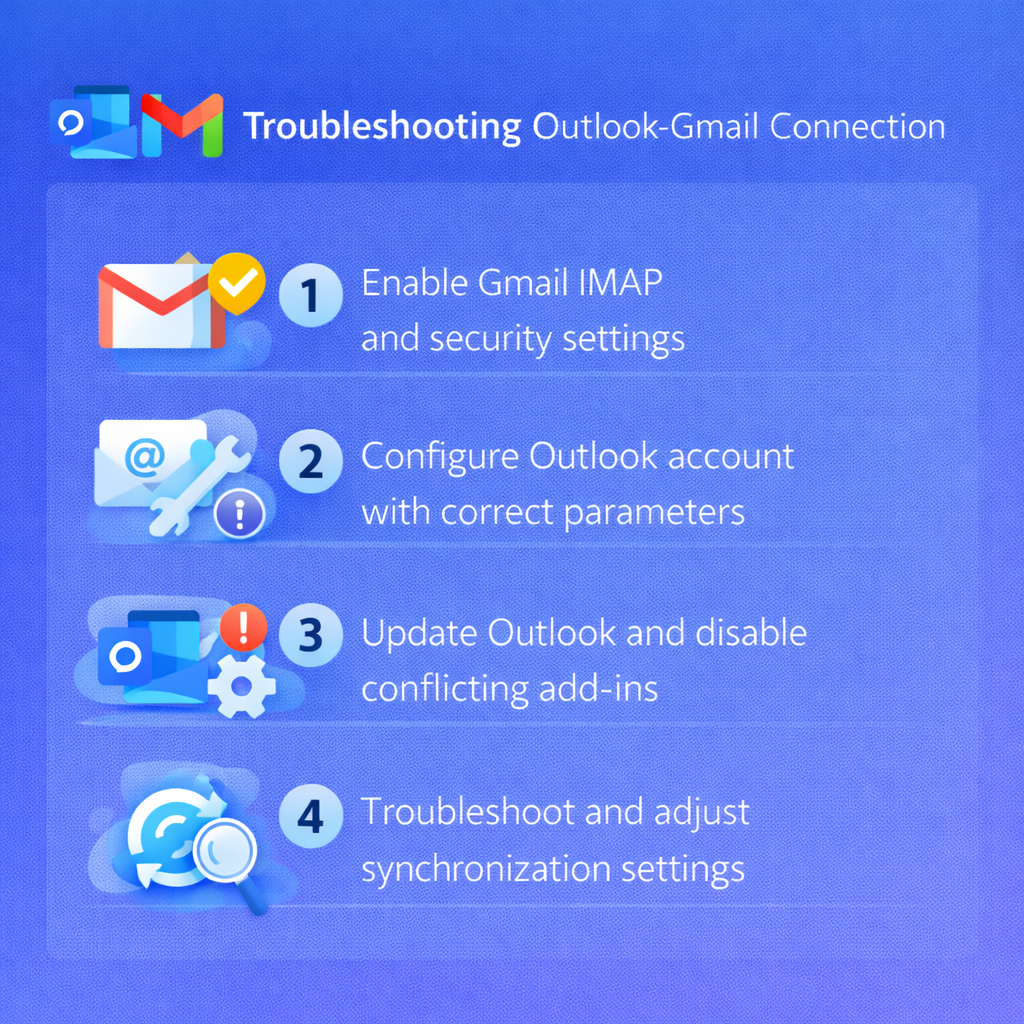
Outlook not showing Gmail emails troubleshooting solutions
Common Gmail-Outlook integration problems require specific diagnostic approaches and targeted solutions to restore full email functionality and prevent recurring connection failures.
- Authentication failures with “password incorrect” errors: Verify that you are using the App Password generated from Google Account settings rather than your regular Gmail password, as Google requires specific authentication tokens for third-party applications like Outlook to access account data securely.
- Outlook not signing into Gmail despite correct credentials: Check that two-factor authentication is enabled on your Google Account and that you have generated a unique App Password specifically for Outlook, as Google automatically blocks sign-in attempts from applications that do not support modern authentication protocols.
- Gmail folders not synchronizing properly in Outlook: Access Gmail settings through the web interface, navigate to the “Labels” section, and ensure that important folders like Sent Mail, Drafts, and custom labels have “Show in IMAP” enabled to make them visible within Outlook’s folder structure.
- Outlook will not load Gmail messages from specific time periods: Increase the mail synchronization period in Outlook account settings by right-clicking your Gmail account, selecting “IMAP Account Settings,” and adjusting the “Mail to keep offline” slider to download older messages that may not appear in the default synchronization window.
Remember: Gmail’s security updates frequently change authentication requirements, so bookmark Google’s official Outlook setup documentation for the most current configuration parameters and troubleshooting steps.
Also check our guide on email synchronization problems for more tips on fixing Outlook syncing issues.