You add someone to an Outlook mailing list, send the next message, and the new member receives nothing. The cause is often simpler than mail transport: Outlook may be using an old resolved recipient, a different list with the same display name, or a personal contact list when you expected an organization-managed distribution group.
Fix the source list first, then create a completely new message and resolve the list again. Reusing an old draft or reply can preserve the earlier expanded recipients even though the contact list was updated.
Identify which kind of list you edited
“Mailing list” can refer to three different objects. They do not share the same owner or update path.
Personal contact list in new Outlook
In new Outlook or Outlook on the web, open People, then select All contact lists. Choose the list and use Edit to add or remove contacts, then save it. This list belongs to your mailbox and is mainly for messages you address from Outlook.
Contact group in classic Outlook
Classic Outlook uses a contact group, formerly called a personal distribution list. Open People, open the group, use Add Members or remove a member, then select Save & Close. A local contact group is not the same as an Exchange Online distribution group managed for the whole organization.
Organization distribution group
An administrator or designated owner manages an organization distribution group in Microsoft 365 or Exchange. If the address appears in the corporate directory and many employees use it, ask the group owner to verify membership. Editing a personal contact with a similar name will not change the directory group.
Prove the saved list contains the new address
Reopen the list after saving instead of assuming the edit persisted. Check the member’s full email address, not only the display name. A contact card can contain an old personal address and a new work address, and Outlook may resolve the wrong one.
For a personal list, remove the questionable entry, save, reopen the list, and add the correct contact or full SMTP address. Save again. This clean cycle is safer than editing only the display name on a stale contact.
Watch for duplicate list names
Search People for the list name and inspect every match. A personal contact list, an old contact group, and a directory distribution group can have nearly identical names. Rename the personal list with a clear qualifier such as “Project Atlas external contacts” if users repeatedly choose the wrong object.
If your recipients are actually Teams channel addresses, this Outlook-to-channel method explains why a collection of channel email addresses behaves differently from a normal employee distribution group.
Send a fresh message after the edit
Close old drafts and do not reply to a previous mailing-list message for the test. Select New mail, type the list name in To, and choose the intended list from the suggestions. Click or expand the resolved recipient when Outlook allows it and confirm you selected the right object.
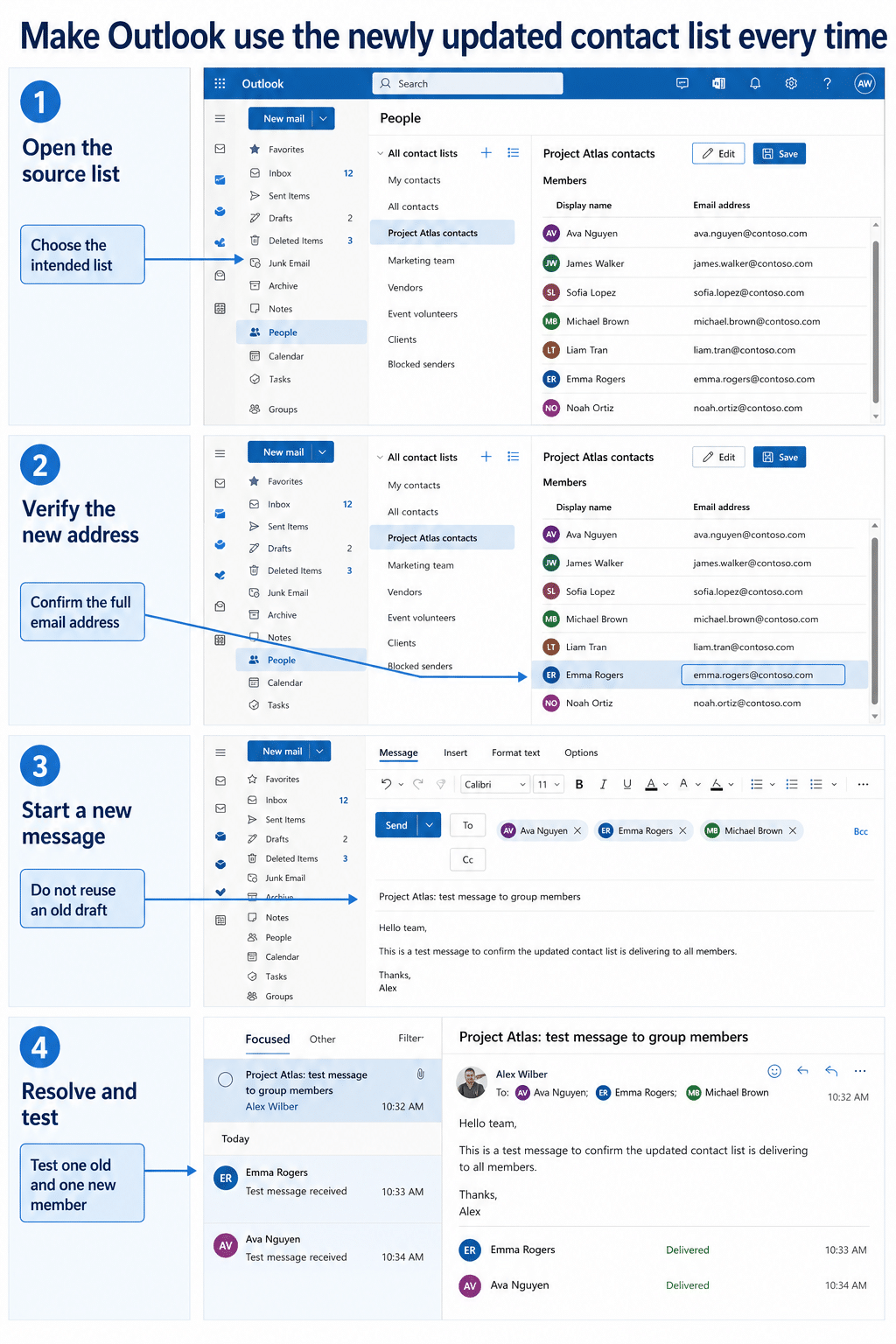
Send a short test with a unique subject to one established member and the newly added member. Ask both to check Junk Email and quarantine if your organization uses mail security filtering. If the established member receives it and the new member does not, list membership or recipient resolution remains the leading suspect.
Remove a stale AutoComplete suggestion
Outlook builds suggestions from addresses used previously. In classic Outlook, type the first characters in a new message, highlight the stale suggestion, and select the X or press Delete when available. Then choose the saved contact list again.
Microsoft notes that Exchange Online recipient suggestions in current Outlook for Microsoft 365 can be powered by Microsoft Search. Behavior therefore differs between classic Outlook and Outlook on the web. Do not clear the entire AutoComplete list unless several unrelated recipient suggestions are corrupt; that removes useful history and may not change the saved list.
Check whether the list expands now or at delivery
A personal contact list may resolve to its saved member addresses when you compose. An organization distribution group is normally expanded by Exchange during delivery. This difference changes where to troubleshoot.
For a personal list, inspect the list in People and the resolved recipient in the new message. For an organization group, the owner or administrator should inspect group membership, delivery-management rules, moderation, allowed senders, and external-recipient policies.
Ask for a message trace when the group is correct
If the new member appears in an organization group but still receives nothing, provide IT with the sender, group address, subject, and exact send time. An Exchange message trace can show whether the message expanded to that recipient, was rejected, quarantined, redirected, or delivered.
Do not repeatedly resend the same business message while IT investigates. Use a controlled subject such as “List membership test 2026-08-20” and keep the recipient scope small.
Check privacy before testing a large list
Personal contact lists placed in the To or Cc field can expose member addresses to each recipient. Use Bcc when recipients should not see one another, and place your own address in To if required by your mail policy. This Bcc field guide shows the compose controls without changing the underlying list membership.
An organization distribution group normally presents the group address rather than expanding every address visibly, but configuration varies. Confirm the expected privacy behavior with the group owner before sending confidential or external communications.
What different delivery results mean
Use the smallest test that separates the likely causes:
- Nobody receives the message: verify the sender, Outbox, connectivity, group address, and non-delivery report.
- Old members receive it, new member does not: reopen the saved list or ask the directory-group owner to confirm membership.
- The new member receives direct mail but not list mail: investigate group expansion, allowed senders, moderation, or mail filtering.
- Outlook chooses the wrong list: remove the stale suggestion where supported and rename duplicate personal lists.
- External members fail: ask the administrator whether the group permits external recipients and whether the address is configured as a mail contact.
Keep copies of non-delivery reports. Their diagnostic code is far more useful than a screenshot saying only that the message was not received.
Common questions about Outlook list updates
Why does an old draft ignore the new member?
The draft may already contain a resolved recipient object or expanded member set from before the edit. Create a new message and select the saved list again. That forces Outlook to resolve the current object.
Can I update a company distribution list from People?
Usually not. A directory distribution group has owners and may require Microsoft 365 or Exchange administration. A personal list in People changes only your mailbox object.
Why do I see two lists with the same name?
One may be personal and the other organization-managed, or an old copy may still exist. Inspect the email address and owner, then rename or delete only the personal duplicate you control.
Should I clear all Outlook suggestions?
Only as a last resort for widespread AutoComplete corruption. Remove one stale entry when the client supports it, then select the correct list. Clearing all suggestions does not repair incorrect group membership.
How long should an organization-group update take?
Changes can take time to propagate across directory and mail services. Ask the owner when the membership was saved and retest with a new message later. If the address is urgent, send the new recipient a direct copy while IT verifies the group.
A reliable final test
Reopen the source list, confirm the full new address, create a new message, and resolve the intended list from scratch. If the test still fails, separate personal-list resolution from Exchange group delivery and give IT one precise test message to trace. That sequence fixes local list mistakes quickly and preserves useful evidence when the problem belongs to mail administration.