Your Outlook folders vanished overnight. The navigation pane looks empty except for your inbox. Missing folders often hide in plain sight due to view settings, archive configurations, or IMAP sync issues that affect folder visibility.
Hidden Outlook folders typically result from three common scenarios. View settings get changed accidentally during software updates or user interface modifications. Archive folders move to different locations when PST file paths change or network drives disconnect unexpectedly. IMAP accounts fail to sync all server folders locally due to subscription settings, authentication issues, or server-side folder permissions that prevent complete synchronization.
This problem affects millions of Outlook users worldwide. Most hidden folder problems resolve within minutes using the right troubleshooting approach.
Show hidden folders Outlook navigation
Access Outlook folder visibility settings. Compared to the previous show hidden folders interface that I documented several months ago on Windows 11, Microsoft 365 Apps, the current layout places these options in a more intuitive and accessible location for users.
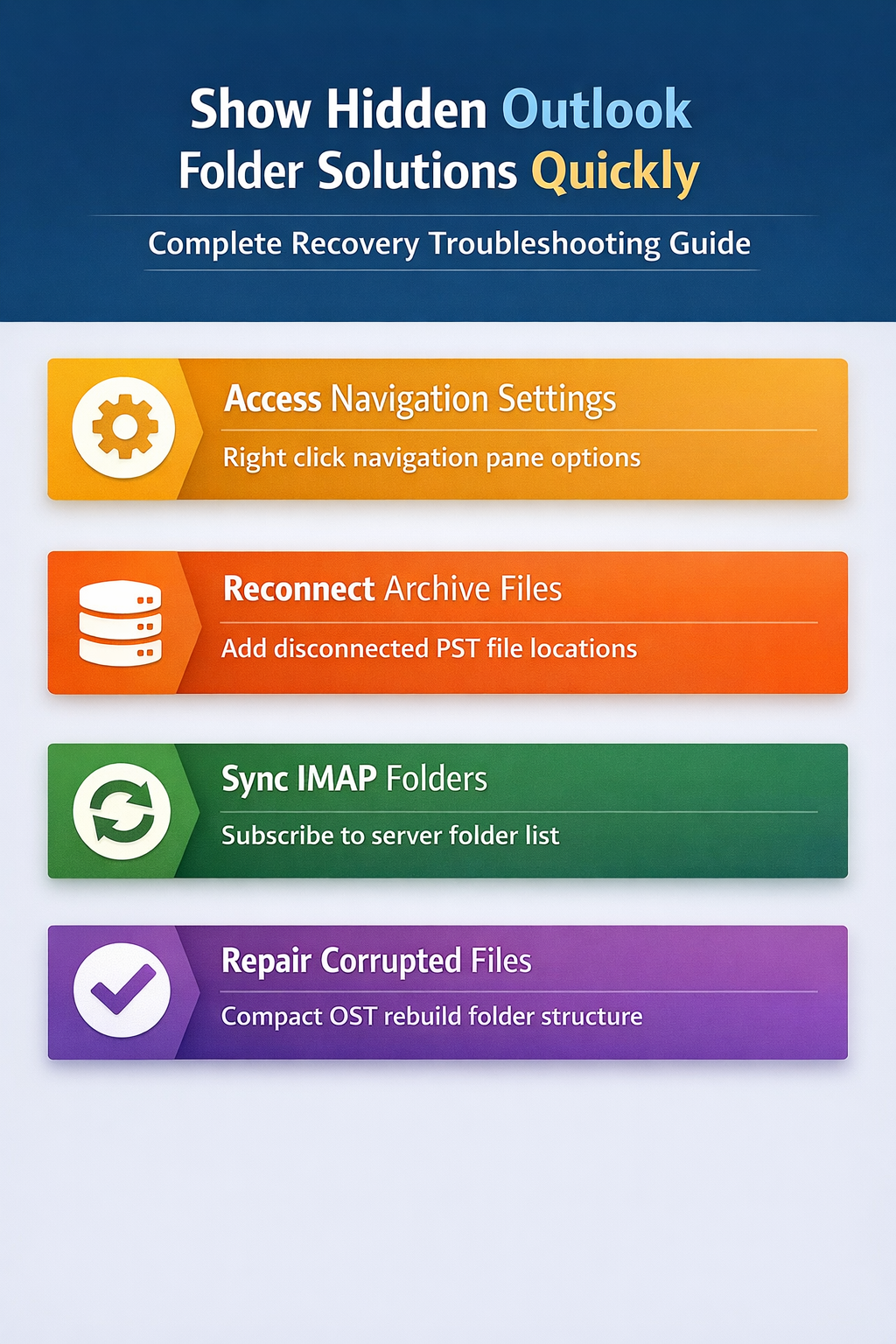
Right-click anywhere in the Navigation Pane to open the context menu. Select Folder Options from the dropdown list. The Folder Options dialog controls which folders appear in your navigation view.
Click Show All Folders to display every folder in your mailbox structure. This setting reveals archive folders, deleted items, and subfolders that might be hidden from the default view.
Hidden subfolders often contain important emails that disappeared from search results. Custom folders created by email rules become visible again after enabling this setting.
Configure navigation pane display options
Navigate to File > Options > Advanced after configuring your email account. Scroll down to the Outlook panes section. Click Navigation Pane Options to customize folder visibility rules.
Check the boxes next to folder types you want visible. Uncheck Compact Navigation if you prefer expanded folder trees. These settings persist across Outlook sessions and affect all connected accounts.
The Navigation Pane Options dialog provides granular control over folder display. You can hide specific folder types like RSS Feeds or Journal while keeping essential folders visible. The Maximum number of visible items setting prevents overcrowded navigation when you have dozens of subfolders.
Some organizations use Group Policy to control navigation pane settings. Personal accounts have full control over these display preferences.
Outlook missing folder recovery methods
Recover archive folders and PST files
Archive folders often disappear when PST file paths change or network drives disconnect. Press Ctrl+Shift+O to open the Account Settings dialog. Click the Data Files tab to view connected PST and OST files.
If your archive PST shows as unavailable, click Add to reconnect it. Browse to the original PST location — usually in Documents or on a network share. The archive folders reappear immediately after successful reconnection.
Archive PST files can become disconnected after Windows updates, antivirus scans, or network drive changes. Large archive files sometimes split across multiple PST segments — you might need to reconnect each file separately. Check the original archive location first before creating new PST files.
Network-stored archives require consistent drive mapping to remain accessible. PST files larger than 2GB may cause performance issues — consider using OST files for better reliability.
Restore IMAP folder synchronization
IMAP accounts sometimes fail to download all server folders due to Outlook synchronization issues during initial setup. Right-click your IMAP account name in the navigation pane. Select IMAP Folders from the context menu.
Click Query to refresh the server folder list. Check boxes next to folders you want synchronized locally. Click Subscribe to download selected folders to your Outlook client. Synchronization completes within 2-3 minutes for most folder structures.
IMAP folder subscription works differently than POP3 email download. The server maintains the master folder list — Outlook subscribes to specific folders for local access. Folders with special characters or non-English names sometimes fail to synchronize properly.
Large IMAP folders may take longer to download initially. You can use folders immediately after the structure synchronizes — full content downloads in the background.
Troubleshoot Outlook folder visibility issues
Fix folder properties and display settings. While working through these folder visibility issues adjustments on my computer, I found that the new configuration synchronized automatically across all signed-in profiles without requiring additional setup.
Individual folders have visibility properties that can hide them from navigation. Right-click the parent folder containing your missing subfolder. Select Properties from the context menu to access folder configuration options.
Click the Home Page tab if available. Verify the Show home page by default option matches your preferences. Hidden folders often have custom home pages that interfere with normal display behavior.
Individual folder permissions also affect visibility in shared mailboxes. If you have delegate access to another person’s mailbox, some folders might be restricted from your view. The folder owner controls permission levels — you might see the folder structure but not the contents.
Repair mailbox corruption and sync errors
Corrupted OST files cause folders to disappear without warning — check Outlook 365 troubleshooting guides for additional recovery methods. Close Outlook completely before starting the repair process. Navigate to Control Panel > Mail > Data Files to access file management options.
Select your primary OST file and click Settings > Advanced > Outlook Data File Settings. Click Compact Now to rebuild the file structure. Restart Outlook after completion — missing folders typically reappear during the next sync cycle.
OST file corruption affects Exchange and Office 365 accounts differently than IMAP or POP3. Exchange OST files rebuild automatically from server data — you won’t lose emails during the repair process. Large OST files may require 10-15 minutes to compact fully.
Advanced Outlook folder recovery techniques
Rebuild Outlook profile for persistent issues
Profile corruption causes folders to disappear across multiple mailboxes simultaneously. Navigate to Control Panel > Mail > Show Profiles to create a new profile when standard troubleshooting fails.
Configure your email accounts in the new profile using the same server settings. Most folder visibility issues disappear with a clean profile — this resolves complex problems involving corrupted navigation settings.
Frequently asked questions
Frequently Asked Questions
Why are my Outlook folders hidden?
Outlook folders become hidden due to navigation pane view settings, disconnected archive files, IMAP sync failures, or corrupted OST files. Most cases result from accidental view changes or archive PST disconnection after system updates.
Where do hidden Outlook folders go?
Hidden folders remain in your mailbox but don’t display in the navigation pane. They exist in the folder structure — just filtered from view by display settings, sync configurations, or file path issues.
How do I make Outlook folders visible again?
Right-click the navigation pane and select Folder Options, then click Show All Folders. For IMAP accounts, right-click the account name, select IMAP Folders, click Query, and subscribe to missing folders.
Missing Outlook folders create workflow disruption but rarely indicate permanent data loss. View settings and sync configurations cause most visibility issues. These troubleshooting methods restore folder access in under five minutes for typical scenarios.
Prevent Outlook folder visibility problems
Regular mailbox maintenance prevents folder visibility problems from recurring. Export PST files monthly for backup protection — this creates a recovery point if folder corruption occurs. Monitor IMAP sync status during initial account setup to ensure complete folder synchronization from the start.
Keep PST files in consistent locations — avoid storing archives on network drives that might disconnect unexpectedly. Document your folder structure periodically by taking screenshots of the navigation pane for quick reference.
Most Outlook folder visibility problems resolve using navigation pane settings and sync configuration adjustments. Advanced registry and profile rebuilding techniques handle persistent issues that resist standard troubleshooting approaches. Regular maintenance and backup practices prevent most folder visibility disruptions before they impact daily workflows.