“I need to automate repetitive tasks in my Excel workbooks, but writing VBA macros feels overwhelming. Can Microsoft Copilot help me create these automation scripts without extensive programming knowledge?”
This question reflects a common challenge many Excel users face. Manual data processing consumes valuable time that could be spent on analysis and decision-making. Traditional macro creation requires VBA expertise that many business users lack.
Setting up Copilot for Excel macro development
Creating effective Excel macros traditionally requires substantial VBA programming knowledge. Many users struggle with syntax, debugging, and implementing complex logic for their automation needs. Learning how to add the Developer tab in Excel is an essential first step for macro development.
Your macro automation workflow will leverage Microsoft Copilot’s code generation capabilities within Excel’s development environment. This tutorial covers accessing Copilot features, generating VBA code, and implementing automated solutions.
You’ll need Excel with Copilot access and basic familiarity with Excel’s Developer tab. The process works with both Excel desktop and web versions where Copilot is available.
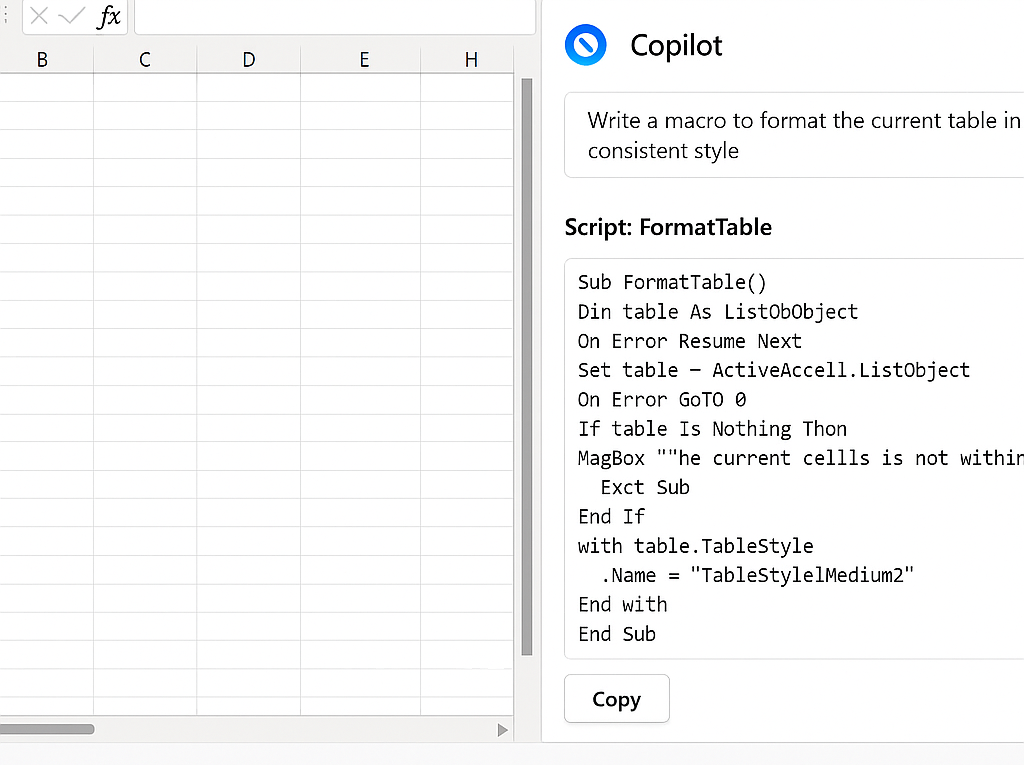
Creating automated macros with Copilot assistance
- Open Excel and navigate to the Developer tab to access the Visual Basic Editor where you’ll create your macros
- Launch Microsoft Copilot through the ribbon interface or by using the Copilot chat feature in supported Excel versions
- Describe your automation needs in plain language, such as “Create a macro that formats sales data and calculates monthly totals”
- Review the generated VBA code that Copilot provides, which typically includes proper syntax, variable declarations, and error handling
- Copy the suggested code into the Visual Basic Editor by creating a new module and pasting the generated script
- Test the macro on sample data first to ensure it performs the expected actions without affecting your primary dataset
- Modify the code using additional Copilot suggestions if you need to adjust functionality or add new features
- Save your workbook as a macro-enabled file (.xlsm) to preserve the automation scripts for future use
- Create keyboard shortcuts or ribbon buttons to easily execute your Copilot-generated macros during regular workflow operations
Remember! Always backup your data before running new macros, and use Copilot to add error handling code that prevents data loss.
Resolving common Copilot macro implementation issues
• Copilot generates code that doesn’t run properly in your Excel version – Request version-specific code by mentioning your Excel version when asking Copilot for macro assistance, and verify that all referenced objects and methods are compatible with your software
• The generated macro produces runtime errors or unexpected results – Ask Copilot to add debugging statements and error handling to the code, then test each section individually to identify where the script fails or produces incorrect output
• Copilot-created macros run too slowly on large datasets – Request optimized code that uses efficient methods like turning off screen updating, disabling automatic calculations, and using arrays instead of cell-by-cell operations for better performance