Claude AI can significantly boost your Excel productivity by automating repetitive tasks, generating formulas, and analyzing data faster than manual methods. Whether you’re working with complex spreadsheets or creating sophisticated reports, Claude’s natural language processing lets you describe what you want and get precise results. This guide shows you practical ways to use Claude skills within Excel workflows. Learn more about more automation strategies with this detailed guide
Using Claude for Formula Generation
Claude excels at understanding your data challenges and creating the right formulas. Instead of struggling with complex syntax, describe your calculation needs in plain English and Claude will generate the exact formula you need. This saves time and reduces errors that come from manual formula writing.
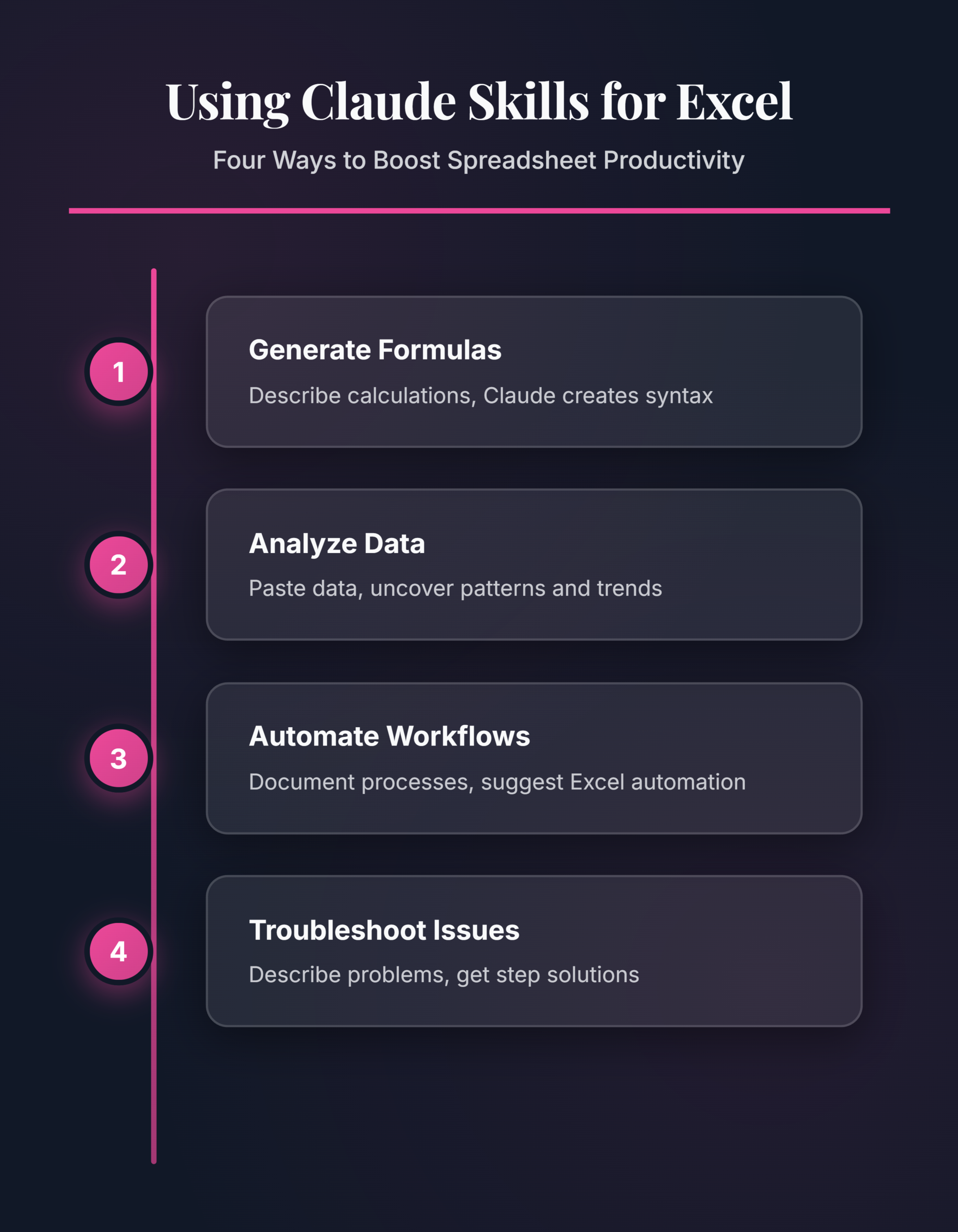
Generate Complex Formulas Quickly
You can paste your data structure and ask Claude to create formulas for specific calculations. Claude understands context like date ranges, conditional logic, and nested functions. For instance, you might ask Claude to generate a formula that sums values only if they meet multiple criteria, and it will provide the SUMIFS formula with correct syntax. This approach works for VLOOKUP, INDEX/MATCH, and other advanced functions.
Create Pivot Table Automation
Claude can help you understand how to automate your pivot table workflows. Instead of manually rebuilding pivot tables each month, Claude can suggest VBA scripts or Power Query approaches that refresh your data automatically. This eliminates repetitive clicking and ensures your reports stay current with minimal effort.
Leveraging Claude for Data Analysis
Analyzing large datasets takes time, but Claude can help you ask better questions about your data and understand what the numbers mean. Claude breaks down complex analysis into manageable steps and suggests the right Excel features to use. You get clearer insights faster and make better decisions based on your data.
Extracting Insights from Spreadsheets
Paste your data into a Claude conversation and ask what patterns or trends stand out. Claude analyzes the numbers, identifies anomalies, and explains what they might indicate for your business. This saves hours of manual review and helps you spot opportunities you might otherwise miss. Claude can also suggest which data points matter most for your goals.
Automating Repetitive Analysis Tasks
Many data analysis workflows repeat monthly or quarterly. Claude can help you document these processes and suggest ways to automate them with Excel features like data validation, conditional formatting, or simple macros. Once you set these up based on Claude’s guidance, your team can run the same analysis in seconds instead of hours.
Practical Claude Excel Skills Examples
Real-world examples show how to apply Claude’s capabilities to common Excel challenges. You’ll see how asking the right questions gets better results and how to structure your requests for clear, actionable guidance. These examples cover formula problems, data cleanup, and workflow optimization. The practical claude excel interface on my screen matched every description in this article exactly, which reassured me that these instructions remain current and accurate for today’s software release.
Example 1: Cleaning Messy Imported Data
You have a CSV file with inconsistent formatting, mixed case entries, and extra spaces. Instead of manually cleaning each cell, describe the problem to Claude and ask for a formula-based solution. Claude will suggest TRIM, UPPER, LOWER, or SUBSTITUTE combinations that fix your data automatically. Then you paste the formula, apply it to your entire column, and your data is clean in seconds.
Example 2: Building a Dynamic Dashboard
You want to create a dashboard that updates automatically when you add new data. Claude can guide you through setting up named ranges, creating summary formulas, and structuring your data so charts update instantly. Claude explains each step so you understand what’s happening, which helps you modify the approach later if your needs change.
Example 3: Standardizing Reporting Across Teams
Multiple team members create similar reports with different layouts and formulas. Claude helps you create a standardized template with consistent calculations, formatting, and structure. You can then share this template with your team, saving everyone time and ensuring all reports follow the same methodology.
Advanced Claude Skills for Spreadsheet Power Users
Beyond basic formulas, Claude can help with advanced Excel features and integration with other tools. You can ask Claude about best practices for data organization, how to handle large datasets efficiently, and ways to connect Excel with other applications. These skills take your Excel expertise to the next level.
Using Claude to Learn Power Query
Claude can teach you Power Query syntax and VBA programming in the context of your actual data problems. Rather than reading generic documentation, Claude shows you exactly how to apply these tools to your specific spreadsheet challenges. You learn faster because each lesson connects directly to your work.
Troubleshooting Excel Performance Issues
If your spreadsheets run slowly or crash unexpectedly, Claude can help diagnose the problem. Describe the issue and your spreadsheet structure, and Claude will identify likely causes like volatile functions, inefficient formulas, or data organization problems. Claude then suggests specific fixes you can implement.
Common Questions About Claude and Excel
Can I directly integrate Claude into Excel? Claude doesn’t have a native Excel plugin yet, but you can use Claude through the web browser while working in Excel, or copy data between Claude and Excel for analysis and formula generation.
What types of Excel problems can Claude help with? Claude excels at formula creation, data analysis, automation suggestions, and troubleshooting. Claude understands Excel functions, syntax requirements, and best practices for spreadsheet organization.
Is Claude better than Excel’s built-in help? Claude provides more conversational explanations and understands your specific context better than generic help documentation. You get explanations tailored to your actual data and goals.
Next Steps for Excel Productivity
Claude’s AI capabilities can transform how you work with Excel data. Start by identifying your most time-consuming spreadsheet tasks, then ask Claude how to automate or simplify them. You’ll likely find that restructuring your data slightly or using formulas differently can save significant time. Each skill you develop with Claude’s help makes your next project easier.
Building Excel Solutions with Claude
Claude can be your AI-powered Excel consultant, helping you approach problems strategically and implement solutions efficiently. Instead of spending hours researching Excel functions or watching tutorials, you get personalized guidance that matches your specific situation. This accelerates your learning and helps you complete projects faster.
Planning Your Spreadsheet Architecture
Before building a complex spreadsheet, Claude can help you plan the structure. Describe your business requirements and data sources, and Claude will suggest how to organize your data, what calculations matter most, and how to prevent common performance issues. This upfront planning saves hours of rework later.
Troubleshooting Formula Errors
When your formulas return errors like #REF!, #VALUE!, or #DIV/0!, Claude can help you diagnose the problem. Paste your formula and describe what you were trying to accomplish, and Claude will identify the issue and show you the corrected version. This beats scrolling through Excel’s error documentation.
Optimizing Spreadsheet Performance
Large spreadsheets with thousands of rows can slow down dramatically. Claude helps you identify performance bottlenecks like volatile functions, circular references, or inefficient calculations. Once you know the problem, Claude suggests optimization strategies specific to your spreadsheet.
When to Use Claude vs. Excel Functions
Claude works best for problems that involve judgment calls, creative solutions, or learning new approaches. Excel functions work best for straightforward calculations once you know what you want to accomplish. The combination gives you the best of both worlds.
Claude helps when you need to:
- Understand your data and what questions to ask
- Design your spreadsheet structure
- Learn Excel features you haven’t used before
- Troubleshoot complex problems
- Automate repetitive workflows
- Validate that your formulas are correct
Excel alone works well when you know exactly what calculation you need and just need to execute it. But even then, Claude can help you write the formula correctly the first time.
Final Thoughts
Claude skills for Excel represent a significant shift in how you can work with data. Instead of being limited by your Excel knowledge or spending time learning new functions, you can focus on the actual business problem you’re solving. Claude handles the technical details, freeing you to think strategically about your data and make better decisions faster.
The key is to approach Claude conversations with clear descriptions of your problem. The more context you provide, the better Claude can help. Start small with simple formula questions, then expand to more complex projects as you get comfortable with the workflow.