“How can I add our company logo to every email signature across our organization?” This question comes up frequently when businesses want to maintain consistent professional branding in their email communications. Having a standardized company logo in email signatures not only reinforces brand identity but also creates a polished, professional appearance that clients and partners expect from modern business correspondence.
Email signature standardization challenges and solutions
Organizations often struggle with inconsistent email signatures where employees either forget to include the company logo, use outdated versions, or implement different formatting approaches. This lack of standardization can dilute brand recognition and create an unprofessional impression during important business communications.
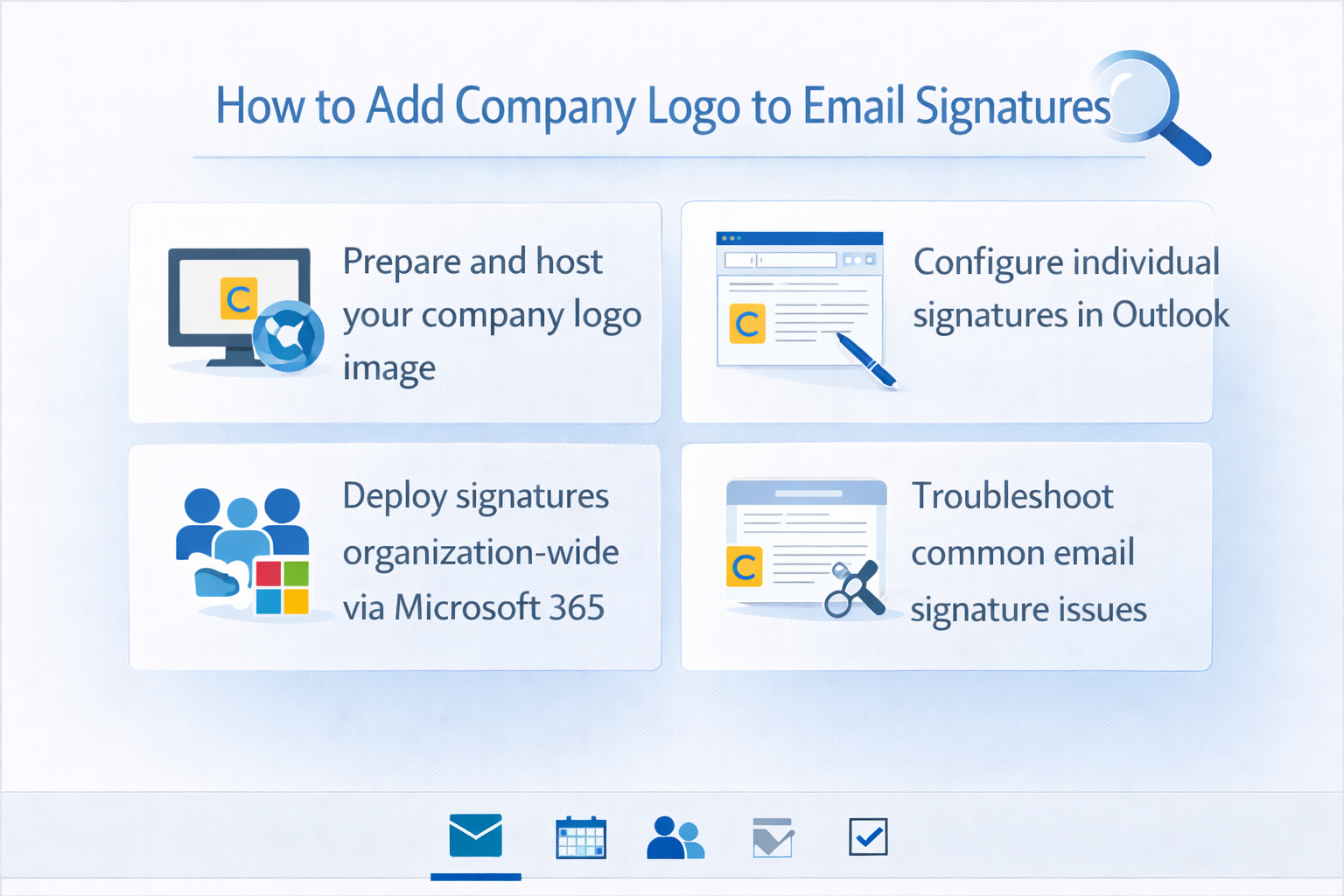
We will provide a simple process for adding company logos to email signatures using both individual Outlook configuration and organizational deployment through Microsoft 365 admin settings. We will cover the complete process from image preparation and hosting to signature creation and deployment, ensuring your organization maintains consistent branding across all email communications.
Prerequisites include administrative access to Microsoft 365 for organizational deployment, image hosting capabilities through SharePoint or external services, and basic familiarity with Outlook signature settings. The tutorial applies to Outlook desktop application, Outlook on the web, and mobile Outlook applications.
Configure individual email signatures with company logos
Begin by preparing your company logo image file in an appropriate format and size for email signatures, ensuring the image dimensions do not exceed 300 pixels in width to maintain professional appearance and fast loading times across different email clients and devices.
- Upload your company logo to a publicly accessible location such as SharePoint Online, OneDrive with sharing enabled, or your company website to ensure the image displays correctly for all email recipients regardless of their email client or organization.
- Open Outlook desktop application and navigate to File menu, then select Options from the left sidebar to access the comprehensive Outlook configuration settings where you can customize various email behavior and appearance options.
- Click on Mail in the left navigation panel within Outlook Options, then locate the Compose messages section and click the Signatures button to open the signature management interface where you can create and edit multiple email signatures.
- Select New in the Signatures and Stationery dialog box to create a fresh email signature, then enter a descriptive name such as “Company Standard Signature” to help identify this signature configuration for future reference and maintenance.
- Position your cursor in the signature text area where you want the logo to appear, typically at the top or bottom of the signature block, then click the Insert Picture icon in the formatting toolbar to browse for your prepared company logo image.
Insert and format company logo images
- Choose “From a file” if your logo is stored locally, or select “Online Pictures” to insert images from SharePoint, OneDrive, or web sources, ensuring you have the direct URL to your hosted company logo image for consistent display across all platforms.
- After inserting the image, right-click on the logo and select “Format Picture” to access sizing options, then adjust the height and width to maintain professional proportions while ensuring the logo remains clearly visible without overwhelming the signature content.
- Add your contact information, job title, and other relevant details below or alongside the logo, using consistent fonts and formatting that complement your company’s visual brand guidelines and maintain readability across different email clients and screen sizes.
- Set this signature as the default for new messages and replies by selecting it from the dropdown menus in the “Choose default signature” section, ensuring every outgoing email includes your professional company-branded signature automatically without requiring manual intervention.
Deploy signatures across Microsoft 365 organization
- Access the Microsoft 365 admin center with global administrator privileges, then navigate to Exchange admin center to configure organization-wide email signature policies that apply consistently across all user accounts without requiring individual configuration.
- Select Mail flow from the left navigation menu, then click on Rules to create transport rules that automatically append company logos and signature information to outgoing emails based on sender attributes, department, or other organizational criteria.
- Create a new rule by clicking the plus icon, then select “Apply disclaimers” or “Modify message properties” to establish the foundation for your organization-wide signature deployment that includes your company logo and standardized contact information.
- Configure the rule conditions to apply to all outgoing messages or specific user groups, then specify the HTML signature content including your company logo image reference and standardized text formatting that maintains consistency across your entire organization.
Expert Tip: Host your company logo on SharePoint Online with proper permissions to ensure reliable image display and easy updates when rebranding occurs.
Common signature deployment issues and solutions
Understanding typical challenges that occur during company logo implementation helps prevent deployment delays and ensures consistent professional email branding across your organization.
- Image display problems often occur when logos are hosted on restricted SharePoint sites or internal servers that external recipients cannot access, causing broken image links and unprofessional email appearance for clients and partners outside your organization.
- Signature formatting inconsistencies frequently arise when users copy signatures between different Outlook versions or platforms, resulting in misaligned logos, incorrect fonts, or distorted image proportions that detract from professional brand presentation and require individual correction.
- Mobile Outlook applications may not display complex HTML signatures correctly, particularly when logos are embedded as attachments rather than referenced through URLs, causing signature elements to appear differently across desktop and mobile email clients.
- Large image file sizes can trigger email security filters or cause delivery delays, especially when logos exceed recommended dimensions or file size limits, potentially preventing important business communications from reaching their intended recipients promptly.