When you share a file link in Microsoft Teams and the recipient sees an error instead of the document, productivity grinds to a halt across your entire organization. Teams broken file links rank among the most frustrating collaboration issues that Microsoft 365 users encounter on a daily basis during their regular workflow activities. This article covers the most common causes behind Teams shared link errors and walks you through proven troubleshooting steps to restore access to your shared files quickly.
Why do Teams file links stop working?
Understanding the root cause of a Teams file URL not opening helps you apply the correct fix and prevents the same problem from recurring in future situations. Several distinct factors can trigger link failures, and each one requires a specific resolution approach to get your shared documents working again within your organization.
SharePoint permissions changes
Microsoft Teams stores files in SharePoint document libraries, so any modification to SharePoint permissions directly affects whether your colleagues can open shared links successfully. An administrator who tightens sharing policies at the tenant level can instantly break hundreds of previously working file links across every team channel in your setup. You should verify that your Teams file permissions and read-only access settings align with the sharing level your recipients actually need to open documents.
Link expiration and sharing scope
Microsoft 365 administrators can configure link expiration policies that automatically disable shared file links after a predetermined number of days set in the admin center. When a cloud link management policy enforces short expiration windows, links that worked last week may return errors today even though the underlying file still exists perfectly. The sharing scope setting also matters because a link created for “people in your organization” will fail for external guests and outside collaborators every time.
OneDrive sync and storage issues
Files shared from OneDrive sometimes produce broken links when the original file gets moved, renamed, or deleted from the owner’s personal cloud storage location. OneDrive sharing links point to a specific file path, and any change to that path renders the original shared URL invalid for every person who received it. Storage quota limits can also cause issues because files in a full OneDrive account may become inaccessible until the owner frees up additional space for their content.
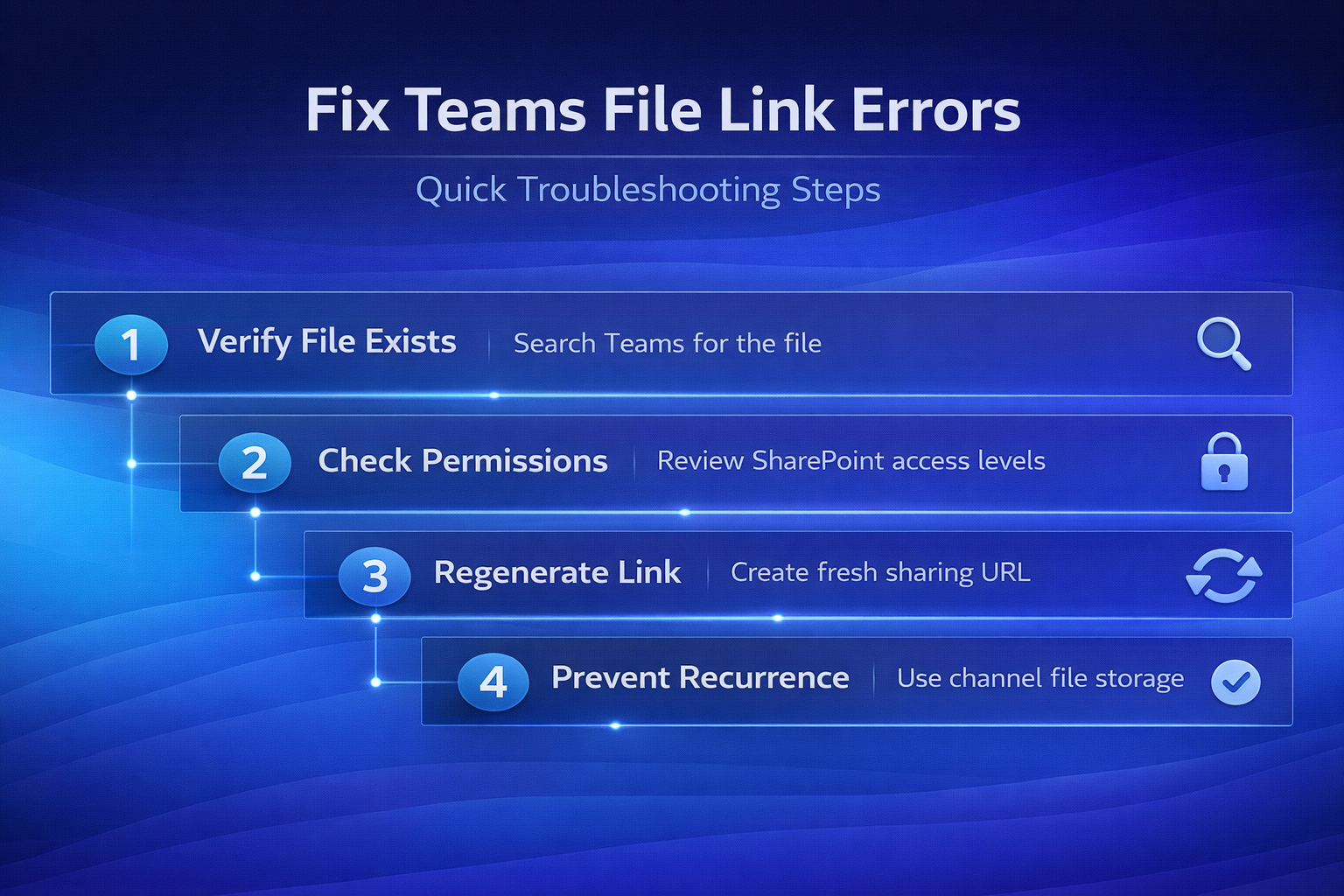
How to fix broken file links in Teams?
Follow these steps when you encounter a Teams link permission error, and verify each fix before proceeding to the next step in the troubleshooting sequence.
Verify the file still exists
- Open Microsoft Teams and navigate to the channel or chat where the broken file link was originally shared with your team members and collaborators recently.
- Click the Files tab at the top of the channel to browse the document library directly instead of relying on the shared link within conversations.
- Search for the file by name using the search bar at the top of Teams to confirm whether the document still exists somewhere in your organization.
- If the file appears in search results but the link still fails, the file was likely moved to a different folder location within your SharePoint library recently.
Check and update SharePoint permissions
Incorrect SharePoint permissions cause the majority of Teams shared link errors that users report when trying to access files shared by their colleagues across channels. You can learn more about resolving these access problems by reading this article on fixing Teams file access problems that covers common permission configurations in detail.
- Site permissions — Open the SharePoint site associated with your team and verify that the affected users appear in the members group with appropriate access levels assigned.
- Item-level permissions — Right-click the specific file in SharePoint, select Manage access, and confirm that the recipient has at least read-level permission to view the shared content.
- Sharing links — Generate a new sharing link with the correct scope selected, choosing between “people in your organization” or “specific people” based on your audience requirements.
Regenerate the shared link
Sometimes the fastest solution for Microsoft Teams link sharing issues involves creating a brand new sharing link rather than debugging the permissions on the original broken one. Open the file location in Teams or SharePoint, click the Share button, and generate a fresh link with the appropriate permission level for your intended audience group. Copy the new link and paste it into the Teams chat or channel where your recipients need access to the document for their ongoing collaborative work tasks.
Prevent Teams file links from breaking
Taking proactive measures helps you avoid Teams file URL not opening errors before they disrupt your team’s workflow and cause unnecessary delays in project timelines.
- Use channel file storage — Upload files directly to Teams channel folders instead of sharing personal OneDrive links, because channel files inherit stable team-level SharePoint permissions automatically. You can follow this walkthrough on linking files and folders in Teams for the recommended approach to organizing shared content.
- Avoid moving shared files — Once you share a file link, keep the file in its original folder location because moving it to another directory breaks every existing link reference immediately.
- Set appropriate link expiration — Work with your Microsoft 365 administrator to configure reasonable link expiration policies that balance security requirements with practical collaboration needs for daily operations.
- Use “specific people” links — When sharing sensitive documents, choose the “specific people” option rather than organization-wide links to maintain tighter control over file access permissions going forward.
Fix Teams links that open in the browser instead of the app
A related problem occurs when Teams file links open in a web browser rather than launching the desktop application, which creates confusion for users who prefer native apps. This behavior typically results from default app settings in your operating system or Teams configuration that route link clicks to the browser instead of the desktop client. You can find detailed steps for resolving this specific issue in this article about fixing Teams links not opening in the app that walks through every configuration option.
If you need to open Teams file links directly through SharePoint instead of the Teams interface, this overview on opening Teams links in SharePoint explains how to configure that workflow path effectively.
Frequently asked questions about Teams file links
Why do Teams file links stop working?
Teams file links stop working when SharePoint permissions change, the original file gets moved or deleted, or the sharing link expires due to administrative policies. Microsoft 365 link expiration settings and changes to OneDrive sharing configurations represent the most frequent causes of broken file links in corporate environments using cloud storage. Checking permission levels and file locations resolves the vast majority of Teams shared link errors that users encounter during their regular daily collaboration activities across departments.
How do I fix broken links in Teams?
Start by confirming the file still exists in its original SharePoint or OneDrive location using the search function built into the Microsoft Teams desktop application. If the file exists but the link fails, check SharePoint permissions and verify that the recipient has at least read access granted at the site or item level. Generating a new sharing link with updated permissions often resolves persistent Teams link permission errors faster than troubleshooting the original broken link through administrative tools available.
What causes Teams shared link errors?
The most common causes include expired sharing links, modified SharePoint permissions, moved or renamed source files, and OneDrive storage quota limits that prevent file access entirely. External guest access restrictions and conditional access policies configured in your Microsoft 365 admin center can also block file link access for specific users or groups. Reviewing your organization’s cloud link management policies with your IT administrator helps identify which specific restriction is triggering the Teams shared link error message displayed.
Take control of your Teams file sharing
Broken file links in Microsoft Teams almost always trace back to permission mismatches, moved files, or expired sharing links that need straightforward fixes applied to them. Apply the troubleshooting steps outlined in this article to resolve your current Teams file link not working issue and implement the preventive measures to avoid future occurrences. Bookmark this page and share it with your team so everyone knows how to diagnose and fix Teams broken file links quickly when collaboration access breaks unexpectedly.