
Understanding why Microsoft Teams won’t open or respond
“Why isn’t Microsoft Teams working on my device today? I can’t join meetings, and my team is waiting for me to respond to urgent messages.”
This scenario happens more often than you might think across Windows 11, iPhone, Android, and iPad devices. Whether you’re experiencing a complete Teams outage or device-specific problems, understanding the root cause helps you restore functionality quickly and minimize productivity losses.
Microsoft Teams can’t load or start
Before diving into complex troubleshooting steps, you need to determine whether the issue stems from a widespread Teams outage or a problem isolated to your device or network. Microsoft Teams can fail to work properly due to server-side issues, outdated application versions, corrupted cache files, network connectivity problems, or operating system compatibility conflicts.
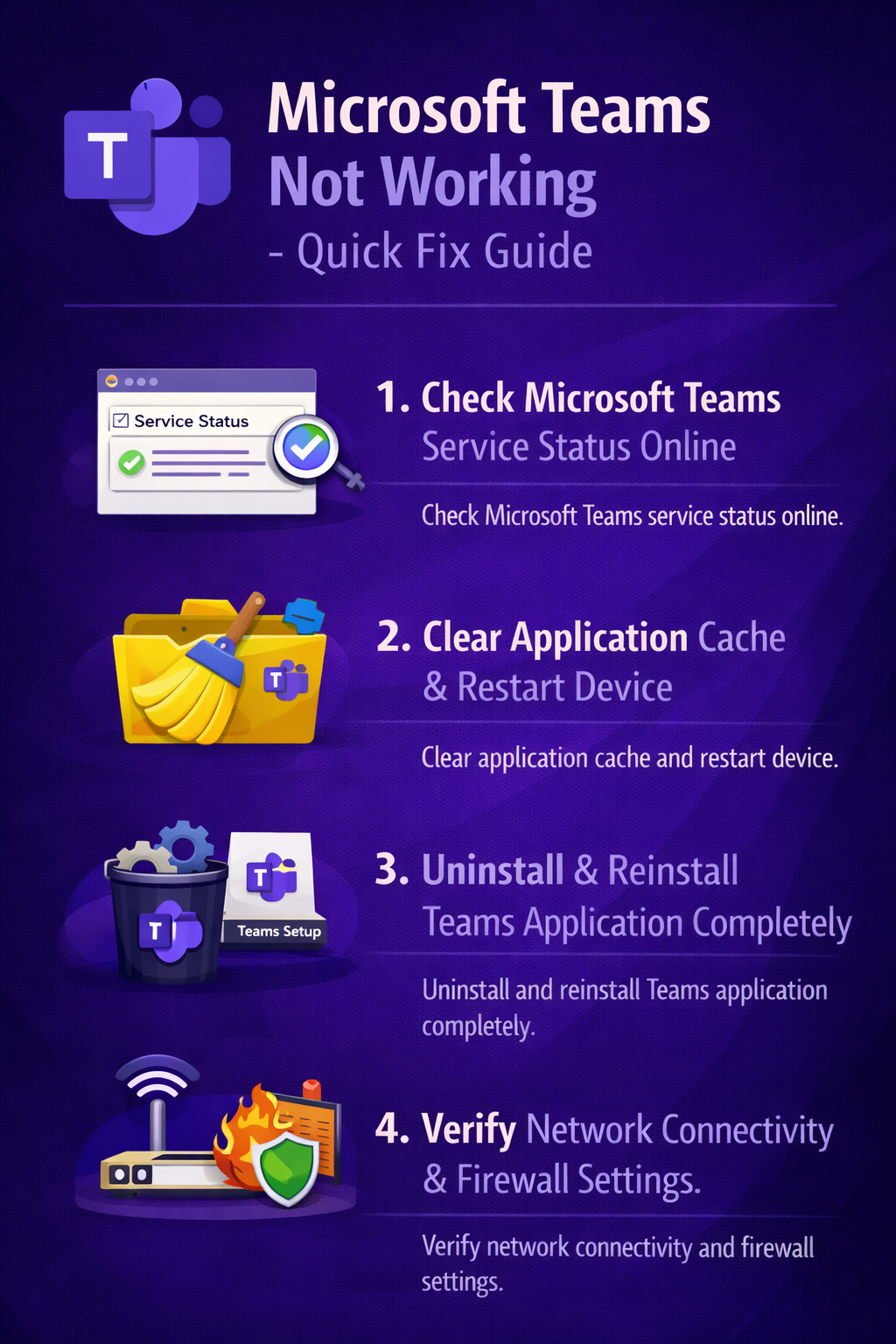
We will help you troubleshoot when Microsoft Teams is down or not opening on your specific device. You’ll learn how to check the official Microsoft Teams status, clear application cache, reinstall the Teams client, verify network settings, and resolve platform-specific issues on Windows 11, iPhone, Android, and iPad. By following these proven solutions, you’ll restore Teams functionality and establish preventive measures to avoid future disruptions. For users experiencing persistent startup issues, you may also want to check our guide on solving Microsoft Teams not opening startup issues.
Resolving Microsoft Teams issues on Windows 11
Windows 11 users frequently encounter Teams startup failures, freezing, or complete application crashes that require specific troubleshooting approaches tailored to the operating system.
- Close Microsoft Teams completely by right-clicking the Teams icon in the system tray near the clock and selecting “Quit” to ensure all background processes terminate properly.
- Open Task Manager by pressing Ctrl+Shift+Esc and navigate to the Processes tab to verify no Teams processes are still running in the background.
- Clear the Microsoft Teams cache by pressing Windows Key+R, typing %appdata%\Microsoft\Teams in the Run dialog, and deleting the contents of the Cache, blob_storage, databases, and GPUcache folders.
- Restart your Windows 11 computer after clearing the cache to ensure all system resources are refreshed and Teams can initialize with clean configuration files.
- Uninstall Microsoft Teams by opening Settings, navigating to Apps > Installed apps, finding Microsoft Teams, clicking the three-dot menu, and selecting Uninstall to remove the application completely.
- Download the latest Microsoft Teams desktop client from the official Microsoft website to ensure you’re installing the most current version.
- Install the downloaded Teams application by running the installer with administrator privileges and following the on-screen prompts to complete the installation process.
- Check Windows 11 system updates by opening Settings, selecting Windows Update, and installing any pending updates that might resolve compatibility issues with Microsoft Teams.
Fixing Microsoft Teams that won’t open on iPhone and Android
Mobile users experiencing issues with Microsoft Teams not opening on iPhone or Android devices need to address app-specific problems and mobile operating system compatibility.
- Force close the Microsoft Teams app on iPhone by swiping up from the bottom of the screen, holding briefly, then swiping the Teams app preview upward to terminate it.
- Force close Microsoft Teams on Android by opening Settings, selecting Apps, finding Microsoft Teams, and tapping “Force Stop” to end all application processes immediately.
- Clear the Microsoft Teams app cache on Android by navigating to Settings > Apps > Microsoft Teams > Storage, then tapping “Clear Cache” to remove temporary files without deleting your data.
- Delete and reinstall Microsoft Teams on iPhone by long-pressing the app icon, selecting “Remove App,” then downloading it fresh from the Apple App Store.
- Uninstall and reinstall Microsoft Teams on Android through the Google Play Store to ensure you have the latest version without corrupted installation files.
- Verify that your iPhone or Android device is running a supported operating system version by checking Settings > General > About on iPhone or Settings > About Phone on Android.
- Ensure sufficient storage space is available on your mobile device by reviewing storage settings and deleting unnecessary files or applications that might prevent Teams from functioning properly.
- Check that Microsoft Teams has necessary permissions enabled by opening device Settings, finding Teams under Apps or Privacy, and granting access to camera, microphone, and notifications.
Remember: Mobile app issues often resolve after a simple device restart, so power off your iPhone or Android device completely before attempting more complex troubleshooting steps.
Addressing Microsoft Teams not opening on iPad
iPad users face unique challenges when Microsoft Teams fails to launch or crashes immediately after opening, requiring iPad-specific troubleshooting techniques.
- Perform a hard reset on your iPad by pressing and quickly releasing the Volume Up button, pressing and quickly releasing the Volume Down button, then holding the Power button until the Apple logo appears.
- Update iPadOS to the latest version by opening Settings, selecting General > Software Update, and installing any available updates that might resolve Teams compatibility issues.
- Offload the Microsoft Teams app by navigating to Settings > General > iPad Storage, selecting Microsoft Teams, and tapping “Offload App” to remove the app while preserving your data.
- Reinstall Microsoft Teams from the App Store after offloading to get a fresh installation without losing your account settings or conversation history.
- Check for conflicting VPN or security applications that might interfere with Microsoft Teams connectivity by temporarily disabling them to test if Teams opens successfully.
- Reset network settings on your iPad by going to Settings > General > Transfer or Reset iPad > Reset > Reset Network Settings to clear any network configuration conflicts.
- Verify that your iPad meets the minimum system requirements for Microsoft Teams by checking the App Store listing for compatibility information and supported iPadOS versions.
Verifying Microsoft Teams status and basic connectivity
Before attempting device-specific fixes, confirm whether Microsoft Teams is experiencing a global or regional outage that affects multiple users simultaneously.
- If you are using the Web version of Teams- Navigate to the official Microsoft 365 Service Health Dashboard at https://status.office.com to check current Teams status and any reported incidents affecting your region or tenant.
- Sign in with your organizational credentials to view detailed service health information specific to your Microsoft 365 subscription and tenant configuration.
- Review the Teams service status indicator and look for any active incidents, advisories, or maintenance notifications that might explain why Teams is not working today.
- Test your internet connection by opening other websites or applications to rule out general network connectivity problems that might prevent Teams from functioning properly.
- Verify that your organization’s firewall or proxy settings aren’t blocking required Teams endpoints by consulting your IT administrator or network security team.
Resolving persistent Microsoft Teams problems
Even after following standard troubleshooting steps, you might encounter specific error messages or recurring issues that require additional attention and specialized solutions.
- Teams displays “We’re sorry—we’ve run into an issue” error message: This typically indicates corrupted user profile data, so sign out of Teams completely, clear all cache and credentials, then sign back in with your organizational account to rebuild your profile from scratch.
- Microsoft Teams shows continuous “Connecting” status without establishing connection: Check your organization’s network proxy settings and ensure that all required Microsoft Teams URLs and IP ranges are whitelisted in your firewall configuration to allow proper communication with Teams services.
- Teams crashes immediately upon launch without displaying error messages: Disable hardware acceleration by navigating to Teams Settings > General and unchecking “Disable GPU hardware acceleration” to prevent graphics-related conflicts that cause application instability on certain systems.
- Unable to sign in to Microsoft Teams with correct credentials: Verify that your Microsoft 365 license includes Teams access by checking with your administrator, and ensure your account hasn’t been disabled or requires password reset through your organization’s identity management system.
Important Tip: Document the specific error messages and circumstances when Teams fails to work, as this information helps Microsoft Teams help desk support diagnose and resolve complex issues more efficiently.
- Microsoft Teams works on web browser but not desktop application: This suggests a problem with the installed desktop client, so completely uninstall Teams using the official Microsoft Teams cleanup tool, restart your computer, then perform a fresh installation from the official download source.
- Teams notifications not working despite application running normally: Review notification settings both within Microsoft Teams and your operating system’s notification preferences to ensure Teams has permission to display alerts and that Do Not Disturb mode isn’t blocking them.
- Microsoft Teams consumes excessive system resources causing performance degradation: Limit the number of active Teams and channels you’re monitoring, disable automatic video playback in chat, and consider using the web version for less resource-intensive operation on older hardware.