Microsoft Copilot is a powerful Microsoft 365 AI assistant that helps you draft emails, summarize meetings, and analyze data across your favorite productivity applications every day. However, many users experience Copilot giving wrong answers that range from slightly inaccurate summaries to completely fabricated information that undermines trust in the tool entirely. This article explains why Microsoft Copilot produces wrong information and walks you through proven methods to fix Copilot inaccurate responses across Teams, Outlook, Word, and Excel.
Why Copilot produces wrong answers in Microsoft 365?
Understanding why Copilot generates inaccurate content is the first step toward fixing the problem and getting reliable results from this Microsoft 365 AI assistant consistently. Copilot relies on large language models that predict the next word in a sequence, which means the tool can sometimes generate plausible-sounding text that contains factual errors. These errors, commonly called AI hallucinations, occur when the model lacks sufficient context or when your Copilot grounding data contains outdated or conflicting information stored across files.
Copilot hallucinations and how they happen
Copilot hallucinations happen when the AI fills knowledge gaps with generated content that sounds convincing but does not actually reflect your organizational data or factual reality accurately. The model draws from both its general training data and your Microsoft 365 environment, so conflicting signals between these two sources can produce responses with errors. You will notice hallucinations most frequently in meeting summaries, email drafts, and document analysis tasks where Copilot must synthesize information from multiple scattered sources throughout your tenant.
Common scenarios where Copilot provides wrong information
- Meeting summaries in Teams contain attributed statements that participants never actually said during the call because Copilot misinterpreted overlapping audio or chat messages simultaneously. You can generate meeting recaps and summaries with Copilot in Teams to understand the standard summarization process and identify where errors commonly occur.
- Email responses in Outlook include incorrect dates, wrong attachment references, or fabricated details that were never part of the original conversation thread being summarized by the tool. Learning to use Copilot for email in Outlook helps you set proper expectations for what the assistant can reliably accomplish.
- Document analysis in Word produces summaries that mix content from different sections or introduce claims that do not exist anywhere within the source document being processed currently.
- Data insights in Excel occasionally present incorrect trend descriptions or misinterpret column headers, leading to misleading analytical conclusions that could affect your business decision-making process negatively.
How to fix Copilot inaccurate responses effectively?
Improving Copilot response quality requires a combination of better prompting techniques, cleaner source data, and realistic expectations about what AI-generated content accuracy looks like today. The following methods address the most common causes of Copilot not working correctly and provide actionable steps you can implement across your Microsoft 365 environment right away.
Write specific and detailed prompts
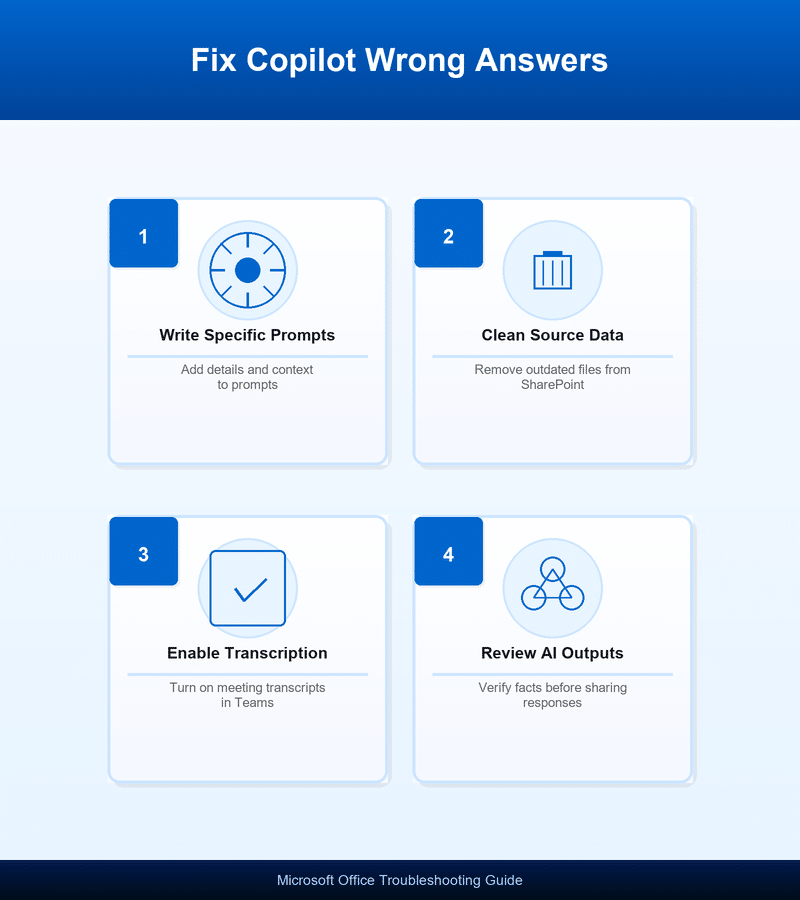
Vague prompts produce vague answers, so providing Copilot with detailed instructions dramatically improves the accuracy and relevance of every response the tool generates for you. Instead of asking Copilot to summarize a meeting, specify which topics you want covered, which participants to focus on, and what format you prefer for output. Prompt engineering for Microsoft 365 is a skill that improves with practice, and you should save your most effective prompt templates for repeated use across projects.
Verify and clean your source data
Copilot pulls information from your Microsoft 365 tenant, so outdated files, duplicate documents, and conflicting versions stored in SharePoint or OneDrive directly affect output quality. Remove or archive old document versions that contain superseded information, and ensure your most current files have clear naming conventions that help Copilot identify relevant sources. You can connect Microsoft Copilot to SharePoint to manage which data sources the assistant accesses when generating responses for your team.
Enable meeting transcription for better summaries
Copilot in Teams relies heavily on meeting transcripts to generate accurate summaries, so enabling transcription before meetings start ensures the AI has complete and accurate source material. Without transcription enabled, Copilot attempts to work from limited audio processing, which significantly increases the likelihood of attributed quotes and action items containing factual errors. You should enable Teams Copilot meetings transcription as a standard practice for all recurring meetings where you plan to rely on AI-generated summaries.
Improve Copilot accuracy with better workflows
Beyond individual fixes, establishing consistent workflows across your organization helps maintain Copilot response quality and reduces the frequency of encountering Microsoft Copilot wrong information over extended periods. These workflow adjustments create an environment where Copilot has access to clean, well-organized data that produces more reliable and trustworthy outputs for every user.
Establish a review process for AI-generated content
Always review Copilot outputs before sharing them with colleagues or clients, because even the best prompts cannot guarantee perfect AI-generated content accuracy in every situation today. Create a simple checklist that includes verifying names, dates, numerical data, and any specific claims that Copilot attributes to documents or meeting participants in your organization. You can export and save Copilot chat conversations to maintain a record of AI interactions that you can reference when verifying important outputs later.
Use Copilot iteratively instead of expecting perfect first responses
Treat Copilot as a collaborative drafting partner rather than an infallible oracle, and plan to refine its outputs through follow-up prompts that correct mistakes and add specificity. When Copilot provides wrong information in its first response, reply with corrections and ask it to regenerate the content using your feedback as additional context. This iterative approach to prompt engineering in Microsoft 365 consistently produces higher-quality final outputs than relying on a single prompt for complex tasks.
Best practices to prevent Copilot errors
- Organize your SharePoint libraries by maintaining clear folder structures and consistent file naming so that Copilot can accurately identify and retrieve the most relevant current documents. Using the best Copilot prompts for Teams meetings provides tested prompt templates that reduce hallucinations and improve meeting summary accuracy significantly.
- Keep meeting recordings and transcripts enabled as a default setting across your organization so that Copilot always has complete audio and text data to reference. This single configuration change addresses the majority of cases where Copilot produces inaccurate meeting summaries that misattribute statements to wrong participants in calls.
- Provide explicit context in every prompt by referencing specific documents, date ranges, or participant names so that Copilot narrows its search scope and avoids pulling irrelevant data. Explicit prompt context reduces the chance of Copilot hallucinations by constraining the AI to work within clearly defined boundaries rather than guessing broadly.
- Update your Microsoft 365 apps regularly because Microsoft continuously improves Copilot accuracy through model updates and bug fixes that address known issues with response quality across applications. Running outdated versions means you miss these improvements and may experience Copilot not working correctly due to resolved bugs that newer versions have already patched.
Frequently asked questions about Copilot giving wrong answers
Why does Copilot give incorrect answers?
Copilot uses predictive language models that generate responses based on patterns rather than verified facts, which means the tool can produce confident-sounding statements that are actually wrong. Inaccurate responses become more likely when your organizational data in SharePoint or OneDrive contains outdated, duplicate, or conflicting versions of important business documents. Providing more specific prompts with explicit context helps Copilot focus on the right information sources and reduces the frequency of hallucinated or fabricated content.
How do I improve Microsoft Copilot accuracy?
You can improve Copilot accuracy by writing detailed prompts that specify exactly what you need, enabling meeting transcription in Teams, and cleaning up outdated files in your tenant. Regularly reviewing and correcting Copilot outputs through iterative follow-up prompts trains the conversation context to produce increasingly accurate responses within that specific interaction session. Connecting Copilot to well-organized SharePoint sites with current documentation also significantly improves the quality of responses the assistant generates for your team members.
Can you trust Microsoft Copilot responses?
You should treat Copilot responses as helpful first drafts that require human review rather than as definitive answers that you can share without any verification process. Microsoft Copilot works best as a productivity accelerator that handles initial drafting and summarization tasks while you provide the critical thinking and fact-checking oversight needed. Establishing a consistent review workflow where team members verify AI-generated content before distribution ensures that Copilot remains a trustworthy and valuable tool in your work.
Conclusion
Copilot giving wrong answers is a common challenge that you can address through better prompting practices, cleaner organizational data, and consistent review workflows across your Microsoft 365 environment today. Start by enabling meeting transcription, organizing your SharePoint document libraries, and writing specific prompts that give Copilot the context it needs to produce accurate responses. Apply these fixes today and you will notice a measurable improvement in Copilot response quality that makes this Microsoft 365 AI assistant significantly more reliable.