When a Power Automate flow says it updated an Excel row but the workbook does not change, the failure is usually in the table or key lookup, not in Excel itself. The flow may be finding the wrong row, writing to a different workbook copy, or using a stale column reference after the table changed.
Keep the latest flow run open while you check the workbook. If the same automation also feeds reporting or dashboards, compare it with the Power Automate to Power BI workflow so you can separate data-writing problems from reporting refresh problems.
Prove which row the flow tried to update
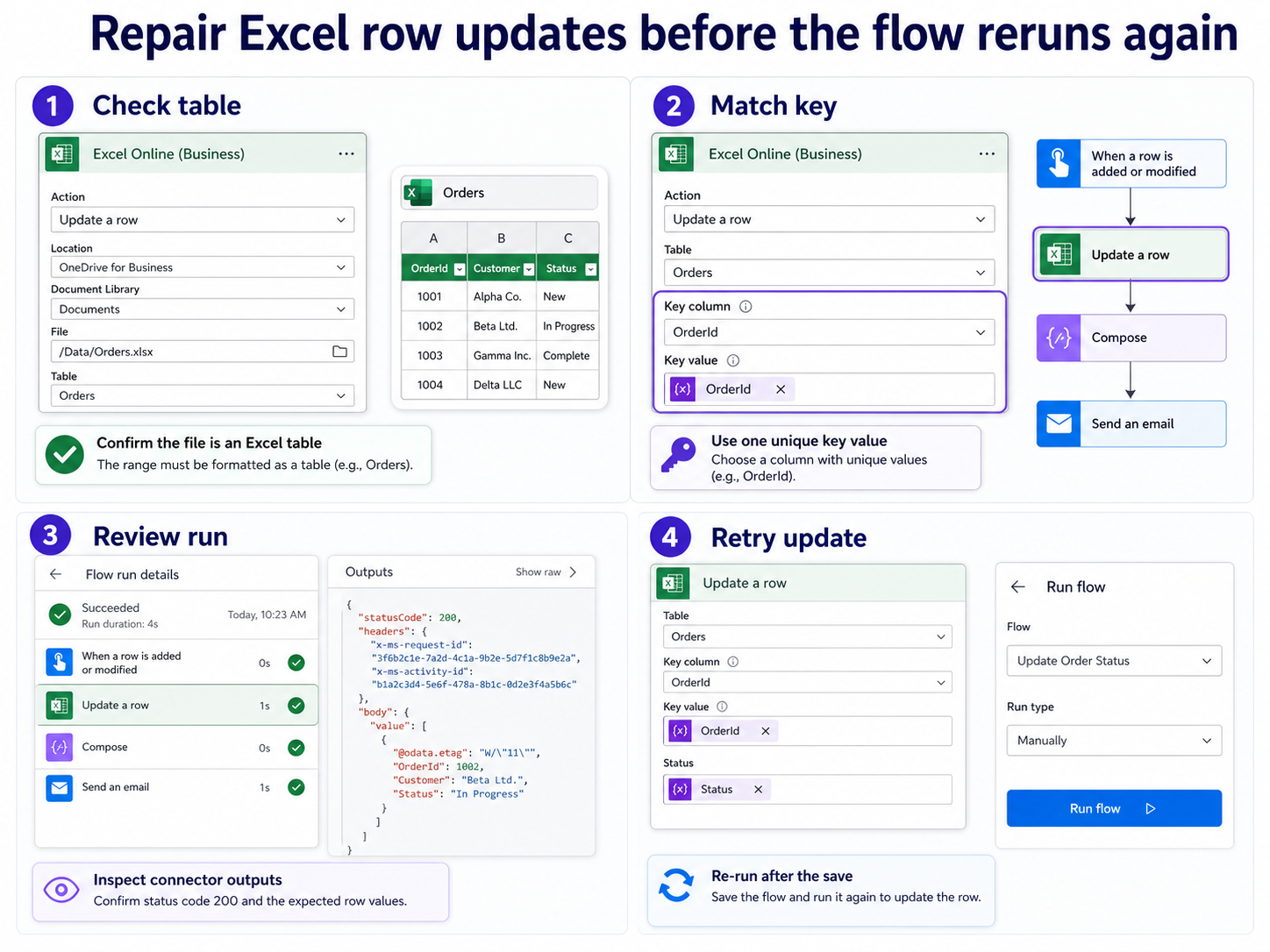
Open the failed or suspicious run and expand the Excel action. Look at the workbook location, table name, key column, key value, and returned body. A green checkmark on the action only means the connector accepted the request. It does not prove the row you expected was changed.
- Confirm the file path points to the workbook users actually open.
- Check the table name, not just the worksheet name.
- Copy the key value from the run output and search for it in Excel.
- Look for duplicate key values that could make the update ambiguous.
If the run output shows a blank key value, the problem is earlier in the flow. Fix the trigger or data parsing before editing the Excel action.
Check the Excel table before the connector
The Excel Online connector works against tables, not ordinary cell ranges. Open the workbook in Excel for the web and confirm the data is still formatted as a table. Renamed columns, merged cells, blank header cells, or manually inserted rows outside the table boundary can all make updates appear to vanish.
Resize the table so the target row is inside it, then save the workbook. If several people edit the file, ask them to close desktop Excel for a minute and test again from Excel for the web. A locked or unsynced workbook can make the flow result hard to trust.
Repair the key value and mapped columns
Once the table is correct, edit the Update a row action. Reselect the location, document library, file, and table if any of them were recently renamed or moved. Then reselect the columns from dynamic content instead of relying on old tokens.
- Use a stable key column such as ID, request number, or normalized email.
- Avoid display names that can change spelling or casing.
- Remove old dynamic content tokens after a table column rename.
- Run one controlled test with a row you can safely change.
If the flow creates Outlook tasks, sends notifications, or branches after the Excel update, test the Excel action alone first. A downstream task step can fail even when the row update is fixed; the Outlook task automation guide is a useful comparison for that part of the workflow.
Questions before rebuilding the flow
Why does the run succeed without changing the row?
The connector may have found a row you did not expect, written to another workbook path, or accepted a request where the mapped values were blank. Check the action output before assuming Excel ignored the update.
Should I use row ID, email, or display name as the key?
Use the most stable unique value available. A numeric ID or request number is better than a display name. Email can work if it is normalized and unique in the table.
What if the workbook is open while the flow runs?
Coauthoring usually works, but desktop Excel, locked files, sync delays, and unsaved table changes can confuse testing. For the cleanest test, close desktop Excel and run the flow against the workbook in Excel for the web.
A reliable Excel update flow is built around a stable table and a stable key. Once those are correct, the rest of the flow is much easier to diagnose.