Enable password autofill in Edge for streamlined authentication
How can I set up Microsoft Edge to automatically fill in my login credentials when I visit websites? Many organizations are moving toward browser-based password management solutions, and Microsoft Edge offers robust built-in capabilities for storing and autofilling usernames and passwords. This functionality becomes particularly valuable when employees access multiple web applications throughout their workday, eliminating the need to manually enter credentials repeatedly while maintaining security standards.
Activate Microsoft Edge autofill password settings
Password autofill functionality in Microsoft Edge represents a significant productivity enhancement for users who frequently access web-based applications and services. The challenge lies in properly configuring these settings to balance convenience with organizational security requirements, especially in enterprise environments where password policies must align with compliance standards.
Today you will learn to navigate the Microsoft Edge password management interface, customize autofill behaviors, and implement security best practices for credential storage. The process involves accessing Edge settings, enabling password saving features, configuring autofill preferences, and understanding how Edge integrates with Microsoft accounts for cross-device synchronization.
We will focus specifically on the built-in Edge password manager without requiring third-party password management tools.
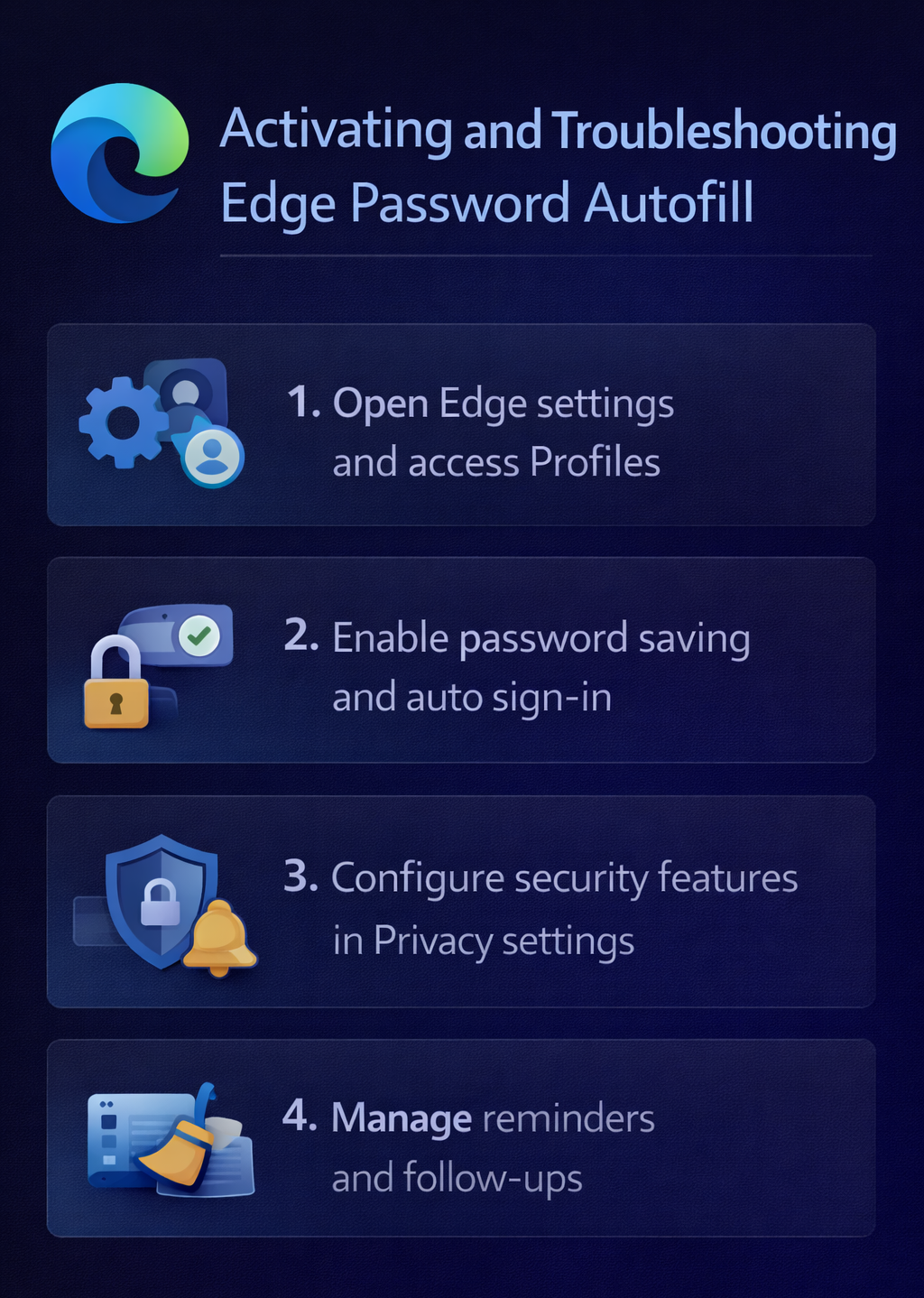
Edge autofill username and password activation process
The activation process for Edge password autofill begins with accessing the browser’s core settings and navigating to the password management section where you can configure how Edge handles login credentials.
- Launch Microsoft Edge and click the three-dot menu button located in the upper-right corner of the browser window to access the main settings menu.
- Select Settings from the dropdown menu to open the comprehensive Edge configuration interface where you can modify various browser behaviors and preferences.
- Navigate to the Profiles section in the left sidebar menu, which contains all user-specific settings including password management, autofill preferences, and synchronization options.
- Click on Passwords within the Profiles section to access the dedicated password management interface where Edge stores and manages your login credentials.
- Toggle the “Offer to save passwords” switch to the enabled position, allowing Edge to prompt you to save login credentials when you enter them on websites.
- Enable the “Auto sign-in” option to allow Edge to automatically fill in saved usernames and passwords when you visit previously accessed websites without requiring manual intervention.
Expert Tip: Enable password synchronization if you use Edge across multiple devices to ensure your saved credentials are available everywhere you sign in with your Microsoft account.
Auto fill password in Edge browser customization
- Access the “Autofill” section within the main Settings menu to configure additional form-filling preferences beyond just passwords, including addresses and payment information.
- Click on “Passwords” under the Autofill section to access advanced password management options where you can view, edit, and delete saved credentials as needed.
- Review the “Never saved” list to identify websites where you have previously declined to save passwords and remove sites where you now want Edge to offer password saving.
- Configure the “Show password reveal button” setting to determine whether users can click an eye icon to view saved passwords in plain text when filling forms.
- Adjust the “Suggest strong passwords” feature to enable Edge to generate secure passwords automatically when you create new accounts or update existing credentials.
- Set up the “Warn me about compromised passwords” feature to receive notifications when saved credentials appear in known data breaches or security incidents.
Microsoft Edge autofill passwords security configuration
- Navigate to the Privacy, search, and services section in Edge settings to configure additional security measures that affect password autofill functionality and credential protection.
- Enable “Use Windows Hello or your device PIN to verify it’s you when filling passwords” to add biometric authentication requirements before autofilling sensitive login credentials.
- Configure the “Clear browsing data” settings to exclude passwords from automatic deletion while allowing other browsing data to be cleared according to your organization’s privacy policies.
- Access the “Site permissions” section to manage which websites are allowed to request and store login credentials through the Edge password manager interface.
- Review and configure the “Sync” settings to control how password data synchronizes across devices when signed in with a Microsoft account, ensuring compliance with organizational data policies.
- Verify that the “Microsoft Defender SmartScreen” feature remains enabled to protect against phishing sites that might attempt to steal credentials even when autofill is active.
Edge autofill password settings troubleshooting solutions
Users frequently encounter specific challenges when configuring Edge password autofill functionality, particularly related to synchronization issues, credential conflicts, and organizational policy restrictions that can prevent proper operation.
- Password autofill fails to work on specific websites due to site compatibility issues or security restrictions implemented by web developers who disable autofill functionality through HTML attributes or JavaScript code, requiring manual credential entry for these particular sites.
- Edge displays “Your organization manages some of your browser settings” message indicating that Group Policy or Microsoft Intune configurations are preventing password saving or autofill modifications, necessitating administrator intervention to adjust enterprise policies appropriately.
- Saved passwords become corrupted or inaccessible after Windows updates or Edge browser updates, typically resolved by signing out of your Microsoft account in Edge settings and signing back in to refresh the credential synchronization process.
- Duplicate password entries appear for the same website when Edge saves multiple credential sets, addressed by accessing the password management interface and manually deleting redundant entries while preserving the most current login information.
Important Tip: If autofill stops working completely, try clearing Edge browsing data while specifically excluding passwords and cookies to resolve potential database conflicts without losing saved credentials.