Edge browser VPN free capabilities for enhanced security
Can you enable a built-in VPN directly within Microsoft Edge without installing third-party extensions or paying for premium services? Many organizations and individual users seek integrated privacy solutions that work seamlessly across their devices, particularly when accessing sensitive business data or working remotely. Edge’s VPN capabilities offer an interesting approach to browser-based privacy protection that deserves careful examination.
Edge browser VPN review and available options for Windows 11
Microsoft Edge currently offers limited native VPN functionality compared to dedicated VPN applications, though several approaches exist for implementing VPN-like privacy features. The browser includes enhanced security features and supports various VPN extensions, but understanding the distinction between native capabilities and third-party solutions remains crucial for proper implementation.
We will go ahead and configure privacy-enhancing features within Edge, evaluate available VPN extensions, and implement secure browsing configurations across desktop and Android platforms. You will need an active Microsoft account, Edge browser installed on your target devices, and appropriate permissions to modify browser settings in organizational environments.
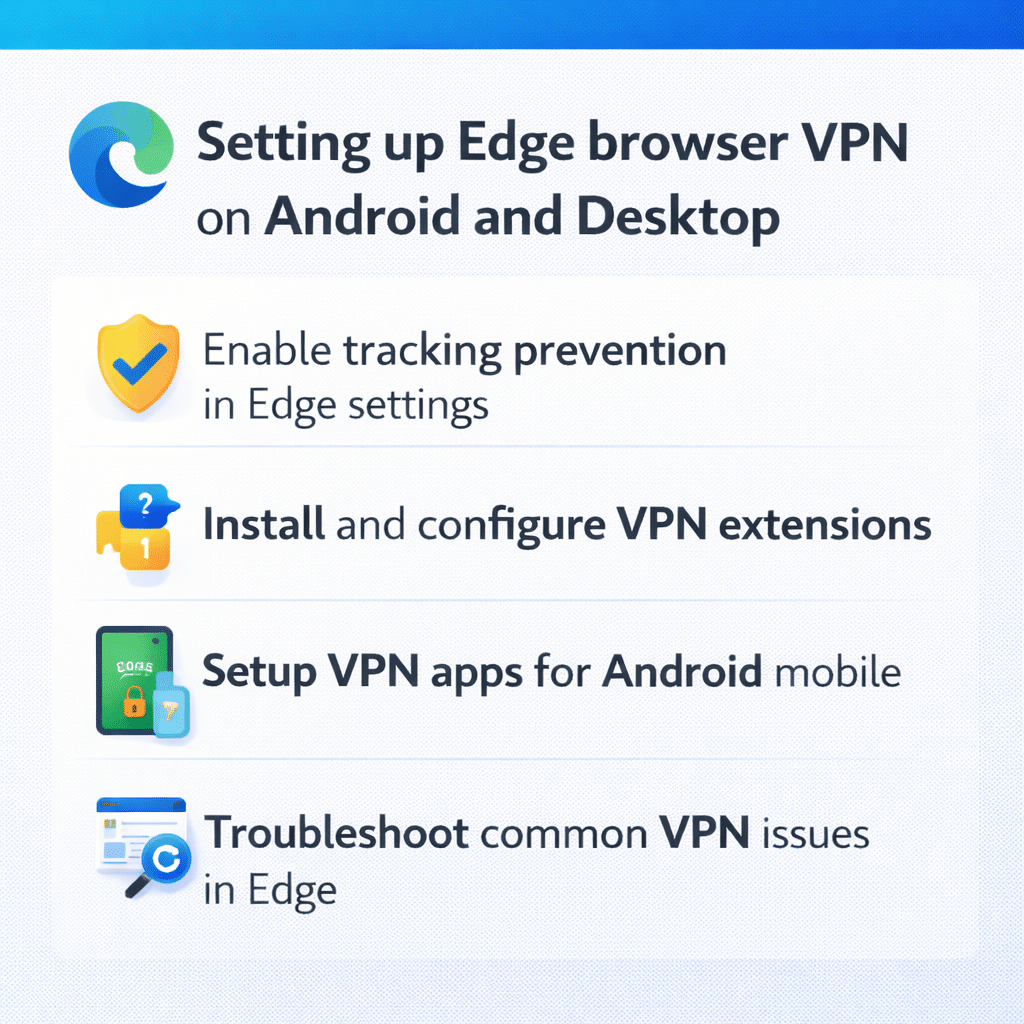
The tutorial covers Edge’s built-in privacy features, recommended VPN extensions, Android-specific configurations, and enterprise security settings that provide VPN-like functionality for business users.
How to use Edge VPN through built-in privacy features?
Microsoft Edge provides several privacy-enhancing features that offer VPN-like protection without requiring separate applications, though these differ from traditional VPN services in scope and functionality.
- Navigate to Edge Settings by clicking the three-dot menu in the upper right corner and selecting Settings from the dropdown menu.
- Select Privacy, Search, and Services from the left sidebar to access comprehensive privacy configuration options that enhance your browsing security.
Enable Tracking Prevention by selecting Strict mode, which blocks most trackers and provides enhanced privacy similar to VPN protection for web browsing activities.
- Activate Microsoft Defender SmartScreen protection to prevent malicious websites and downloads, adding an additional security layer to your browsing experience.
- Configure DNS over HTTPS by scrolling to the Security section and enabling Use secure DNS to specify how to look up the network address for websites.
- Select Choose service provider and pick Cloudflare or Quad9 for enhanced DNS privacy that prevents ISP monitoring of your web requests.
Expert Tip: While Edge’s privacy features provide significant protection, they don’t mask your IP address like traditional VPN services do for complete anonymity.
Edge browser VPN extension installation and configuration
Installing dedicated VPN extensions provides more comprehensive protection than Edge’s built-in features, offering IP masking and geographic location spoofing capabilities.
- Open Edge Extensions store by navigating to edge://extensions/ in your address bar or accessing Extensions from the main menu.
- Search for reputable VPN extensions such as NordVPN, ExpressVPN, or Surfshark that offer free tiers or trial periods for testing purposes.
- Click Get or Install on your chosen extension, then follow the installation prompts to add the VPN functionality to your browser.
- Configure the extension by clicking its icon in the toolbar and signing in with your VPN service credentials or creating a new account.
- Select your preferred server location and connection protocol based on your privacy needs and geographic requirements for accessing specific content.
- Test the connection by visiting whatismyipaddress.com to verify that your IP address reflects the VPN server location rather than your actual location.
Edge browser VPN Android setup and mobile configuration
Configuring VPN functionality on Android devices requires different approaches since mobile browsers have distinct security and networking limitations compared to desktop versions.
- Install Microsoft Edge for Android from Google Play Store if not already present, ensuring you have the latest version for optimal security features.
- Open Edge Settings by tapping the three-dot menu at the bottom of the screen and selecting Settings from the available options.
- Navigate to Privacy and Security settings to configure tracking prevention, secure DNS, and other privacy-enhancing features available on the mobile platform.
- Install VPN apps directly on Android rather than relying solely on browser extensions, as mobile VPN applications provide system-wide protection beyond browser traffic.
- Configure split tunneling in your VPN app to route only Edge browser traffic through the VPN while allowing other applications direct internet access.
- Enable Edge Sync to maintain consistent privacy settings across your desktop and Android devices, ensuring uniform protection regardless of platform.
Important Tip: Android VPN apps provide more comprehensive protection than browser-based solutions since they secure all device traffic, not just web browsing.
Edge browser VPN settings optimization for performance
Fine-tuning Edge’s privacy and VPN-related settings ensures optimal performance while maintaining security standards appropriate for your specific use case and organizational requirements.
- Access Advanced Privacy Settings by navigating to Privacy, Search, and Services and scrolling to the Advanced section for detailed configuration options.
- Configure Site Permissions to control how websites access your location, camera, microphone, and other sensitive data that could compromise your privacy.
- Enable Password Monitor and Web Security features to receive alerts about compromised credentials and malicious websites before they pose security risks.
- Adjust Tracking Prevention exceptions for essential business websites that require certain tracking functionality while maintaining strict privacy for general browsing.
- Configure Edge’s built-in ad blocker and popup blocker to reduce exposure to potentially malicious advertising content that could bypass VPN protection.
- Review and manage stored site data regularly to prevent websites from building comprehensive profiles despite VPN usage and privacy settings.
Enable free VPN for Edge troubleshooting common issues
Several challenges commonly arise when implementing VPN functionality within Microsoft Edge, particularly regarding extension compatibility, performance optimization, and connectivity problems that require specific solutions.
VPN extensions may conflict with Edge’s built-in security features, causing connection failures or reduced browsing performance that requires careful configuration management. Disable conflicting security extensions temporarily and test connectivity to identify specific compatibility issues before implementing permanent solutions.
- DNS resolution problems often occur when combining Edge’s secure DNS settings with VPN extensions, resulting in websites loading slowly or failing completely. Configure your VPN to use its own DNS servers and disable Edge’s DNS over HTTPS feature to prevent conflicts between privacy services.
- Geographic content restrictions may persist despite VPN usage if Edge’s location services continue reporting your actual location to websites and applications. Access Edge’s site permissions settings and block location access for all websites, or configure location spoofing within your VPN extension settings.
- Performance degradation frequently affects browsing speed when multiple privacy features operate simultaneously, particularly on mobile devices with limited processing power. Optimize settings by disabling unnecessary tracking prevention exceptions and reducing the number of active privacy extensions to improve overall browser performance.
Remember: Regular testing of VPN functionality using IP checking websites ensures your privacy settings remain effective after browser updates or configuration changes.