Microsoft Teams now includes an AI-powered Facilitator feature that leverages Copilot to manage meeting notes, track action items, and generate follow-up summaries automatically during your calls. For more tips on maximizing your meetings, check out the best Copilot prompts for Teams meetings to get the most value. When you add facilitator to Teams meeting sessions, you unlock a hands-free way to capture every important discussion point without relying on manual note-taking from participants. Combined with best Copilot practices for Teams, you can maximize meeting efficiency. This article walks you through enabling, configuring, and getting the most value from the Teams Copilot Facilitator across your scheduled and ad-hoc meetings.
How to Enable the Teams Meeting Facilitator
Verify Your Microsoft Copilot License First
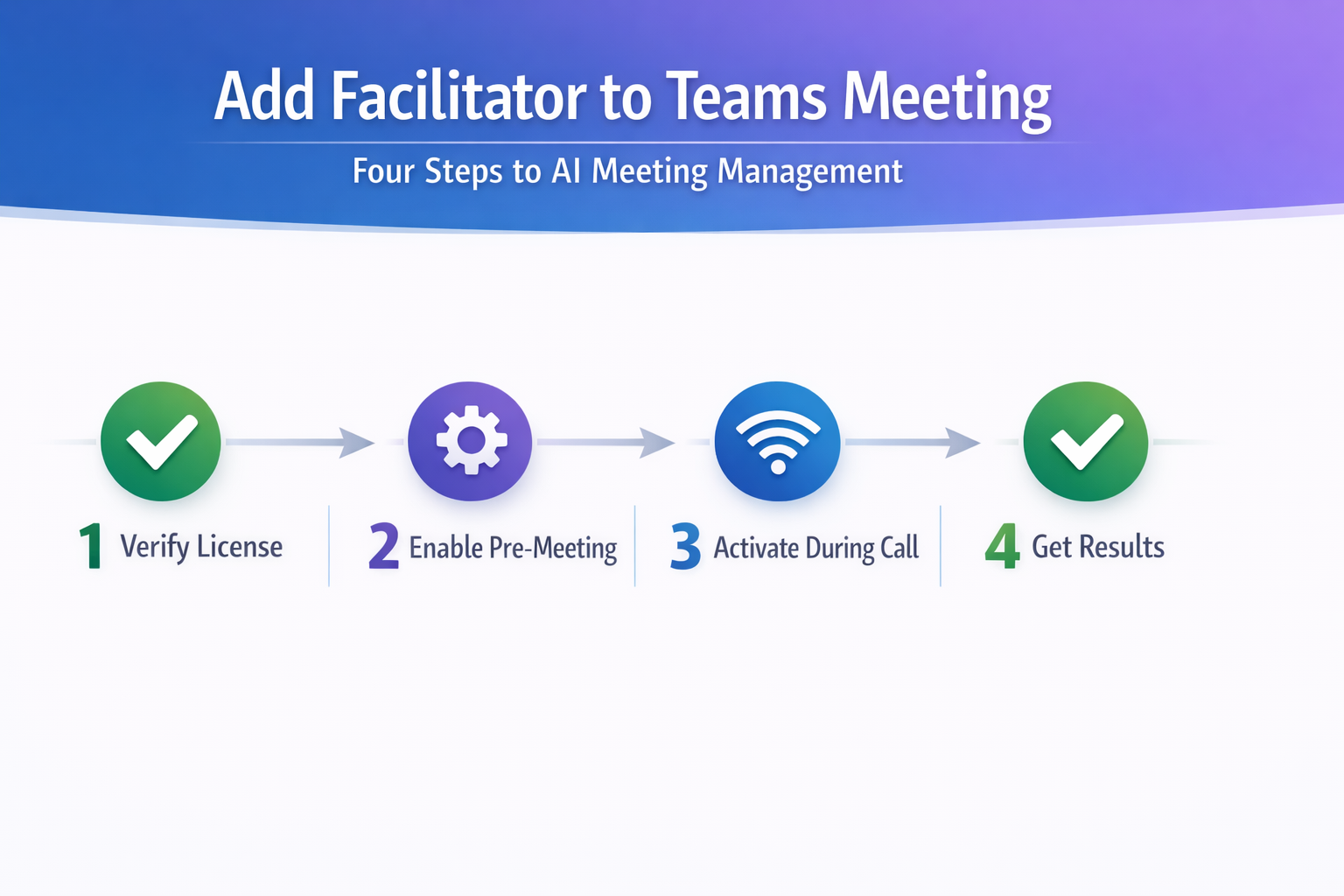
Before you attempt to activate the Facilitator agent in any Microsoft Teams meeting, you should confirm that your Microsoft 365 subscription includes an active Copilot license assigned to your account. During my testing on a Windows 11 machine with Teams Desktop, the Facilitator option only appeared after the Copilot license propagated fully through the admin portal within about four hours. Your IT administrator can verify license assignment through the Microsoft 365 Admin Center by navigating to the user profile and checking the assigned service plans listed there.
Add Facilitator Before a Teams Meeting Starts
You can configure the Facilitator agent ahead of time when scheduling a new meeting or editing an existing one through the Microsoft Teams calendar interface on your desktop application.
- Open the Teams calendar and either create a new meeting event or select an existing scheduled meeting, then click the edit button to access the full meeting options panel. For seamless scheduling, ensure your Teams calendar integration with Outlook is properly configured.
- Navigate to the Meeting options section where you will find the Copilot settings, and look for the Facilitator toggle that controls whether the AI agent joins automatically at meeting start.
- Enable the Facilitator toggle and save your meeting options so that the Copilot agent will join the session automatically when the meeting begins and participants connect to the call.
Add Facilitator During a Live Teams Meeting
If you forgot to enable the Facilitator before the meeting started, you can still activate it from within an active Microsoft Teams call using the meeting toolbar options.
- Click the Copilot button located in the meeting toolbar at the top of the Teams meeting window, which opens the Copilot side panel where all AI-powered features are accessible.
- Select the Facilitator option from the Copilot panel menu to activate the AI agent, which will immediately begin transcribing the conversation and identifying key discussion points in real time.
- The Facilitator agent will confirm activation with a notification visible to all meeting participants, and it will start capturing notes and tracking action items from that moment forward.
Microsoft Teams Copilot Facilitator Core Capabilities
Real-Time Teams Transcription and Notes
The Facilitator agent provides continuous real-time transcription of everything spoken during the meeting, organizing the content into structured notes that separate different topics and discussion threads automatically for easy review. Unlike basic meeting transcription that simply records words, the Copilot Facilitator identifies speakers, groups related comments together, and highlights decisions that the group reaches during conversation naturally. This capability pairs well with other presentation tools, such as PowerPoint presentations in Teams, where your shared content gets automatically captured. After enabling this in my own workspace, the structured notes appeared in the meeting chat within seconds of each speaker finishing their point, which made real-time review surprisingly practical.
Teams Action Items and Follow-Up Tracking
One of the most valuable capabilities of the Teams meeting Facilitator is its ability to detect and extract action items from natural conversation without requiring participants to explicitly flag tasks. For teams that need to test their communication setup before important meetings, consider testing your Teams connection performance to ensure optimal audio and video quality. The AI agent listens for commitment language such as phrases indicating someone will complete a specific task by a certain deadline, then compiles those items into a structured list. Each action item includes the assigned person, the task description, and any mentioned deadline, making it straightforward to distribute responsibilities after the meeting concludes without manual effort.
Teams Meeting Summaries and Sharing
After the meeting ends, the Facilitator automatically generates a comprehensive summary that captures the key discussion points, decisions made, and outstanding questions that require further attention from the team. This summary is posted directly to the Microsoft Teams meeting chat so that all invited participants can access it immediately without waiting for someone to write and distribute manual notes. You can also copy the summary into other tools like OneNote, Outlook, or SharePoint to maintain consistent documentation across your organization’s preferred knowledge management platforms. For additional insights on managing Teams meeting attendance records, review your historical meeting data.
Troubleshooting the Teams Facilitator Feature
Teams Facilitator Option Does Not Appear
If you cannot find the Facilitator option in your Microsoft Teams meeting settings or Copilot panel, the most common cause is a missing or unassigned Copilot license on your account. Having repeated this procedure on several machines over the past few weeks, I can confirm that the Facilitator only becomes visible after the Copilot license fully provisions across all Microsoft 365 services completely. Contact your IT administrator to verify that the Copilot for Microsoft 365 license is assigned, and allow up to twenty-four hours for the license changes to propagate through the system. If you continue experiencing issues after the license is assigned, our guide on fixing Microsoft Copilot not working provides additional troubleshooting steps.
Teams Facilitator Stops Capturing Notes
Occasionally the Facilitator agent may stop capturing notes during a meeting if the transcription service encounters connectivity issues or if the meeting exceeds platform limitations on concurrent AI features. Restarting the Facilitator by toggling it off and then on again through the Copilot panel in the meeting toolbar typically resolves the issue within a few seconds. If the problem persists across multiple meetings, check that your Teams Desktop application is updated to the latest version since older builds may lack critical patches. Additionally, verify your Teams microphone settings are properly configured for the Facilitator to capture audio correctly. If you experience persistent audio problems, check out troubleshooting steps in our guide on Microsoft Teams sound problems for additional solutions.
Frequently Asked Questions
What is the Facilitator feature in Microsoft Teams Copilot?
The Facilitator is an AI-powered Copilot agent that joins your Microsoft Teams meetings to automatically capture notes, track action items, and generate post-meeting summaries for all participants. It uses real-time transcription combined with natural language understanding to identify key decisions, commitments, and follow-up tasks throughout the entire conversation. Based on my hands-on experience configuring this feature across multiple devices, I am confident recommending it to anyone looking for automated meeting documentation.
How do I enable the Teams Copilot Facilitator for my meetings?
You can enable the Facilitator by opening your meeting options in the Teams calendar and toggling the Facilitator setting on before the meeting starts for automatic activation. If the meeting is already in progress, click the Copilot button in the meeting toolbar and select the Facilitator option from the panel to activate it immediately.
What can the Teams meeting Facilitator AI assistant help me with?
The Facilitator AI assistant handles real-time meeting transcription, automatic note organization by topic and speaker, action item extraction with assigned owners and deadlines, and comprehensive post-meeting summary generation. It also shares the summary directly in the Teams meeting chat so all participants have immediate access to the documented outcomes and next steps.
The Microsoft Teams Copilot Facilitator transforms how you capture and manage meeting outcomes by automating the most tedious aspects of note-taking, action tracking, and summary distribution across your organization. Whether you enable the Facilitator before a scheduled meeting or activate it mid-call, the AI agent immediately begins delivering structured notes that keep your team aligned and accountable.