When organization filters disappear or show the wrong reporting lines, uploading the same file again is rarely the best first move. The Copilot Dashboard can draw hierarchy information from Microsoft Entra ID or from an organizational-data file, and an upload changes which source drives important filters. Diagnose the active source, validate the complete hierarchy, and allow the documented processing window before changing more data.
Treat this as a data-pipeline problem, not a browser-display problem. A clean CSV can still produce incomplete filters when required identities are missing, manager relationships do not reach the top leader, or a more recent upload from another admin takes precedence.
Read the first evidence
The symptom worth recording
For copilot dashboard organizational data upload, record the exact account, item, client, and result before changing anything. A precise baseline distinguishes an unavailable control from a saved-data, permission, or synchronization failure and gives the later retest a meaningful comparison.
The boundary that changes the diagnosis
The first useful milestone is “Confirm whether Entra ID or an uploaded file is authoritative.” Once that result is known, continue to “Validate required columns and the complete manager chain” without changing unrelated settings. This keeps the diagnosis narrow enough for a user, owner, or administrator to repeat.
A focused recovery path
- Confirm whether Entra ID or an uploaded file is authoritative. Record the result before moving on so later evidence stays attributable.
- Validate required columns and the complete manager chain. Keep the test narrow and use the same account that experienced the failure.
- Upload through one owned admin path and record the result. Do not broaden permissions or delete data to force a passing result.
- Recheck representative employees after processing completes. Confirm the saved or downstream state, not just the visible control.
Identify the source now feeding the dashboard
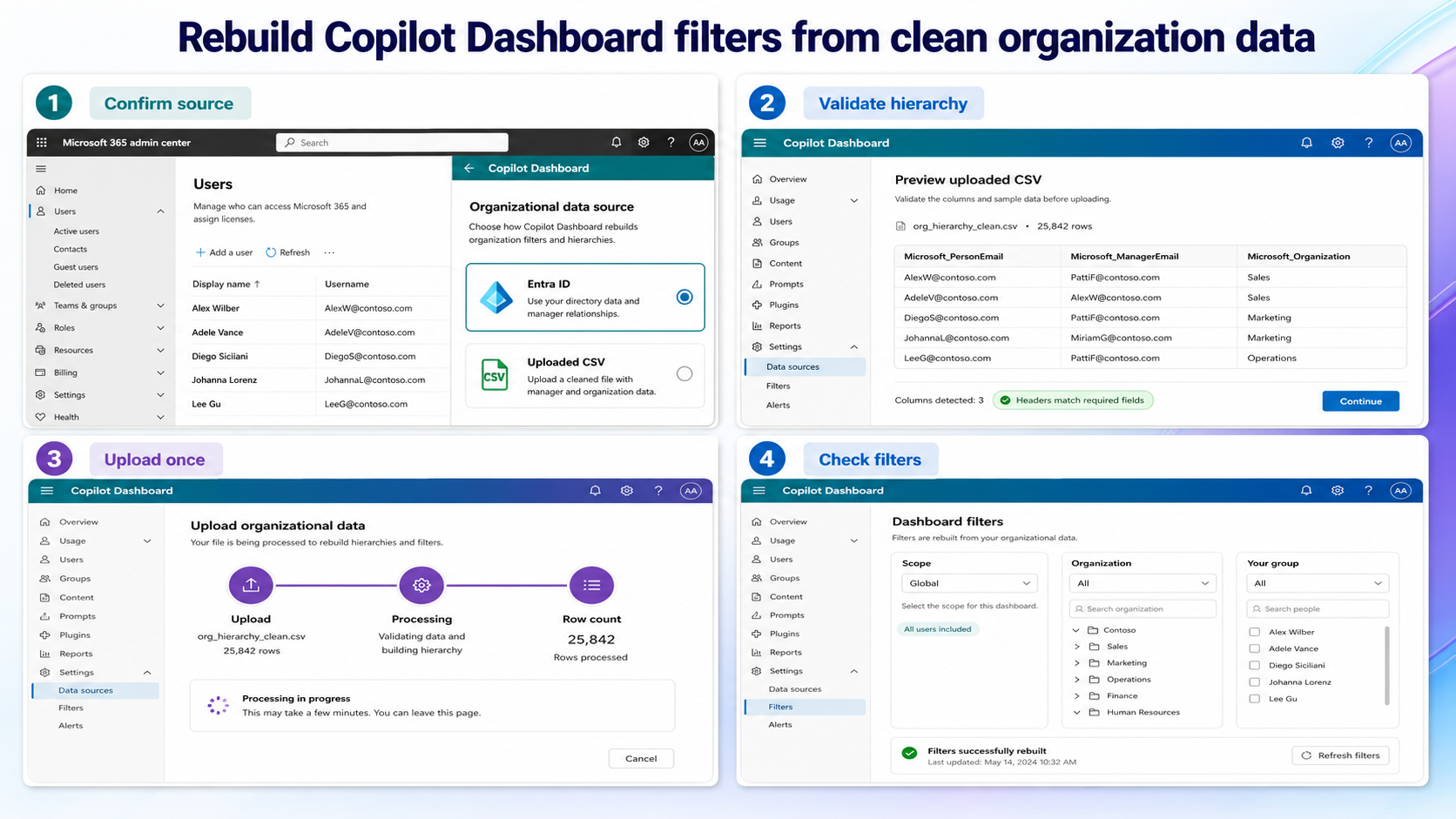
Open the Copilot Dashboard with an account that has the appropriate dashboard access. Compare a few affected employees with Microsoft Entra ID and with the last organizational-data file. If the dashboard changed after a file upload, remember that the file becomes the continuing source for Scope and Organization filters rather than a one-time correction. Use the account and licensing checks only when the dashboard or Copilot entry point is missing for the signed-in admin.
Ask whether both a Global Administrator and a Viva Insights Administrator upload data. Microsoft says the dashboard merges those uploads and gives priority to the more recent values, so two individually valid files can still create a surprising hierarchy.
Build a complete hierarchy before uploading
Use the exact required column names for the chosen upload path. The Microsoft 365 admin-center format requires Microsoft_PersonEmail, Microsoft_ManagerEmail, and Microsoft_Organization; Microsoft_JobDiscipline is optional when you want a job-function filter. Include every employee in scope plus managers in the chain up to the top leader.
Check for duplicate email addresses, misspelled domains, blank managers, circular manager relationships, and leaders referenced as managers but absent as people. Save the file as a clean CSV and keep a dated copy so you can explain exactly what changed.
Upload once and read the status
Submit the corrected file through the admin surface your organization owns. Do not alternate between admin-center and Viva uploads during the same diagnosis. Capture the upload time, uploader, row count, and validation message, then let processing finish; Microsoft notes that dashboard data changes can take up to seven days to become effective.
During that window, avoid repeated replacement uploads unless the service explicitly rejects the file. Repeated uploads make it difficult to know which dataset produced the eventual dashboard view.
Validate with a small employee sample
Choose one employee near the top of the hierarchy, one in the middle, and one near the edge of the affected organization. Confirm the Organization value, direct manager, and expected Scope placement for each. A three-person sample exposes hierarchy breaks faster than browsing aggregate charts.
If filters remain wrong after the processing window, provide the sample identities, sanitized CSV rows, upload record, and current dashboard result to the administrator who owns the data source. Apply a careful Copilot source-review habit when comparing a documented HR extract with the generated insight. That is stronger evidence than a screenshot of a missing filter alone.
Compare one supported client
Use one alternate supported client only after the authoritative service has been checked. Keep the account and content unchanged so the client is the sole variable. If both clients fail identically, focus on permission, policy, source data, or service state; if one succeeds, preserve that result and troubleshoot the failing client without altering shared data.
Before uploading another organization file, record the active dashboard data source, uploader, row count, validation state, and affected Scope or Organization filter. Compare three representative employees against the intended manager hierarchy. This snapshot lets the admin judge the next processed result without confusing it with an earlier CSV.
Changes to avoid during diagnosis
Do not remove shared data, relax tenant security, or recreate the production object simply to make the symptom disappear. Those changes can hide the original cause and create a second recovery job. Export or verify anything important first, use a harmless sample, and obtain the owner’s approval before altering shared configuration.
If a destructive change becomes necessary, confirm the exact target and recovery path with the owner first. For managed Microsoft 365 data, an administrator should preserve identifiers, timestamps, and service evidence before removal or recreation.
Organizational data questions
Why did an upload remove filters that worked before?
A file upload can replace Entra ID as the source for Scope and Organization filters. If the uploaded file omits employees, managers, or attributes, the dashboard can lose choices that were previously inferred from Entra ID.
Can I upload only the people whose records changed?
For reliable scope calculations, include the complete population needed for the analysis and every manager between those employees and the top leader. A partial hierarchy can make otherwise correct rows appear in the wrong group.
How soon should the dashboard reflect the new file?
Microsoft documents that the organizational-data upload process can take up to seven days. Check the upload status first, then wait through that window before treating an unchanged dashboard as a failed import.
Keep the dashboard trustworthy
A control appearing is only partial recovery. Repeat the original workflow and confirm the downstream result in the authoritative service: the shared calendar, Loop page, Forms response store, Teams destination, Copilot citation, transcript, or dashboard hierarchy. Then undo temporary test settings and retain only the targeted correction.
Keep owner and administrator boundaries clear. End users can verify their account, refresh a supported client, and test content they are allowed to use. Owners control sharing and source configuration; administrators control tenant policy, licensing, consent, retention, and service-health escalation. Stop when the evidence reaches one of those boundaries.
The durable fix is the smallest change that explains the symptom and survives a normal retest. Keep the verified configuration, remove temporary test content, and share the precise boundary with the owner of any policy or permission dependency. If the problem returns, compare it with the same baseline before repeating cleanup.