Microsoft 365 Copilot has evolved beyond simple prompt-and-response interactions into a fully autonomous AI assistant that handles complex multi-step tasks independently. Copilot Agent Mode in Word and PowerPoint allows the AI to plan, execute, and refine entire documents and presentations without requiring constant manual guidance from you. This capability transforms how professionals create content by letting the Microsoft 365 Copilot agent work through research, drafting, formatting, and revision stages on its own. Understanding how to use Copilot Agent Mode effectively will dramatically accelerate your document and presentation workflows across the entire Microsoft 365 suite of applications.
What is Copilot Agent Mode and how it works
Copilot Agent Mode represents a fundamental shift from the standard chat-based Copilot experience where you provide one prompt and receive a single generated response back. In autonomous mode, Copilot interprets your high-level instructions, breaks them into subtasks, executes each step sequentially, and delivers a polished final output automatically. The agentic capabilities mean Copilot can search for relevant information, create Word documents with proper structure and formatting, and iterate on its own work. This AI document automation approach eliminates the repetitive cycle of prompting, reviewing partial results, and manually requesting additional changes that standard Copilot interactions require.
How to enable Copilot Agent Mode in Word
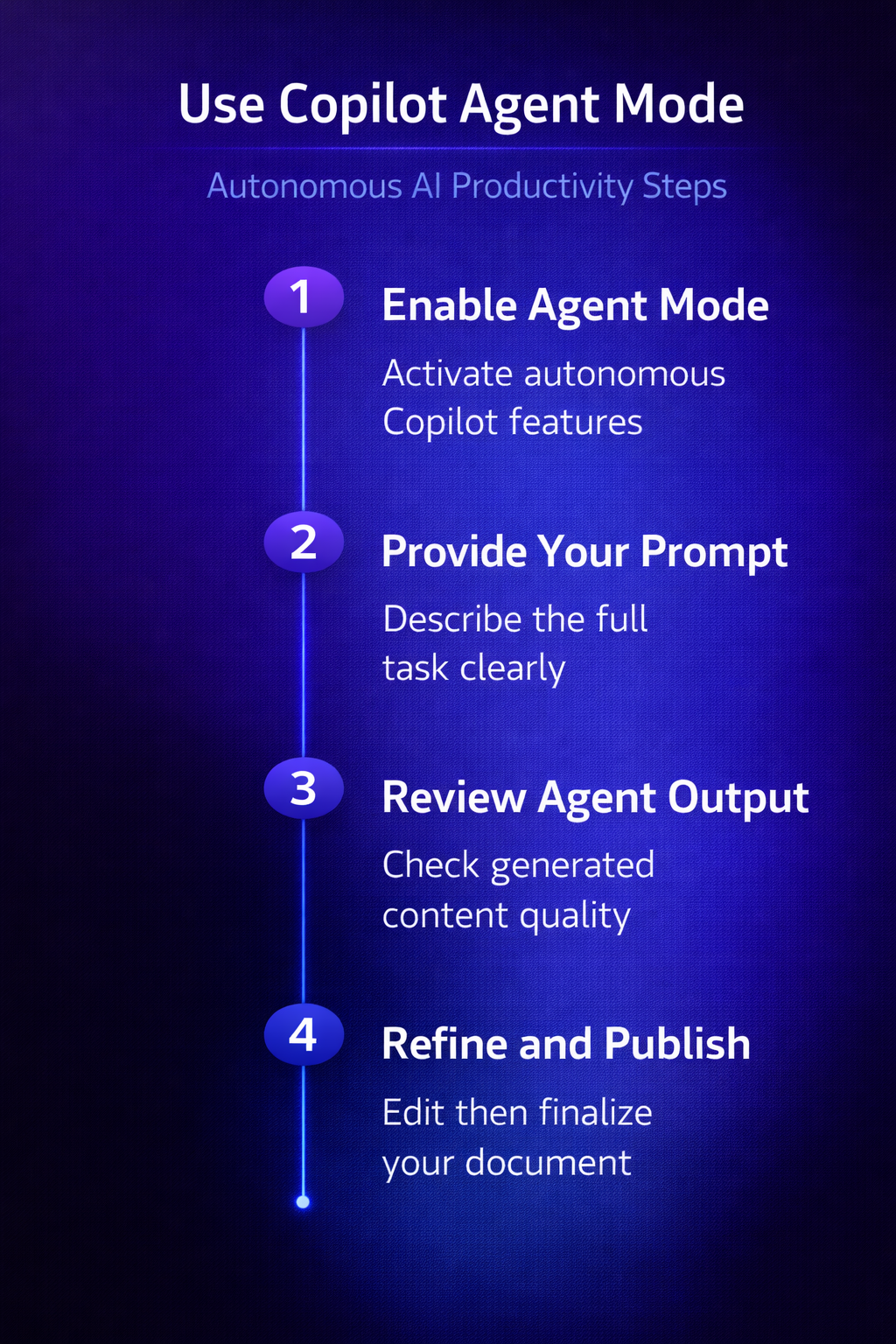
Activating Copilot Agent Mode in Word requires a Microsoft 365 Copilot license and access to the latest Word desktop or web application version. Open a new or existing document in Word, then click the Copilot icon in the ribbon toolbar to launch the Copilot side panel interface.
Access the agent toggle
Look for the Agent Mode toggle or the agentic task option within the Copilot panel that appears after you select the draft or create function. When you enable this toggle, Copilot shifts from responding to individual prompts into planning and executing complete document creation workflows autonomously for you. Provide a detailed description of what you need, including the topic, target audience, desired length, and any specific sections that must appear.
Let Copilot work autonomously
After submitting your prompt, the autonomous AI assistant begins working through multiple stages including research, outlining, drafting, and formatting without further input. You can monitor progress as Copilot Agent Mode generates section headings, writes body content, applies consistent styling, and structures the document for readability automatically. The entire process typically completes within one to two minutes depending on the complexity and length of the document you have requested.
How to use Copilot Agent Mode in PowerPoint
PowerPoint benefits enormously from Copilot Agent Mode because creating presentations traditionally requires extensive manual work across slides, layouts, and visual elements simultaneously. Launch PowerPoint and open the Copilot panel, then look for the option to create PowerPoint presentations from a document or detailed prompt.
Generate complete presentations
Select the Agent Mode option and describe your presentation requirements including the topic, number of slides, visual style preferences, and key messages per section. Copilot Agent Mode will autonomously generate slide layouts, write speaker notes, insert relevant imagery placeholders, and apply consistent design themes across your entire deck. The AI-powered presentations feature handles transitions between topics naturally and ensures each slide communicates its core message within appropriate content density boundaries for audiences.
Refine slides with follow-up instructions
After the initial generation completes, you can provide refinement prompts that Copilot Agent Mode processes by understanding the full context of the existing presentation. Request changes like adjusting the tone for executive audiences, adding data visualization slides, or expanding specific sections with additional supporting details and evidence. Copilot maintains awareness of the entire presentation structure so modifications integrate seamlessly rather than creating disconnected or redundant content within your slides.
Copilot Agent Mode versus standard Copilot prompts
Standard Copilot requires you to manage each step of the creation process manually by entering sequential prompts and reviewing intermediate outputs before proceeding. Copilot Agent Mode eliminates this overhead by handling the entire workflow from initial concept through final polish in a single autonomous execution cycle. The difference becomes most apparent with complex deliverables like comparing documents using Microsoft Copilot where multiple analysis steps run automatically. Standard mode works well for quick edits and short content, while Agent Mode excels at producing complete, structured deliverables that would take several rounds.
Best practices for effective Agent Mode prompts
Writing effective prompts for Copilot Agent Mode requires more upfront detail than standard Copilot interactions because the AI must plan its entire workflow from one instruction.
Structure your instructions clearly
Include the document type, target audience, approximate length, required sections, tone preferences, and any specific data points that must appear in the output. Numbered lists within your prompt help Copilot Agent Mode understand the sequential structure and prioritize sections in the order you specify for the deliverable. Avoid vague instructions like “make a presentation about sales” and instead provide specific parameters that constrain the autonomous AI assistant to produce relevant output.
Iterate with contextual refinements
After reviewing the initial output, provide specific feedback that references particular sections, slides, or paragraphs rather than requesting broad sweeping changes across everything. Copilot Agent Mode retains context from the original generation, so refinement prompts build upon existing work rather than starting the creation process again. This iterative approach produces increasingly polished results while maintaining consistency throughout the document or presentation you are developing with the agentic capabilities.
Troubleshooting common Agent Mode issues
Copilot Agent Mode occasionally produces outputs that miss specific requirements or generate content that does not match your expectations for quality and relevance.
- Verify your Microsoft 365 Copilot license includes Agent Mode access, as some subscription tiers may restrict agentic capabilities to specific organizational plans
- Check that Word or PowerPoint is updated to the latest version, because Agent Mode features roll out progressively through Microsoft 365 application updates
- If the Copilot icon is missing in PowerPoint, your administrator may need to enable the feature through the Microsoft 365 admin center
- Restart the application when Agent Mode appears unresponsive or fails to generate content after accepting your prompt and showing the initial processing indicator
Frequently asked questions
What is Copilot Agent Mode in Microsoft 365?
Copilot Agent Mode is an autonomous AI capability within Microsoft 365 applications that handles complex multi-step document and presentation creation tasks independently. Unlike standard Copilot which responds to individual prompts, Agent Mode plans, executes, and refines entire deliverables from a single detailed instruction you provide. This feature is available in Word and PowerPoint for users with an active Microsoft 365 Copilot license and the latest application version installed.
How do I enable Copilot Agent Mode in Word?
Open Word and click the Copilot icon in the ribbon toolbar, then look for the Agent Mode toggle within the Copilot panel interface. Ensure your Microsoft 365 subscription includes Copilot access and that your application is updated to the latest version supporting agentic capabilities fully. If the toggle does not appear, check with your organization’s IT administrator to confirm that Agent Mode has been enabled for your tenant.
Can Copilot Agent Mode create entire PowerPoint presentations?
Yes, Copilot Agent Mode can generate complete PowerPoint presentations including slide layouts, content, speaker notes, design themes, and visual element placeholders autonomously. Provide a detailed prompt describing your presentation requirements and the AI will work through multiple creation stages without requiring additional input from you. The generated presentations typically need minor refinements but deliver a comprehensive starting point that significantly reduces manual slide creation and formatting effort.
Conclusion
Copilot Agent Mode in Word and PowerPoint represents a significant advancement in AI-powered productivity that transforms how professionals create documents and presentations daily. Start with detailed prompts that specify your requirements clearly, let the autonomous AI assistant handle the multi-step creation process, and then refine outputs iteratively. Apply these techniques to your next document or presentation project and experience how Copilot Agent Mode eliminates hours of manual formatting and content structuring. Share your experience with Agent Mode in the comments below and let us know which Microsoft 365 application benefits most from this capability.