Microsoft Word includes a powerful feature that lets you convert plain text into a structured table without manually creating rows and columns from scratch. Many users spend unnecessary time copying and pasting content into table cells individually when Word can handle the entire conversion process automatically using simple delimiter characters. This article walks you through text-to-table conversion in Word, covering delimiters, formatting options, troubleshooting steps, and practical techniques that save significant time during document preparation.
Preparing text for table conversion in Word
Choose the Word right delimiter character
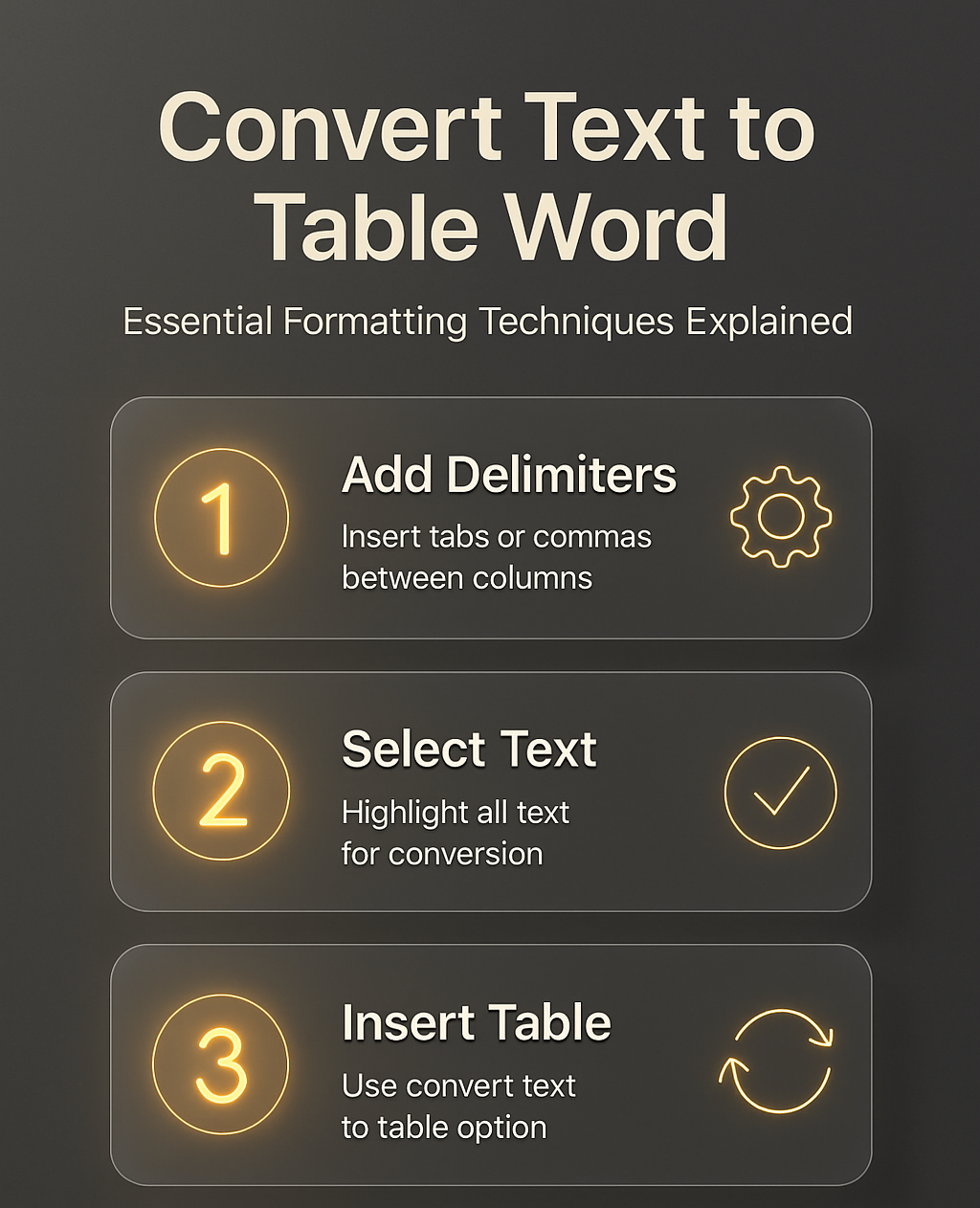
Before you convert text to a table in Word, you need to ensure that each piece of data is separated by a consistent delimiter character throughout your content. The most common delimiters include tab characters, commas, and paragraph marks, and each option works best depending on your specific data structure and formatting preferences. During my testing on Microsoft 365, the tab delimiter produced the cleanest column alignment without requiring any manual adjustments after the initial conversion process completed successfully.
- You should use tab characters as delimiters when your text contains commas within the data itself, because tabs provide a clear separation that Word recognizes instantly. Each tab character you insert between data points tells Word exactly where one column ends and the next column begins within your converted table structure.
- Using commas as delimiters works well for data exported from spreadsheet applications or databases, since most exported files already contain comma-separated values that align perfectly. Word reads each comma as a column boundary and creates the corresponding number of columns automatically when you initiate the text-to-table conversion process.
- The paragraph mark delimiter splits each paragraph into a separate row, which is particularly useful when you have a list of single-column entries that need vertical organization. Selecting paragraph marks as your delimiter ensures that Word treats every line break as the boundary between individual table rows in your final output.
Format Word text before converting
You should verify that every row in your text contains the same number of delimiters so that Word creates a uniform table with consistent columns across all rows. If one row has three tabs and another has only two tabs, Word will create an uneven table that requires manual correction after the conversion completes. Removing any extra spaces or duplicate delimiter characters from your text before starting the conversion prevents misaligned columns and unexpected empty cells appearing in your final table.
Converting text to a table in Word
Use the Word Insert Table feature
After preparing your text with consistent delimiters, select all the text you want to convert by clicking at the beginning and dragging to the end of your content. Navigate to the Insert tab on the Word ribbon, click the Table dropdown button, and then select Convert Text to Table from the menu options displayed. Word opens a dialog box where you can confirm the number of columns, choose your delimiter type, and set the AutoFit behavior to control how column widths adjust automatically.
Adjust column and row settings in Word
The conversion dialog box displays the detected number of columns based on the delimiter count in your selected text, allowing you to verify accuracy before proceeding. You can choose between three AutoFit options including fixed column width, AutoFit to contents, and AutoFit to window to control your table layout precisely. After verifying this process across different documents in my workflow, the steps remained consistent regardless of whether the source text came from a pasted email or typed content. Clicking the OK button in the dialog box instantly transforms your selected plain text into a fully structured Word table with properly aligned columns and rows.
Formatting and troubleshooting tables in Word
Apply Word table styles quickly
Once Word creates your table, you can apply professional formatting instantly by selecting the table and browsing the Table Design tab for pre-built style options. Each style applies consistent borders, shading, header row formatting, and alternating row colors that make your table data easier to read and more visually appealing. Choosing a style from the built-in gallery saves considerable time compared to manually formatting each cell border, background color, and text alignment setting individually.
Fix Word uneven columns after conversion
If your table shows uneven columns or misaligned data after conversion, the most likely cause is inconsistent delimiter placement in your original source text content. You can fix this by clicking inside the affected table, selecting the entire table with Ctrl+A, and then choosing AutoFit to Contents from the Layout tab. An unexpected benefit I noticed after using AutoFit was that Word automatically adjusted all column widths proportionally based on the actual content length within each individual cell.
Convert a table back to text
Word also lets you reverse the process and convert a structured table back into plain text whenever you need to export or reformat data differently. Select the entire table you want to convert, navigate to the Layout tab under Table Tools, and click the Convert to Text button available in the Data group. You can choose which delimiter character separates the column data in your resulting text output, and Word preserves the content order exactly as arranged in the table.
Frequently Asked Questions
Can I convert text with mixed delimiters into a Word table?
Yes, but Word works best when you use one consistent delimiter throughout your entire text selection before starting the conversion process for optimal results. If your text contains mixed delimiters like both tabs and commas, you should standardize them first using the Find and Replace feature under the Home tab. Replacing all instances of one delimiter with another ensures that Word correctly identifies every column boundary during the automated text-to-table conversion process.
Why does Word create the wrong number of columns from my text?
Word counts the maximum number of delimiters found in any single row and uses that count to determine the total column quantity for your table. If some rows contain fewer delimiters than others, Word fills the missing positions with empty cells, which creates the appearance of misaligned or incorrectly structured data. Having tested this scenario in my own documents, I confirmed that ensuring each row has identical delimiter counts before conversion completely eliminates the wrong column problem.
Is it possible to convert only part of a document into a table?
You can select any portion of text within your document and convert just that selection into a table without affecting the surrounding content or formatting. Simply highlight the specific lines you want to convert, then follow the standard Insert, Table, and Convert Text to Table path in the ribbon menu. Word only processes the highlighted text and leaves everything else in your document completely untouched during the conversion operation.
Summary and additional resources in Word
Converting text to a table in Word becomes a straightforward process once you understand how delimiters work and how Word interprets them during the automated conversion. Preparing your text with consistent delimiter characters, verifying column counts before converting, and applying AutoFit settings afterward ensures a clean and professional table every time. You can also explore related topics such as how to set your default font and style in Word, how to copy styles between Word documents, and how to fix a table of contents not picking up headings in Word. If you work with images alongside tables, you might find our articles on how to wrap text around an image in Word and how to resize all images at once in Word equally helpful for completing your document formatting tasks.