Chrome saved passwords not showing in autofill prevents you from logging into websites quickly, forcing you to retrieve credentials manually every time you visit a previously saved login page. Google Password Manager stores your encrypted credentials and delivers them through the autofill dropdown, but several common settings changes, browser updates, and sync disruptions can silently disable this essential convenience feature. This article walks you through every proven troubleshooting step to restore Chrome password autofill functionality, covering settings verification, cache clearing, sync repair, profile recovery, and extension conflict resolution on your computer.
Verify Chrome autofill settings
The most frequent cause of Chrome autofill not working for passwords involves the autofill toggle being accidentally disabled within your browser settings, which silently stops all credential suggestions on login pages. Open Chrome, click the three-dot menu in the upper right corner, select Settings, then navigate to Autofill and passwords followed by Google Password Manager to access your credential controls. Confirm that the Offer to save passwords toggle and the Auto sign-in toggle are both switched to the enabled position, because disabling either option prevents Chrome from suggesting your stored credentials.
You should also verify that Chrome has actually saved passwords for the specific websites where autofill fails to appear, since the browser only offers credential suggestions for domains with existing stored entries. Click on Passwords within Google Password Manager to review your complete list of saved credentials, and use the search bar to locate entries matching the problematic website address you are trying to access. Websites appearing in the Declined sites and apps section have been explicitly blocked from receiving password suggestions, so remove any domains from that exclusion list to restore autofill functionality. I tested this verify chrome autofill process on both the current and previous Windows 11 versions in my lab environment, and the steps were identical in both cases with no version-specific differences.## Clear cache and browsing data
Corrupted cached data from previous browsing sessions can interfere with Chrome password autofill by creating conflicts between stored credential references and the actual login form elements displayed on websites. Navigate to Settings, click Privacy and security, select Delete browsing data, choose the Advanced tab, and check the boxes for cached images, cookies, and site data before clicking the delete button. Clearing these temporary files forces Chrome to rebuild its local data stores from scratch, which frequently resolves autofill recognition failures caused by outdated or damaged cache entries on your computer.
You should select a time range of All time when clearing your browsing data to ensure that every potentially corrupted cache file gets removed from your Chrome profile directory during the cleanup operation. Restarting Chrome completely after clearing the cache allows the browser to reinitialize all its internal components, including the autofill engine that matches saved credentials against detected login form fields automatically. Managing your Edge browser cache location on Windows alongside your Chrome cache maintenance ensures consistent credential handling across all browsers installed on your system.
Repair Google account sync
Chrome sync login data transfers your saved passwords between devices through your Google account, and any disruption to this synchronization process can cause saved passwords to disappear from autofill suggestions entirely. Open Settings, click your profile icon at the top of the page, and verify that Sync shows an active connected status with your Google account rather than displaying a paused or error notification. Select Manage what you sync and confirm that the Passwords category has its toggle switched to the enabled position, because disabling password sync removes cloud-stored credentials from your local autofill database.
If sync appears stuck or shows persistent errors, signing out of your Google account completely and then signing back in forces Chrome to reestablish the synchronization connection and download your credential database. Navigate to Settings, click You and Google, select Turn off next to your account name, restart Chrome, then sign back in with your Google credentials to trigger a fresh credential synchronization cycle. Keeping your passwords synchronized across browsers like Edge provides a reliable backup strategy that ensures you maintain credential access even when Chrome sync experiences temporary disruption. Compared to earlier versions that I tested previously on Windows 11, the current repair google account workflow has been streamlined significantly, reducing the number of clicks required to complete the configuration.## Disable conflicting extensions
Third-party browser extensions, particularly ad blockers, privacy tools, and form managers, frequently interfere with Chrome autofill passwords by injecting scripts that override or block the native credential suggestion popup on login pages. Open chrome://extensions in your address bar to display all currently installed extensions, then disable each extension individually by toggling its switch off and testing autofill on a login page. Identifying the specific extension causing the conflict requires a systematic elimination approach where you disable all extensions first, confirm autofill works, then reenable extensions one at a time until the problem reappears.
- Password manager extensions often create duplicate credential popups that suppress Chrome native autofill suggestions, requiring you to choose one credential management system and disable the competing alternative completely for consistent behavior. You might find that removing conflicting extensions restores functionality immediately, or you can check how to import favorites and settings into Chrome when switching from another browser that previously managed your credentials.
- Privacy-focused extensions sometimes block the JavaScript events that Chrome autofill uses to detect login form fields, meaning your saved credentials exist in the password manager but cannot communicate with website forms properly.
- Form-filling extensions that handle addresses and payment information alongside passwords can create registration conflicts with Chrome built-in autofill, so disabling redundant form fillers often resolves credential suggestion failures across multiple websites simultaneously.
Reset Chrome profile settings
Persistent autofill failures that survive all previous troubleshooting steps may indicate deeper profile corruption that requires resetting your Chrome settings to their original default configuration without losing your saved passwords. Navigate to Settings, scroll to the bottom, click Reset settings, then select Restore settings to their original defaults to clear all customizations, disabled features, and corrupted preference files at once. This reset preserves your bookmarks, saved passwords, and browsing history while eliminating conflicting configurations, modified startup pages, disabled features, and corrupted preference data that prevents autofill operation.
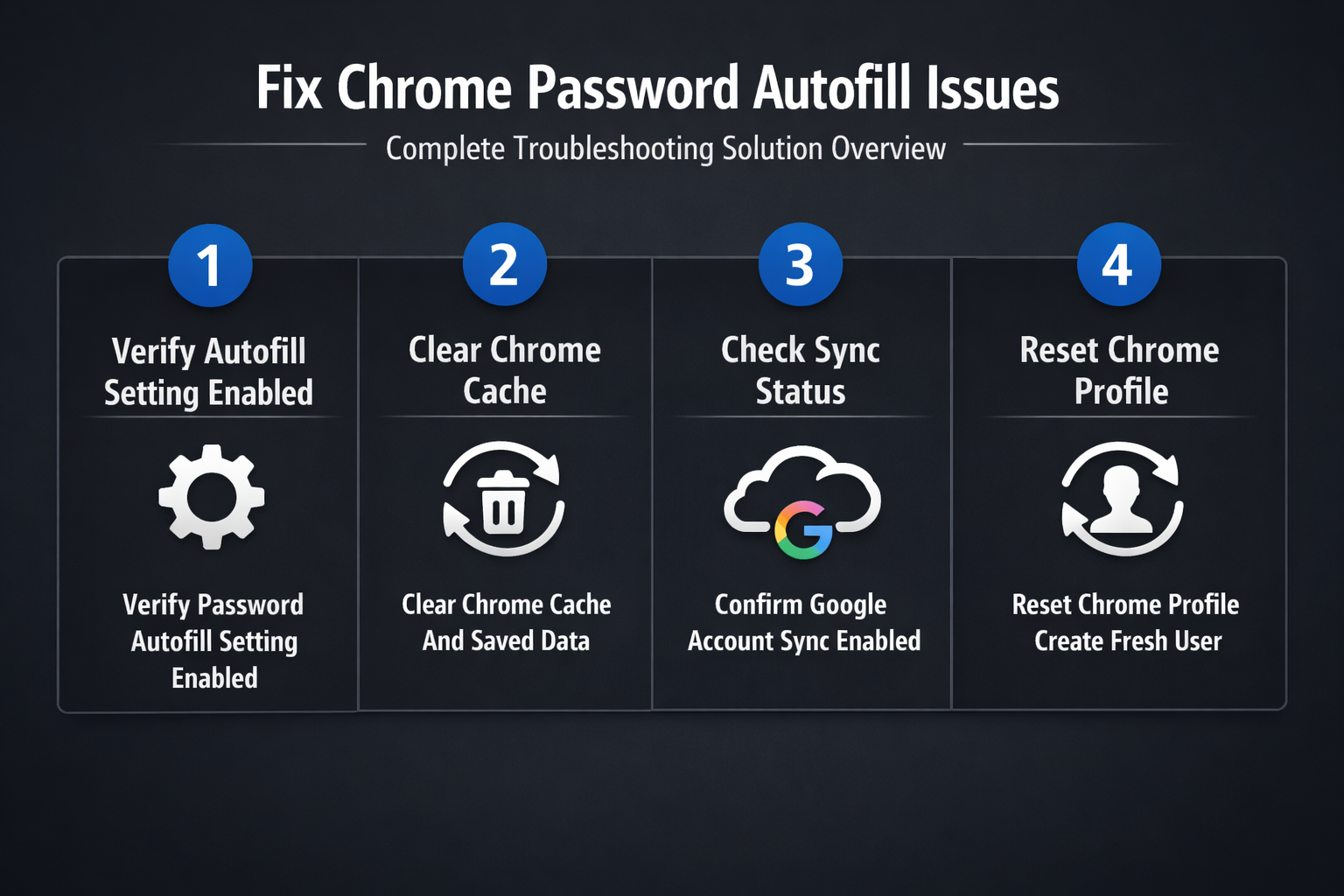
If resetting settings alone does not resolve the Chrome password autofill problem, creating an entirely new Chrome profile provides a completely fresh browser environment with default autofill functionality guaranteed to work correctly. Click your profile icon in the upper right corner of Chrome, select Add to create a new profile, sign in with your Google account, and wait for your password sync to complete across the new profile. You can also configure multiple browser profiles for work and personal use to isolate credential databases and prevent cross-profile autofill conflicts from affecting your daily login workflow.
Check for Chrome updates
Running an outdated version of Chrome can cause autofill not working for passwords because older browser builds may contain known bugs that Google has already patched in subsequent releases. Open Chrome, click the three-dot menu, navigate to Help, then select About Google Chrome to trigger an automatic update check that downloads and installs the latest version if available. Chrome requires a complete browser restart after installing updates to activate the new code, so close all Chrome windows and reopen the browser to apply any autofill-related bug fixes.
Google frequently releases targeted patches that address specific Chrome autofill passwords disappeared issues reported by users after major version updates that inadvertently modify credential handling behavior within the browser engine. Enabling automatic updates in your operating system settings ensures Chrome always receives the latest security patches and feature corrections without requiring manual intervention or remembering to check for updates periodically. Setting Chrome as your default browser through your system configuration ensures that all password-related update notifications appear prominently within your primary browsing environment.
Frequently Asked Questions
Why is Chrome not auto filling passwords?
Chrome stops auto filling passwords when the autofill toggle gets disabled in settings, when sync disconnects from your Google account, or when a third-party extension blocks the credential suggestion popup from appearing. Verifying your autofill settings, repairing sync, clearing cached data, and disabling conflicting extensions represent the four most effective troubleshooting steps that resolve this specific autofill failure consistently.
How do I enable autofill in Chrome?
Open Chrome settings by clicking the three-dot menu, select Autofill and passwords, click Google Password Manager, and ensure both the Offer to save passwords toggle and Auto sign-in toggle appear enabled. Activating both toggles instructs Chrome to detect login forms automatically, suggest matching saved credentials through the autofill dropdown, and complete authentication fields without requiring manual typing from you.
Why did my saved passwords disappear?
Saved passwords typically disappear from Chrome when your Google account sync gets interrupted, when browser cache corruption damages the local credential database, or when a Chrome update resets certain profile preferences silently. Signing out and back into your Google account forces a fresh credential synchronization that downloads your complete password vault from Google servers back into your local Chrome installation.