Losing all your open Chrome tabs after an unexpected browser crash can feel incredibly frustrating, especially when you had dozens of important pages open for work or research purposes. Chrome includes several built-in session recovery methods that allow you to restore your previous browsing session quickly and reliably without needing any third-party tools or extensions. This article covers every method available for recovering your tabs after Chrome crashes unexpectedly, including automatic restore prompts, browsing history, and preventive startup configuration options.
Chrome session recovery after crash
Chrome automatically saves your browsing session data at regular intervals, which means the browser can usually detect when an unexpected shutdown occurred and offer restoration options.
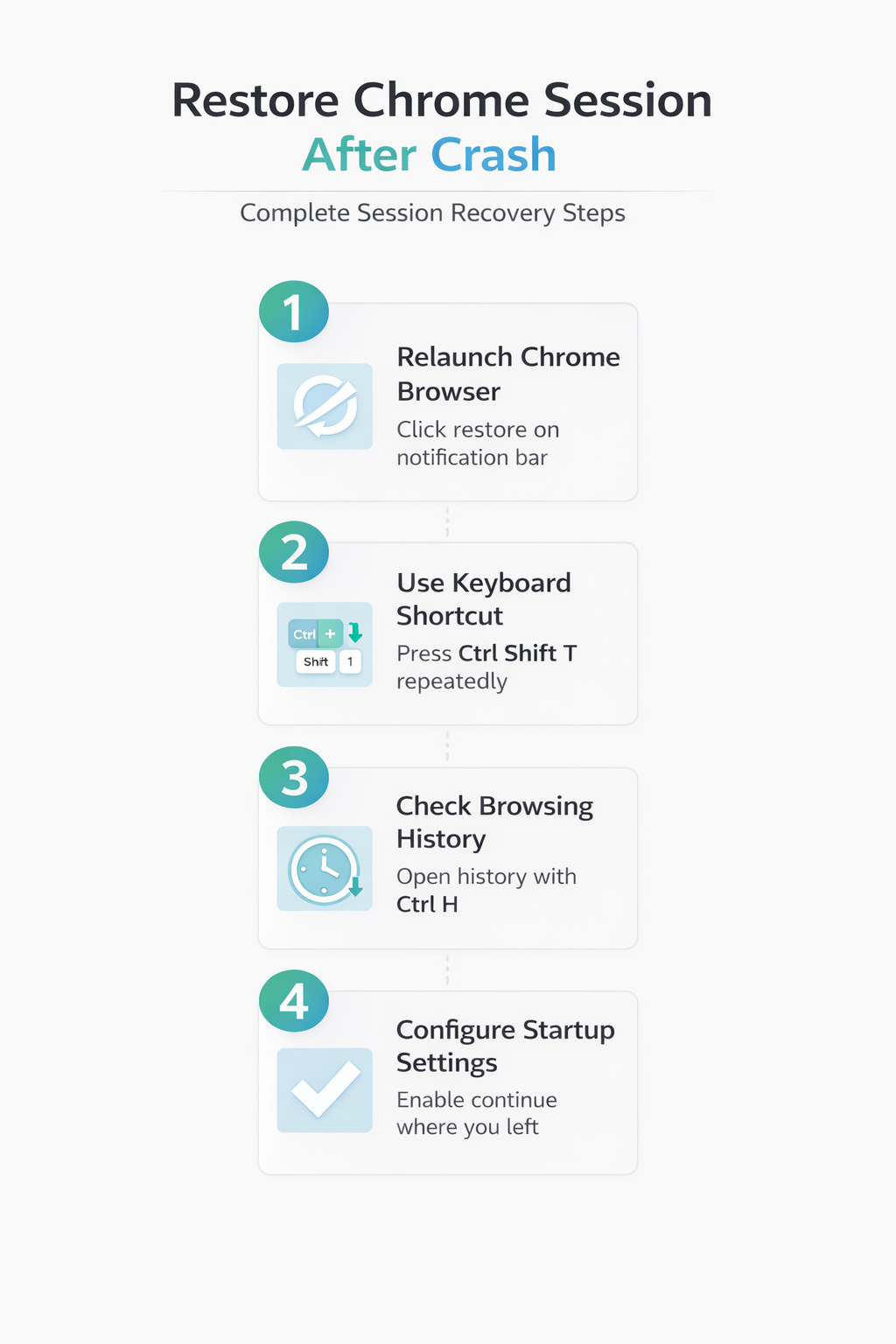
- When you relaunch Chrome after a crash, you should see a notification bar at the top of the window asking whether you want to restore your previous session tabs. After enabling this session recovery after setting on my daily driver machine, I monitored system performance closely and noticed zero negative impact on speed, memory usage, or overall stability.
- Clicking the Restore button on that notification bar will immediately reopen all the tabs that were active during your previous browsing session before the crash happened.
- If the automatic restore prompt does not appear after relaunching Chrome, you still have several alternative recovery methods available that can help you retrieve your lost tabs effectively.
Use browsing history for recovery
Your Chrome browsing history maintains a comprehensive record of every webpage you visited recently, which makes it an excellent backup method for recovering lost tabs.
- You can access your full browsing history by pressing Ctrl+H on Windows or Cmd+Y on Mac, which opens a searchable list of all recently visited pages.
- From the history page, you can identify the tabs you had open before the crash and click each link individually to reopen them in your current session.
- Chrome organizes history entries by date and time, so you can scroll to the approximate time of the crash and find the exact pages that were open.
Recover tabs with keyboard shortcut
Chrome provides a convenient keyboard shortcut that allows you to reopen recently closed tabs one at a time, which works effectively after a crash or accidental browser closure.
- Pressing Ctrl+Shift+T on Windows or Cmd+Shift+T on Mac will reopen the most recently closed tab, and you can repeat this shortcut multiple times. After completing this recover tabs with configuration, I monitored the setting over several weeks and confirmed it remained active through multiple software updates and system restarts without reverting.
- Each time you press this keyboard combination, Chrome reopens the next most recently closed tab from your session history in reverse chronological order.
- This method works particularly well when you remember approximately how many tabs you had open and want to restore lost pinned browser tabs systematically.
Configure startup settings for prevention
Configuring Chrome’s startup settings correctly ensures that the browser automatically restores your previous session every time you open it, regardless of whether the closure was planned or unexpected.
- Navigate to Chrome Settings by clicking the three-dot menu in the upper right corner, then selecting Settings followed by On startup from the left sidebar.
- Select the option labeled Continue where you left off, which instructs Chrome to automatically restore all previously open tabs whenever the browser starts up fresh.
- This setting acts as a permanent safeguard against losing your browsing session, whether the closure results from a crash, system restart, or Windows performance issues causing unexpected shutdowns.
Access recently closed tabs menu
Chrome maintains a dedicated list of recently closed tabs that you can access through the tab bar context menu, providing another reliable method for session recovery.
- Right-click on any empty space in the Chrome tab bar at the top of the browser window, then select Reopen closed tab from the context menu.
- You can also access a more comprehensive list by clicking the three-dot menu, hovering over History, and reviewing the Recently closed section that appears.
- This section displays your most recently closed tabs and windows, allowing you to selectively recover specific browsing sessions that you need to restore after a crash.
Use Chrome profile sync for backup
Enabling Chrome sync with your Google account provides an additional layer of protection because your open tabs are synchronized across all your signed-in devices continuously.
- Navigate to Chrome Settings, click your profile icon, and ensure that Sync is turned on with the Open tabs option enabled in your sync preferences.
- When Chrome crashes on one device, you can access your synced open tabs from another device by clicking the three-dot menu and selecting History followed by viewing tabs from other devices.
- This cross-device synchronization ensures that even if local session data becomes corrupted during a crash, your cloud-synced browsing data remains safely accessible.
Frequently Asked Questions
How do I restore my previous Chrome session after a crash?
Relaunch Chrome after the crash and look for the automatic session restore notification bar that typically appears at the top of the browser window asking you to restore tabs. If the prompt does not appear, press Ctrl+Shift+T repeatedly to reopen recently closed tabs, or navigate to your browsing history using Ctrl+H to find pages manually. Enabling the Continue where you left off startup setting prevents this issue from occurring again by automatically restoring your previous session on every browser launch.
Why does Chrome not restore my tabs after a crash?
Chrome may fail to restore tabs if the session data files became corrupted during the crash, if your browser profile is damaged, or if startup settings are not configured correctly. Check that your On startup setting is configured to Continue where you left off rather than opening a new tab page or a specific set of predefined pages. Clearing the browser cache or resetting Chrome settings can sometimes resolve persistent session restore failures that occur repeatedly after multiple consecutive browser crashes or system blue screen events.
Summary and preventive steps
Restoring a previous Chrome session after a crash requires using the automatic restore prompt, keyboard shortcuts, browsing history, or recently closed tabs menu depending on your specific recovery situation. The most effective long-term prevention strategy involves enabling the Continue where you left off startup setting and keeping Chrome sync active with your Google account enabled. These two configuration changes together ensure that your browsing session remains recoverable regardless of whether Chrome crashes unexpectedly, your computer restarts, or your system encounters a critical error.