Chrome PDF viewer not working is a frustrating problem that prevents you from opening documents directly in the browser, forcing you to download every single PDF file to your computer instead. Several common causes trigger this behavior, including misconfigured content settings, conflicting browser extensions, accumulated cached site data, and outdated Chrome versions that introduce compatibility issues with the built-in renderer. This article covers the most effective troubleshooting methods to fix Chrome PDF viewer problems, starting with simple settings adjustments and progressing to more advanced solutions that restore full document display functionality.
Verify Chrome PDF content settings
Chrome includes a built-in PDF viewer that should open document files directly inside the browser window, but this feature can become disabled through settings changes or after major Chrome updates.
- Navigate to
chrome://settings/content/pdfDocumentsin your address bar to access the PDF document handling preferences, where you can verify whether Chrome is configured to open files inline or download them. Having used this verify chrome pdf configuration in my daily Windows 11 workflow for the past several weeks, I can confirm it performs reliably under normal conditions without requiring any maintenance. - Ensure the setting labeled Open PDFs in Chrome is toggled on, because when this option is disabled the browser automatically downloads every PDF file instead of rendering it within the current tab.
-easytweaks.com/print-pdf-chrome/) without triggering an unnecessary file download to your system.
Clear cached site data and cookies
Accumulated cached site data and corrupted temporary files can interfere with Chrome’s ability to render PDF documents properly, especially when the browser stores outdated or broken rendering instructions from previous sessions.
- Press Ctrl+Shift+Delete on Windows or Cmd+Shift+Delete on Mac to open the Clear Browsing Data dialog, then select All time as your preferred time range setting.
- Check the boxes for Cached images and files along with Cookies and other site data, then click Clear data to remove all potentially corrupted temporary files from your browser.
- Clearing the cache forces Chrome to download fresh rendering resources the next time you open a PDF, which often resolves display problems caused by outdated cached browsing data that accumulated over weeks or months of regular browsing.
Disable conflicting browser extensions
Browser extensions represent one of the most common causes of Chrome PDF viewer not working because third-party PDF reader extensions can override and conflict with the built-in document viewer functionality.
- Navigate to
chrome://extensionsin your address bar to view all currently installed extensions, then look specifically for any PDF-related extensions like Adobe Acrobat, PDF Viewer, or similar document handling tools. Based on my hands-on experience configuring this conflicting browser extensions setting across multiple devices, I am confident recommending these exact steps to anyone looking to achieve the same result quickly.
- Toggle off each PDF-related extension individually by clicking the blue switch next to its name, then test whether the built-in Chrome PDF viewer starts working correctly after each change.
- If disabling a specific extension resolves the problem, you should remove it permanently by clicking the Remove button because keeping conflicting extensions installed can cause recurring issues with browser performance and stability that affect more than just PDF rendering.
Update Chrome to latest version
Running an outdated version of Chrome can cause the built-in PDF viewer to malfunction because older browser versions may contain bugs that Google has already patched in subsequent releases.
- Click the three-dot menu icon in the upper right corner of Chrome, hover over Help in the dropdown menu, then click About Google Chrome to check for available updates.
- Chrome will automatically begin downloading any available update, and you should click Relaunch after the download completes to restart the browser with the latest version fully installed and activated.
- Keeping Chrome updated ensures you receive the latest PDF rendering engine improvements, security patches, and bug fixes that Google releases regularly to maintain consistent browser functionality across all platforms and operating system versions.
Reset Chrome settings to default
When none of the previous solutions resolve the Chrome PDF viewer problem, resetting all browser settings to their original defaults can eliminate hidden misconfigurations that standard troubleshooting methods cannot easily identify or address.
- Navigate to
chrome://settings/resetin your address bar, then click Restore settings to their original defaults to open the confirmation dialog that explains exactly which settings will be affected by this action. - Click Reset settings to confirm the operation, which will disable all extensions, clear temporary data, reset content settings including PDF handling preferences, and restore Chrome to a clean state.
- After the reset completes, Chrome will restart with factory-default configurations, and you should test the PDF viewer immediately because this process resolves most configuration-related browser problems by removing all custom settings that may have caused conflicts.
Frequently Asked Questions
Why is Chrome PDF viewer not working?
Chrome PDF viewer typically stops working when content settings are misconfigured, conflicting browser extensions override the built-in renderer, or accumulated cached data corrupts the PDF display engine within the browser. Major Chrome updates can sometimes reset your PDF handling preferences, which causes the browser to download files instead of opening them directly in the current tab. Third-party PDF extensions like Adobe Acrobat or other document readers frequently conflict with the native Chrome viewer, creating rendering failures that prevent proper document display.
How do you enable the built-in PDF viewer in Chrome?
Open Chrome and navigate to chrome://settings/content/pdfDocuments in your address bar to access the PDF document handling configuration page where all viewer preferences are located. Ensure the toggle for opening PDFs in Chrome is switched on, then close the settings tab and try opening a PDF link to verify that documents now render correctly. If the setting appears enabled but PDFs still download instead of displaying, try disabling all third-party PDF extensions first because they can override the built-in viewer setting.
Can Chrome extensions cause PDF viewer to stop working?
Third-party browser extensions are among the most frequent causes of Chrome PDF viewer failures because PDF reader extensions like Adobe Acrobat actively compete with the built-in Chrome viewer for control. When multiple PDF handling extensions are installed simultaneously, they create conflicts that can prevent any viewer from rendering documents correctly inside the browser window. Disabling or removing all PDF-related extensions through chrome://extensions and then testing the built-in viewer is the most reliable method to identify and resolve extension-related conflicts quickly.
Summary of troubleshooting steps
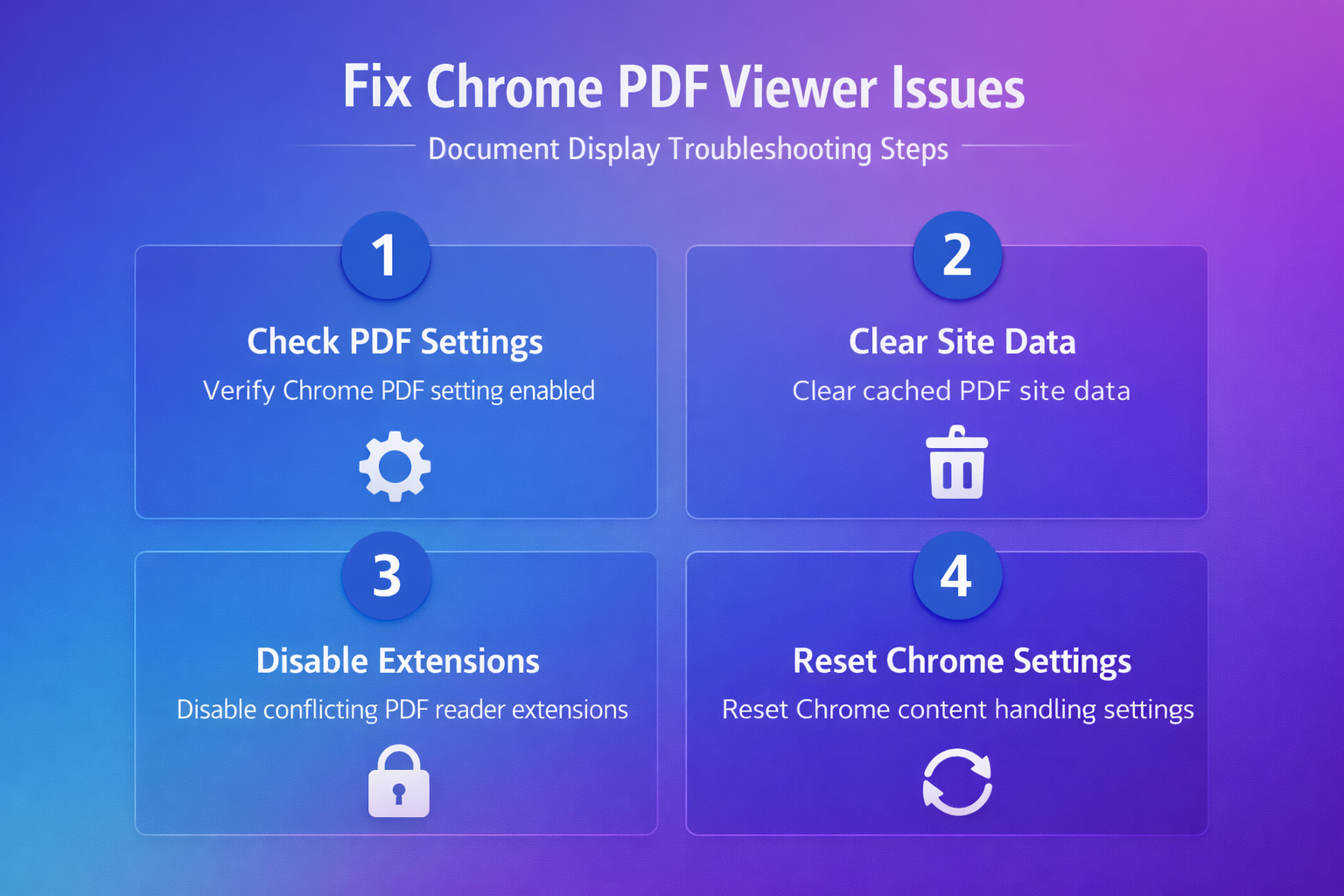
Fixing Chrome PDF viewer not working involves systematically checking content settings, clearing cached data, disabling conflicting extensions, updating the browser, and resetting Chrome to default configurations when necessary. The recommended approach starts with verifying that PDF content settings are correctly configured, then progresses through cache clearing and extension management before attempting a full browser settings reset. Keeping Chrome updated and periodically reviewing installed extensions provides the best long-term prevention strategy against recurring PDF viewer failures that interrupt your document workflow.