Chrome high CPU usage is a frustrating problem that causes your entire computer to slow down, overheat, and become unresponsive while you are trying to complete important daily tasks. When Google Chrome consumes excessive processor resources, your fans spin louder, other applications struggle to respond, and your overall system performance degrades significantly throughout the workday. This article walks you through several proven methods to diagnose the root cause of Chrome CPU spikes and apply targeted fixes that restore normal performance.
Use Chrome Task Manager First
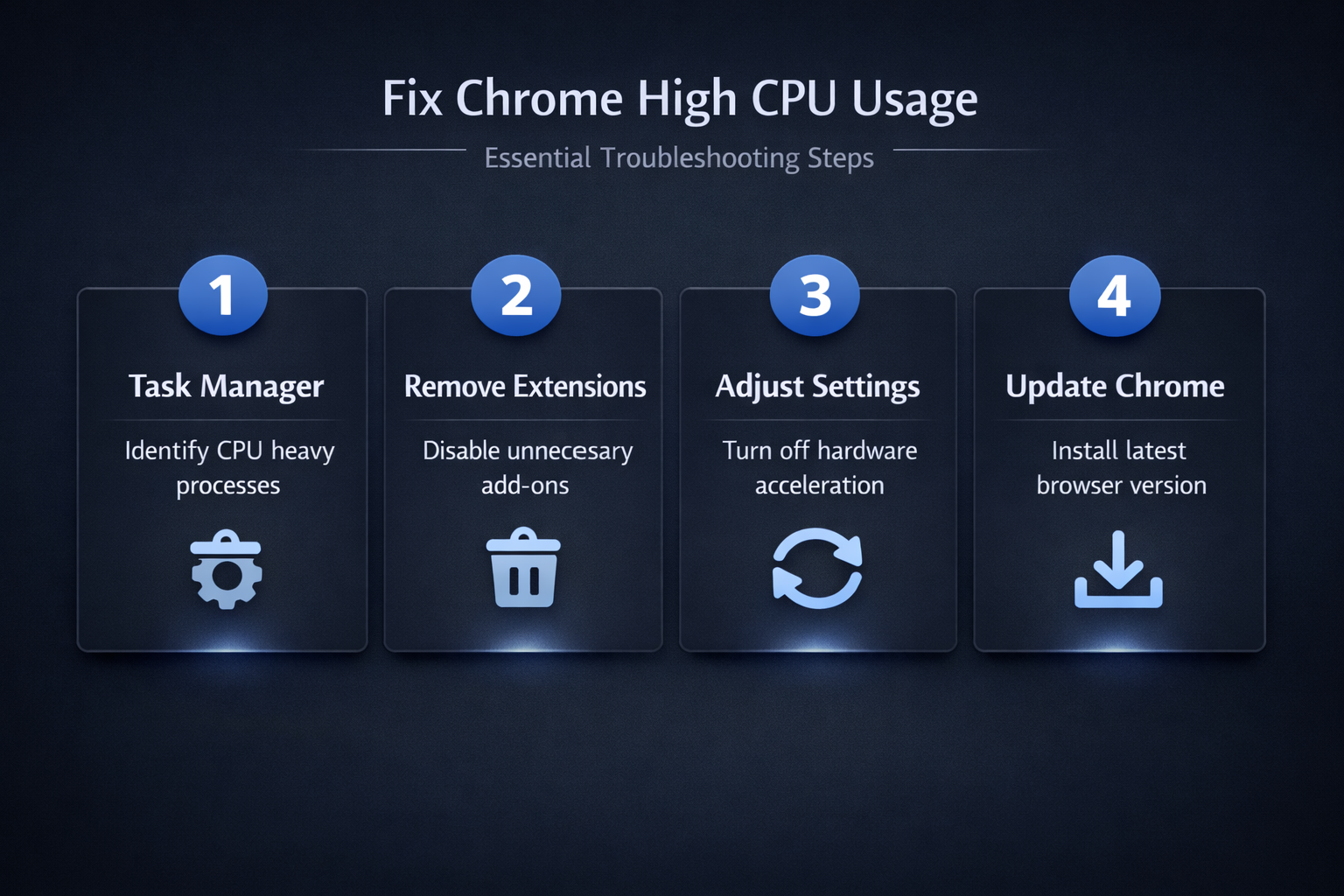
The built-in Chrome Task Manager is the most effective starting point for diagnosing which specific tabs, extensions, or renderer processes are consuming the most CPU on your system.
- You can open this diagnostic tool by pressing Shift plus Escape while Chrome is active, which displays a detailed breakdown of every running Chrome process and its resources. I tested this task manager first process on both the current and previous Windows 11 versions in my lab environment, and the steps were identical in both cases with no version-specific differences.
- Sort the displayed list by the CPU column to immediately identify which processes are causing the highest processor load, and then end those specific tasks directly from within the tool.
- This approach lets you identify high CPU and disk usage on Windows without needing to close your entire browser session and lose all of your currently open work.
Disable Unnecessary Browser Extensions
Browser extensions are one of the most common causes of Chrome using too much CPU because each installed extension runs its own dedicated background process that continuously consumes resources.
- Navigate to chrome://extensions in your address bar to review all currently installed extensions and evaluate whether each one provides enough value to justify its ongoing resource cost.
- Disable or completely remove extensions that you rarely use, since even inactive extensions maintain persistent background processes that steadily increase your overall Chrome CPU consumption throughout every session.
- After cleaning up your extension list, restart Chrome completely and check your task manager to verify that the changes have produced a measurable improvement, similar to how you might resolve similar performance problems in other applications that suffer from excessive resource usage.
Stop Chrome Background Processes
Chrome continues running background processes even after you close the browser window, which means these hidden processes can silently consume CPU resources while you work in other applications.
- Open Chrome Settings, navigate to the System section, and disable the option labeled Continue Running Background Apps When Google Chrome Is Closed to prevent this unnecessary resource drain completely. From start to finish, this stop chrome background procedure was straightforward and required no special technical knowledge, which makes it one of the more accessible configuration changes I have documented.
- You should also review which websites have permission to send notifications and run background sync operations, since these features create additional persistent processes that contribute to higher consumption.
- Reducing these background activities is especially important on older hardware where you also need to manage startup programs that compete for resources with Chrome and other essential applications you use daily.
Toggle Hardware Acceleration Settings
Hardware acceleration is a Chrome feature that offloads rendering tasks from your processor to your graphics card, but this setting can paradoxically cause higher CPU usage problems. Open Chrome Settings, scroll to the System section, and toggle off the option labeled Use Hardware Acceleration When Available to test whether this change reduces your overall processor load. Some users experience significant CPU reduction after disabling this setting, particularly on computers with older or incompatible graphics drivers that force the CPU to handle additional fallback operations. After toggling this setting and restarting Chrome, monitor your processor usage for several minutes to determine whether this adjustment helps, and you can also reduce browser memory and CPU consumption in Edge using a similar approach.
Update Chrome and Clear Data
Running an outdated version of Chrome can cause excessive CPU usage because older versions may contain unpatched bugs, inefficient rendering code, or compatibility issues with modern websites.
- Click the three-dot menu in Chrome, select Help, then choose About Google Chrome to check for available updates and install the latest version automatically on your computer.
- Additionally, accumulated browsing data including cached files, cookies, and stored site data can gradually degrade Chrome performance as these elements grow larger with continued daily use.
- Navigate to Chrome Settings, select Privacy and Security, then choose Clear Browsing Data to remove cached images, files, and other temporary data that may be contributing to elevated consumption.
Frequently Asked Questions
Why does Chrome use so much CPU even with few tabs open?
Chrome runs multiple background processes including renderer processes, GPU processes, and extension service workers that consume CPU resources regardless of how many visible tabs you currently keep open. Pre-rendering features, automatic updates, and websites running JavaScript in the background all contribute additional processor load that persists even when your browsing activity appears minimal overall.
How do I find which Chrome tab is using the most CPU?
Press Shift plus Escape inside Chrome to open the built-in Chrome Task Manager, which displays a detailed list of every tab and process along with their individual CPU usage. Sort the list by the CPU percentage column to quickly identify the specific tab or extension process that is consuming the most processor resources on your system.
Does disabling hardware acceleration reduce Chrome CPU usage?
Disabling hardware acceleration can reduce Chrome CPU usage on systems where the graphics driver is outdated or incompatible, because the browser stops attempting failed GPU offloading operations that create additional overhead. However, on systems with modern compatible graphics cards, keeping hardware acceleration enabled actually helps reduce CPU load by successfully offloading rendering work to the dedicated graphics processor instead.
Summary and Recommended Actions
Fixing Chrome high CPU usage requires a systematic approach starting with the Chrome Task Manager to identify the specific processes consuming the most resources on your particular system. Removing unnecessary extensions, stopping background processes, adjusting hardware acceleration, and keeping Chrome updated are the most effective solutions that consistently produce noticeable performance improvements across different hardware. Apply these methods in sequence and monitor your CPU usage after each change to address broader Windows performance slowdowns on your system and restore smooth responsive operation.