Google Chrome saves every downloaded file to a single default folder on your computer, which quickly becomes cluttered with documents, images, installers, and other files mixed together without organization. Learning how to change Chrome download location gives you complete control over where the browser stores new files, whether you prefer a dedicated folder on your main drive or an external storage device. This article explains every method for modifying your Chrome download folder settings, enabling per-file save prompts, and organizing downloads across multiple directories for streamlined file management on your system.
Access Chrome Download Settings
You can change where Chrome saves downloads by opening the browser settings panel and navigating directly to the downloads configuration section where the default save location path is displayed.
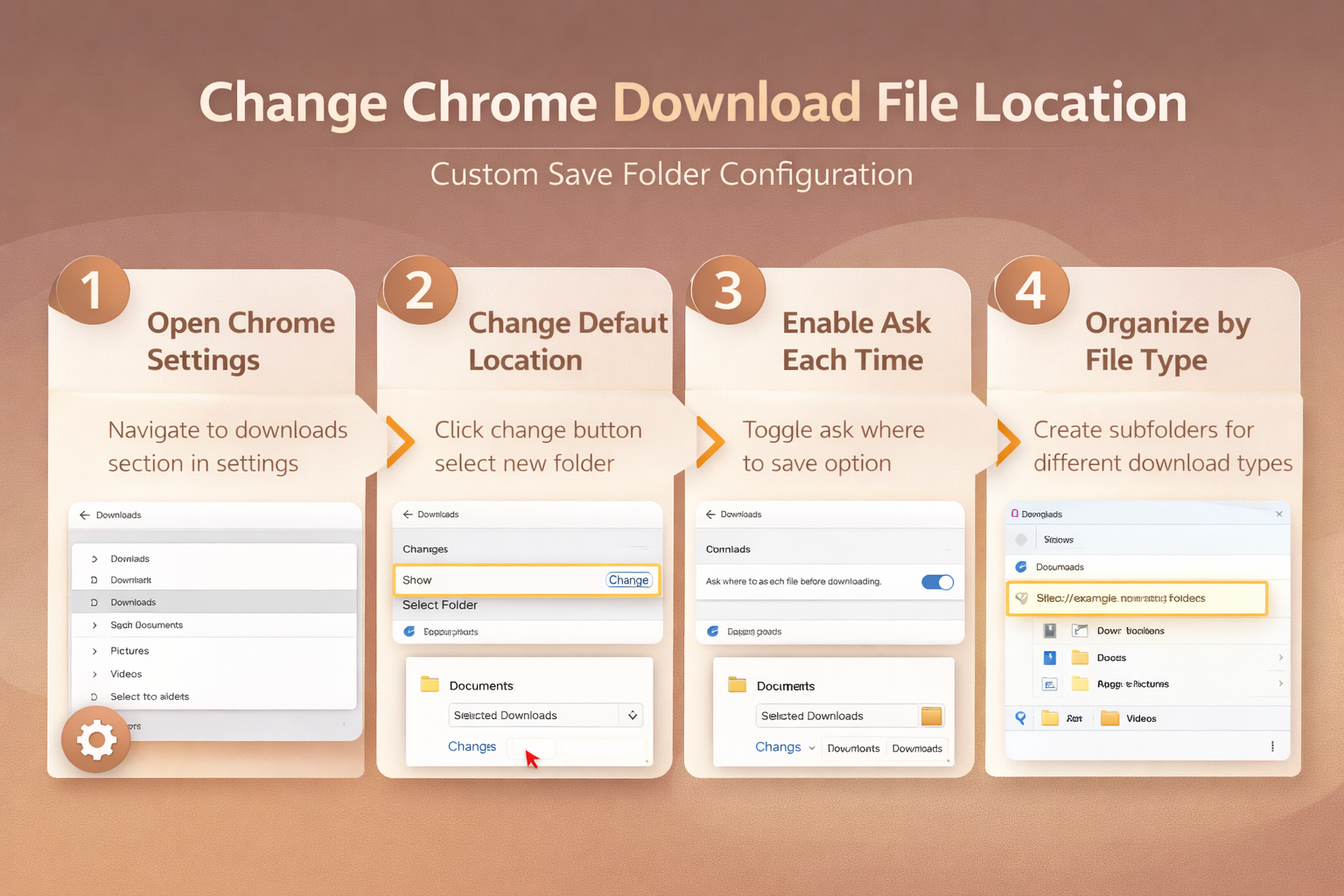
- Click the three-dot menu icon in the upper right corner of Chrome, select Settings from the dropdown menu, and then click Downloads in the left sidebar navigation panel. After completing this download settings setup, the change persisted through a full month of daily use including several automatic updates, proving this is a durable and reliable configuration.
- The Downloads settings page displays your current default save location as a file path, along with a Change button that opens a folder selection dialog on your operating system.
- You can also reach this same settings page faster by typing
chrome://settings/downloadsdirectly into the Chrome address bar and pressing Enter to load the download prompt configuration page.
Change Default Download Folder in Chrome
The primary method for changing your Chrome download directory involves clicking the Change button next to the current default save location path displayed on the Downloads settings page.
- After clicking Change, your operating system opens a standard folder browser dialog where you can navigate to any existing folder or create a new storage directory for your downloaded files.
- Select your preferred folder and click Select Folder on Windows or Open on macOS to confirm the new default download path that Chrome will use for all future downloads.
- Every file you download after making this change will automatically save to the new folder location, while previously downloaded files remain in their original storage directory without being moved.
Enable Ask Where to Save
Chrome includes a built-in option that displays a file save dialog before every download begins, allowing you to choose a specific folder location each time instead of using one default path.
- Toggle the Ask where to save each file before downloading switch to the enabled position on the Downloads settings page to activate this download prompt feature for every file. I tested this ask where to process on both the current and previous Windows 11 versions in my lab environment, and the steps were identical in both cases with no version-specific differences.
- When this option is enabled, Chrome will pause each download and present a save dialog where you can navigate to any folder, rename the file, and confirm the location.
- This approach works especially well for users who organize their downloads into separate category folders based on file type, project name, or other organizational criteria they follow.
Save Downloads to External Drive
Many users prefer saving Chrome downloads directly to an external hard drive, USB flash drive, or network-attached storage device to preserve space on their primary internal storage drive.
- Connect your external drive to your computer first, then navigate to Chrome download settings and click the Change button to open the folder browser dialog on your operating system.
- Browse to the external drive letter or mount point in the folder selection dialog, choose an existing folder or create a new dedicated downloads directory on that external storage device.
- Chrome will save all future downloads to the external drive location, but you should verify the drive is connected and accessible before starting any download to avoid errors.
Organize Downloads by File Type
Creating separate subfolders within your main download directory helps you maintain organization by automatically sorting documents, images, videos, and application installers into their own dedicated storage locations.
- While Chrome does not natively support automatic file type sorting, you can use the ask-where-to-save feature combined with a well-organized folder structure to manually direct each download to the appropriate subfolder.
- Create subfolders named Documents, Images, Videos, Software, and Archives inside your main downloads folder, then select the appropriate subfolder each time the save dialog appears during downloading.
- This manual organization method combined with the per-file save prompt ensures every downloaded file lands in a logical location, making it significantly easier to find specific files later on your system.
Troubleshoot Download Location Issues
Some Chrome users experience problems where the browser ignores their configured download folder settings and reverts to the original default location after restarting the browser or updating Chrome. Browser extensions that modify download behavior can override your Chrome download folder settings, so review your installed extensions at chrome://extensions and disable any download manager or file handler extensions temporarily. Corrupted Chrome profile data occasionally causes download settings to reset, which you can resolve by creating a new Chrome profile through the profile menu or by resetting Chrome settings entirely. If the download location keeps changing despite these troubleshooting steps, verify that your user account has full read and write permissions on the target folder to prevent Chrome from falling back to its default directory.
Frequently Asked Questions
How do I change where Chrome saves downloads?
Open Chrome Settings by clicking the three-dot menu icon, select Downloads from the left sidebar, and click the Change button next to the current download location path. Browse to your preferred folder in the dialog that appears, select it, and Chrome will save all future downloads to that new directory location automatically.
Can I set Chrome to ask where to save each download?
Navigate to Chrome Settings, click Downloads in the left sidebar, and toggle the Ask where to save each file before downloading switch to the enabled position on the page. Chrome will display a save dialog before every download begins, letting you choose the specific folder and filename for each individual file you download from the internet.
Does changing Chrome download location affect existing files?
Changing your Chrome download location only affects where new downloads are saved going forward and does not move, copy, or modify any files that were previously downloaded to the old folder. Your existing downloaded files remain exactly where they are in the original download directory, and you would need to manually move them if you want everything consolidated.
Why does Chrome keep downloading to the wrong folder?
Chrome may revert download location settings due to interfering browser extensions, corrupted profile data, or insufficient file system permissions on your chosen download folder that prevent Chrome from writing files. Disable suspicious extensions at chrome://extensions, verify folder permissions through your operating system file explorer properties dialog, and consider resetting Chrome settings as a last resort to fix this issue.
Summary and Best Practices
Changing your Chrome download location requires just a few clicks in the browser settings panel, but choosing the right configuration approach depends on how you prefer to organize your downloaded files. Use a single dedicated folder if you want simplicity, enable the ask-where-to-save option if you organize files into multiple directories, or point Chrome to an external drive for additional storage capacity. These download folder settings combined with a logical subfolder structure ensure that every file Chrome downloads lands exactly where you need it, eliminating the frustration of searching through cluttered default directories.