When your Outlook calendar stops updating or loading, meetings disappear, scheduling conflicts multiply, and your entire workday planning falls apart within Microsoft 365 environments quite rapidly. This common Outlook calendar sync issue affects desktop, web, and mobile users who depend on accurate scheduling across their organization’s Exchange server connection every single day.
This article walks you through the most effective troubleshooting steps to fix Outlook calendar problems, restore synchronization, and prevent these failures from disrupting your workflow again.
Why your Outlook calendar is not syncing properly
Several root causes explain why your Outlook calendar is not updating, and identifying the correct one helps you apply the right fix without wasting valuable time. Network connectivity problems between your Outlook client and the Exchange server connection remain the most frequent cause of calendar synchronization failures across Microsoft 365 organizations today. Corrupted local cache files can also prevent your Outlook calendar from loading new events, particularly after Windows updates or Microsoft 365 application upgrades that modify cached data. Authentication token expiration forces Outlook to stop syncing calendar data until you re-enter credentials or renew your Microsoft 365 session through the account settings panel completely.
Check your internet connection and Microsoft 365 service health
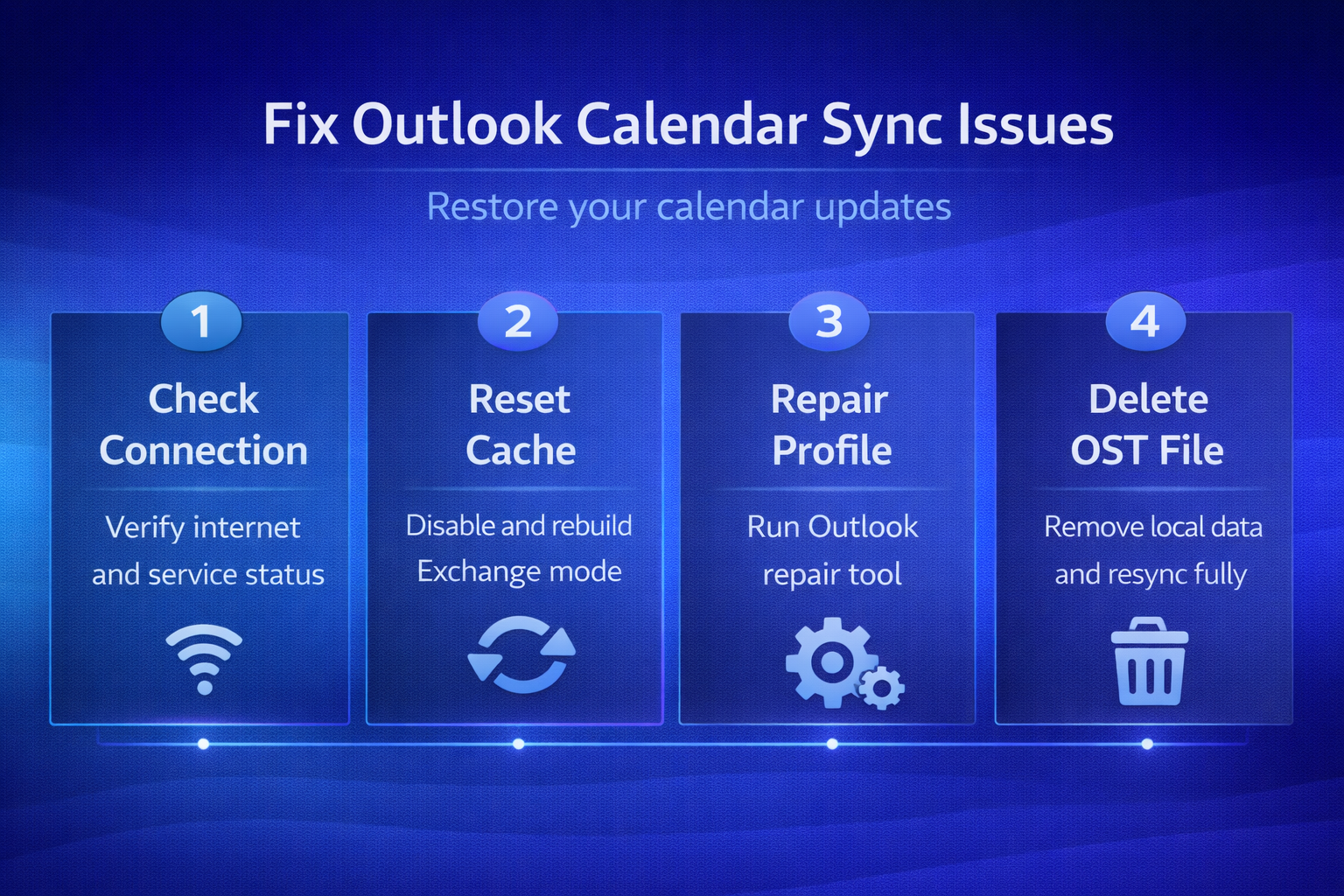
Before diving into advanced Outlook calendar troubleshooting steps, verify that your internet connection is stable and that Microsoft 365 services are running without reported outages. Open your web browser, navigate to the Microsoft 365 Service Health dashboard, and confirm that Exchange Online and Outlook services show no active incidents affecting your region. If Outlook on the web calendar loads correctly but your desktop application shows Outlook calendar not loading, the problem exists within your local Outlook installation rather than service-level.
Disable and re-enable cached Exchange mode
Cached Exchange mode stores a local copy of your mailbox, and a corrupted cache frequently causes Outlook calendar not updating symptoms that persist until you rebuild it. Navigate to File > Account Settings > Account Settings, select your Exchange account, click Change, and uncheck the Use Cached Exchange Mode checkbox before restarting Outlook. After Outlook reopens without cached Exchange mode active, close it again, re-enable the setting through the same account configuration path, and restart one final time. This process forces Outlook to download a fresh copy of your calendar data from the Exchange server, which resolves most Microsoft 365 calendar sync failures effectively.
Repair your Outlook profile to resolve persistent loading failures
When basic troubleshooting does not restore calendar functionality, an Outlook profile repair addresses deeper configuration corruption that prevents proper calendar data synchronization with Exchange. Open Control Panel > Mail > Show Profiles, select your current profile, click Properties > Email Accounts, then select your account and choose the Repair option available. The repair wizard reconnects your profile to the Exchange server, rebuilds authentication tokens, and validates all synchronization settings that control how calendar data flows between systems. If the standard repair does not resolve your Outlook calendar not loading issue, create a completely new Outlook profile through the same Mail configuration panel instead.
Clear the Outlook calendar local data cache manually
Locate and delete the OST file
The offline storage table file contains your locally cached Exchange data, and deleting it forces Outlook to rebuild everything from the server including all calendar entries. Close Outlook completely, press Windows + R to open the Run dialog, type %localappdata%\Microsoft\Outlook, and locate the OST file matching your email account name there. Rename or delete the OST file, then relaunch Outlook and allow it sufficient time to resynchronize your full mailbox including calendar events from Exchange Online servers.
Reset the navigation pane settings
Corrupted navigation pane settings occasionally prevent the Outlook calendar from loading its view properly, even when underlying data synchronization between your client and server works fine. Close Outlook, press Windows + R again, type outlook.exe /resetnavpane, and press Enter to launch Outlook with freshly rebuilt navigation pane configuration settings for all folders.
Fix shared calendar not updating in Outlook for Microsoft 365
Shared calendars have additional synchronization layers that can break independently from your personal calendar, causing the shared calendar not updating in Outlook for Microsoft 365 scenarios. Ask the calendar owner to verify that your permission level remains set correctly, because administrative changes or migrations sometimes reset delegate and editor permissions unexpectedly. Remove the shared calendar from your Outlook by right-clicking it and selecting Delete Calendar, then re-add it through Open Shared Calendar to establish a fresh connection.
Frequently asked questions
Why is my Outlook calendar not showing updated events?
Outlook calendar stops showing updated events when the local cache becomes corrupted, your Exchange server connection drops, or authentication tokens expire and require renewal through account settings. Disabling cached Exchange mode temporarily and restarting Outlook forces a fresh synchronization that typically restores all missing or outdated calendar events within your Microsoft 365 environment.
How do I force Outlook to sync my calendar?
You can force Outlook to sync your calendar by pressing F9 or clicking Send/Receive All Folders in the ribbon, which triggers an immediate synchronization cycle. If manual sync does not resolve the issue, restarting Outlook or toggling cached Exchange mode off and back on forces a complete calendar data refresh from servers.
Why does my Outlook calendar keep failing to load?
Persistent calendar loading failures typically indicate a corrupted Outlook profile, a damaged OST file, or an outdated Outlook installation that needs patching through Microsoft 365 updates. Running the built-in Outlook profile repair tool, deleting the OST cache file, and installing pending updates addresses the most common causes of recurring calendar failures.
Restore reliable Outlook calendar synchronization today
Outlook calendar not updating or loading disrupts scheduling across your entire organization, but the troubleshooting steps outlined in this article resolve the most common causes quickly. Start with simple connectivity and service health checks before progressing to cached Exchange mode resets, Outlook profile repairs, and manual OST file deletion for persistent issues. Bookmark this article for future reference, and consider sharing it with colleagues who experience similar Outlook calendar sync issues within your Microsoft 365 environment regularly.