
“How can I quickly extract key insights from multiple document attachments without manually reviewing each file?” You might receive dozens of attachments daily through email, shared folders, and collaborative platforms, making it challenging to stay on top of critical information buried within various document formats.
Summarize email attachments with Microsoft Outlook Copilot
Document summarization has become essential for maintaining productivity in today’s information-heavy workplace environment. Microsoft Copilot provides intelligent summarization capabilities across multiple Microsoft 365 applications, allowing users to extract key insights from attachments without opening individual files.
We will use Copilot in OneDrive, Outlook and Excel for effective attachment summarization. You will learn to leverage Microsoft Outlook Copilot features, configure summarization preferences, and implement workflows that automatically process multiple file types including PDFs, Word documents, Excel spreadsheets, and PowerPoint presentations.
Note that in order to follow this tutorial, you will need a Microsoft 365 subscription with Copilot licensing, appropriate permissions for the files you want to summarize, and basic familiarity with Microsoft 365 applications. The tutorial covers attachment summarization across Outlook, OneDrive, and Excel environments.
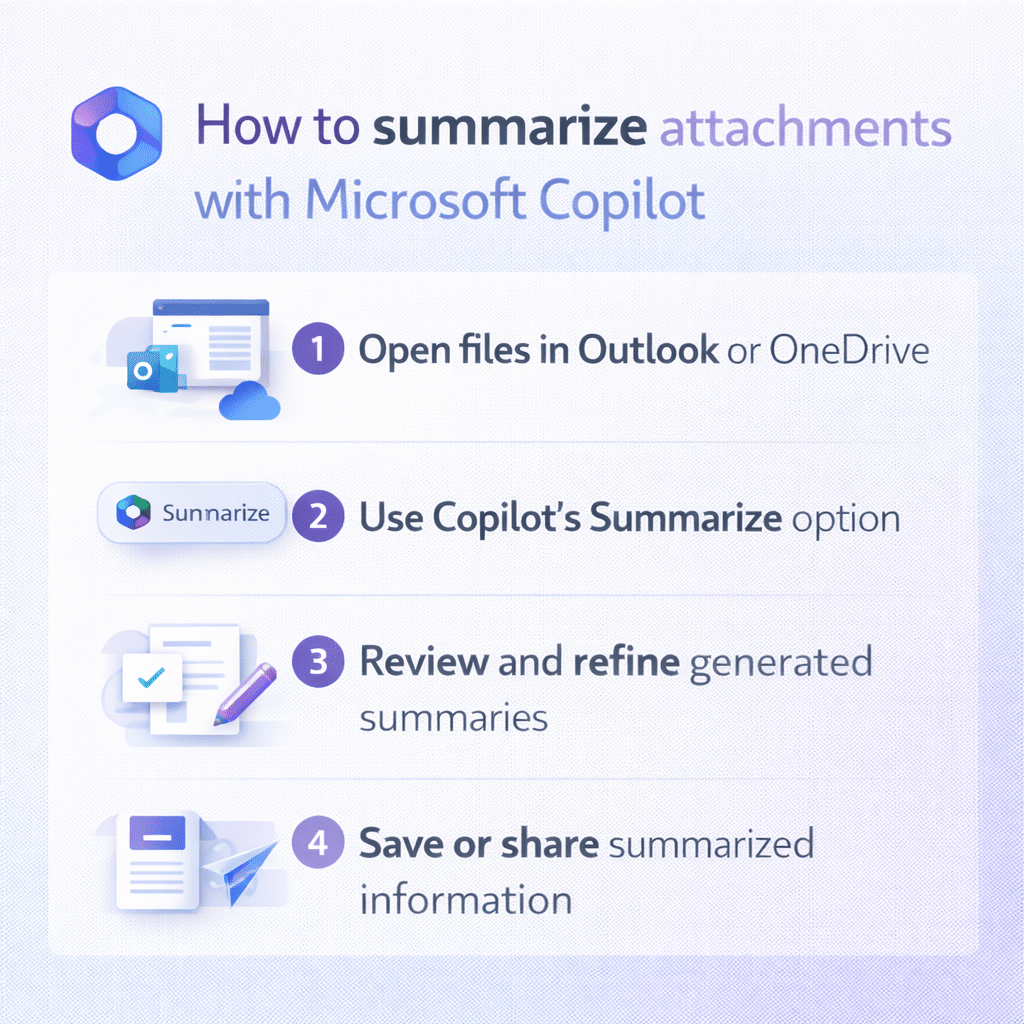
How to summarize a file in Copilot using OneDrive integration?
Begin your attachment summarization workflow by accessing the primary application where your files are stored or received. Navigate to the Microsoft 365 application containing the attachments you want to analyze, ensuring you have proper access permissions and the Copilot feature enabled in your tenant settings.
- Open Microsoft Outlook and locate the email containing attachments you want to summarize, or navigate to OneDrive where your target files are stored for processing.
- Click the Copilot icon in the application ribbon or sidebar, which appears as a distinctive logo typically positioned in the upper portion of the interface for easy access.
- Select the “Summarize” option from the Copilot menu, which will present you with various summarization options including attachment-specific features and document analysis tools.
- Choose the specific attachment or file you want to analyze by clicking on it directly, or use the file selection dialog to browse and select multiple documents simultaneously.
- Configure your summarization preferences by specifying the level of detail you require, ranging from brief overviews to comprehensive analyses depending on your immediate needs and time constraints.
Expert Tip: When working with multiple attachments, process them in batches of 3-5 files to maintain optimal performance and ensure Copilot can provide detailed insights for each document.
How to use Copilot in Outlook for email attachment processing?
Access your Outlook application and navigate to the specific email thread containing the attachments you need to summarize for your current project or analysis requirements. Ensure you have downloaded or can preview the attachments directly within the Outlook interface before initiating the Copilot summarization process.
- Right-click on the email attachment you want to analyze and select “Summarize with Copilot” from the context menu that appears in the interface.
- Wait for Copilot to process the attachment content, which typically takes 10-30 seconds depending on file size, complexity, and current system performance levels across your organization.
- Review the generated summary that appears in a dedicated panel, highlighting key points, action items, and important details extracted from the original document content.
- Use the refinement options to request more specific information by typing follow-up questions such as “What are the main action items?” or “Summarize the financial implications.”
- Save the summary to your preferred location by copying the text to a note-taking application or forwarding it to relevant team members for collaboration purposes.
How to summarize attachments in Excel using Copilot features
Launch Microsoft Excel and open the workbook containing data or attachments you need to analyze, ensuring your file is saved in a location accessible to Copilot services. Navigate to the Copilot integration within Excel, which provides specialized functionality for spreadsheet analysis and data summarization tasks.
- Access the Copilot panel by clicking the Copilot button in the Excel ribbon, typically located in the Home tab alongside other productivity and analysis tools.
- Upload or reference external attachments by using the “Analyze document” feature, which allows Copilot to process files related to your current Excel workbook or project.
Input specific prompts such as “Summarize the attached budget proposal” or “Extract key metrics from the quarterly report attachment” to guide Copilot’s analysis focus and output.
- Generate insights by requesting Copilot to create charts, tables, or formatted summaries based on the attachment content, integrating the information directly into your Excel workflow.
- Export or share the summarized information by copying Copilot’s output to other cells, creating new worksheets, or exporting the analysis to other Microsoft 365 applications as needed.
Note: For more detailed help on summarizing PDF documents or Excel data analysis with Copilot, explore these helpful resources.
Challenges when using Copilot with multiple attachment formats
Users frequently encounter challenges when attempting to summarize certain file formats or when Copilot fails to recognize attachment content properly within their Microsoft 365 environment. Understanding common issues and their solutions helps maintain consistent summarization workflows across different document types and organizational configurations.
- Copilot may not recognize password-protected attachments or files with restricted permissions, requiring you to unlock the document or request appropriate access from the file owner before attempting summarization.
- Large file sizes exceeding 10MB might cause processing delays or timeouts, so consider splitting large documents into smaller sections or using file compression before uploading to Copilot.
- Unsupported file formats like legacy document types or proprietary formats may generate error messages, requiring you to convert files to supported formats such as DOCX, XLSX, or PDF before processing.
- Network connectivity issues can interrupt the summarization process, particularly when working with cloud-stored attachments, so ensure stable internet connection and retry the operation after resolving connectivity problems.
Important Tip: If Copilot fails to summarize an attachment, try opening the file in its native application first, then use the in-app Copilot feature for better compatibility and processing success.