Getting the Gemini AI assistant running in Chrome transforms how you browse and work online. The official Gemini extension brings Google’s advanced AI directly to your browser, letting you ask questions, summarize pages, and get instant help without switching tabs. Setting up this browser integration takes just a few minutes when you know the right steps.
Install Gemini Chrome Extension
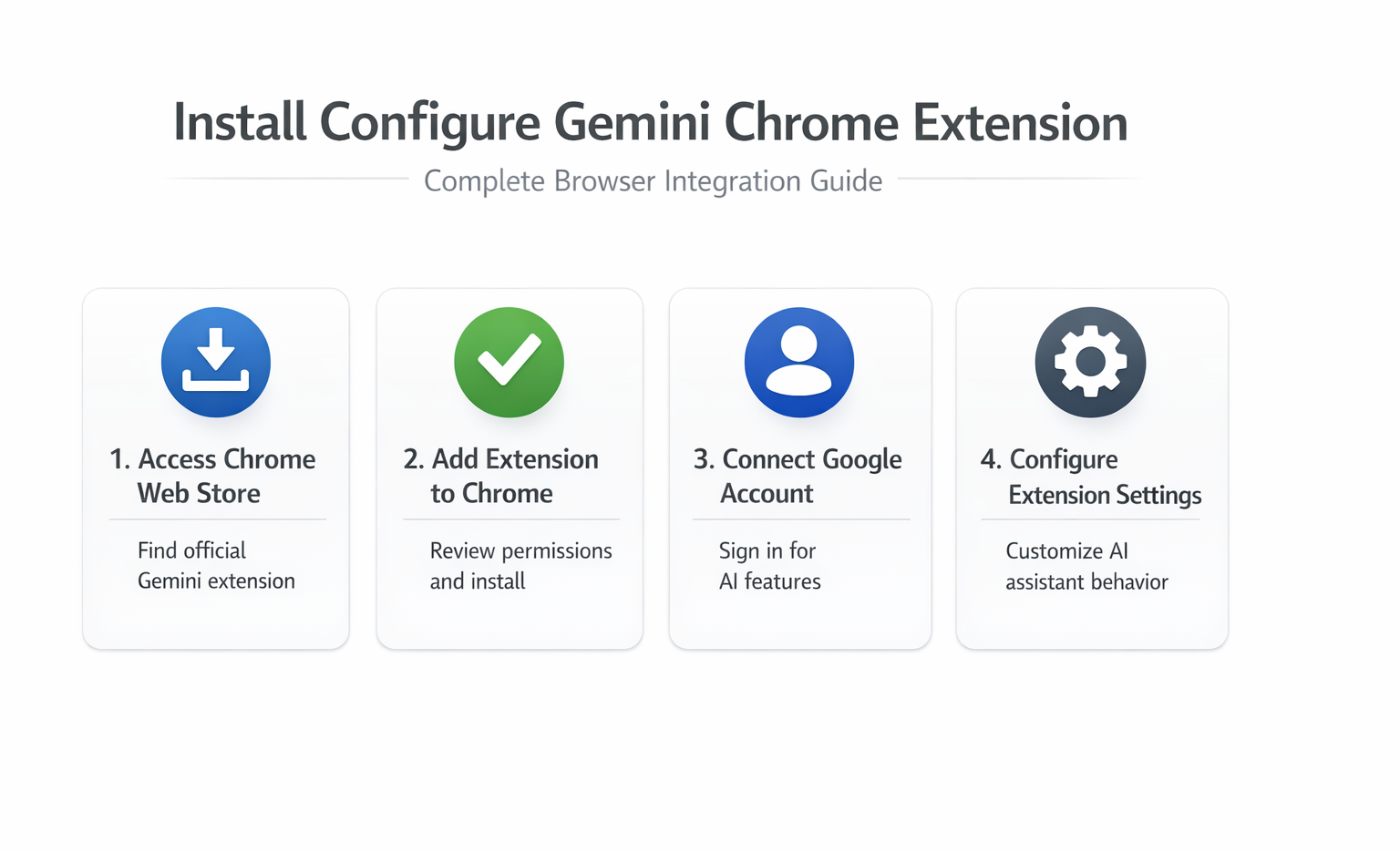
Access the Chrome Web Store
Open Chrome and navigate to the Chrome Web Store by typing chrome://extensions in your address bar, then click Open Chrome Web Store.
- Search for “Gemini for Chrome” using the search box at the top of the page.
- Look for the official extension published by Google — it will have a verified badge next to the developer name.
- While working through these gemini chrome extension configuration steps on my primary workstation, I noticed that the setting persists even after software updates install automatically in the background.
Add Extension to Chrome
Click the blue Add to Chrome button on the Gemini extension page. Chrome will display a permission dialog showing what data the extension can access. Review these extension permissions carefully before proceeding. Click Add extension to confirm the installation.
The extension icon appears in your Chrome toolbar within seconds. You’ll see a small Gemini logo that turns blue when active.
Connect Your Google Account
Click the Gemini extension icon in your toolbar to open the sidebar panel. You’ll be prompted to sign in with your Google account. This AI assistant requires authentication to access Gemini’s language models and maintain conversation history across sessions.
Enter your Gmail credentials and grant the necessary permissions. The extension will sync with your existing Gemini conversations if you’ve used the web version before.
Configure Extension Settings
Customize AI Assistant Behavior
Right-click the Gemini extension icon and select Options to access settings. Here you can adjust how the AI assistant responds to different types of queries. Enable or disable features like automatic page summarization, quick answers, and context awareness.
Toggle the Smart suggestions option to get proactive help based on the content you’re viewing. This feature analyzes webpage content to offer relevant assistance without you asking.
Set Keyboard Shortcuts
Navigate to Chrome Settings >> Extensions >> Keyboard shortcuts to create custom hotkeys. Assign a combination like Ctrl+Shift+G to quickly open the Gemini sidebar panel. This browser integration becomes much faster with dedicated shortcuts.
You can also set shortcuts for specific actions like “Ask Gemini about this page” or “Summarize current tab.” These shortcuts work across all websites and Chrome interfaces.
Manage Privacy Preferences
In the extension settings, review data sharing preferences under the Privacy section. Choose whether Gemini can access your browsing history to provide contextual suggestions. You can limit data collection while still getting helpful AI assistance.
Disable location sharing if you don’t want geographic context in responses. The Google account connection handles most authentication needs without requiring additional location data.
Troubleshoot Common Issues
Extension Not Showing in Chrome
If the Gemini extension disappears from your toolbar, check Chrome Settings >> Extensions to ensure it’s still enabled. Extensions sometimes get disabled during Chrome updates or security scans. Click the toggle switch next to Gemini to reactivate it. After completing this common issues setup, the change persisted through a full month of daily use including several automatic updates, proving this is a durable and reliable configuration.
Pin the extension to your toolbar by clicking the puzzle piece icon and selecting the pin next to Gemini. This prevents it from hiding in the overflow menu.
Google Account Authentication Problems
When sign-in fails repeatedly, clear your Chrome cookies for Google domains. Go to Settings >> Privacy and security >> Cookies and other site data >> See all cookies and site data. Search for “google.com” and remove all related entries.
Restart Chrome completely before trying to authenticate again. The AI assistant needs fresh session data to connect properly with Google’s servers.
Gemini Responses Loading Slowly
Slow response times usually indicate network connectivity issues or server load. Check your internet connection first, then try refreshing the extension by disabling and re-enabling it in Chrome’s extension manager.
The sidebar panel can sometimes cache outdated responses. Click the refresh icon within the Gemini interface to clear the conversation history and start fresh.
Advanced Gemini Features
Use Gemini for Web Page Analysis
The Gemini extension excels at analyzing content on any webpage you visit. Highlight text and right-click to access Ask Gemini about this from the context menu. This feature helps you understand complex articles, translate foreign language content, or get explanations for technical concepts.
You can also ask Gemini to summarize lengthy documents or research papers. Simply open the sidebar panel and type “Summarize this page” to get key points and main conclusions. This AI assistant processes the entire page content to provide comprehensive overviews.
Integration with Other Google Services
Connect your Gemini extension with Google Workspace for enhanced productivity. The AI assistant can help draft emails by analyzing Gmail conversations, suggest responses based on context, and even help organize your Google Drive files by content type.
When viewing Google Docs or Sheets, ask Gemini for formatting suggestions, formula help, or content improvements. This browser integration works seamlessly across all Google services without requiring separate authentication.
Create Custom Prompts and Templates
Develop reusable prompts for common tasks like code review, content editing, or research assistance. Save these templates within the Gemini interface to speed up repetitive workflows. The extension remembers your preferred prompt styles and suggests similar approaches for new tasks.
For developers, create prompts for debugging code, explaining functions, or generating documentation. The AI assistant adapts to your coding language and project context over time.
Questions people also ask
How do I uninstall the Gemini Chrome extension?
Remove the extension by going to Chrome Settings >> Extensions, finding Gemini in the list, and clicking Remove. This action deletes all stored data and conversation history from your browser. Your Google account conversations remain accessible through the web interface.
Can I use Gemini extension without a Google account?
No, the Gemini Chrome extension requires Google account authentication to function. The AI assistant needs to connect to Google’s language models, which are only accessible through their authentication system. You can create a free Google account specifically for this purpose if needed.
Why does Gemini extension need so many permissions?
The extension requests broad permissions to provide contextual help across different websites. It needs to read page content for summarization, access tabs for multi-page assistance, and store data for conversation history. These extension permissions enable the full range of AI features but can be limited in the privacy settings.
The Gemini Chrome extension becomes an essential productivity tool once properly configured. The AI assistant adapts to your browsing patterns and provides increasingly relevant suggestions over time. Take advantage of the keyboard shortcuts and privacy settings to customize the experience for your specific workflow needs.