Understanding Teams meeting link challenges in Outlook
Have you scheduled a Microsoft Teams meeting in Outlook only to find that the meeting link isn’t appearing for your attendees? This common scenario affects both organizers and participants who need quick access to join virtual meetings. Whether you’re creating new meetings, copying links to share with colleagues, or troubleshooting why the join button isn’t visible, understanding how Teams meeting links work across Outlook and Teams is essential for smooth collaboration.
Teams meeting link creation and common issues
When you schedule a Teams meeting through Outlook, the system automatically generates a unique join link that allows participants to access the virtual meeting room. This integration relies on the Teams Meeting Add-in for Outlook, which inserts the necessary meeting details and join button into your calendar invitation. However, various factors can prevent the meeting link from displaying correctly, including add-in conflicts, outdated software versions, or improper meeting creation methods. Today, we wil show and explain you how to create Teams meeting links properly, retrieve existing links when needed, and resolve common issues where the join button fails to appear in Outlook invitations.
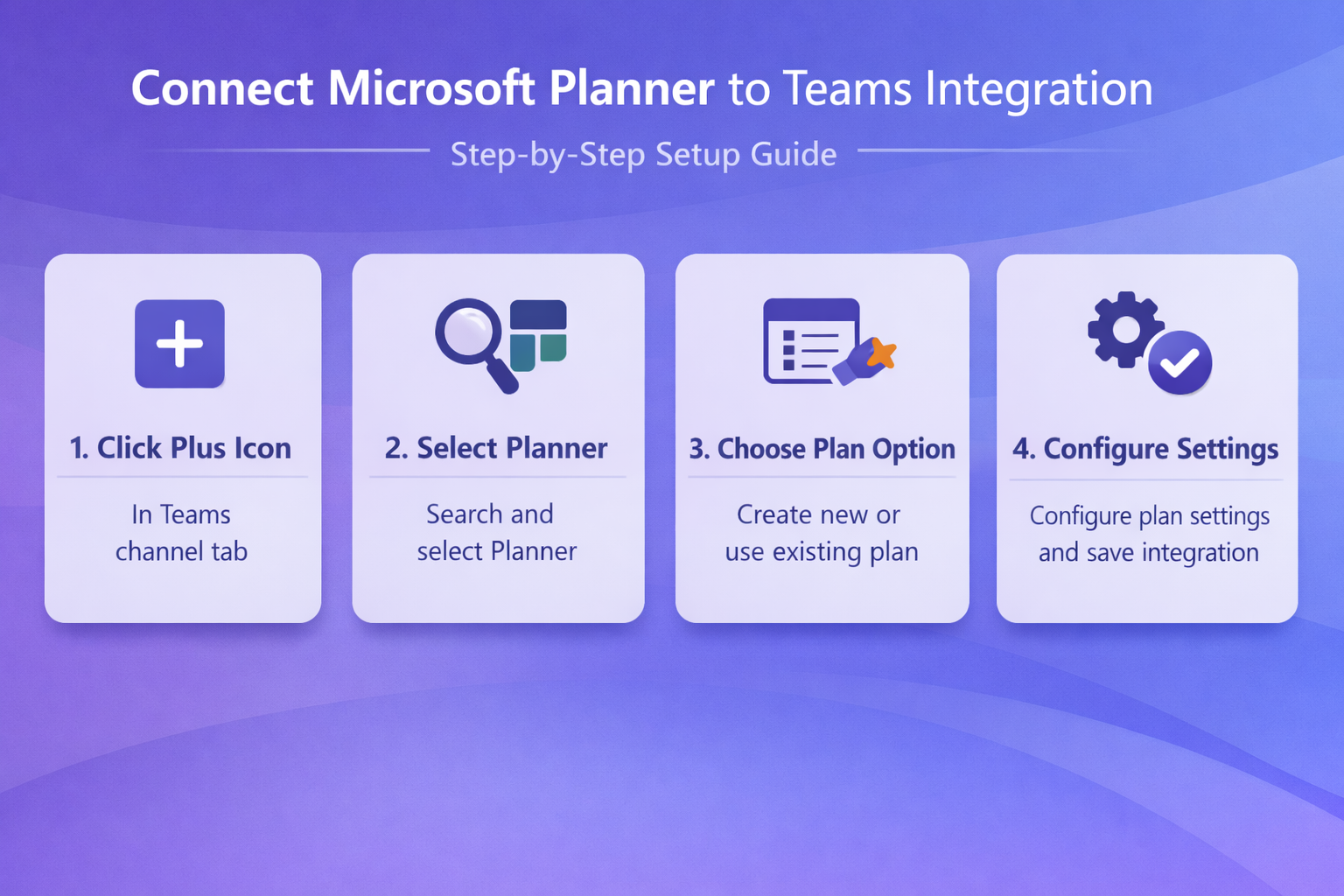
Creating and accessing your Teams meeting link in Outlook
Creating a Teams meeting with a proper join link requires using the correct method in Outlook to ensure the Teams Meeting Add-in processes your invitation and generates the meeting details automatically.
- Open Outlook and navigate to your calendar view, then click the “New Teams Meeting” button in the ribbon at the top of the window rather than using the standard new appointment option.
- Fill in the meeting details including the subject line, required and optional attendees, date, time, and any additional information in the body text area below the Teams meeting information.
- Notice that Outlook automatically inserts the Teams meeting details section, which includes the join link, dial-in phone numbers, conference ID, and meeting options link in the appointment body.
- Click Send to distribute the meeting invitation, ensuring all attendees receive the calendar item with the embedded Teams meeting link that allows them to join with a single click.
- If you need to copy the meeting link after creating the meeting, open the calendar item from your Outlook calendar and locate the join link in the meeting body section.
- Highlight the entire URL that begins with “https://teams.microsoft.com/l/meetup-join/” and right-click to select Copy, or use the keyboard shortcut Ctrl+C on Windows or Command+C on Mac.
Get Teams meeting link from existing meetings
- To retrieve a meeting link from a previously scheduled Teams meeting, open Outlook calendar and double-click the meeting appointment to open it in a separate window.
- Scroll through the meeting body content until you find the Teams meeting information section, which typically appears as a formatted block with a distinctive blue “Join” button or hyperlinked text.
- Right-click directly on the meeting URL or the “Click here to join the meeting” link, then select “Copy Hyperlink” from the context menu to capture the full URL.
- Alternatively, you can access the same meeting from Microsoft Teams by navigating to the Calendar tab in the Teams application and clicking on the scheduled meeting event.
- Within the Teams meeting details pane, click the three-dot menu icon next to the meeting title and select “Copy meeting link” to instantly copy the join URL to your clipboard.
- Share the copied link through email, chat, or any communication channel by pasting it with Ctrl+V or Command+V, allowing recipients to join the meeting even without a calendar invitation.
Join Teams meeting using the link
- When you receive a meeting invitation in Outlook, simply click the blue “Join” button or the hyperlinked meeting URL directly within the calendar item body to launch Teams automatically.
- If you receive a meeting link through email or chat instead of a calendar invitation, click the URL or paste it into your web browser address bar to access the meeting join page.
- On the pre-join screen, configure your audio and video settings by toggling your microphone and camera on or off before entering the meeting room with other participants.
- Choose whether to join using the Teams desktop application by clicking “Open Microsoft Teams” or continue in your web browser by selecting “Join on the web instead” at the bottom.
- If you don’t have Teams installed or you’re joining from a mobile device, the web browser option allows you to participate without downloading additional software or applications.
- For recurring meetings, the same join link remains active for all instances, so you can bookmark or save the URL for quick access to future occurrences of the series.
Expert Tip: Create a Teams meeting directly from the Teams application by navigating to Calendar and clicking “New meeting” if you prefer working entirely within Teams rather than switching between Outlook and Teams interfaces.
Teams meeting link not showing in Outlook problems
Even when following the correct creation process, you might encounter situations where the Teams meeting link fails to appear in your Outlook calendar invitations, preventing attendees from joining your virtual meetings.
- Verify that the Teams Meeting Add-in is enabled in Outlook by clicking File, then Options, then Add-ins, and checking that “Microsoft Teams Meeting Add-in for Microsoft Office” appears in the Active Application Add-ins list.
- If the add-in is listed under Disabled Items or COM Add-ins instead, click the Manage dropdown at the bottom, select COM Add-ins, click Go, and check the box next to Teams Meeting Add-in.
- Restart Outlook completely after enabling the add-in to ensure it loads properly, then attempt to create a new Teams meeting to verify the meeting details section now appears in the invitation body.
- When the New Teams Meeting button doesn’t appear in your Outlook ribbon, right-click the ribbon area, select “Customize the Ribbon,” and ensure the Calendar Tools or Meeting tab shows the Teams Meeting option checked.
Remember: Some organizations disable the Teams Meeting Add-in through group policy settings, so contact your IT administrator if you cannot enable the add-in yourself despite having appropriate Microsoft 365 licenses.
- If meeting links appear for the organizer but not for attendees, the issue often relates to how the meeting was created, such as converting a regular appointment to a Teams meeting after sending.
- Delete the problematic meeting invitation and create a completely new Teams meeting from scratch using the New Teams Meeting button to ensure proper formatting and link generation for all participants.
- For users on Outlook on the web, ensure your browser allows pop-ups and doesn’t block scripts from Microsoft domains, as these restrictions can prevent the Teams meeting interface from loading correctly.
- Check that both your Outlook client and Teams application are updated to the latest versions, as older versions may have compatibility issues that prevent proper meeting link synchronization between the two applications.
Important Tip: If you’re using multiple Microsoft 365 accounts or profiles in Outlook, ensure you’re creating the Teams meeting from the same account profile that has Teams access and meeting creation permissions enabled.