Your Excel column shows 42736 instead of January 15, 2017. You open Format Cells, pick a date format, click OK, and the number stares right back at you unchanged. This happens because those cells were formatted as Text before the dates went in — and once Excel labels something as text, no amount of reformatting through the dialog alone converts it back to a real date value.
Two other causes crop up less often: regional settings conflicts and corrupted number formats. Each has a specific fix that takes under two minutes.
Convert text values into real dates
Use the warning triangle shortcut
Select the cells showing dates as text or serial numbers and look for the small green warning triangle in the top-left corner of each cell.
- Click the dropdown arrow next to the triangle and choose Convert to Number.
- Excel recalculates the cell content as a numeric date value, and your chosen date format applies immediately without any additional steps.
- This is the fastest fix available and handles the majority of cases where data was entered into cells that already had Text formatting applied before the date values were typed in.
Force conversion with Paste Special
No warning triangle visible?
- Type the number 1 in an empty cell, copy it, select your problem date range, and use Paste Special >> Multiply.
- This forces Excel to perform a mathematical operation on each cell, which silently converts text strings to real numbers that accept date formatting — the actual values stay the same because multiplying by 1 changes nothing mathematically but triggers a data type conversion under the hood.
- After the operation completes, press Ctrl+1 to open Format Cells, choose Date from the Category list, and pick your preferred display format.
- The text-to-number conversion guide covers additional methods for bulk conversion if your data includes mixed content types in the same column.
Reapply the date format properly
When dates display as raw serial numbers like 45678 instead of readable dates, the cells lost their formatting but the underlying date data is perfectly intact. Select the affected range, press Ctrl+1, choose Date from the Category list on the left, and pick the display format you want — mm/dd/yyyy for US format, dd/mm/yyyy for European format, or any of the other regional variants Excel offers. Click OK and the dates appear correctly. If the format reverts after you close the dialog or if the serial numbers do not change at all, the cells contain invalid values that Excel cannot interpret as dates and they need the Paste Special multiplication method above first before formatting will take effect.
Troubleshoot persistent date problems
Fix regional settings conflicts
Excel follows your Windows regional settings to decide whether 01/02/2024 means January 2nd or February 1st, and importing a spreadsheet created in a different region causes silent date misinterpretation where entire columns of dates are offset by days or months without any visible error.
How to fix? Go to File >> Options >> Language and verify that your display language matches the date format region you expect. International teams sharing workbooks across regions should standardize on ISO format (yyyy-mm-dd) to eliminate ambiguity entirely, since every country and every version of Excel reads that format the same way regardless of locale settings.
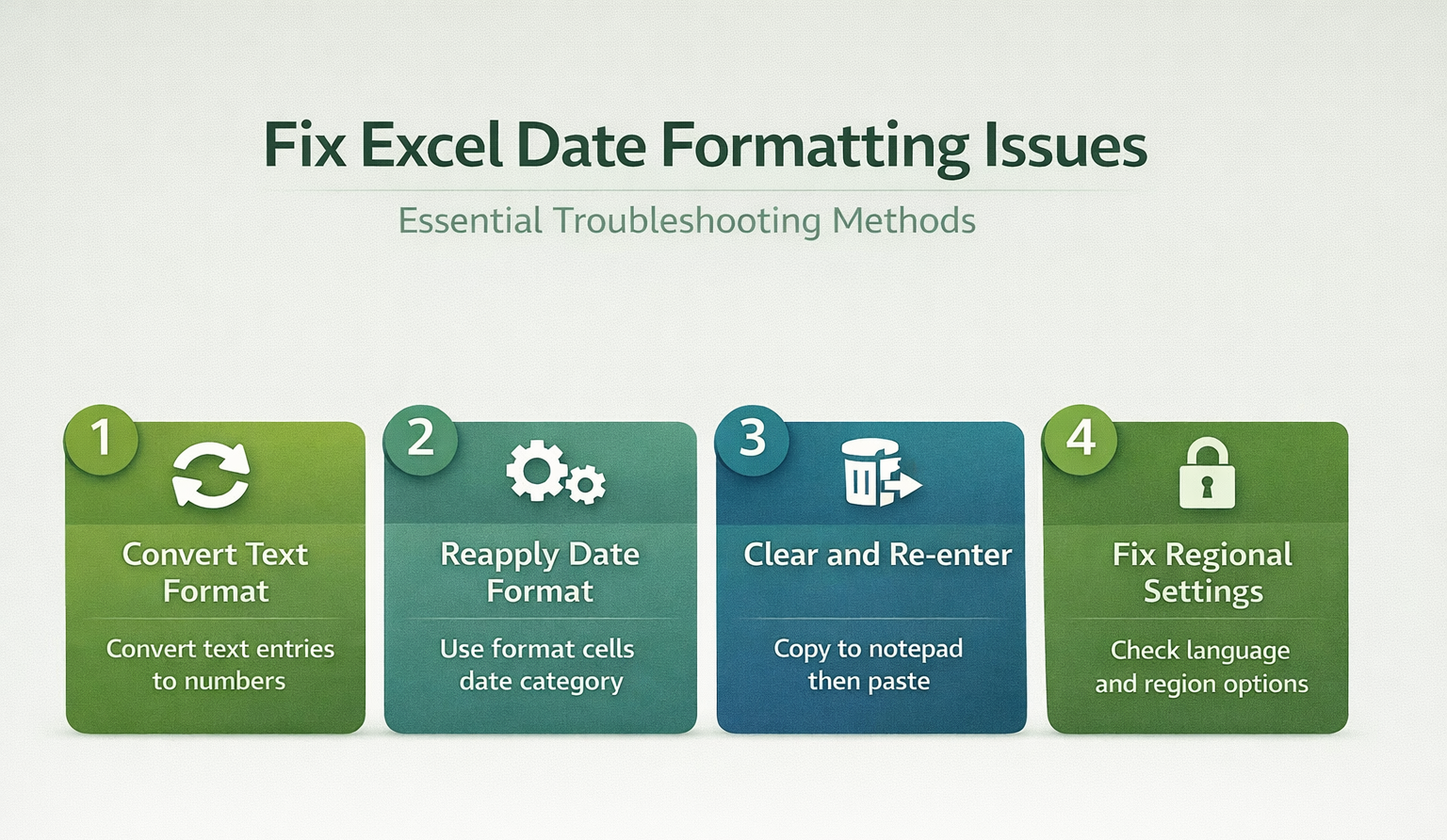
Strip hidden characters from imports
Data exported from SharePoint lists or pasted from web pages often carries invisible characters that prevent Excel from recognizing date values as actual dates.
Copy your dates to Notepad to see the raw text stripped of all formatting, delete the original Excel range completely, format the now-empty cells as Date first, then paste the values back from Notepad into those pre-formatted cells. Excel auto-detects and applies proper date formatting to clean input that arrives in correctly formatted cells. For bulk cleanup across hundreds of cells, use Find & Replace (Ctrl+H) to search for a single space and replace with nothing — trailing spaces are the most common hidden character that blocks date recognition.
Create a custom date format
When none of the built-in date formats match what you need for reports, invoices, or specific regional requirements, press Ctrl+1, select Custom from the Category list, and type your own format code in the Type field.
- Use d for day, m for month, and y for year: “dd/mm/yyyy” gives European-style dates, “mmm d, yyyy” produces “Jan 15, 2017”, and “dddd, mmmm d” gives “Monday, January 15” with the full day name included.
- Avoid mixing date codes with unrelated format symbols because Excel interprets the format string literally and produces garbled output if the codes conflict with each other.
Prevent formats from reverting
Formats that refuse to stick after you apply them usually point to one of three deeper issues that simple reformatting cannot address: mixed content in the column where some cells hold real numeric dates and others hold plain text strings that look like dates, trailing spaces that block the date parser from recognizing the value, or a mismatch between the 1900 and 1904 date systems in workbooks shared between Windows and older Mac versions of Excel. The 1900/1904 difference shifts every date by four years and one day — check this under File >> Options >> Advanced >> When calculating this workbook and make sure both sender and receiver use the same date system setting to avoid the offset.
Quick FAQ
Why does Excel show numbers instead of dates?
Excel stores every date as a serial number behind the scenes — January 1, 2000 is 36526. When a cell loses its date formatting, the raw number shows instead. Select the cells, press Ctrl+1, choose Date from the Category list, and the readable dates return immediately.
Why won’t date formatting apply after a CSV import?
CSV and text file imports default to Text format, which locks cell content as strings that ignore date formatting entirely. Import through Data >> Get Data >> From Text/CSV instead of double-clicking the file — this opens the import wizard where you specify column data types before loading the data into your worksheet.
How do I fix dates that shifted by four years?
This happens when a workbook switches between the 1900 and 1904 date systems, typically from sharing files between Windows and older Mac versions of Excel. Go to File >> Options >> Advanced >> When calculating this workbook and make sure both machines use the same date system setting.
Text-formatted cells are the cause in most cases — fix those first with the warning triangle or Paste Special method before touching regional settings or custom formats.