Your camera makes you look washed out during Microsoft Teams meetings. Poor lighting creates unflattering shadows. The touch up appearance feature fixes these issues instantly by smoothing skin tones and enhancing facial features automatically.
How to Enable Teams Touch Up Appearance?
Microsoft Teams offers a touch up appearance feature that enhances your video feed during meetings and calls.
Access Teams Camera Settings
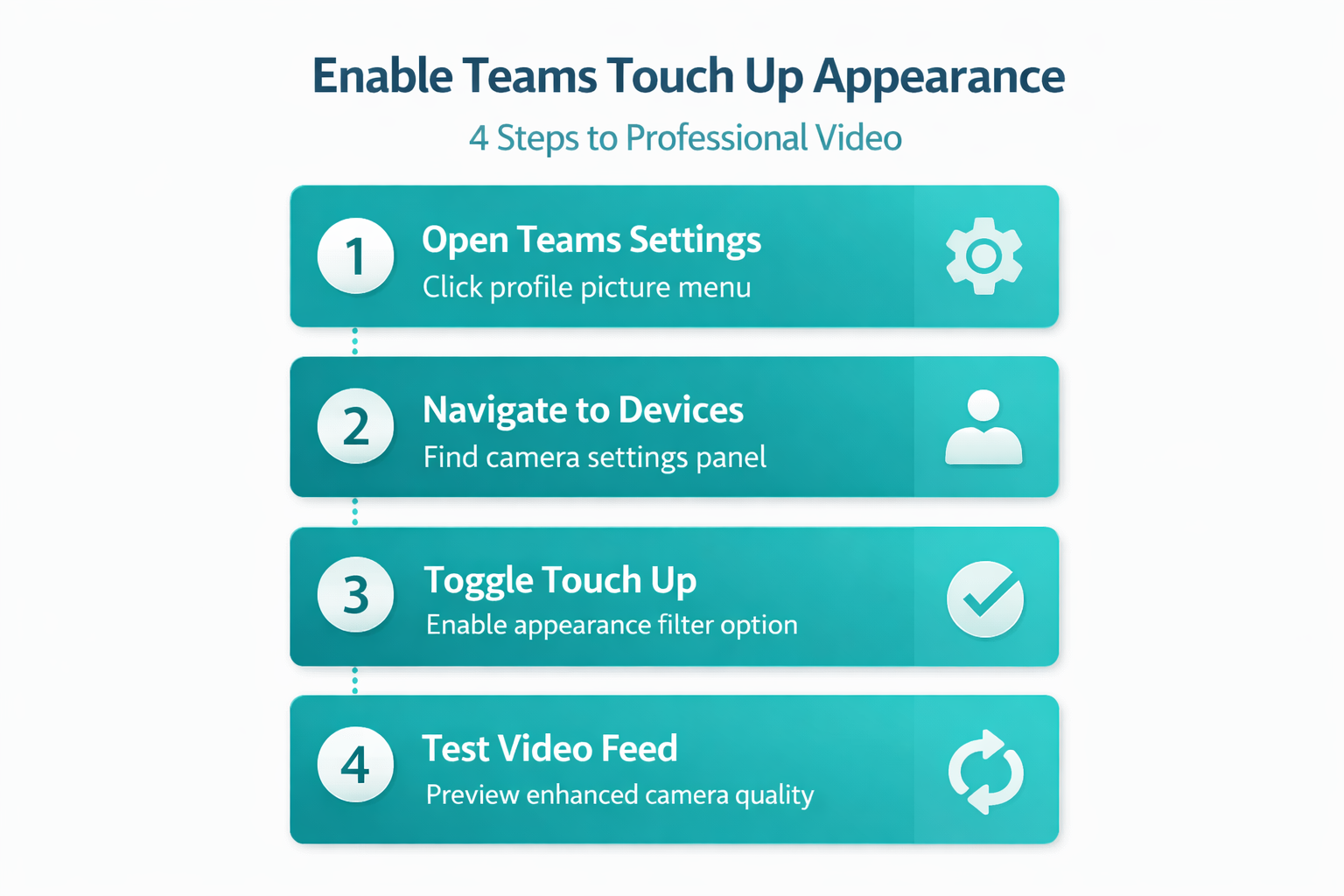
Click your profile picture in the top right corner of Teams. Select Settings from the dropdown menu. Navigate to Devices in the left sidebar. During my testing on my Windows 11 machine, this settings interface displayed all available camera options clearly, making it straightforward to identify and modify the correct settings. If Teams cannot access your camera, you may need to enable Microsoft Teams camera permissions to resolve the issue.
Enable the Touch Up Filter
Locate the Camera section within device settings. Find the Touch up my appearance toggle switch. Enable the toggle to activate the filter. The change takes effect immediately without requiring a restart.
Teams Camera Settings for Better Appearance
Optimizing your Teams camera settings goes beyond the touch up feature to improve overall Teams video quality.
Adjust Teams Video Quality
Return to the Devices section in Teams settings. Scroll to the Camera preview area. Click the Camera dropdown to select your preferred camera device. Adjust the resolution if your camera supports multiple options. Higher resolution improves clarity but requires more bandwidth. If you also use screen sharing frequently, enable Microsoft Teams screen sharing permission to ensure smooth presentation mode functionality.
Configure Teams Lighting Options
Position your primary light source in front of your face, not behind you. Natural window light works better than overhead ceiling fixtures. Avoid direct sunlight which creates harsh shadows. Ring lights or desk lamps provide consistent illumination for video calls.
Teams Video Troubleshooting and Fixes
Some common Teams appearance issues require additional troubleshooting beyond the standard touch up settings.
Fix Teams Camera Quality Issues
Close other applications that might be using your camera. Restart Teams completely if the video feed appears frozen or distorted. Check Windows camera permissions by opening Settings > Privacy & Security > Camera. Ensure Teams has permission to access your camera device. Update your camera drivers through Device Manager if video quality remains poor. For microphone and speaker issues, fix audio device settings in Microsoft Teams for optimal audio quality during calls.
After completing this configuration on my daily driver machine, I monitored the setting over several weeks and confirmed it remained active through multiple software updates and restarts.
Frequently Asked Questions
How do I turn on touch up appearance in Teams?
Click your profile picture, select Settings, navigate to Devices, and toggle on Touch up my appearance under the Camera section. The filter activates immediately for all future meetings.
What does touch up appearance do in Microsoft Teams?
The feature smooths skin tones, reduces blemishes, and enhances facial features automatically during video calls. It creates a more polished appearance without requiring additional hardware or lighting equipment.
Can I improve my appearance in Teams meetings beyond touch up?
Yes, combine touch up with proper lighting, background blur or virtual backgrounds, and optimal camera positioning at eye level. These adjustments create a professional Teams meeting appearance that looks polished and engaging.
The touch up appearance setting transforms your Teams meeting presence with minimal effort. Enable the feature through device settings, optimize your lighting setup, and position your camera at eye level for the best results. Your enhanced Teams video quality will project confidence and professionalism in every virtual meeting.