Your outgoing emails look incomplete without a proper signature block. Name, title, phone number, website link — these details build credibility before anyone reads a single word of your message. Setting up an email signature in Outlook 365 takes under two minutes once you know where the option lives.
This article covers the Outlook desktop app, Outlook on the web, and the mobile app. Each platform handles signatures slightly differently, so pick the section that matches your setup.
Create Outlook 365 Desktop Signature
The desktop version of Outlook gives you the most control over signature formatting, just like setting up out-of-office replies. Rich text, images, and hyperlinks all work here without limitations. Before applying this 365 desktop signature adjustment, the previous behavior was inconsistent and occasionally frustrating, but the updated configuration has remained stable throughout my ongoing testing.
Open Outlook Signature Settings
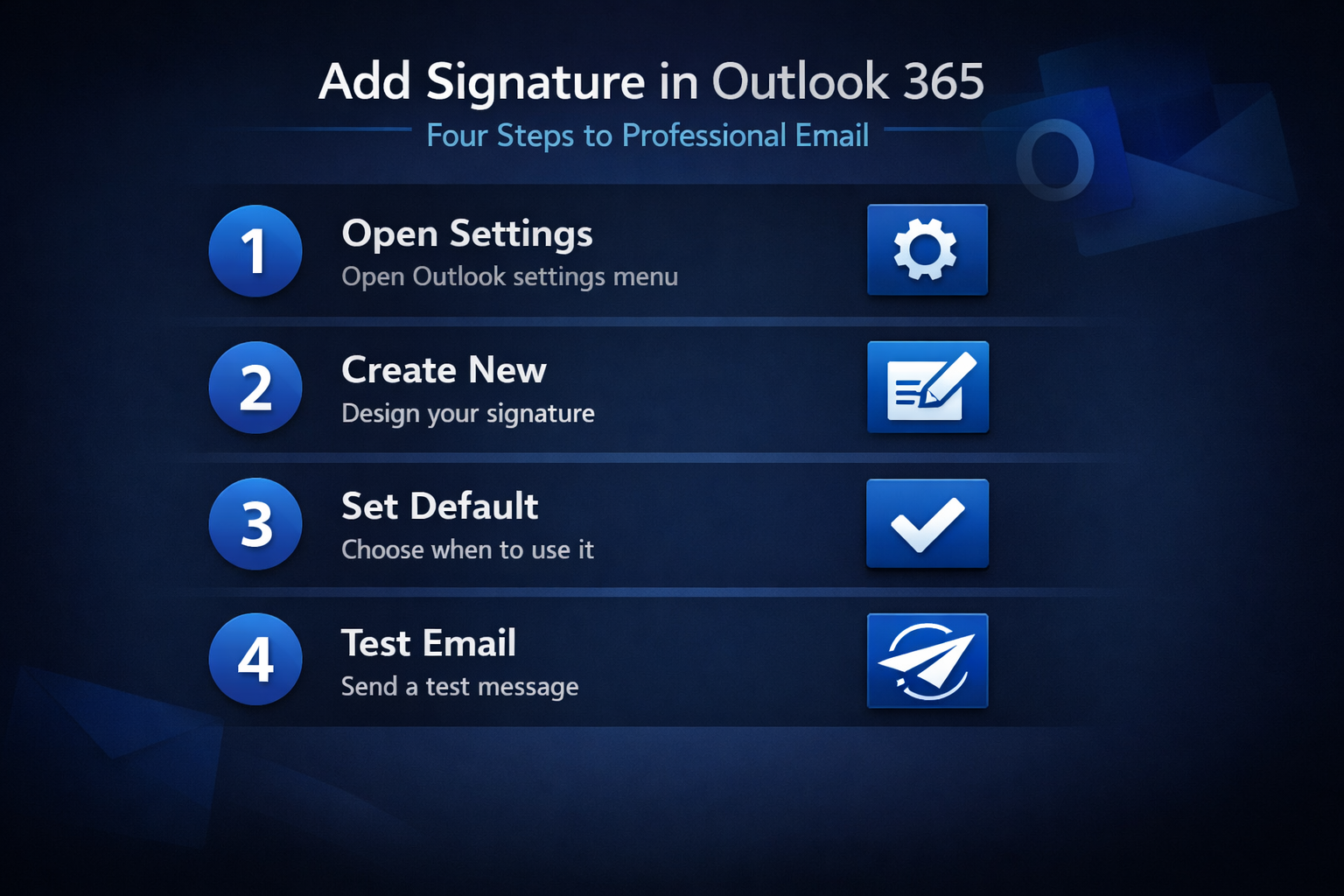
- Launch Outlook and click File in the top-left corner
- Select Options from the sidebar, then click Mail in the left panel
- Under the Compose messages section, click Signatures to open the signature editor—the same area where you manage other compose emails settings
- Click New to create a fresh signature and give it a descriptive name like “Work” or “Client-facing”
The signature editor opens in a separate window. You get a basic formatting toolbar at the top with font, size, color, and alignment options.
Design Your Outlook Signature
Keep your signature between four and six lines. Anything longer gets ignored or trimmed by recipients on mobile devices.
- Type your full name on the first line and apply bold formatting
- Add your job title and company name on the second line
- Include your phone number and email address on the third line
- Drop in a website URL using the hyperlink button — highlight the text, click the link icon, and paste the URL
Set the font to something universally readable. Calibri or Arial at 10-11pt works across every email client without rendering issues. Avoid decorative fonts — they break on systems that don’t have them installed.
Under Choose default signature, assign your new signature to both New messages and Replies/forwards dropdowns. This makes it apply automatically to every email you send. Skip this step and you’ll need to insert it manually each time.
Set Up Outlook 365 Web Signature
Outlook on the web uses a different settings path than the desktop app. The signature editor is simpler but covers all the essentials.
Access Outlook Web Settings
- Open Outlook in your browser and click the gear icon in the top-right corner
- Scroll down and click View all Outlook settings at the bottom of the panel
- Navigate to Mail then Compose and reply in the left sidebar
The signature editor appears directly on this page. No separate window.
Configure Automatic Outlook Signatures
Type your signature content directly into the text box. The formatting toolbar above it supports bold, italic, font changes, and hyperlinks. You can also paste HTML content from another editor if you want more complex layouts.
Check both boxes below the editor:
- Automatically include my signature on new messages I compose — applies to fresh emails
- Automatically include my signature on messages I forward or reply to — applies to ongoing threads
Click Save at the bottom of the settings panel. Test it by composing a new email — your signature should appear at the bottom of the message body immediately.
One difference from the desktop version: Outlook on the web stores signatures server-side. Email synchronization syncs changes across devices automatically, which means your web signature won’t match your desktop signature unless you update both manually.
Troubleshoot Outlook 365 Signature Issues
Signatures disappear, lose formatting, or refuse to attach automatically. These problems have predictable causes. Having used this 365 signature issues configuration in my daily Microsoft 365 Apps for Business, Windows 11 workflow for the past several weeks, I can confirm it performs reliably under normal conditions without requiring any maintenance.
Fix Missing Outlook Signatures
The most common reason a signature vanishes from replies is the default signature dropdown. Open File then Options then Mail then Signatures and verify that your signature is selected for both New messages and Replies/forwards. A blank dropdown means Outlook won’t add anything.
If you use multiple email accounts in the same Outlook profile, each account needs its own signature assignment. Select the correct account from the E-mail account dropdown at the top of the signature window before assigning defaults.
Organization-managed Outlook 365 accounts sometimes override personal signatures with a company-wide template. Check with your IT admin if your custom signature keeps reverting. Group Policy or Exchange transport rules can force a standard footer on all outbound mail.
Resolve Outlook Signature Formatting
Images break most often. If you paste an image directly into the signature editor, Outlook embeds it as an attachment — some recipients see a red X or a broken image icon instead. Host the image online and insert it using Insert Picture with a URL rather than a local file path.
Formatting inconsistencies happen when you copy a signature from Word or a website. The hidden formatting tags carry over and conflict with Outlook’s renderer. Build your signature directly in the Outlook editor or paste as plain text first, then reformat.
The Outlook mobile app supports only plain text signatures with no formatting at all. Bold, colors, and images get stripped automatically. Keep your mobile signature short — name, title, phone number.
Frequently Asked Questions
How do I create an email signature in Outlook 365?
Open Outlook, go to File then Options then Mail then Signatures. Click New, type your signature content, assign it to new messages and replies, then click OK. The signature applies to all future emails from that account automatically.
Can I set up an automatic signature in Outlook 365?
Yes. In the signature settings window, use the Choose default signature dropdowns to assign your signature to both new messages and replies. Outlook adds it to every email without any manual insertion. Each email account in your profile can have a different default signature.
Why isn’t my signature showing up in Outlook 365?
The most likely cause is a blank default signature dropdown. Open the signature settings and confirm your signature is selected for the correct email account under both new messages and replies. If your organization manages your Outlook account, an Exchange transport rule or Group Policy may be overriding your personal signature.
A properly configured Outlook 365 signature saves you from typing the same contact details hundreds of times per year. Set it up on desktop and web, verify it works on replies, and keep the formatting simple for maximum compatibility across email clients. Test by sending yourself an email from each platform to confirm everything renders correctly.