Moving Excel spreadsheet data into Google Docs shouldn’t feel impossible. Many users struggle with this exact challenge daily. Whether you need to embed a financial table, reference budget numbers, or share quarterly reports within a collaborative document, the solution depends on your specific goal.
The best approach varies based on whether you want live data that updates automatically or a static snapshot for reference. Some methods preserve Excel formatting perfectly, while others prioritize seamless collaboration. Let’s explore proven methods that work reliably for different scenarios.
How to Embed Excel Spreadsheets in Google Docs
Google Docs doesn’t support direct Excel file insertion like Word does. Instead, you’ll work with the data itself through several proven approaches. I also verified this embed excel spreadsheets process on a freshly installed Microsoft 365 Apps for Business, Windows 11 system with no prior customization, and the steps worked identically to what I experienced on my configured daily machine.
Copy Excel Table to Google Docs Directly
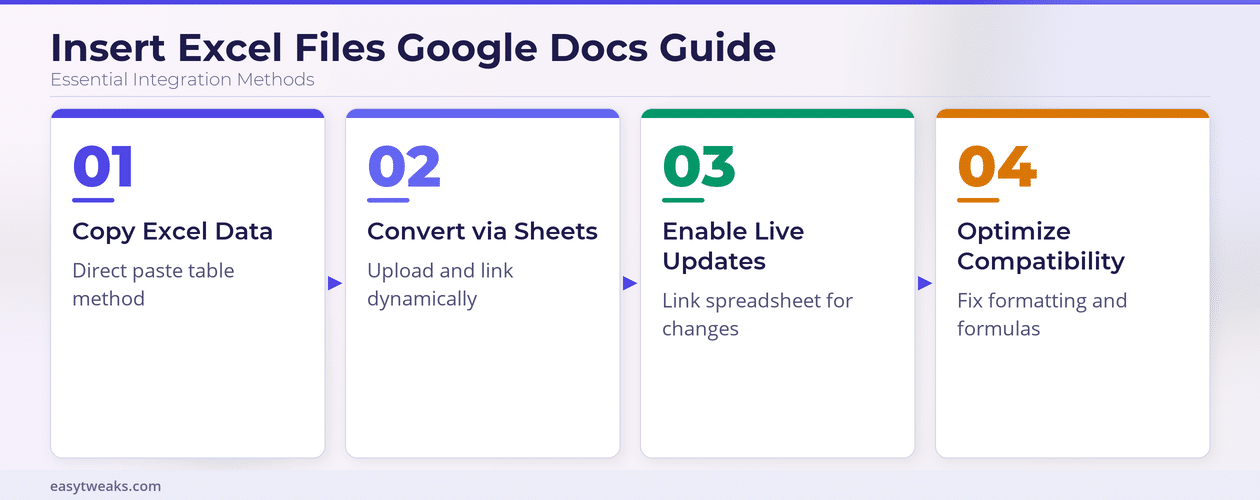
The fastest method involves copying cells from Excel and pasting them as a table.
Open your Excel file and select the data range you need. Press Ctrl+C to copy. Switch to your Google Docs document and position your cursor where the table should appear. Press Ctrl+V and choose Paste as table from the dropdown menu.
This method works best for static data that won’t change frequently. Formatting transfers reasonably well, though complex Excel styling may simplify. The table becomes editable directly within Google Docs, which helps for collaborative editing.
Import Excel Data Through Google Sheets
For dynamic data that needs regular updates, route through Google Sheets first.
Upload your Excel file to Google Drive. Right-click the file and select Open with Google Sheets. Google Sheets converts the Excel file automatically while preserving most formulas and formatting.
Once converted, select your data range in Google Sheets. Copy it with Ctrl+C. In Google Docs, paste using Ctrl+V and choose Link to spreadsheet when prompted.
This creates a live connection. When source data changes in Google Sheets, click Update in Google Docs to refresh the embedded table. Perfect for reports requiring current data. This method works similarly to add Excel spreadsheets into Word documents, offering flexible integration options.
Attach Excel File Google Docs Method
Sometimes you need the full Excel file accessible alongside your document content.
In Google Docs, click Insert from the top menu. Select Drawing and then New. In the drawing window, click the Image icon and upload your Excel file as a screenshot.
Alternatively, use Insert > Link to create a hyperlink pointing to your Excel file stored in Google Drive. This approach doesn’t embed data directly but provides quick access to the complete spreadsheet.
Google Docs Excel Integration Best Practices
Choose the Right Method
Static reference data works perfectly with direct copy-paste. Financial reports, contact lists, and historical data rarely need live updates.
Dynamic dashboards require the Google Sheets connection method. Budget trackers, project timelines, and performance metrics benefit from automatic refresh capabilities.
Full file access makes sense for complex workbooks with multiple sheets. Engineering specifications, detailed calculations, and template files often need the complete Excel environment.
Optimize Excel File Compatibility
Simplify formatting before transfer. Remove complex conditional formatting, custom fonts, and merged cells when possible. These elements often don’t translate cleanly to Google Docs.
Break large datasets into focused sections. Import only relevant data rather than entire worksheets. This improves document loading speed and maintains readability.
Test formulas after conversion. Advanced Excel functions may not work identically in Google Sheets. Double-check calculations and consider manual replacement for complex formulas.
Handle Data Import Troubleshooting
Formatting issues appear frequently during Excel to Google Docs transfers. Text alignment, number formatting, and cell colors may shift.
To fix alignment problems, select your pasted table and use Google Docs table formatting tools. Right-click the table and choose Table properties to adjust borders, spacing, and alignment.
For number formatting issues, paste as plain text first using Ctrl+Shift+V, then manually format numbers through the Format menu. These Excel importing and formatting issues occur frequently during cross-platform transfers.
Connection errors with linked spreadsheets usually indicate permission problems. Ensure both the Google Docs document and source Google Sheet have matching sharing settings.
Frequently Asked Questions
Can you embed Excel spreadsheets in Google Docs with live updates?
Yes, but only through Google Sheets as an intermediary. Convert Excel to Google Sheets first, then link that data to your Google Docs document. The embedded table can update when source data changes.
What’s the best way to import Excel data into Google Docs?
For simple tables, copy-paste directly from Excel works perfectly. For complex spreadsheets with formulas, upload to Google Sheets first for better compatibility, then embed the converted data.
Why does my Excel formatting look different in Google Docs?
Google Docs has limited table formatting compared to Excel. Complex borders, cell shading, and custom fonts may appear simplified. Consider this normal and adjust formatting using Google Docs table tools after pasting.
Modern document collaboration demands flexible data sharing between platforms. These methods ensure your Excel data integrates smoothly with Google Docs workflows. For users managing multiple platforms, consider exploring Google Calendar integration with Teams to streamline cross-platform productivity. Choose the approach matching your specific needs, whether that’s static reference tables or dynamic linked data.
Start with the simplest method that meets your requirements. Direct copy-paste handles most scenarios effectively, while the Google Sheets connection provides power users with live data capabilities.