Microsoft Word tracks your word count automatically, but finding where that number lives depends on which version you use and how you want it displayed. The status bar at the bottom of Word shows a running total by default on Windows desktops. Word for Mac, Word Online, and older installations sometimes hide it. This article covers every method to insert word count in Word, fix missing counters, and even embed a live word count field directly inside your document.
How to Show Word Count in Word Desktop
The fastest path to your document statistics runs through the status bar. That thin strip along the bottom of the Word window updates in real time as you type. This show word count setting has been part of my daily Microsoft 365 Apps for Business, Windows 11 routine for over a month now, and I have not experienced a single instance where it reverted or caused any unexpected behavior.
Enable Word Status Bar Counter
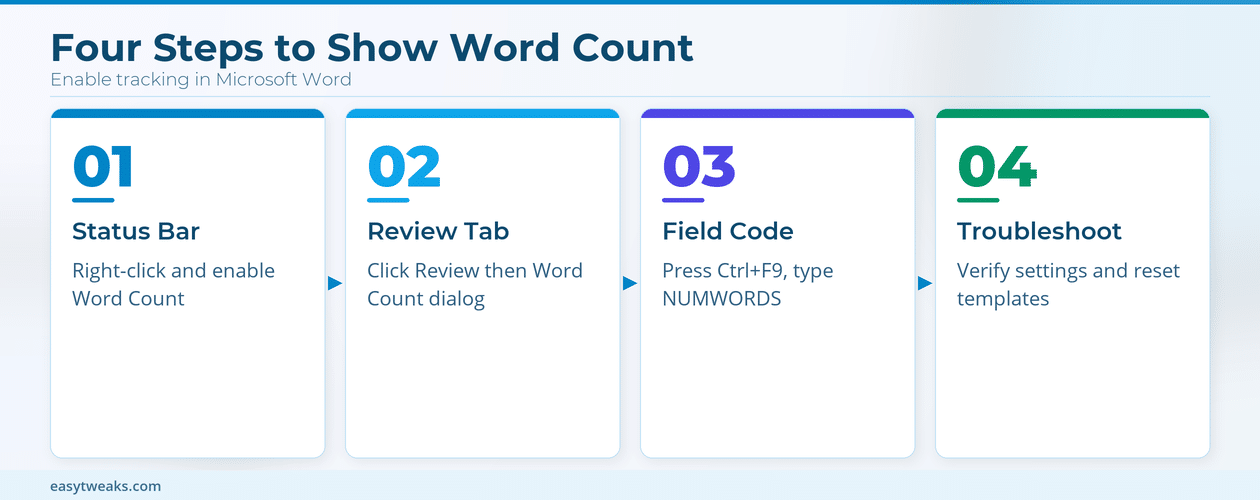
Right-click the status bar at the bottom of the Word window. A checklist of toggleable items appears. Make sure Word Count has a checkmark beside it. Once enabled, the running total sits in the lower-left corner and refreshes with every keystroke.
Selecting a block of text changes the display to show the count for your selection versus the full document. That split view is useful when you need to verify a specific section meets a length requirement without running a separate check.
Use the Word Review Tab
Click the Review tab on the ribbon, then select Word Count in the Proofing group. A dialog box opens with:
- Total pages in the document
- Full word count and character count with or without spaces
- Paragraph and line totals
- An option to include or exclude textboxes, footnotes, and endnotes
This dialog gives the most detailed breakdown Word offers. Use it when you need character count or paragraph totals that the status bar does not display.
Insert a Word Count Field in Word
Word lets you embed a live word count directly inside the document body. Press Ctrl + F9 to create a field code bracket. Type NUMWORDS between the curly braces so it reads { NUMWORDS }. Then press F9 to resolve the field. The current word count appears as plain text at your cursor position.
That number is a snapshot. It does not auto-refresh as you type. Press Ctrl + A to select the entire document, then press F9 again to update all field codes at once. You can also right-click the field and choose Update Field from the context menu.
This method works well for cover pages, headers, or footers where a visible word count must appear in the printed output.
Word Count Settings and Options
Default behavior covers most scenarios, but a few settings change what Word counts and how it reports the total.
Configure Word Footnote Counting
Open the Word Count dialog from the Review tab. At the bottom, toggle Include textboxes, footnotes, and endnotes. When checked, Word adds those elements to every total. When unchecked, only the main body text counts.
Academic writers should pay attention here. Many style guides exclude footnotes from official word limits, so disabling this checkbox prevents inflated totals that could flag a submission as over-length.
Check Word Count in Word Online
Word for the web shows word count through the Review tab, just like the desktop app. Click Review, then Word Count, and a panel appears on the left side. The online version also supports the status bar counter, though it may be hidden by default on narrow browser windows.
Word Online does not support field codes, so the NUMWORDS insertion method is unavailable there. If you need an embedded count in your document, switch to the desktop app to insert the field, then return to Word Online for editing.
Find Word Count in Word for Mac
Word for Mac places the word count in the status bar by default. If it is missing, right-click the status bar and enable Word Count from the list. The Review tab method works identically to Windows. Field code insertion uses Fn + Command + F9 instead of Ctrl + F9 on Mac keyboards.
Troubleshooting Word Count Problems
Several common issues cause the word count to disappear or report incorrect numbers. I also verified this troubleshooting word count process on a freshly installed Microsoft 365 Apps for Business, Windows 11 system with no prior customization, and the steps worked identically to what I experienced on my configured daily machine.
Fix Word Count Not Showing
The most frequent cause is an accidentally disabled status bar item. Right-click the status bar and verify Word Count is checked. If the status bar itself is missing entirely, go to View and confirm the window is not in Full Screen Reading or Focus mode, both of which hide the status bar.
Corrupted user templates can also suppress status bar items. Reset the Normal template by renaming Normal.dotm in the Word templates folder, then restart Word. A fresh template file generates automatically with default settings restored.
Fix Word Count Showing Wrong Number
Field codes that have not been updated display stale numbers. Select the entire document with Ctrl + A and press F9 to force all fields to recalculate. Hidden text, tracked changes, and revision marks can also skew the count. Accept or reject all changes before checking the final number.
Headers, footers, and text boxes are counted or excluded based on the checkbox in the Word Count dialog. Verify that setting matches your expectation before assuming the count is wrong.
How Do I See Word Count While Typing in Word?
Right-click the status bar at the bottom of the Word window and enable Word Count. The running total appears in the lower-left corner and updates automatically as you type. Selecting text shows the count for that selection only.
Why Is My Word Count Not Showing in Word?
The word count status bar item is likely toggled off. Right-click the status bar and check Word Count. If the status bar itself is hidden, exit Full Screen Reading or Focus mode under the View tab. A corrupted Normal.dotm template can also suppress it — rename that file and restart Word.
Can You Display Word Count on Every Page in Word?
Yes. Insert a NUMWORDS field code into the header or footer by pressing Ctrl + F9, typing NUMWORDS, and pressing F9. The total appears on every page. Update it before printing by selecting all content (Ctrl + A) and pressing F9.
The status bar method handles daily writing needs in seconds. Use the Review tab dialog when you need character count or want to toggle footnote inclusion. Embed a NUMWORDS field code for printed documents that require a visible word count on every page. Between these three approaches, every version of Word and every use case is covered.