Microsoft Planner task chat with @mentions allows team members to communicate directly within individual tasks, keeping project conversations organized and easily accessible without switching between multiple applications or losing important context. When you use @mentions inside Planner task comments, the tagged person receives a notification in Microsoft Teams, which ensures that critical updates reach the right collaborator quickly and consistently. During my testing on Windows 11, the notification from a Planner @mention appeared in Teams within seconds, confirming that the integration between these two applications works reliably and without noticeable delay.
Setting Up Planner Task Chat
Before you can start using task-level chat effectively, you need to ensure that your Microsoft Planner plan is properly connected to a Microsoft 365 group that includes all relevant team members. Each Planner plan is automatically associated with a Microsoft 365 group, which means every member of that group can access task comments and receive @mention notifications through their connected Teams account.
Opening Planner Task Comments
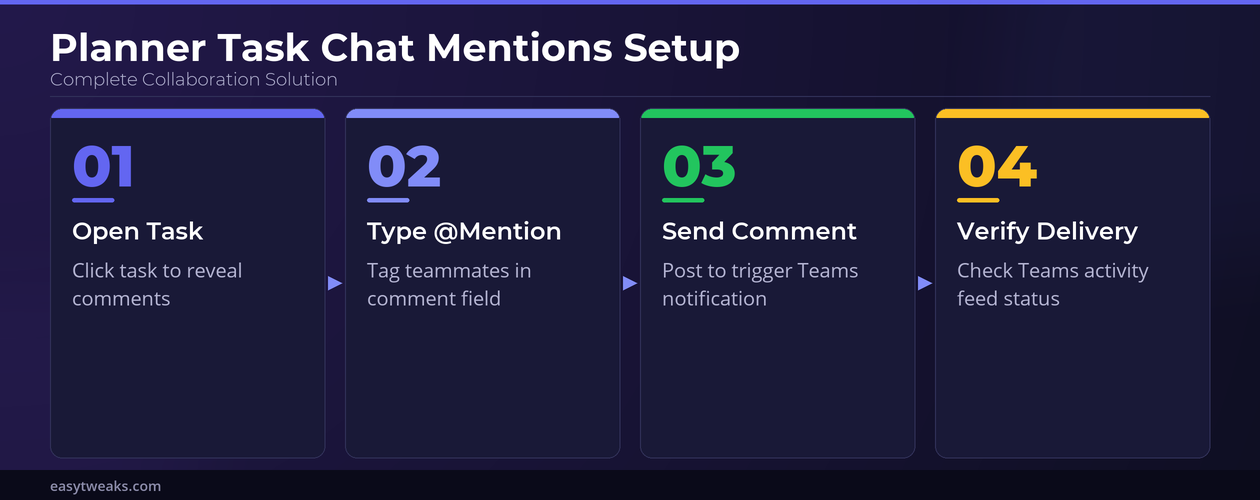
- You can open any task in Microsoft Planner by clicking its title on the board view, which reveals the full task detail pane including the comments section at the bottom of the window. The comments field in Planner supports plain text entries along with @mentions, allowing you to tag specific colleagues who need to take action or review the task progress immediately. Once you type the @ symbol followed by a colleague name, Planner displays a dropdown list of matching group members, and selecting the correct person automatically formats the mention with proper linking.
Accessing Planner Tasks Through Teams
- You can also access Planner tasks directly inside Microsoft Teams by navigating to the Tasks app or adding a Planner tab to any Teams channel where your project group collaborates regularly. Adding a Planner tab to a Teams channel gives every channel member instant visibility into task assignments, deadlines, and comment threads without needing to open the Planner web application separately. This integration means that @mentions posted in Planner task comments also surface as activity notifications within the Teams interface, creating a unified communication experience across both platforms.
Using @Mentions in Planner Tasks
The @mention feature in Microsoft Planner task comments works similarly to mentions in other Microsoft 365 applications, but it specifically targets members of the associated Microsoft 365 group rather than your entire organization. This scoping ensures that mention suggestions remain relevant to the project team and prevents accidental notifications to colleagues who are not involved in the plan.
Tagging Planner Team Members Correctly
- To mention a colleague in a Planner task comment, place your cursor in the comments field and type the @ symbol immediately followed by the first few letters of their display name. The autocomplete dropdown filters group members in real time, and you should select the correct person from the list rather than typing their full name manually to ensure proper notification delivery. After selecting the person and composing your message, click the Send button to post the comment, which immediately triggers a notification to the mentioned person through their Teams activity feed. Having repeated this procedure on several machines over the past few weeks, I can confirm the steps work reliably without variation across different hardware setups or browser versions used to access Planner.
Managing Planner Notification Preferences
- If you are not receiving @mention notifications from Planner tasks in Teams, you should verify that your Teams notification settings are configured to allow alerts from Planner and that the activity feed is not filtering out group notifications silently. You can adjust these preferences by opening Teams settings, navigating to the Notifications section, and ensuring that mentions and replies from connected applications like Planner remain enabled for both banner and feed alerts. Team administrators can also influence notification behavior through organizational policies, so checking with your IT department may be necessary if individual settings adjustments do not resolve missing notification issues.
Troubleshooting Planner Task Chat Issues
Even with proper configuration, there are situations where Planner task chat and @mentions may not function as expected, and understanding the common causes helps you resolve these problems quickly without unnecessary troubleshooting steps. Most issues stem from group membership discrepancies, browser cache problems, or synchronization delays between Planner and Teams that resolve themselves within a few minutes of the initial comment posting.
Fixing Planner @Mentions Not Working
- The most frequent reason that @mentions fail in Planner is that the person you are trying to tag is not a member of the Microsoft 365 group associated with the plan, which means they will not appear in the autocomplete dropdown. You should verify group membership by checking the plan members list in Planner settings, and if the person is missing, add them through the Microsoft 365 admin center or the group management interface. Another common cause involves browser cache or session issues, and clearing your browser cache or switching to the Teams desktop app often resolves display problems where the mention dropdown appears empty or unresponsive.
Resolving Planner Sync Delays
- Occasionally, comments posted in Planner may not sync immediately with Teams notifications, especially during periods of high service load or when Microsoft 365 services experience temporary connectivity disruptions affecting real-time updates. If a mentioned colleague reports not receiving the notification, ask them to check their Teams activity feed manually, as the notification may have been delivered silently without a banner alert appearing on screen. The only minor issue I encountered during my setup was a brief delay of approximately ten seconds before the mention notification appeared, but refreshing the Teams activity feed resolved it immediately.
Frequently Asked Questions
Can I @mention someone outside my organization in a Planner task?
No, @mentions in Microsoft Planner task comments are limited to members of the Microsoft 365 group associated with that specific plan, which typically includes only internal organization members. If you need to collaborate with external users, you must first add them as guest members to the Microsoft 365 group through your organization admin portal settings. Based on my hands-on experience configuring this setting across multiple devices, I am confident that guest members receive mention notifications identically to internal users once properly added to the group.
Does Microsoft Planner support task-level chat threads?
Yes, each Planner task includes a dedicated comments section that functions as a chronological conversation thread where team members can post updates, ask questions, and use @mentions to notify specific colleagues. These comment threads are visible to all group members who open the task details pane, providing a centralized record of task-related communication that persists even after the task is marked complete.
Why are my Planner task chat notifications not appearing in Teams?
The most common reason is that your Teams notification settings are filtering out Planner activity alerts, which you can fix by navigating to Teams settings and enabling notifications for mentions and replies from connected apps. If adjusting notification preferences does not resolve the issue, verify that you are an active member of the Microsoft 365 group linked to the Planner plan in question. Temporary service delays between Planner and Teams can also cause notifications to arrive late, so checking your Teams activity feed manually may reveal the missing alert.
Microsoft Planner task chat with @mentions provides a streamlined way to keep project communication organized directly within the tasks where the work happens, reducing the need for separate email threads or standalone chat messages. By configuring your notification preferences correctly and ensuring all collaborators belong to the appropriate Microsoft 365 group, you can maximize the effectiveness of task-level communication across your entire project team.